How to See When a Roblox Friend Request Was Sent
Learn how to determine exactly when a Roblox friend request was sent, across desktop and mobile. Follow clear steps, visuals, and trusted references to verify timing and stay organized in your Roblox social circle.


You can usually find the time a friend request was sent by checking the Pending requests in your Friends menu or the Notifications feed. The exact timestamp depends on Roblox’s UI, and sometimes it only shows relative times like today or yesterday. This guide walks you through desktop and mobile steps to verify timing.
Why you might want to know when a Roblox friend request was sent\n\nKnowing when a Roblox friend request was sent can help you stay organized, protect your account, and keep track of your social circle during gameplay and development projects. If you’re coordinating a Roblox studio project or forming a playing group, recalling who sent a request and when can prevent duplicate invites and confusion later. This is also useful for safety: if you receive a suspicious request, pinpointing the time you first saw it can support reporting or reviewing activity logs. According to Blox Help, understanding timing patterns helps players navigate social features more confidently and reduces frustration when UI inconsistencies occur. In this guide, you’ll learn how to verify send times across desktop and mobile in 2026, with practical steps you can apply right away.
Roblox friend requests: where they live and what timestamps look like\n\nRoblox organizes friend requests in a few places: the Pending list under your Friends tab and the Notifications center. Some versions show a date or relative time next to each request (for example, "Today" or "2 days ago"). In other cases, the exact timestamp is not exposed to general users, which means you may have to infer timing from available indicators or activity records. Blox Help analysis suggests that Roblox’s UI prioritizes simplicity for players, so precise times aren’t always guaranteed to display. Being aware of these limitations helps you plan how you verify send times and avoids chasing a timestamp that isn’t shown on your device. The rest of this guide focuses on reliable, cross-device steps to locate the information you need and how to interpret what you see.
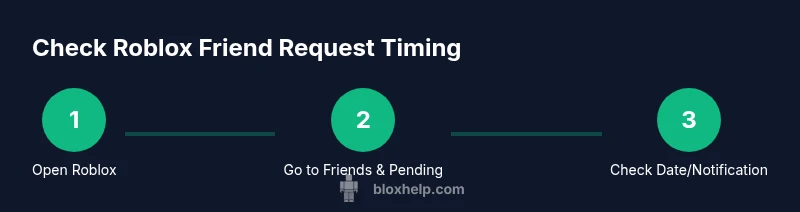
Desktop method: Check timing on the Roblox website\n\n1. Open a web browser and go to the Roblox site; log in with your account. 2. Click your profile icon, then choose Friends from the menu and select Pending to view sent and received requests. 3. Locate the specific friend request you want to verify and look for a timestamp or date next to the line item. If you see only a relative label like Today or Yesterday, take note of the calendar day and compare it with when you remember interacting with that person. 4. If the site version you use doesn’t display a timestamp, check the Notifications page (the bell icon) for a matching entry; times there may be more explicit in some builds. The goal is to correlate the observed date with your memory. 5. Record the result in your notes, especially if you sent multiple requests in a short period. 6. Sign out securely when finished. If you follow these steps, you’ll have a clear reference for when a particular friend request was sent, reducing confusion in future sessions.
Mobile method: Check timing in the Roblox app\n\n1. Open the Roblox mobile app and log in. 2. Tap the profile icon, then go to Friends > Pending to view requests. 3. Find the relevant request and check for a date or time indicator next to the item. If only relative timing appears, note whether it shows Today, Yesterday, or a specific date. 4. If the Pending view lacks timestamps, switch to the Notifications tab (the bell) and look for an entry that matches the request. 5. Use the observed date as your reference and save any notes for future recall. 6. Exit the app securely when you’re done to protect your account.
Understanding date formats and what counts as 'time sent'\n\nOn Roblox, the exact time may not always be shown. Some versions display a date such as 2026-02-15 or a relative label like Today, Yesterday, or X days ago. When an exact time isn’t visible, use the date or relative time as a reference and align it with your activity history. For example, if you remember playing with a user on a certain date, you can infer that the request was sent within a close window. This section helps you interpret what you see rather than forcing a precise timestamp that the UI might not provide.
Special cases: When timestamps aren’t visible\n\nIf neither Pending nor Notifications show a timestamp on your device, you can still verify timing by cross-referencing events. Check in-game chat timestamps, recent party invites, or logs from events where you interacted with the requester. In some cases, the exact moment a request was sent is not exposed to players. In those cases, build a best-guess timeline and annotate it for future reference. As always, protect your information and avoid sharing sensitive data.
Alternative verification methods\n\nIf you need a solid reference and the UI doesn’t provide timestamps, you can rely on two safer alternatives: first, keep a personal log of your activity with dates when you send requests; second, use the Notifications feed as a secondary source of timing for the surrounding events (e.g., who you played with around the time of the request). These approaches help you verify timing without forcing the UI to display a strict timestamp.
Safety, privacy, and best practices\n\nAlways practice safe Roblox habits when handling friend requests. Do not share login information, and avoid exposing personal data in chat logs. If you suspect abuse or phishing, report the incident to Roblox support and document the observed timing. According to the Blox Help Editorial Team, keeping track of times and dates can improve your ability to detect unusual patterns and respond promptly.
Quick troubleshooting checklist\n\n• Confirm you are logged into the correct Roblox account. • Check both the Pending and Notifications sections for potential timestamp clues. • Remember that some platforms show only relative times; use the date shown as your anchor. • If you still can’t see any timing information, log out and log back in, or try a different device. • Keep a personal log for future reference.\n
Authority references and further reading\n\n- https://www.ftc.gov (Federal Trade Commission – Online safety guidelines)\n- https://www.ed.gov (U.S. Department of Education – Digital safety and privacy resources)\n- https://www.nytimes.com/section/technology (Major publication coverage on online behavior and safety)\n
What you learned\n\nBy following desktop and mobile steps, you learned how to locate available timing indicators for Roblox friend requests, understand their limitations, and apply practical notes to keep an accurate memory of when invites were sent. This knowledge helps you stay organized, safe, and ready to engage with your Roblox community.
Tools & Materials
- Roblox account with login access(Use your own account; never share credentials.)
- Device with internet access (PC, Mac, or mobile)(Stable connection improves UI responsiveness.)
- Roblox app or web browser(Ensure you have the latest version for best timestamp visibility.)
- Notepad or note-taking tool(Record observed dates/times for memory and reference.)
- Screenshots or screen recording (optional)(Helpful to document a timestamp when the UI shows it.)
Steps
Estimated time: 8-12 minutes
- 1
Log in to Roblox
Open the Roblox site or app and sign in using your credentials. This ensures your account data is up to date and you can access the Friends and Notifications sections.
Tip: Enable two-factor authentication to protect your account. - 2
Open the Friends menu
Navigate to your profile, select the Friends tab, and choose Pending to view friend requests that you’ve sent or received.
Tip: If Pending isn’t visible, try the main site instead of a beta client. - 3
Find the relevant request
Look for the specific username of the person you are tracking within the Pending list or in the Notifications feed.
Tip: On smaller screens, rely on the full username to avoid misidentification. - 4
Check the timestamp information
Look for a timestamp or date next to the request. If only a relative label is shown (Today/Yesterday), make a note of the day.
Tip: If no timestamp is present, move to the next step to cross-check via the Notifications feed. - 5
Cross-check via Notifications
Open the Notifications page (bell icon) and scan for a matching entry to corroborate timing.
Tip: Notifications may bundle events; scroll carefully to locate the exact item. - 6
Record your observation
Document the observed date or approximate time in your notes for future reference.
Tip: Having a running log reduces confusion if you send multiple requests. - 7
Log out securely
Sign out when finished to protect your account, especially on shared devices.
Tip: Close the app or browser window after logging out.
Questions & Answers
Can I see the exact date and time a Roblox friend request was sent?
In many Roblox interfaces, exact timestamps aren’t always exposed. Some versions show a date or relative time (Today, Yesterday). If the exact time isn’t visible, use the shown date as a reference and corroborate with notifications when possible.
Most Roblox interfaces don’t show the exact time a friend request was sent; use the date or relative time shown as your reference and check notifications if available.
Where in Roblox can I view friend requests and their timestamps?
Open the Friends section and select Pending to view requests. If a timestamp isn’t shown there, check the Notifications center for related entries that might include a date.
Go to Friends > Pending to view requests, and check Notifications if you need timing clues.
What if the request was accepted or withdrawn?
Once a request is no longer pending, Roblox generally doesn’t provide the exact send time. You may need to infer timing from the date of acceptance or related activity around that date.
If the request was accepted or withdrawn, you usually won’t get the exact send time; infer from related dates.
Does Roblox send email notifications about friend requests?
Roblox can send email notifications for some account activity, but this is not guaranteed for every friend request. Check your email settings and Roblox Notifications for available logs.
Emails aren’t guaranteed for every friend request; check Roblox Notifications for timing clues.
Can I see timing information for friend requests sent by others to me?
The timing visibility typically applies to activities around your account. For others’ requests to you, use Notifications and your activity history to establish timing when possible.
Timing for others’ requests depends on what Roblox shows in your Notifications.
What should I do if I still can’t see any timing information?
If timing isn’t visible, rely on your memory and any notes you’ve kept. You can also try on a different device or browser, as UI differences sometimes reveal timestamps.
If timing isn’t visible, use your memory and try another device if needed.
Watch Video
The Essentials
- Check Pending Requests for timing indicators
- Roblox may show relative times instead of exact timestamps
- Use Notifications as a secondary log when available
- Keep a personal log for accuracy
- Protect your account during checks