What Android Version Is Needed for Roblox: A Practical Guide
Learn which Android version Roblox requires, how to verify your device, update steps, and tips to optimize Roblox gameplay on Android.


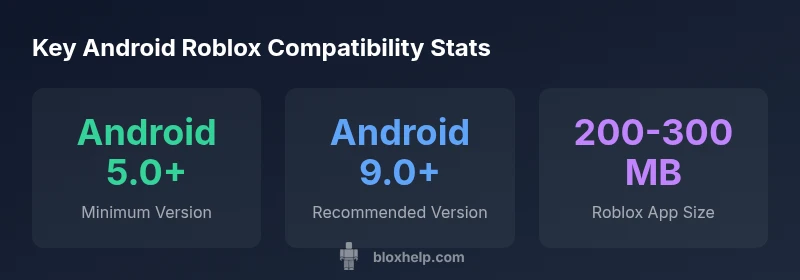
If you’re wondering what android version is needed for roblox, the concise answer is that Roblox supports Android devices running version 5.0 (Lollipop) and newer. For the best experience, aim for a more recent release (Android 9.0+) with the latest Roblox app installed. This ensures compatibility with current in-game features, graphics, and performance optimizations while reducing crashes on mid-range devices. Always verify both your OS and app are up to date before launching Roblox.
Android Version Basics for Roblox
When considering what android version is needed for roblox, it helps to start with the basics. Roblox is designed to run on a broad range of Android devices, but performance and stability improve with newer OS releases. According to Blox Help, the minimum supported version has historically been Android 5.0 (Lollipop) or newer, while current builds tend to favor more recent releases for features like improved textures, shaders, and smoother input handling. If you’re just getting started, ensure your device is on a supported Android version before you download Roblox. This foundation reduces the chance of crashes and helps you access the latest in-game content.
Also keep in mind that Android version is only part of the compatibility picture. Hardware factors like RAM, CPU, and GPU, as well as storage space, influence how smoothly Roblox runs on any given device. For players on older hardware, Roblox may run with reduced graphics quality or lower frame rates, even if the OS is up to date.
Minimum vs Recommended Android Versions
Understanding the difference between minimum and recommended Android versions can save you time and frustration. The minimum version determines whether the game will install and launch, but it doesn’t guarantee optimal performance. The recommended version indicates a safer baseline for consistent gameplay, fewer crashes, and better graphics. In practice, many devices on Android 6–7 run Roblox adequately, but some features—like particle effects, shadows, and higher resolutions—perform best on newer releases. If your device sits at or slightly above the minimum, consider lowering some graphics settings to maintain smooth gameplay. This approach aligns with best-practice guidance from the Blox Help team and helps manage expectations for performance on mid-range devices.
If you’re unsure whether your OS qualifies, use the built-in Android settings to check the version and compare it against the Roblox support page. Keeping your OS and Roblox app up to date yields the best balance of performance and compatibility.
How to Check Your Android Version
To verify your Android version, follow these steps: 1) Open Settings, 2) Tap About phone or System, 3) Look for Android version or Software info, 4) Note the version number. On some devices, you may need to go to Software update to see whether any updates are available. Before you install Roblox, ensure you have at least Android 5.0 or later. If you’re planning to push for the best experience, aim for Android 9.0 or newer if your device supports it. For devices close to the lower end of the spectrum, a quick check can prevent wasted time downloading an app that performs poorly on your hardware.
If you’re uncertain about vendor-specific menus, consult your device’s user guide or manufacturer support site. You can also compare your version against the Roblox system requirements page for Android.
How to Update Android and Roblox App
Updating both your Android OS and the Roblox app is often the simplest path to improved performance and compatibility. Steps to update Android vary by device, but typically involve Settings > System > Software update and following on-screen prompts. If an update isn’t available, you may be near the end of official support for your device, and you’ll want to optimize settings instead. For Roblox, open the Google Play Store, search for Roblox, and tap Update if available. Enabling automatic updates ensures you don’t miss new optimizations.
Before you launch Roblox after an update, restart your device and close other apps to free RAM. This small routine can help prevent stuttering and unexpected crashes on mid-range devices. The combination of a recent Android version and the latest Roblox app yields the most reliable experience.
Compatibility Across Devices and Features
Device compatibility isn’t solely about the Android version. RAM, CPU, GPU, and storage all contribute to performance. Roblox can run on devices with modest specs, but the experience improves with newer hardware and up-to-date software. Some features, such as advanced lighting or high-detail textures, may require a newer OS or more memory. If you experience lag, reduce graphics quality, turn off shadows, and limit concurrent apps. For those using older devices, consider playing at lower visual settings or using devices that explicitly meet the recommended version thresholds identified by the Roblox team and the Blox Help analysis.
Common Issues and Quick Fixes on Android
A common problem on Android is stuttering or freezing when launching Roblox. First, ensure both Android OS and Roblox app are updated. Next, clear the app cache or reinstall Roblox if issues persist. Check your internet connection, as Roblox relies on stable data streams for multiplayer sessions. If you suspect a device hardware limit, try lowering the in-game graphics settings to reduce RAM and GPU load. Another frequent cause is insufficient storage; ensure you have enough space for assets and temporary files. If problems continue, consult Roblox’s official troubleshooting pages and consider testing on a different Android device with a more recent OS.
Performance Tuning for Roblox on Android
Performance optimization often comes down to balancing visuals with device capabilities. On Android, you can:
- Use the lowest viable graphics quality for smoothness on older devices.
- Disable resource-heavy features (shadows, post-processing effects) when needed.
- Close background apps to reclaim RAM.
- Keep the Roblox app updated to benefit from performance patches.
- Ensure your device has sufficient storage to avoid swap-induced slowdowns.
These steps meet practical recommendations from the Blox Help team and align with typical Android performance tuning strategies for mobile gaming.
Alternatives: Roblox on Other Platforms
If your Android device can’t provide a satisfactory Roblox experience due to OS limitations, consider alternatives. Roblox is available on iOS, Windows, macOS, and Xbox platforms. Each platform has its own system requirements and optimization considerations. If you’re set on mobile gaming, iOS may provide a more consistent performance profile on similarly aged devices. For those who own a capable Windows PC or a gaming console, running Roblox on those platforms can deliver smoother gameplay with higher graphics settings. Exploring these options can help you enjoy Roblox with fewer device-related constraints.
Future Updates and What to Expect
Roblox developers frequently update the game to introduce new content and improve performance on a wide range of devices. As Android evolves with new releases, Roblox aims to maintain broad compatibility while capitalizing on improved graphics and efficiency. While it’s impossible to predict every change, staying on a recent Android version and keeping Roblox updated generally ensures access to the latest features and bug fixes. The Blox Help team encourages players to monitor both Android OS updates and Roblox release notes to anticipate changes in compatibility and performance.
Android version requirements for Roblox on Android
| Aspect | Minimum Version | Recommended Version | Notes |
|---|---|---|---|
| Android Version | Android 5.0+ | Android 9.0+ | Higher versions improve stability and features |
| Roblox App Version | Latest supported on device | Latest Roblox app | Update regularly for best performance |
| Performance Factors | Low to mid RAM | Mid to high RAM | GPU, storage, and background apps matter |
Questions & Answers
What is the minimum Android version required to play Roblox on mobile?
Roblox supports Android 5.0 and newer as the minimum version. However, performance will improve with newer OS releases and a modern device. Always verify your version before installing the game.
Roblox runs on Android 5.0 and up, but newer versions give you a smoother experience.
Can I play Roblox on an older Android device?
Yes, you can often play Roblox on older Android devices that meet the minimum version, but you may experience lower graphics, reduced frame rates, or longer loading times. Consider lowering graphics and closing background apps.
You can play on older Android devices, but you may need to lower graphics and close other apps.
Does updating Android always improve Roblox performance?
Updating Android and the Roblox app helps stability and compatibility, but performance also depends on hardware. If updates aren’t available, optimizing settings and freeing resources can help.
Updates help, but hardware matters too; optimize settings if you can’t update.
Do I need Google Play Services to run Roblox on Android?
Yes, Google Play Services are typically required for the Roblox Android app to function correctly, as they provide essential services like authentication and updates. Ensure they’re up to date.
Roblox relies on Google Play Services for proper function; keep them updated.
Will Roblox run better on a newer Android device?
In most cases, newer devices with recent Android versions deliver smoother gameplay, higher graphics quality, and fewer crashes. If you’re chasing performance, upgrading the device is often more effective than chasing minor OS updates.
A newer device usually means better performance and fewer issues.
“In practice, keeping both your Android OS and the Roblox app up to date yields the most reliable mobile Roblox experience.”
The Essentials
- Know the minimum Android version (5.0+) and aim for Android 9.0+ for best results
- Check your OS and Roblox app version before playing to avoid issues
- Update Android and Roblox regularly to access new features and stability
- Optimize settings for your device to maximize performance
- If Android limits persist, consider Roblox on another platform for smoother gameplay