Removing Roblox Parental Controls: A Step-by-Step Guide
Learn how to remove Roblox parental controls safely with a complete step-by-step guide. This article covers guardian PINs, account settings, device restrictions, and troubleshooting to help you regain access responsibly.


By following this guide, you’ll learn how to remove parental controls on roblox by confirming guardian permissions, locating the parental PIN, and adjusting account settings. The steps cover both web and mobile flows, plus troubleshooting tips and safety reminders to protect younger players. Get the full steps and safeguards in the detailed sections below.
What are Roblox parental controls and why remove them?
Parental controls in Roblox are designed to help guardians manage what younger players can access, how long they play, and what content is visible. Understanding how to remove parental controls on roblox is important when a player has reached a suitable age or when guardians update their safety preferences. This guide walks you through the legitimate, safe paths to adjust or remove these settings, emphasizing accountability and responsible access. You will learn what each control does, how to request changes, and what to do if you can’t access the guardian account
Tip: Always discuss changes with the guardian or account owner to maintain trust and safety.
Layers of control you might encounter
Roblox parental controls can exist at multiple layers: (1) guardian PIN or password controlling the Roblox account settings, (2) a guardian account dashboard that lets you adjust restrictions, and (3) device-based restrictions or third-party parental control apps that can limit Roblox launches. Each layer may require different verification steps. Before proceeding, identify which layer applies to your situation so you target the correct settings. Failing to address the right layer can cause confusion or incomplete changes.
- Guardian PIN or password: required to make permanent changes.
- Guardian account dashboard: access through the guardian’s Roblox account.
- Device restrictions: some devices have built-in controls that may still block content even after Roblox changes.
Prerequisites and safety considerations
Before attempting removal, verify you have legitimate access to modify settings. If you’re a minor, parental involvement is typically required to change controls. Gather the following: your Roblox username, the guardian’s login credentials or PIN, an accessible email or phone for verification, and a plan for what content and playtime limits you’ll use afterward. If you can’t verify ownership, do not attempt to bypass controls—this protects you and the wider player community.
Safety reminder: Never share guardian credentials with other players or third parties. Only use official Roblox channels to update security settings.
When removal is appropriate and how to prepare
Removal should be considered when a player is mature enough to handle broader access and when guardians are comfortable with adjusted safety settings. Prepare by outlining acceptable content, setting reasonable playtime caps, and establishing accountability measures (like periodic reviews). Talk with all guardians involved and document any changes. If you are unsure, consider a gradual relaxation instead of a full removal, which preserves a safety net while allowing more flexibility.
- Define content boundaries before changing controls.
- Set a clear schedule for re-evaluation.
- Keep a record of changes for future reference.
The removal process: a high-level overview
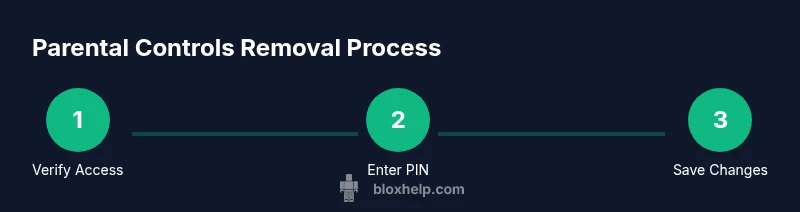
There isn’t a single button that “unlocks” Roblox parental controls for everyone; the process depends on who administers the controls. If you have guardian access, you’ll typically navigate to the account settings, locate parental control options, and either disable restrictions or adjust them to the new baseline. If PINs or guardian verification are required, you’ll need to enter the PIN or perform the verification steps. Always save changes and recheck by logging out and back in to confirm the new access level.
- Expect possible verification prompts during the process.
- Changes may take a moment to propagate across devices.
Troubleshooting common issues and safe alternatives
If you can’t access the guardian PIN or the guardian account, use Roblox Support to verify ownership and request assistance. Do not attempt to bypass protections; guardians should maintain visibility into the changes. Alternatives to removal include: (a) adjusting rather than removing restrictions, (b) implementing time limits and content-specific allowances, or (c) enabling parent notifications to monitor activity without fully lifting controls.
- Verify you have the right account and guardian information before contacting support.
- Document every change for future reference.
After removal: maintaining safe play and ongoing monitoring
Once controls are adjusted or removed, establish a safe play routine that aligns with the player’s age and maturity. Consider periodic reviews, content filters, and chat safety settings. Maintain open communication with guardians and players about what content is allowed and how playtime will be managed. Regular checks help prevent unintended exposure to content that isn’t age-appropriate and keep the Roblox experience positive and safe.
- Schedule quarterly reviews of settings.
- Keep a log of changes and outcomes.
- Revisit device restrictions if problems reappear on other devices.
Tools & Materials
- Roblox account credentials(Use guardian account credentials if you are the guardian; ensure you have authorization.)
- Guardian PIN or parental-control PIN(Needed to modify restrictions in the guardian control panel or account settings.)
- Access to guardian email/phone for verification(Needed to complete identity verification if prompted by Roblox.)
- Device with internet access(PC, tablet, or mobile device to reach Roblox settings)
Steps
Estimated time: 15-30 minutes
- 1
Verify you’re eligible to modify settings
Confirm you have legitimate access to the guardian account or the account owner. If you’re a minor, involve a guardian before making changes.
Tip: If you’re unsure, pause and discuss with the guardian to avoid accidental overreach. - 2
Sign in to the guardian or owner account
Open Roblox on your device and log in with the guardian or account owner credentials. This step confirms you’re authorized to adjust restrictions.
Tip: Use a trusted device and keep credentials secure; avoid saving passwords in shared locations. - 3
Navigate to Parental Controls or Safety settings
In the account settings, locate the Parental Controls or Safety/Security section where restrictions are defined.
Tip: If the path differs by device, use the help/search function and look for ‘Parental Controls’ or ‘Guardian PIN’. - 4
Enter the guardian PIN or verify ownership
Provide the PIN or complete the verification prompts to access control options.
Tip: If the PIN is forgotten, proceed to the next step to recover it through official channels rather than guessing. - 5
Adjust or remove the restrictions
Toggle off the relevant protections or increase allowed content and playtime limits according to the new plan.
Tip: Document the changes and agree on a re-evaluation timeline with all guardians. - 6
Save changes and test access across devices
Save the updated settings, then sign out and back in to verify changes on web and mobile.
Tip: Test with a safe content check to ensure the changes worked as intended; monitor for device-specific caches. - 7
If PIN or access isn’t possible, contact Roblox Support
Use the official support portal to verify ownership and request assistance with parental controls.
Tip: Prepare proof of ownership and identity; avoid sharing sensitive information in public channels.
Questions & Answers
Can a child remove parental controls without a guardian?
Usually not. Parental controls are designed to protect younger players, and changes typically require guardian access or verification.
Usually not; guardians must authorize changes to the controls.
What if I forgot the guardian PIN?
If the PIN is forgotten, contact the guardian to reset or use Roblox support for identity-verified recovery.
If you forgot the PIN, reach out to the guardian or Roblox support for help.
Will removing parental controls affect safety?
Removing controls can unlock more content; consider adjusting rather than removing to maintain safeguards.
Removing restrictions can increase content access; weigh safety needs first.
Are there alternatives to full removal?
Yes. Adjust restrictions, set content filters, and enable time limits rather than lifting all controls.
You can adjust limits and filters instead of removing all protections.
How long does removal take?
Times vary depending on verification steps; have patience and follow official prompts for accurate progress.
It varies, depending on verification; you’ll be guided by prompts.
How to contact Roblox support about parental controls?
Use the official support portal, provide ownership proof, and follow guided steps to recover or adjust controls.
Use Roblox’s official support with proof of ownership.
The Essentials
- Understand layers of parental controls before changing settings
- Use guardian PINs and verified guardianship to modify controls
- Consider gradual adjustments instead of full removal initially
- Document changes and re-evaluate safety regularly
- If in doubt, contact Roblox Support through official channels