How to Redeem a Code on Roblox
Learn how to redeem a code on roblox with this comprehensive guide. Desktop and mobile methods, common mistakes, safety tips, and how to verify your rewards.


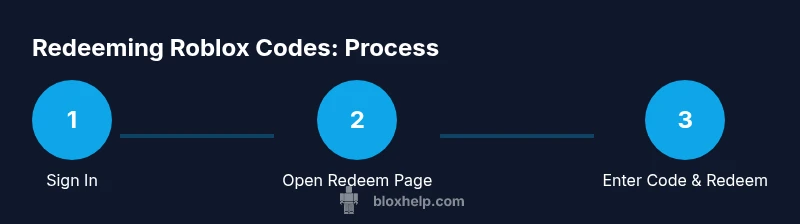
Signing in to Roblox, go to the redemption page, and enter the code exactly as shown. You’ll receive Robux or a catalog item after tapping Redeem, then verify your balance or inventory. This guide explains how to redeem a code on roblox on desktop or mobile.
Roblox code redemption basics
Codes unlock Robux or exclusive items and are a central part of Roblox promotions and gifts. If you’re wondering how to redeem a code on roblox, this section shows the core concepts you need before you start. Codes are typically single-use and may expire, so always redeem promptly. Keep codes private and never share them in public chats or forums. The official redemption flow is accessible from the Roblox website at roblox.com/redeem or via the Roblox mobile app. The result depends on the code type: a Robux credit, a catalog item, or sometimes both. Some codes are site-wide promotions tied to events, while others are gift cards you redeem to your account balance. In all cases, you must be signed into the intended account to receive the reward. If you encounter a problem, consult the troubleshooting section of this guide before contacting support.
Types of codes you might encounter
Roblox codes come in several forms, including gift-card codes that add Robux to your balance and promo codes that unlock specific items or limited-time bonuses. Gift-card codes are typically purchased from retailers, while promo codes are distributed during events or partnerships. Some codes deliver Robux directly, others grant a clothing item or avatar accessory, and a few unlock both. Always verify the source of a code to avoid scams, and remember that single-use codes may expire or be limited by region. Keeping track of your codes in a written list or a password manager can help prevent reuse or typos.
Step-by-step on desktop: through the Roblox site
To redeem a code on roblox via desktop, start by logging into your account and navigating to roblox.com/redeem. Type the code exactly as it appears, paying attention to letters and numbers that can look similar. Click Redeem and wait for a confirmation banner indicating success. If you received Robux, open the Avatar or Robux balance area to confirm the addition. If you got an item, check your catalog or inventory after refreshing the page. Always sign out if you’re using a shared computer to protect your account.
Step-by-step on mobile: using the Roblox app
On mobile, you can redeem codes by opening the Roblox app and visiting the redemption page through a browser link or in-app menu if available. Sign in, locate the redemption field, and carefully enter the code. Tap Redeem and wait for a success message. If Robux are added, they’ll appear in your balance; if an item, check your catalog once you’ve refreshed the app. Remember that mobile keyboards can misplace characters, so double-check before submitting.
Common mistakes when entering codes
Typos are the most common issue when redeeming codes. Always copy-paste or carefully retype each character, watching out for confusing digits like 0 and O or 1 and I. Codes may be case-sensitive, and spaces can ruin a code, so avoid extra spaces before or after. Use the official Roblox channel for redemption to prevent phishing attempts. Avoid entering codes from dubious sources or chats offering instant rewards, as these are frequent scams.
Troubleshooting: codes not working
If a code doesn’t work, first double-check the source and expiration date. Confirm you’re signed into the correct Roblox account. Re-enter the code accurately and try again. If it still fails, contact Roblox Support with the code, screenshot, and proof of purchase (if applicable). Keep a record of failed attempts to help support diagnose the issue more quickly.
Understanding rewards: Robux vs items
Rewards differ by code type. Some codes add Robux directly to your balance, while others unlock catalog items or avatars. In some cases, you’ll see both Robux and an item, but this is not guaranteed for every code. If a reward isn’t visible, check your balance and inventory after a short refresh. Always verify that the reward type matches the source to avoid confusion later.
Security practices when redeeming codes
Only redeem codes from trusted sources like official Roblox promotions or gift-card purchases. Never share your code publicly or enter codes on suspicious third-party sites. If a code is exposed publicly, consider changing your account credentials and enable two-factor authentication where available. Keeping your login details private reduces the risk of unauthorized redemptions and account compromise.
Checking rewards and managing your inventory
After redemption, Robux shows in your balance and items appear in the catalog or inventory depending on the code. To manage items, go to the Avatar Editor or Catalog page and equip newly unlocked gear or clothing. For Robux, visit the balance area to confirm the credited amount. If something seems off, revisit the redemption page and verify the code details; if needed, contact support with evidence of the code and its source.
Tools & Materials
- Roblox account with active login(Ensure you are signed in to the account you intend to credit.)
- Device with internet connection(Desktop, laptop, tablet, or smartphone.)
- Valid Roblox code (gift card, promo code, or event code)(Only redeem codes from official sources.)
- Web browser or Roblox app(Use Chrome/Edge/Safari or the Roblox app.)
- Optional: screenshot of the code(Helpful if the code fails or you need to dispute.)
Steps
Estimated time: 15-25 minutes
- 1
Prepare your account and device
Sign in to Roblox on the device you plan to use for redemption. Make sure you’re on a secure network and that your device isn’t shared with others who could see your code. This pre-check reduces the chance of errors during entry.
Tip: Have your code ready in a separate window or note to avoid typos. - 2
Access the redemption page
Open the Roblox redemption page at roblox.com/redeem on desktop, or navigate to the equivalent page in the mobile app. If you’re using a QR code or promo link, follow the site’s instructions to reach the entry field.
Tip: If a direct link is blocked, search for “Roblox Redeem Code” on Roblox’s official site. - 3
Enter the code accurately
Type the code exactly as shown, paying attention to letters and numbers that look similar. Do not include spaces before or after the code.
Tip: Double-check confusing characters like 0 (zero) vs O (letter). - 4
Click Redeem
Submit the code by clicking Redeem and wait for a confirmation message. This step finalizes the transfer of Robux or the item to your account.
Tip: If the page doesn’t respond, refresh the page and try again. - 5
Verify the reward
Check your Robux balance in the account overview or the catalog/inventory for newly unlocked items. Some codes show Robux immediately while others grant items that require equipping.
Tip: Refresh the page or reopen the app if you don’t see the reward right away. - 6
Handle issues calmly
If redemption fails, re-enter the code slowly, ensure no spaces, and check the code’s expiration. If issues persist, contact Roblox Support with the code details.
Tip: Avoid panicking; most problems come from typographical errors. - 7
Secure your code
Never share your code publicly or in non-official channels. Treat codes like cash and store them safely until redeemed.
Tip: Use a password manager to keep codes secure. - 8
Record and learn
Note where you obtained the code and the date of redemption. This helps you track valid codes and reduces repetition of failed attempts.
Tip: Keep a simple log of redeemed codes for future reference.
Questions & Answers
What is the simplest way to redeem a Roblox code?
Sign in to Roblox, go to roblox.com/redeem (or use the mobile app if available), enter the code exactly as shown, and click Redeem. Check your balance or inventory for the reward.
Sign in, visit the Roblox redeem page, enter the code, and Redeem to see your reward.
Can I redeem codes on mobile devices?
Yes. You can redeem codes using the Roblox mobile app or a browser on your phone. Enter the code on the redemption page and redeem as you would on desktop.
You can redeem codes on mobile by using the Roblox app or mobile browser.
What happens if a code is expired or invalid?
Expired or invalid codes will be rejected by Roblox. Double-check the code source, ensure it hasn’t expired, and try a valid code from a trusted source.
If a code doesn’t work, it might be expired or invalid. Check the source and try a valid one.
Are codes region-locked or limited to certain accounts?
Some codes can be region-locked or require a specific account status. Always verify terms on the official source and redeem with the intended account.
Codes may have regional restrictions or account requirements.
I don’t see my reward after redeeming. What should I do?
Refresh the page/app, then check your balance and inventory. If still missing, log out and back in, or contact Roblox Support with proof of redemption.
Refresh or re-login, then check balance or inventory; contact support if needed.
Can I redeem multiple codes on the same account?
Yes, you can redeem multiple valid codes on the same Roblox account, as long as each code is unused and within its terms.
You can redeem several codes per account as long as they’re valid.
The Essentials
- Redeem codes only from official sources.
- Double-check the code for typos before submitting.
- Verify rewards in balance or inventory after redemption.
- Use desktop or mobile app consistently to avoid interface issues.
- Keep codes private and monitor account activity for suspicious changes.