Two-Player Roblox Guide: How to Play Together
Learn how to play Roblox with a friend in two-player mode, from setup and invites to private servers, with practical steps, troubleshooting, and safety tips for beginners.


To play as a 2 player on Roblox, both players should have active accounts and meet in-game requirements. Start by choosing a co-op friendly game, then join via the same server or private server link. Ensure you’re on compatible devices and have the game’s permissions set for multiplayer. With a few taps, you and a friend can tackle puzzles, battles, or adventures side-by-side.
Understanding why two-player play matters on Roblox
Two-player experiences unlock collaborative problem-solving, shared challenges, and social bonding. For many players, tackling a game with a friend is more engaging than solo play. According to Blox Help, the most valuable starting approach is to pick titles that explicitly support co-op or two-player modes, then align both players on the same platform and game version. When both players join, you can share roles, coordinate strategies, and learn advanced mechanics faster. This section explains how two-player play behaves across different games, from simple obstacle courses to expansive adventure experiences, and why it matters for learning Roblox scripting and teamwork. By emphasizing cooperation, players build communication skills and strategic thinking that transfer to more complex Roblox projects.
Choosing the right game for two players
Not every Roblox title supports two players in the same session, so your first step is to select games with built-in co-op or split across devices. Look for clear mentions of “two players,” “co-op,” or “group play” in the game description. If a game offers private servers or group lobbies, that’s a strong sign it’s designed for shared play. Based on Blox Help analysis, co-op titles tend to emphasize role-based teamwork, clear shared objectives, and shorter session lengths that are easy to coordinate with friends. If you’re new, start with a simple obstacle course or exploration game to practice communication before moving to more complex strategy titles.
Planning your two-player session
Plan ahead by confirming each player’s account status, device compatibility, and a time window when you can play without interruptions. Ensure both accounts are in good standing, privacy settings allow multiplayer invites, and you’ve added your partner as a friend or have a shareable lobby link. A quick pre-play checklist helps prevent mid-session friction. The Blox Help Editorial Team recommends outlining each player’s role (e.g., builder vs. navigator) to reduce confusion and keep the session focused. This planning phase sets the foundation for a smooth, enjoyable co-op experience.
How to invite a second player and join a game
Inviting a friend typically involves launching Roblox, selecting a co-op game, then choosing the invite option or sharing a private server link. If the game uses a public server, you can join and ask your friend to follow shortly. Some titles require you to be friends on Roblox or to enter a private code. Keep in mind that not all games support cross-platform invites, so check the game page for platform compatibility and multiplayer options. The key is to coordinate the exact lobby or server you’ll use before you both click to join.
Managing controls and interfaces for co-op
Co-op play often shares controls across players, but some titles assign roles or camera perspectives differently. Take a moment to customize controls if the game supports it, and agree on in-game chat or voice communication methods. In games with split-screen or shared views, decide how you’ll observe game state and communicate urgent calls. Practicing basic callouts (e.g., “I’ve got this,” “front-left needs help”) improves reaction time and reduces miscommunications during tense moments.
Troubleshooting common issues
If you encounter lag or a failed invite, verify both players have stable internet, compatible game versions, and consistent region settings. Some games require you to be friends or share a private lobby link; confirm those prerequisites before retrying. If one device cannot load the game, check device compatibility notes or search for alternative servers that allow two-player sessions. Always restart the game and rejoin the lobby after any major update to minimize connection problems.
Safety, privacy, and parental controls
Two-player sessions should be set up with safety in mind, especially for younger players. Review Roblox privacy settings to control who can contact you and who can join your games. Use parental controls to limit chat-related interactions and to approve friend requests. It’s a good practice to play in age-appropriate games and avoid sharing personal information. The goal is to keep multiplayer experiences fun and safe while exploring Roblox together.
Enhancing play with private servers and worlds
Private servers allow you to host a controlled two-player session with a friend, removing random matchmaking and improving stability. Some games require Roblox Premium or a dedicated server pass to create or access private servers; check the game’s page for pricing and permissions. Private servers are ideal for practicing co-op sequences, building together, or running themed challenges without interference. This setup also encourages longer play sessions and fosters teamwork as you iterate on shared goals.
Quick-start checklist for a first 2-player session
- Both players have active Roblox accounts and updated apps
- You’ve selected a co-op game with private server options if needed
- You agreed on voice or text communication method
- You’ve confirmed privacy settings allow multiplayer invites
- You’ve joined the same lobby or server ahead of time
- You’ve assigned initial roles and outlined a simple objective to begin
What to expect in higher-skill co-op games
As you level up your two-player sessions, you’ll encounter more complex puzzles, tighter coordination, and faster pace. Expect longer sessions, more strategic planning, and the need for clearer role definition. Use debrief moments after play to share what worked well and what could be improved. The journey from casual co-op to more challenging collaborations is a natural progression that keeps multiplayer experiences engaging.
Tools & Materials
- Stable internet connection for each player(Wi-Fi or wired connection with adequate bandwidth to support online multiplayer)
- Roblox accounts for both players(Active accounts with verified emails; ensure age-appropriate privacy settings)
- A compatible device for each player(PC, Mac, iOS, Android, Xbox, or other supported platforms)
- A co-op game or title that supports two players(Check game page for two-player mode, private servers, and cross-platform support)
- Communication method(In-game chat, built-in voice chat (where available), or an external headset)
Steps
Estimated time: 20-40 minutes
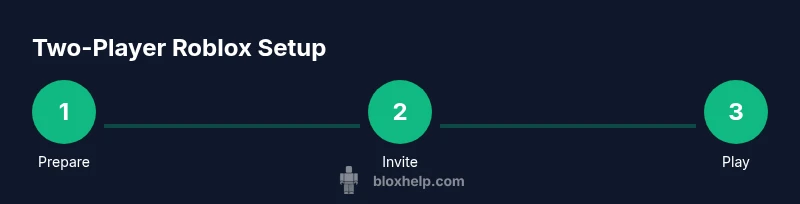
- 1
Prepare player accounts
Both players log into Roblox on their devices and verify that privacy settings allow multiplayer invites. If you’re new, add your friend or share a lobby link so you can connect easily.
Tip: Double-check that both accounts are set to allow friends to join games. - 2
Find a suitable two-player game
Browse the Roblox Games catalog and filter for co-op or two-player modes. Read the game description to confirm multiplayer support and any private server requirements.
Tip: Prioritize games with in-game tutorials or beginner-friendly co-op modes. - 3
Decide on an invites method
Choose whether to invite via the Friends list or share a private server link, if the game supports it. Ensure your friend accepts the invitation before starting.
Tip: If using a private server, save the link or code in a quick-access note for easy reuse. - 4
Launch the session and assign roles
Enter the game together, then designate roles (e.g., explorer, builder, healer) to minimize overlap and confusion.
Tip: Agree on a basic communication protocol for critical moments. - 5
Communicate effectively during play
Use in-game chat or voice chat to coordinate actions and share information about objectives, enemy spawns, or obstacles.
Tip: Practice concise, action-focused calls to keep momentum. - 6
Wrap up and save progress
When you reach a checkpoint or finish a session, save progress if the game supports it and note what to tackle next time.
Tip: Document a quick recap of what worked well to improve future sessions.
Questions & Answers
Can two players play Roblox on the same device?
Yes, many games support local co-op or shared-screen play on a single device, but features vary by title. Check the game page for two-player options and controls.
Yes, some Roblox games support co-op on the same device; check the game page to confirm.
Do both players need Roblox Premium for two-player sessions?
Not universally. Private servers and some co-op modes may require Premium or a game-specific pass, but many games allow standard accounts to play together without Premium.
Not always; some games require Premium for private servers, but many co-op games work with standard accounts.
Are there cross-platform limitations for two-player co-op?
Some titles restrict multiplayer to the same platform, while others support cross-platform play. Always check the game's platform compatibility before inviting a friend.
Some games work across platforms, others don’t—check the game details first.
How do I know if a game supports two players?
Read the game description to confirm two-player or co-op support, and look for mentions of private servers or group play features.
Look for two-player or co-op in the game description and private-server options.
What should I do if invites don’t work?
Verify both accounts and privacy settings, ensure the game version matches, and retry with a fresh lobby or server link.
Check settings, update game, and try a fresh lobby if invites fail.
Watch Video
The Essentials
- Choose games that explicitly support two-player co-op
- Plan with your partner and assign roles for clarity
- Private servers can stabilize your co-op sessions
- Prioritize safety by managing privacy settings and invites