Archive Roblox: A Practical Guide to Backups
Learn how to archive Roblox projects, places, scripts, and assets for personal backups. This step-by-step guide covers Roblox Studio exports, file organization, and safe storage with best practices.


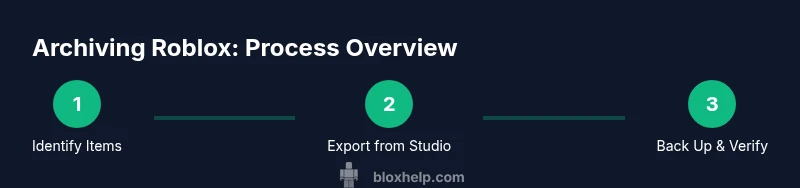
This guide shows you how to archive Roblox projects for personal backup. You will identify what to archive, export assets using Roblox Studio, and organize backups with version control and cloud storage. We'll cover legal considerations and best practices. You'll also learn how to archive scripts, models, and places you own, and how to preserve dependencies.
What archiving Roblox means
Archiving Roblox, often phrased as archive roblox, means creating durable backups of projects you own or have permission to preserve. The goal is to capture places, models, scripts, and associated assets so you can restore work after hardware failures, software updates, or human error. This mid-page section explains why a well-planned archive matters for long-term accessibility and project continuity, especially for aspiring developers who want to learn from their past builds. A solid archive also helps you share working references with team members or future collaborators without losing critical context.
What can be archived
You can archive several categories of Roblox content: Places (experiences you own or co-own), models and assets you created, scripts and code, and related configuration or metadata. Backups should preserve dependencies, such as assets your place loads at startup, external assets, and any required plugin configurations. By clarifying what to archive—down to dependencies—you reduce the risk of a broken restore. In practice, think in terms of a hierarchical structure: Places, Models, Scripts, Assets, and Documentation.
Legal and ethical considerations
Archiving your own Roblox content is generally permissible, but copying or archiving others' work without explicit permission is not advisable. Respect Roblox's Terms of Service and intellectual property rights. If you collaborate, establish ownership, access rights, and retention policies upfront. For educational and personal use, maintain backups that support your learning trajectory while avoiding distribution of proprietary content. This section emphasizes respecting creators and the platform while maintaining your own archives.
Preparation and planning
Start with a clear plan: inventory what you own, decide where backups will live, and define naming conventions and folder structures. Decide whether backups stay on local storage, cloud storage, or both. Create a simple inventory spreadsheet or checklist: item name, type (Place/Model/Script), author, last modified date, and location. Prepare the storage media and ensure you have enough space for full project archives. Planning minimizes last-minute data gaps and makes restores faster.
Practical archiving methods
The practical methods center on exporting Roblox content in reliable formats and organizing files for long-term access. From Roblox Studio, export places as .rbxlx or .rbxl files and save associated assets where possible. For scripts, backup the source files and any dependencies, ideally in a version-controlled repository. Use cloud storage with version history for critical backups and keep local copies for faster restores. Consider compressing archives to reduce space and improve transfer efficiency.
Organizing and preserving backups
Adopt a consistent folder structure, such as Archive/Roblox/Places, Archive/Roblox/Models, Archive/Roblox/Scripts, Archive/Roblox/Assets, and Archive/Roblox/Documentation. Maintain a metadata file describing each item, its dependencies, and the export date. Regularly verify integrity by attempting a test restore in a separate workspace. Document your process so others can replicate and maintain the archive over time.
Tools & Materials
- Roblox Studio(Used to export places and assets; ensure you are using the latest stable version.)
- External storage(External hard drive or SSD with ample space for full backups.)
- Cloud storage account(Google Drive, Dropbox, or equivalent with version history enabled.)
- Compression/archiving software(Zip tools (e.g., 7-Zip) to bundle backups for efficiency.)
- Version control system(Git or other DVCS to track script changes across backups.)
- Organizational folder template(Predefined schema to maintain consistency across backups.)
Steps
Estimated time: 1.5-3 hours
- 1
Identify what to archive
Create a master list of Roblox projects and assets you own or have permission to archive. Categorize into Places, Models, Scripts, and related Assets. This step sets the scope and prevents missing critical items.
Tip: Start with your most active projects to ensure you capture recent changes first. - 2
Export from Roblox Studio
Open Roblox Studio, select the item to archive, and use the export option to save as .rbxlx or .rbxl. For models and assets, export the associated files or resources. Document any dependencies needed to run or open the project later.
Tip: Export a complete snapshot, including textures and required plugins, to avoid missing assets during restore. - 3
Create a robust folder structure
Set up Archive/Roblox/{Places,Models,Scripts,Assets,Documentation}. Use meaningful names and dates. This makes retrieval fast and reduces confusion during restoration.
Tip: Include a README in each folder describing contents and last backup date. - 4
Back up scripts with version control
Store script files in a version-controlled directory to capture changes over time. Commit frequently with descriptive messages to track the evolution of your code.
Tip: Back up the repository both locally and in cloud storage to diversify copies. - 5
Document dependencies and metadata
For each item, write metadata such as author, version, required assets, and last modified. This ensures you can restore the item even years later.
Tip: Maintain a single master metadata file that links to each archived item. - 6
Verify backups with a test restore
Attempt to restore a copy in a separate workspace to confirm data integrity and compatibility. If issues arise, adjust the archive process accordingly.
Tip: Keep a log of any restore issues and how you fixed them for future archives.
Questions & Answers
What can I archive in Roblox?
You can archive places you own, models you created, scripts, and related assets. Archiving helps you restore projects later and learn from past work.
You can archive your own Roblox projects, including places, models, and scripts.
Is archiving Roblox projects against terms?
Archiving your own creations for personal backup is generally allowed. Avoid downloading or copying others' content without permission.
Archiving your own Roblox projects for personal use is generally fine, just respect others' IP.
What formats should I export?
Export places as .rbxlx or .rbxl and save assets and scripts using format that preserves their structure. Maintain dependencies where possible.
Export formats include rbxlx and rbxl for places; assets saved as appropriate files.
How often should I back up?
Back up after major changes and on a scheduled basis. Regular backups minimize data loss from unexpected issues.
Back up after big changes and try to automate regularly.
How do I verify backups?
Test by restoring a copy in a separate workspace to ensure dependencies and scripts run as expected.
Test your backups by restoring in a separate project.
What are best practices for security?
Store backups securely with encryption and strict access controls. Use strong credentials and two-factor authentication where available.
Keep backups secure with encryption and access controls.
Watch Video
The Essentials
- Define what to archive before exporting.
- Export Roblox content with dependencies in mind.
- Organize backups with a clear folder structure.
- Version-control scripts to track changes.
- Verify backups with a test restore.