Can You Play Roblox on FaceTime? A Practical Guide
Discover how to play Roblox while on Facetime with screen sharing. This guide covers device compatibility, setup steps, troubleshooting, privacy tips, and practical alternatives for a smooth, social Roblox session.


Yes—can you play roblox while on facetime? You can by sharing your screen. On iOS, use SharePlay or the FaceTime Screen Share option to broadcast Roblox to your caller; on a Mac, use FaceTime’s screen share to show the game. Ensure both devices have solid internet, Roblox is updated, and you adjust graphics if needed to maintain smooth gameplay.
Can You Play Roblox on FaceTime? What to Expect
Can you play roblox while on facetime? This practical guide explains how screen sharing can facilitate multiplayer gaming sessions with friends on calls. On supported devices, you can broadcast Roblox gameplay during a FaceTime conversation, but there are caveats: performance depends on your network, device capability, and how you configure in-game settings. In this guide, we'll cover steps, tips, and safety considerations to help Roblox players stay connected in real-time. According to Blox Help, many players seek streamlined ways to combine social chat with play sessions. The key idea is to keep the gaming experience seamless without breaking the flow of the call. If you’re a Roblox player aiming to squad up with friends during a call, this guide will walk you through practical, beginner-friendly steps to make it work.
Supported Devices and Requirements
To successfully play Roblox while on a Facetime call, you’ll need compatible hardware and software. iOS devices (iPhone or iPad) running iOS 15 or later support screen sharing during FaceTime, and Macs with macOS Big Sur or newer can share their screen directly from FaceTime. You should have the Roblox app installed and updated on the device you’ll broadcast from, a reliable internet connection (preferably stable Wi‑Fi or a strong mobile connection), and a FaceTime account on both ends. If you plan to test the setup, a secondary device can be helpful but is optional. Be mindful of battery usage, as screen sharing can drain power more quickly.
How Screen Sharing Works for Roblox on FaceTime
Screen sharing lets your caller view your device’s screen in real time. On iPhone or iPad, you’ll initiate Screen Share or use the Share Content feature in FaceTime to broadcast Roblox as you play. On a Mac, you can start a FaceTime call and choose to share your entire screen or a specific window. Important notes: the other person cannot control your Roblox game through screen sharing—the view is one-way. Privacy matters, so ensure any sensitive messages or notifications are hidden before you begin, and consider turning off notifications for the duration of the call when playing. Slower networks may cause lag; if you notice jitter, pause Roblox to allow the screen to catch up.
Step-By-Step: Quick Setup
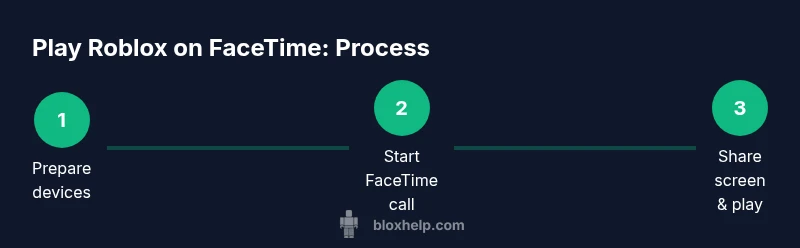
- Prepare devices and apps: Update Roblox on the primary device, update FaceTime if needed, and close unnecessary apps to free system resources. Tip: A quick reboot can clear lingering issues.
- Start a FaceTime call: Open FaceTime and select the contact you want to call. Tip: Use a quiet space to reduce background noise and improve audio clarity.
- Initiate screen sharing: On iOS, tap Share Content or Screen Share in the FaceTime controls; on Mac, choose Share Screen from the menu. Tip: Test the share with a short demo to ensure the viewer can see your Roblox window.
- Open Roblox: Launch the Roblox app or game you want to play and switch to full-screen if possible to maximize visibility. Tip: Disable in-game overlays that might clutter the screen.
- Optimize for performance: Lower in-game graphics settings if you experience lag and ensure your device isn’t overheating. Tip: Keep the device charged or plugged in.
- Start playing together: Once Roblox is visible, you and your friend can chat and play; avoid screen clutter by muting nonessential alerts. Tip: Use a separate chat channel if the game has voice options.
- Wrap up and reassess: End the call or stop screen sharing when finished. Tip: Review whether the call quality met both players’ expectations and note improvements for next time.
Troubleshooting Common Issues
If you run into lag or audio/video desynchronization, first verify your internet stability and consider lowering Roblox’s graphics. Ensure you aren’t running too many background processes on either device. If the screen sharing option is missing, update iOS or macOS and reopen FaceTime. Some apps may not support screen sharing as of your device’s software version, so consult Apple’s support docs for the latest capabilities. Privacy concerns can crop up if messages or notifications appear on screen; disable or hide sensitive content beforehand. If you’re unsure whether Screen Share is working on iOS or macOS, run a quick test with a friend or family member before your main session.
Privacy, Safety, and Best Practices
Screen sharing can expose on-screen content you did not intend to broadcast. Before starting a session, remove or hide sensitive information and disable pop-up notifications. Be mindful of what your friend can see, especially if you have private chats or other apps open. If you’re sharing from a mobile device on a cellular connection, monitor data usage and battery drain. When finished, end screen sharing and close the FaceTime call securely. For younger players, discuss privacy boundaries and establish ground rules for what gets shared during a call.
Alternatives and Advanced Tips
If direct screen sharing feels unstable, consider using a separate device to host the Roblox gameplay while your primary device handles FaceTime. You can place the two devices near each other or mount them for a shared viewing experience. For longer sessions, scheduling a dedicated Roblox playdate via FaceTime can help players coordinate times, avoid overlapping tasks, and manage expectations. Explore other apps with built-in screen sharing or streaming features if you need broader support beyond FaceTime.
Tools & Materials
- iPhone or iPad (iOS 15+)(Use Screen Share or Share Content in FaceTime to broadcast Roblox.)
- Mac computer (macOS Big Sur or newer)(FaceTime Screen Sharing works with Roblox running on your Mac.)
- Roblox app installed(Make sure Roblox is updated to avoid compatibility issues during streaming.)
- Stable internet connection(Wired Ethernet or strong Wi‑Fi is recommended for smooth streaming.)
- Secondary device for testing (optional)(Use to verify that screen sharing displays correctly before the main session.)
- Power source(Screen sharing plus gaming drains battery quickly; keep devices charged.)
Steps
Estimated time: 15-25 minutes
- 1
Prepare devices and apps
Update Roblox and FaceTime to the latest versions on both devices. Close nonessential apps to free up system resources and reduce background activity that could cause delays during streaming.
Tip: Run a quick test with a short scene in Roblox to confirm screen visibility. - 2
Start the FaceTime call
Open FaceTime and initiate a call with your friend. Choose a space with stable lighting and minimal interruptions to improve audio and screen readability.
Tip: Ask your caller to confirm they can see your screen clearly before starting Roblox. - 3
Enable screen sharing
On iOS, select Screen Share or Share Content in the FaceTime controls; on Mac, choose Screen Share from the menu. Wait a moment for the other person to connect.
Tip: If you don’t see the option, update your OS or restart FaceTime. - 4
Launch Roblox
Open Roblox and navigate to the game or experience you’ll play. If possible, switch Roblox to full-screen to maximize visibility for the caller.
Tip: Disable on-screen overlays that might obstruct important gameplay visuals. - 5
Tune performance
Lower in-game graphics or resolution if you notice lag. Keep background apps closed and monitor device temperature to avoid throttling.
Tip: Keep a handy pause command in case the call needs a quick break without disturbing gameplay. - 6
Play and chat
Play Roblox while your caller views the screen. Maintain a steady chat flow and manage audio so both sides enjoy the session.
Tip: Mute nonessential game sounds if they clash with call audio. - 7
Conclude the session safely
End screen sharing first, then Hang Up FaceTime when you’re ready. Review what worked well and plan adjustments for future sessions.
Tip: If privacy concerns arise, clear any on-screen content before ending the call.
Questions & Answers
Can you play Roblox on FaceTime with friends who aren’t on Apple devices?
Screen sharing experiences are strongest on Apple devices with FaceTime. Android users may not have the same screen sharing capabilities in FaceTime and should consider alternative call apps or other screen-sharing solutions.
Screen sharing on FaceTime is primarily an Apple feature; Android users may need different apps for screen sharing.
Will screen sharing affect Roblox performance?
Screen sharing adds extra data to transmit, which can affect performance if the network isn’t strong. To minimize issues, reduce in-game graphics, close unused apps, and use a stable Wi‑Fi connection.
Screen sharing can increase bandwidth usage, so keeping the graphics low and using good Wi‑Fi helps.
Is it safe to share my screen during a FaceTime call?
Yes, as long as you hide sensitive content and disable on-screen notifications. Always review what will be visible before starting the session.
Yes, just hide sensitive info and notifications before you begin.
Do both players need Roblox installed or updated?
Both players should have Roblox installed and updated to ensure the shared screen displays correctly and gameplay runs smoothly.
Both of you should have Roblox updated for the best experience.
Can I use this on a non-Apple device?
FaceTime is primarily Apple-based. If you’re on non-Apple hardware, use a different video call app that supports screen sharing and follow the app’s own screen-share instructions.
Non-Apple devices usually need a different screen-sharing app.
What should I do if the screen share isn’t visible to the caller?
Check that screen sharing is enabled in the FaceTime controls, confirm permission prompts, and ensure Roblox isn’t running in a background tab. If needed, restart the call and try again.
If the screen isn’t visible, retry sharing after restarting the call.
Watch Video
The Essentials
- Test screen sharing before playing
- Prioritize network stability for smooth gameplay
- Protect privacy by hiding sensitive content
- Understand one-way viewing—friends can see but not control
- End sessions securely and review performance