How to Play Roblox on a Computer: A Complete PC Guide
Learn how to play Roblox on a computer (Windows/macOS). This guide covers setup, accounts, optimization, safety, and troubleshooting for smooth gameplay.


You can play Roblox on a computer by downloading the Roblox Player, creating a Roblox account, and launching games from the Roblox catalog or desktop app. This quick guide covers PC setup, system requirements, safety basics, and optimizing settings to ensure smooth gameplay on Windows or macOS. Follow the steps below to start playing right away and tailor controls to your preferences.
Welcome to Roblox on PC: What You’ll Achieve
Playing Roblox on a computer gives you precise keyboard and mouse control, access to a wider catalog of games, and the ability to customize settings to fit your environment. In this guide, you’ll learn how to download Roblox, sign in, adjust graphics and controls, and find safe, enjoyable experiences with friends. According to Blox Help, a practical PC setup emphasizes clear steps, safety practices, and performance tuning to help you focus on gameplay rather than installation hassles. By the end of this section, you’ll have a solid plan to start Roblox on Windows or macOS, including recommendations for optimal input devices and a layout that supports long play sessions.
System requirements and compatibility
Roblox supports modern Windows and macOS builds, and it runs in most common browsers as well as the official app. Before you start, ensure your computer meets a stable baseline: a recent operating system, a working internet connection, and permissions to install software. If you’re unsure, visit Roblox’s official system page to confirm compatibility. It's also wise to update your graphics drivers and consider enabling performance modes in your OS. With a reliable PC setup, you’ll experience faster launches, reduced freezes, and smoother animation in Roblox titles across genres—from action and adventure to simulation and social hangouts.
Download and install Roblox on PC
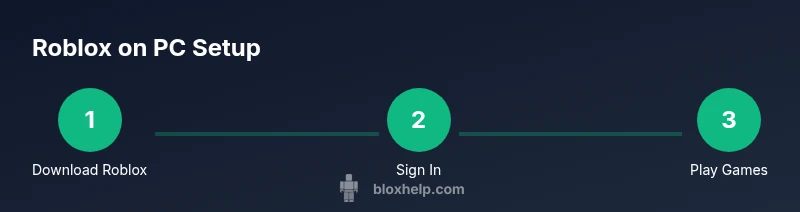
To begin, go to the official Roblox website and download the Roblox Player for your operating system. Run the installer and follow the on-screen prompts to complete the setup. After installation, log in or create a new account. You’ll then be prompted to install the Roblox Player on Windows or macOS, which is required to launch most games. If you encounter prompts to install related components, accept them to ensure full functionality and access to the game catalog.
Create or sign in to your Roblox account
Open the Roblox app or website and sign in with your credentials. If you don’t have an account, create one using a valid email or phone number. Once you’re signed in, personalize your avatar and adjust basic privacy settings from the account menu. It's a good habit to enable two-factor authentication or use a strong password. This foundation keeps your progress, inventory, and friends list secure as you explore the Roblox universe.
Navigating the Roblox interface and finding games
Explore the main home screen to find curated picks, trending games, and creator content. Use the search bar to find specific titles, genres, or friends’ profiles. Each game page shows a thumbnail, a description, player counts, and user reviews. When you’re ready, click Play to launch. Take note of game requirements and in-game physics, as some titles run differently on PCs due to optimization and input differences. Save favorites to your library for quick access.
Optimizing performance for Roblox on PC
Performance depends on graphics settings, input devices, and network stability. Start with a mid-range graphics preset and adjust upward if your PC handles it. Lower shadows, textures, and render distance to improve frame rate on slower machines. Close background programs that use CPU or network bandwidth, and consider a wired Ethernet connection for more stable latency. If you notice frame tearing, enable V-Sync or reduce screen resolution temporarily while gaming.
Mastering controls: keyboard, mouse, and accessibility
Most Roblox games use a familiar WASD layout for movement and mouse for look and aiming. You can customize controls from the in-game settings to fit your comfort. For accessibility, enable text-to-speech options, subtitles, and high-contrast UI if available. If you use a gamepad, check each title for controller mappings; some games adapt better to controllers than others. Practicing basic combos in a few titles helps you acclimate quickly and reduces a learning curve for new players.
Safety, privacy, and parental controls on PC
Roblox offers privacy and safety settings to manage who can contact you, who can join you in games, and what personal information is visible. Review your account restrictions, set a strict chat filter, and disable direct messaging from strangers if desired. Parents can configure parental controls and spending limits to promote a healthy and safe gaming experience. Periodically review these settings as you grow more comfortable with Roblox.
Troubleshooting common PC issues and getting help
If Roblox isn’t launching, start with the basics: check your internet connection, verify the Roblox website status, and ensure the Roblox app is up to date. If the game lags or crashes, update graphics drivers, reduce graphics settings, and close background programs. For more complex issues, reinstall Roblox, clear cache data, or contact Roblox Support. Keeping a backup of important progress is wise before major changes.
Tools & Materials
- Windows PC or Mac computer(A modern, supported OS)
- Stable internet connection(Broadband recommended)
- Roblox account(Create for free)
- Keyboard and mouse(Preferred input devices)
- Web browser or Roblox app(For download and login)
- Optional gamepad(Controller support available for some games)
Steps
Estimated time: Total time: 20-40 minutes
- 1
Download Roblox
Go to the official Roblox site and download the Roblox Player for your OS. Run the installer and follow prompts to complete the setup.
Tip: Verify you’re on the official Roblox site to avoid fake installers. - 2
Create or sign in to your account
Open the app or website and sign in with your Roblox credentials or create a new account if you don’t have one.
Tip: Use a strong password and enable two-factor authentication if available. - 3
Adjust basic settings
Go into Settings > Graphics, Audio, and Controls to match your PC and comfort. Lower graphics for slower machines to improve performance.
Tip: Test different presets and keep V-Sync on to reduce tearing. - 4
Find a game and join
Browse the catalog or use search to find a game that interests you. Click Play to launch the game.
Tip: Check game requirements and reviews to avoid low-performance titles. - 5
Learn the controls
Familiarize yourself with keyboard and mouse controls; many games use WASD to move and mouse to look around.
Tip: Consider remapping keys for better comfort during long sessions. - 6
Play safely and socialize
Manage who can message you, join groups, and report abusive behavior through Roblox privacy settings.
Tip: Set your profile and chat settings to match your comfort level. - 7
Optimize performance
Update graphics drivers, close background apps, and check network latency for smoother play.
Tip: Gaming mode on Windows or performance mode on macOS can help. - 8
Troubleshoot issues
If you crash or lag, restart Roblox, verify files, or reinstall. Check Roblox status if the service is down.
Tip: Always backup important progress when reinstalling.
Questions & Answers
Do I need a Roblox Premium subscription to play games on PC?
No. Roblox games can be played with a free account. Premium offers additional benefits like rewards and game passes, but is not required to play.
No, you can play Roblox on PC with a free account; Premium adds extras, not essential.
Can I play Roblox on Windows and macOS?
Yes. Roblox supports modern Windows and macOS builds, and you can switch between platforms by signing into your account.
Roblox works on Windows and Mac; just sign in on the device you’re using.
What should I do if Roblox lags or crashes?
Check your internet connection, update graphics drivers, lower graphics settings, and close unnecessary background programs. If problems persist, reinstall Roblox or check the status page.
Try updating drivers and lowering settings; if needed, reinstall Roblox or check service status.
Is it safe to chat with other players in Roblox?
Use Roblox’s privacy settings to control who can contact you. Report abuse and avoid sharing personal information.
Use privacy settings to control who can talk to you and report anything unsafe.
Do I need to install anything else to play?
No extra software is required beyond the official Roblox Player and optionally the Roblox app for updates and features.
Just the official Roblox Player or app is enough.
How do I customize controls for comfort?
Open in-game settings to remap keys, adjust mouse sensitivity, and enable accessibility options like subtitles or high-contrast UI.
Remap keys and adjust sensitivity in settings for comfortable play.
Watch Video
The Essentials
- Install Roblox from official sources and log in with a valid account.
- Adjust graphics and controls for your PC to balance visuals and smoothness.
- Explore games safely and adjust privacy settings to suit age and comfort.
- Keep software up to date and be aware of in-game purchases.
- Refer to Roblox Help and safety resources for ongoing tips.