How to Play Roblox on Chrome Mobile: Essential Guide
Discover why Roblox cannot run directly in Chrome on mobile and learn practical steps to play using the official Roblox app, Chrome OS options, and safe browser alternatives.


Directly playing Roblox in Chrome on mobile isn’t supported. The fastest path is to use the official Roblox app on iOS or Android, or, on a Chromebook, run the Android Roblox app via Google Play. This quick guide outlines the best mobile options and safe browser alternatives to get you gaming quickly.
Why Roblox isn’t playable directly on Chrome mobile
Roblox does not reliably run in a mobile Chrome tab. Roblox is designed primarily as a native app for iOS and Android, and its web version on mobile browsers is not officially supported. This means attempting to load Roblox games in Chrome on a phone often results in redirects to the app store or a non-functional experience. The decision supports performance, security, and access to device features like touch controls, in-game chat, and content filtering. If you want to play, you’ll typically need the Roblox mobile app or a supported Chrome OS solution rather than a direct browser play. We’ll outline practical, safe alternatives that let you game with minimal friction. For many players, the quickest route is downloading the official app and logging in with your existing Roblox account. If you’re on a supported device, follow the paths we outline to minimize setup time and maximize stability.
What you can do on mobile today
Even without browser-based play, you have reliable options to enjoy Roblox on mobile. The most straightforward method is to install the official Roblox app on your iOS or Android device and sign in with your Roblox account. This approach ensures full access to games, voice chat, and user safety features. If you’re shopping for a way to play while traveling, consider low-latency Wi‑Fi, a device with decent headroom for loading times, and keeping the app updated to receive the latest features. For Chromebook users, you can leverage the Play Store to run the Android Roblox app, which provides near-native performance and compatibility with most Roblox titles. Safety settings are easier to manage in the app, and you’ll often see fewer interruptions than browser-based play.
Roblox on Android and iOS: install and sign in
To get started on phones and tablets, head to the official app store for your device. On iOS, open the App Store, search for 'Roblox', and install the app. On Android, open the Google Play Store, locate Roblox, and install. After installation, open the app and sign in with your Roblox account or create a new one if you’re new. The app provides built-in controls tailored for touch screens, a dedicated storefront, and options to customize parental controls (where applicable). Signing in once saves your progress and friends list, making future play sessions faster.
Chrome OS users: a practical pathway
On Chrome OS devices, you have two practical routes: use the official Roblox Android app via Google Play or switch to a supported browser setup that can launch the app. The Play Store option is usually the simplest path, giving you access to the same titles and social features as on Android tablets. If you don’t have Google Play on your Chromebook, you may still access Roblox games through a remote desktop solution or via a supported streaming service, but these methods can introduce latency. The recommended method remains the native Android Roblox app for Chromebooks that support Google Play.
Browser alternatives and safety considerations
If you insist on a browser-based approach, you should know that most mobile browsers do not support the Roblox game engine. Some players explore web versions or HTML5-lite experiences, but these options are not officially supported and can expose you to phishing or malware if you encounter third-party sites. Always verify the URL and avoid signing into anything outside the official roblox.com domain. When in doubt, switch to the Roblox app for a consistent, secure experience. For younger players, enable Roblox’s built-in safety features and parental controls to maintain a safer gaming environment.
Common issues and quick fixes
When Roblox won’t load on mobile, the issue is often app-related rather than browser-related. Check that you have a stable internet connection and plenty of storage space. Ensure the Roblox app is up to date, and restart the device if you encounter performance hiccups. If you’re on a Chromebook and the Android app won’t install, verify that Google Play is enabled, and check your device’s compatibility settings in the Chrome OS menu. If problems persist, try clearing the app cache or reinstalling the Roblox app. Remember to log back in after updates to restore your progress.
Tips for mobile gameplay performance
Performance tips help you get the most out of Roblox on mobile. Use a stable Wi-Fi connection when possible, close background apps to free memory, and lower the in-game graphics settings if you notice lag. Close other tabs or apps that might consume bandwidth during gameplay. Keeping your device cool can also prevent thermal throttling that reduces performance. If you’re playing for long periods, consider charging the device and using a controller-compatible setup if you prefer physical controls. The aim is smooth frame rates and responsive controls for an enjoyable experience.
Safety, parental controls, and account security
Roblox provides safety settings tailored for mobile users. Review your account privacy options, including who can chat with you, who can join your games, and who can view your profile. For younger players, enable 'Account Restrictions' or equivalent safety profiles and consider enabling two-factor authentication for extra protection. Don’t reuse passwords across sites, and use a unique password for your Roblox account. If you share a device, ensure that family or guardian controls and supervision are in place to monitor in-game purchases and interactions.
Quick-start checklist for mobile Roblox access
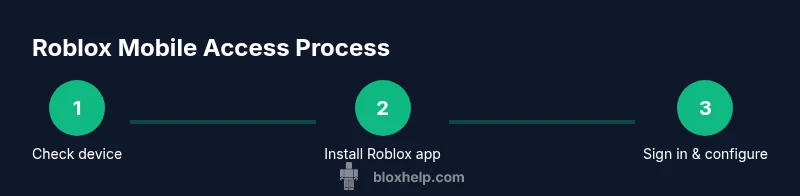
- Confirm your device supports the Roblox app (iOS or Android) or Chrome OS Play Store access.
- Install the official Roblox app from the App Store or Google Play.
- Sign in with your Roblox account and adjust safety settings.
- Update the app to the latest version and test a few games to gauge performance.
- If using a Chromebook, enable Google Play and install the Android app there.
- Keep your device charged and connected to a reliable network for best results.
Tools & Materials
- Roblox account(Create or use an existing account to sign in.)
- Compatible mobile device(iOS or Android device capable of running the Roblox app.)
- Official Roblox app(Install from App Store (iOS) or Google Play (Android).)
- Stable internet connection(Wi-Fi preferred; mobile data should be sufficient for gameplay.)
- Chromebook (optional)(If using Chrome OS, enable Google Play to install the Roblox Android app.)
Steps
Estimated time: 15-25 minutes
- 1
Check device compatibility
Verify that your device can run the Roblox app by visiting your device’s app store listing or official Roblox support pages. Compatibility means you can install the Roblox app, sign in, and load games without major performance issues.
Tip: If you’re on a very old device, consider upgrading or using a supported Chrome OS device for reliability. - 2
Install the Roblox app from the App Store/Play Store
Navigate to the official store, search for Roblox, and install the app. This step ensures you’re downloading the legitimate client with safety protections and the latest features.
Tip: Avoid third-party installers; they can compromise security and lead to scams. - 3
Sign in with your Roblox account
Open the app and sign in with your existing Roblox credentials. If you don’t have an account, create one within the app and verify your email if prompted.
Tip: Enable two-factor authentication for extra account security. - 4
Adjust privacy and safety settings
In the app’s settings, set appropriate privacy levels (who can chat, who can join games, etc.). Tailor safety features to the age of players in your household.
Tip: Review in-game chat options and disable voice chat if you prefer text-only interactions. - 5
Launch Roblox and join a game
From the home screen, browse the catalog or search for a game, then tap to load and join. Ensure you have a stable connection to avoid dropouts.
Tip: Start with simpler games to acclimate to mobile controls before trying more complex titles. - 6
If you’re on Chromebook, install the Android app via Google Play
Open the Google Play Store on your Chromebook, install Roblox, and sign in as you would on a phone. This provides near-native performance and access to most titles.
Tip: Keep Chromebook battery life in mind; gaming can drain power quickly. - 7
Test performance and adjust settings
Play a few rounds and, if you notice lag, lower the in-game graphics settings and close background apps. Check for app updates if performance remains inconsistent.
Tip: Low graphics mode can markedly improve frame rates on older devices.
Questions & Answers
Can I play Roblox in Chrome on Android or iPhone?
Roblox does not reliably run in Chrome on mobile devices. Use the official Roblox app for iOS or Android instead, or run the Android app on Chrome OS if applicable. Some browsers may redirect you to the app store, or fail to load games properly.
Roblox isn’t reliably playable in Chrome on mobile. Use the official Roblox app instead; it’s the supported path for iOS, Android, and Chrome OS if you can access Google Play.
Is Roblox playable on mobile browsers at all?
Official support for Roblox on mobile browsers is limited. The recommended method is the Roblox app. If a browser works, ensure you’re on roblox.com and avoid third-party sites that claim browser access.
Mobile browser play is not officially supported; stick to the Roblox app for safety and reliability.
What about Roblox on Chromebooks?
Chromebooks with Google Play access can run the Roblox Android app, offering a near-native experience. If Google Play isn’t available, consider alternative methods, but expect lower compatibility.
On Chromebooks, you can install Roblox from Google Play for a solid experience.
I’m getting lag on mobile; what can I do?
Lower the in-game graphics, close other apps, and ensure a stable internet connection. If issues persist, reboot the device and update the Roblox app.
Try lowering graphics and closing other apps to reduce lag.
Are parental controls available on Roblox mobile?
Yes. Roblox offers parental controls and privacy settings in the app to manage chat, friend requests, and who can join games. Enable these early if a child will use the device.
Good parental controls are available in the Roblox mobile app; enable them for safer use.
Do I need a Roblox account to start playing on mobile?
Yes. You’ll need a Roblox account to sign in to the app, load games, and save progress. You can create a new account within the app if you don’t already have one.
You’ll need a Roblox account to sign in and play on mobile.
Watch Video
The Essentials
- Roblox is primarily a mobile app; direct browser play on Chrome mobile isn’t supported.
- The safest path is the official Roblox app on iOS/Android or Android app on Chrome OS.
- Chromebooks can run Roblox via Google Play; ensure Play Store access is enabled.
- Keep your account secure with strong passwords and two-factor authentication.
- Optimize performance by managing graphics and closing background apps.