How to Publish a Game from Roblox Studio to Roblox
Learn how to publish a game from roblox studio to roblox with a practical, step-by-step guide covering publishing steps, metadata, privacy, and post-launch checks.


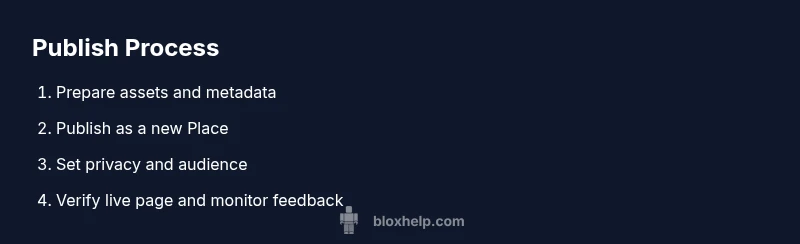
To publish a Roblox Studio game to Roblox, finish your build, test thoroughly, and prepare metadata. In Roblox Studio, select File > Publish to Roblox as a new Place, then fill the title, description, thumbnails, and privacy settings. Choose who can play, publish, and verify the live page before inviting testers for feedback.
Prerequisites and Planning
If you’re wondering how to publish a game from roblox studio to roblox, start with thorough planning. Define the core experience, target audience, and content boundaries. Decide on a release strategy (alpha/beta vs. full launch) and prepare a simple roadmap for updates. Having clear goals helps you measure success after launch and reduces post-release churn. In this guide, we explore the publishing workflow end-to-end, with practical tips you can apply today. The goal is a smooth launch, not a rushed one, so allocate time for testing and feedback collection before you publish.
Finalizing Your Roblox Studio Project
Before pushing your game live, finish polishing models, lighting, UI, and gameplay flow. Run multiple in-game tests to catch glitches across levels, vehicles, and user input. Use Roblox Studio’s Play mode and Team Create to streamline collaboration. Make sure any scripts run without errors and that there are no stray assets that could trigger loading failures. This step is essential to avoid last-minute surprises during the publish process and to ensure players have a stable experience from day one.
Setting Up Metadata and Assets
Publishable metadata includes the title, description, release notes, and thumbnail assets. Craft a concise, accurate description that highlights gameplay, platforms, and target audience. Prepare at least one high-resolution thumbnail and an icon that clearly represents the game. Consider creating a short trailer or GIFs to showcase core mechanics. All of these elements influence click-through rates and player expectations, so invest time in quality visuals and readable copy.
Publishing as a New Place in Roblox
In Roblox Studio, go to File > Publish to Roblox as a new Place. You’ll be prompted to provide a place name, description, and optional social links. After publishing, Roblox creates a live URL for your game. Review the published place for any mismatches between your in-studio content and the live listing. If you’re unsure about settings, start with a private or friends-only access window and broaden later once you confirm the build behaves as expected.
Privacy, Access, and Collaboration Settings
Choose appropriate privacy settings before going public. Decide whether the game is visible to everyone or restricted to a whitelist. If you’re collaborating, restrict editing access to team members and utilize version control or file backups. Keep in mind that privacy also governs who can join your game, who can view monetization options, and how user-generated content is handled. Clear permissions reduce post-launch issues and keep your project organized.
Uploading Thumbnails, Icons, and Descriptions
High-quality visuals matter. Upload a square thumbnail (ideally 512x512 or 1024x1024) and a clear game icon. The description should be scannable and include key features, target devices, and any special requirements. Use bullet points to improve readability, and consider adding a short, friendly call-to-action. These assets influence first impressions and player trust from the moment they land on your game page.
Verifying Live Publish and Post-Launch Checks
Once published, verify the live page URL, title alignment, and asset rendering. Check server performance, loading times, and basic functionality on multiple devices. Monitor player feedback channels and in-game analytics to identify early issues. Promptly address critical bugs with small updates to preserve player trust and reduce negative sentiment right after launch.
Updating and Iterating After Launch
Publish updates as improvements are implemented, not as afterthoughts. Maintain a changelog and communicate it with players to set expectations. Test each update in a controlled environment before releasing, and stagger major changes to monitor impact. Iterative releases keep your game fresh, attract returning players, and encourage longer play sessions.
Common Pitfalls and Quick Fixes
Common issues include mismatched metadata, missing thumbnails, or publishing under the wrong user account. Double-check that you’re publishing as a new Place, review privacy settings, and confirm that the live page matches your in-studio build. If players report freezes, review scripts and network calls, then push a targeted update with fixes.
Tools & Materials
- Roblox account(Use the account you will publish under)
- Roblox Studio installed(Ensure you’re on the latest stable version)
- Stable internet connection(Upload and publish requires reliable connectivity)
- Web browser(Chrome/Edge/Firefox recommended)
- Brand assets (thumbnails/icons)(Prepare 2–3 high-quality visuals)
Steps
Estimated time: Estimated total time: 1-2 hours
- 1
Finish and test in Studio
Complete any final passes on gameplay, UI, and balance. Use Play mode to simulate real player interactions and catch edge cases. Verify that scripts run without errors and that loading sequences are smooth.
Tip: Run unit tests for key interactions and invite a few testers for quick feedback. - 2
Prepare metadata and assets
Draft a clear game description, release notes, and a set of appealing thumbnails. Ensure the thumbnails comply with size recommendations and avoid misleading visuals. Prepare tags that describe your game accurately.
Tip: Keep descriptions concise and highlight one or two standout features. - 3
Publish to Roblox as a new Place
In Roblox Studio choose File > Publish to Roblox as a new Place. Enter the place name, description, and optional links. Confirm the publish action and wait for Roblox to generate the live URL.
Tip: Double-check the title and description before publishing; mistakes require a separate update. - 4
Configure privacy and audience
Set visibility (public or private) and select audience restrictions if needed. Decide on who can join, test, or share your game during early access phases.
Tip: Start with a limited audience to catch issues before a wide release. - 5
Check live page and URL
Open the live game URL and confirm assets render correctly. Ensure the title and description match the in-studio project and reflect the current version.
Tip: Bookmark the URL for quick reference during subsequent updates. - 6
Invite testers and monitor feedback
Provide a small, trusted group with access to the game and collect feedback. Monitor in-game analytics and community channels for issues and feature requests.
Tip: Create a simple feedback form to centralize player input. - 7
Iterate updates based on feedback
Plan incremental updates that address high-priority issues first. Prioritize fixes that improve stability and player experience. Test each update before publishing.
Tip: Communicate update notes clearly to your players. - 8
Document changes for future updates
Maintain a changelog to track what changed in each update. This helps your team stay coordinated and makes it easier to revert if something goes wrong.
Tip: Keep a simple template (date, version, summary).
Questions & Answers
What do I need before publishing a Roblox game?
You’ll need a Roblox account, Roblox Studio installed, a tested build, and prepared metadata (title, description, thumbnails). Privacy settings should be defined before going public.
You’ll need an account, Studio installed, a tested build, and metadata ready.
Can I publish without paying anything?
Yes. You can publish a Place for free; monetization features can be enabled later as your game grows.
Yes, you can publish for free; monetization comes later.
How long does publishing take?
Publishing is typically instant after you confirm, though some settings or reviews might introduce a brief delay.
Publish happens quickly, with potential short review delays.
Can I update a live game after publishing?
Yes. You can release updates to a live game by publishing new versions and communicating changes to players.
Yes, you can update after publishing.
What if my game doesn’t appear on Roblox?
Check privacy settings and ensure you published under the correct account. Verify the live page loaded and matches your build.
Check settings and the live page to diagnose visibility issues.
Watch Video
The Essentials
- Plan before publishing.
- Test thoroughly across devices.
- Validate metadata and privacy settings.
- Iterate post-launch with updates.