How to Roblox on Linux: A Practical Guide
Learn how to play Roblox on Linux using Proton, Lutris, and Steam Play. This in-depth guide covers setup, troubleshooting, performance tweaks, and safety tips for a smooth Roblox experience on Linux.


This guide shows you how to run Roblox on Linux using Proton via Steam Play or Lutris. You’ll learn the best setup, compatibility tips, and troubleshooting steps to get Roblox games running on most distributions. By the end, you’ll know how to install, launch, and optimize Roblox on Linux. This includes tips for performance, driver setup, and common fixes.
Why Linux users run Roblox
If you're on a Linux desktop, you may wonder how to run Roblox on Linux. The Linux community widely uses Proton to bridge Windows-only games to Linux, often via Steam Play, or Lutris as a standalone launcher. Roblox itself does not offer a native Linux client, so success depends on compatibility layers that translate Windows APIs to Linux-friendly calls. According to Blox Help, Linux users who set up Proton correctly and keep drivers up to date report smoother gameplay and fewer crashes. The goal of this section is to set expectations: you can enjoy Roblox on Linux, but you might need to tweak driver settings or try different Proton versions to find a stable balance between performance and compatibility. The broader benefit is that Linux users gain access to Roblox without dual-booting or virtualization, maintaining a lean gaming setup.
How Roblox works on Linux: compatibility layers
Roblox on Linux relies on compatibility layers such as Proton (via Steam Play) or Wine wrapped by launchers like Lutris. Proton translates Windows API calls into cross-platform equivalents, allowing the Roblox launcher and game client to run. Lutris provides a launcher platform that can automate Proton or Wine configurations for non-Steam paths. This approach is not universally seamless; some titles require tweaking, filtering anti-cheat behavior, or using a specific Proton version. Based on Blox Help Editorial Team insights, the most reliable setups often involve enabling Steam Play, selecting a supported Proton version, and testing multiple driver configurations to balance performance with stability.
Choosing the right distro and drivers
Linux compatibility for Roblox improves when you use a mainstream, well-supported distribution with fresh graphics drivers. Ubuntu-based distros (like Ubuntu, Linux Mint, or Pop!_OS) tend to have robust Steam and driver support, while still offering broad hardware recognition. The key is to keep your GPU drivers current — NVIDIA, AMD, or Intel — and ensure your kernel and Mesa packages are reasonably recent. According to the Blox Help analysis, a clean install of a supported distro paired with the latest driver packages yields fewer driver-related crashes and smoother rendering. If you’re on a rolling release, be prepared to test newer Mesa or kernel updates to address regressions.
Step-by-step setup overview (high-level)
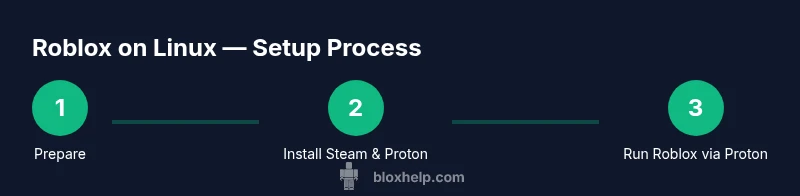
This section provides a roadmap for the full setup. You’ll prepare your system, install Steam and Proton, configure Roblox playback, and validate performance. The following actions are designed to work across popular Linux distros and multiple desktop environments, but individual commands may vary by distribution. The goal is a repeatable workflow so you can reproduce success on different machines. Remember, your mileage may vary depending on hardware, drivers, and Proton version; testing multiple configurations often yields the best results.
Common pitfalls and troubleshooting
Roblox on Linux can encounter issues like missing dependencies, audio desynchronization, or intermittent launcher failures. Common culprits include outdated graphics drivers, misconfigured Proton versions, or anti-cheat compatibility gaps. Start troubleshooting by confirming your Steam Play is enabled and trying a different Proton build. If Roblox fails to launch, check for missing libraries in the Proton prefix and verify that the Roblox launcher executable is correctly associated with Proton. Some users report success after switching to a different desktop session (X11 instead of Wayland) or adjusting audio backends. The key is to iteratively test changes and document which setup provides stability.
Performance tweaks and optimization
Performance on Linux depends on driver quality and Proton tuning. Ensure you enable Steam Play globally, select a Proton version with good Roblox compatibility, and lower in-game graphics where needed. System-level tweaks such as disabling compositor effects during gameplay, ensuring sufficient CPU performance governors, and using a responsive window manager can help reduce input latency. If you’re on a laptop, connect to AC power to maintain peak clock speeds and prevent throttling during intense scenes. Regularly update your graphics drivers and Proton to access the latest fixes and compatibility improvements.
Alternative paths: Steam Play vs Lutris
Steam Play with Proton remains the simplest path for most users, especially when playing Roblox via Steam itself. Lutris offers an independent route that can be beneficial if you prefer non-Steam launchers or want to experiment with non-standard Proton/Wine prefixes. Each method has trade-offs: Steam Play benefits from integrated updates and easier game management, while Lutris provides flexibility for custom wrappers. Test both paths to determine which yields more consistent performance on your hardware.
Authority sources (for deeper reading)
- Linux kernel official documentation: https://kernel.org
- GNU Project: https://www.gnu.org
- Linux Foundation: https://www.linuxfoundation.org
Getting Roblox on Linux: a quick reference
- Native Linux support for Roblox does not exist; rely on compatibility layers.
- Proton via Steam Play is the most beginner-friendly path.
- Driver updates and proper Proton configuration are critical for stability.
Tools & Materials
- Steam (Linux)(Install Steam on Linux to access Proton and Steam Play.)
- Proton (via Steam)(Enable Steam Play and choose a compatible Proton version (e.g., Proton 7.x or newer).)
- Lutris (optional)(Useful for launching Roblox outside Steam or testing wrapper configurations.)
- GPU drivers (NVIDIA/AMD/INTEL)(Install the latest official drivers from your vendor for best compatibility.)
- Stable Internet connection(Needed for downloads, updates, and cloud saves.)
Steps
Estimated time: 60-120 minutes
- 1
Prepare your Linux system
Update your package index and upgrade installed packages to ensure you have the latest security patches and dependencies. Install any missing GPU libraries that Steam and Proton may require. A clean baseline reduces compatibility surprises.
Tip: Run your distro’s update command and reboot if prompted to ensure a clean start. - 2
Install Steam and enable Proton
Install Steam from your distribution’s package manager or the Steam website. In Steam Settings, enable Steam Play and choose a compatible Proton version to maximize compatibility with Roblox.
Tip: If you’re unsure, start with Proton Stable and test a game, then try Proton Experimental for newer fixes. - 3
Configure Roblox path in Proton
Create a Steam shortcut for Roblox and ensure it launches through Proton. If using Lutris, configure a Proton/Wine wrapper to handle the Roblox launcher.
Tip: Make a test run with a small Roblox demo to verify launcher stability before diving into a full game. - 4
Install Roblox and adjust settings
Launch Roblox from Steam, sign in, and adjust in-game settings for your hardware. Lower texture quality or shadow details if you experience stuttering.
Tip: Disable unnecessary in-game overlays to reduce input latency. - 5
Test performance and troubleshoot
Play a few games to gauge frame rate and stability. If issues arise, switch Proton versions or drivers, and check for missing libraries in the Proton prefix.
Tip: Maintain a changelog of what you tested to identify the most stable setup. - 6
Optional: set up Lutris path
If you want an alternate launcher, configure Lutris to run Roblox with a Proton/Wine wrapper. Test the setup and compare to the Steam path for stability.
Tip: Keep notes on which wrapper configuration yields smoother gameplay.
Questions & Answers
Can Roblox run natively on Linux?
There is no official native Linux client for Roblox as of now. Most users run Roblox on Linux via Proton (Steam Play) or Lutris wrappers, which simulate Windows APIs.
Roblox doesn’t have a native Linux version; you’ll use Proton through Steam Play or Lutris wrappers.
Which Linux distros work best with Roblox on Linux?
Ubuntu-based distros (like Ubuntu, Mint, or Pop!_OS) tend to have reliable Steam and driver support, making Roblox on Linux more straightforward. Ensure you keep drivers and system packages up to date.
Ubuntu-based distros are a solid starting point for Roblox on Linux, with up-to-date drivers.
Do I need Steam to play Roblox on Linux?
Steam is not strictly required, but Steam Play with Proton provides the easiest and most proven path to run Roblox on Linux. Lutris can offer an alternative if you prefer non-Steam setups.
Steam helps a lot, but Lutris is also a valid option for running Roblox on Linux.
Will Roblox run on Wayland or only X11?
Proton-based setups can work on Wayland, but many users find X11 to be more stable. If you experience issues, try an X11 session and test again.
Roblox with Proton can work on Wayland, but X11 tends to be more stable for many users.
How can I improve performance on Roblox for Linux?
Update graphics drivers, choose a Proton version with good Roblox compatibility, and adjust in-game settings to balance visuals with frame rate.
Keep drivers current and fine-tune Roblox settings for the best possible performance.
Is Roblox on Linux legal and allowed by Terms of Service?
Yes, running Roblox on Linux via approved compatibility layers is generally within the platform’s terms, provided you follow Steam/Proton guidelines and Roblox’s Terms of Service.
Yes, as long as you follow platform rules and use supported compatibility layers.
Watch Video
The Essentials
- Use Proton via Steam Play as the primary path to Roblox on Linux
- Keep GPU drivers and Proton versions up to date
- Experiment with Proton versions for best compatibility
- Lutris offers a flexible alternative path if Steam Play isn’t stable