How to Roblox on Xbox: The Step-by-Step Setup Guide
Learn how to play Roblox on Xbox with a simple, beginner-friendly setup. Install the Roblox app, sign in, link accounts, and optimize for smooth multiplayer on Xbox One or Series X|S.


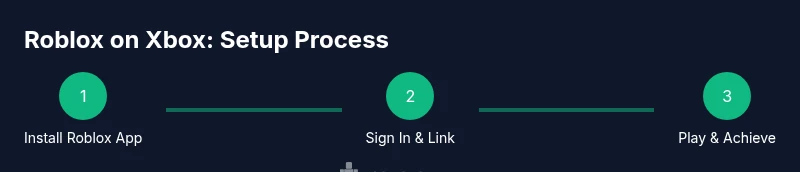
You can play Roblox on Xbox by installing the Roblox app from the Xbox Store, signing in with your Roblox account, and linking it to your Xbox profile. This guide walks you through prerequisites, the exact setup steps, and common issues to avoid for a smooth experience on Xbox One or Series X|S.
Prerequisites for Roblox on Xbox
To begin playing Roblox on Xbox, you need an Xbox console (Xbox One or Series X|S) with a stable internet connection and a modern TV. The Roblox app is available in the Xbox Store, and you’ll need both a Roblox account and a Microsoft account to sign in and access online features. A reliable network (wired Ethernet preferred, or a strong 5 GHz Wi‑Fi signal) reduces latency and login hiccups. Keeping your console and game hub updated ensures compatibility with the latest Roblox versions. According to Blox Help, starting with these basics minimizes install failures and login issues, setting you up for a smoother gaming session right away.
Required accounts and connections
The core setup requires two distinct accounts: a Roblox account (created at roblox.com) and a Microsoft account for Xbox sign-in. On Xbox, you’ll use your Microsoft account to access the Xbox network and then sign into Roblox through the app to link both identities. Make sure your Roblox email is verified and your password is up to date. For players sharing a console, consider privacy settings to control who can contact you or join your games. This alignment between Roblox and Xbox accounts is what enables cross‑platform friends and persistent progress across devices.
Installing and launching the Roblox app on Xbox
From the Xbox Home screen, open the Microsoft Store and search for Roblox. Select the Roblox app, then choose Install. Once installed, launch the app from My Games & Apps. The first run may present you with options to sign in; a short loading period should follow. If you encounter a failure, check that you’ve got enough storage space, a stable internet connection, and the latest console OS. After launch, you’ll be greeted with the sign‑in screen where you can proceed to connect your Roblox account.
Signing in and linking your Roblox account
In Roblox on Xbox, choose Sign in. You’ll have the option to sign in with your Roblox credentials or to link your Roblox account with the Xbox profile. If you select Sign in with Roblox, you’ll enter your Roblox username and password on a virtual keyboard. In most cases, your Roblox progress, friends, and purchases will sync automatically once linked. If you prefer, you can also scan a QR code displayed on screen with the Roblox mobile app to complete the linking process. Always sign out on shared devices after gaming sessions to protect your account.
Controller setup and accessibility options
A comfortable controller setup improves your Roblox experience on Xbox. Ensure the joystick and face buttons respond smoothly and map commonly used Roblox actions to easy-to-reach controls. In the Xbox settings, enable accessibility options like button remapping, stick sensitivity, and text-to-speech if needed. If you use accessibility hardware, verify it’s compatible with the Roblox app. A well‑configured controller reduces input fatigue during long sessions and helps you navigate menus quickly when joining quests or games.
Finding games, joining friends, and privacy settings
Once signed in, use Roblox’s Home tab to explore featured games or search for favorites. To play with friends, add them via Roblox or use cross‑platform friend requests. On Xbox, you can adjust who can join you and who can contact you in Privacy settings. Turning off voice chat or restricting it to friends can improve safety if you’re gaming with younger players. The Roblox catalog on Xbox includes a mix of adventures, simulators, and social hangouts—filter by popularity, genre, or user rating to discover something new.
Performance tips and common issues
If Roblox runs slowly on your Xbox, try a few quick checks: restart the console, close background apps, and ensure the game and app are updated. Use a wired Ethernet connection when possible for lower latency, or move closer to the router for a stronger Wi‑Fi signal. If you encounter crashes, verify storage space, clear cache, or uninstall and reinstall the Roblox app. In many cases, performance improves with a fresh sign‑in or a quick router reboot.
Safety, parental controls, and online etiquette
Roblox on Xbox inherits Xbox Family Safety and Roblox privacy controls. Configure who can join you, who can message you, and what content you can access. For younger players, enable parental controls to limit friend requests and in‑game chat options. Encourage respectful behavior and remind players not to share personal information. Keeping safety settings up to date helps maintain a positive, secure Roblox experience on Xbox.
Cross‑platform play and limitations
Roblox supports cross‑platform play, so you can join games with friends on PC, mobile, or other consoles. Some games may have platform‑specific features or performance trade‑offs, so check game requirements and expectations in the Roblox catalog. If a title does not run well on Xbox, try lowering graphics options within the game settings or choosing a different title with cross‑platform support. This flexibility is one of Roblox’s strengths on console play.
Troubleshooting quick checklist
If you’re encountering issues, run through this quick checklist: 1) confirm Roblox and Xbox system updates are installed; 2) verify your internet connection is stable; 3) ensure your Roblox account is properly linked to your Xbox profile; 4) check privacy and parental controls; 5) restart the Roblox app and your console. If problems persist, consult Roblox Help or Xbox Support for platform‑specific guidance and known outage notices.
Tools & Materials
- Xbox console (Xbox One or Series X|S)(Ensure system software is up to date)
- TV or monitor with HDMI(HDMI connection for display)
- Controller (Xbox wireless/controller + rechargeable battery)(Fully charged or plugged in)
- Roblox account(Create or use an existing account)
- Microsoft account(Used to sign in to Xbox and services)
- Stable internet connection(Wired Ethernet preferred; 5 GHz Wi‑Fi acceptable)
- Keyboard and mouse (optional)(For UI navigation on some screens)
Steps
Estimated time: 20-40 minutes
- 1
Check prerequisites and network
Confirm your Xbox is updated, your internet is stable, and you have a TV ready. This reduces install and login issues and ensures Roblox can load quickly.
Tip: A wired Ethernet connection offers the most stability. - 2
Install the Roblox app from the Xbox Store
Navigate to the Microsoft Store, search for Roblox, and select Install. This step downloads the official Xbox app version.
Tip: Use the 'Pin to Home' option for quicker access. - 3
Launch Roblox and sign in
Open the Roblox app and sign in with your Roblox credentials or link via the on-screen prompts. The linking process syncs progress and friends.
Tip: If prompted, scan the on-screen QR code with the Roblox mobile app. - 4
Link accounts if needed
If you didn’t link during sign-in, follow the on-screen steps to connect your Roblox account to your Xbox profile.
Tip: Keep your password handy and enable two-factor authentication if available. - 5
Configure controller and accessibility options
Adjust button mapping, sensitivity, and accessibility settings to suit your play style. This makes navigation and combat controls more comfortable.
Tip: Test a quick in-game action to verify responses. - 6
Explore games and add friends
Browse Roblox titles, check ratings, and add friends for cross‑platform play. Privacy settings can limit who can join you.
Tip: Filter by genre to find your preferred game types quickly. - 7
Optimize performance and troubleshoot basics
If games lag, switch to a lower graphics preset or reduce other running apps. Reboot the console if issues persist.
Tip: Regularly clear cache and update both Roblox and the console. - 8
Review safety settings and etiquette
Set privacy controls and parental options, and model respectful in-game communication.
Tip: Review friend requests and block/report abusive behavior when necessary. - 9
Cross‑platform play and limitations
Check which games support cross‑play and be aware of platform‑specific features in each title.
Tip: If a game doesn’t support Xbox cross‑play, try another title with cross‑platform support. - 10
Maintenance and follow‑up steps
Keep Roblox app and console OS up to date; revisit settings after major updates, and re-check your network if problems arise.
Tip: Set reminders to verify updates regularly.
Questions & Answers
Can I play Roblox on Xbox without a Roblox account?
No. You need a Roblox account to sign in and play. You can create or link your existing Roblox account from the Roblox app on Xbox and sync progress across platforms.
You need a Roblox account to play; create or link your existing account within the Roblox app on Xbox.
Do I need a subscription to play Roblox on Xbox?
Roblox is free-to-play on Xbox, but you still need a active Xbox network connection for online features. Some optional content or subscriptions may apply within Roblox, but the core game is free.
Roblox on Xbox is free to play, with Xbox network access required for online features.
Is Roblox cross‑platform on Xbox?
Yes. Roblox supports cross‑platform play, letting you join games with friends on PC, mobile, and other consoles, depending on the game’s settings and permissions.
Roblox supports cross-platform play, so you can game with friends on other devices.
What should I do if Roblox won’t install on Xbox?
Check your internet connection, available storage space, and that the console OS and Roblox app are up to date. If issues persist, try a restart or reinstall the app after clearing cache.
If Roblox won’t install, verify network, storage, and updates, then restart or reinstall as needed.
How do I link my Roblox account to Xbox?
Open Roblox on Xbox and choose Sign in with Roblox or link through the on-screen prompts. You can also scan the on-screen QR code using the Roblox mobile app to complete linking.
Sign in with Roblox on Xbox or scan the on-screen QR code with the mobile app to link.
How can I manage parental controls for Roblox on Xbox?
Use Xbox Family Safety settings to restrict who can contact you and join your games, and adjust Roblox privacy options to limit chat and interactions as needed.
Use Xbox Family Safety and Roblox privacy controls to manage who can contact you and play with you.
Watch Video
The Essentials
- Prepare both Roblox and Microsoft accounts before sign-in.
- Install and sign in via the Roblox app on Xbox for cross‑platform play.
- Configure controllers and privacy settings for a smoother, safer experience.
- Keep apps and firmware updated to minimize issues.
- Use the troubleshooting checklist to solve common problems quickly.