Mastering Multi Roblox Instances: A Practical Guide
Discover how to run multi Roblox instances on a single PC with practical hardware tips, isolation strategies, and performance best practices.


You can run multiple Roblox instances by using separate user profiles or sandboxed environments, plus virtualization or containerization when needed. Ensure you have a capable PC with sufficient RAM and CPU cores, stable network bandwidth, and separate data folders for each instance. This guide shows how to prepare, isolate, and monitor multiple Roblox instances safely.
Why players explore multi roblox instances
In practice, running multiple Roblox instances on a single machine can be helpful for testing features, comparing settings, or debugging game behavior across separate user profiles. The goal is to achieve clean isolation so activity in one instance does not interfere with another. The keyword here is careful resource management: each extra instance consumes CPU, RAM, and disk I/O, so plan accordingly. By understanding how memory, rendering, and network demand scale with each session, players and developers can create stable environments for experimentation without compromising performance. When done correctly, multi roblox instances unlock faster iteration cycles and more reliable playtesting across scenarios.
Hardware considerations for multi roblox instances
Performance hinges on hardware headroom. For reliable parallel sessions, aim for a multicore CPU with 4+ cores per instance and 16–32 GB of RAM for two concurrent instances; more RAM may be needed for additional sessions. Fast storage (SSD) reduces load times, while a wired network connection minimizes latency and packet loss. GPU capacity matters if you run graphically intensive scenes or screen sharing. In operational terms, expect that running several Roblox instances will raise thermal output, so ensure adequate cooling and ventilation.
Is virtualization the right path for you?
If you want true isolation, virtualization can separate Roblox instances at the OS level. Virtual machines or containerized environments can prevent cross-instance data leakage and simplify backups. However, virtualization adds overhead and setup complexity. Choose lightweight options if you’re new to virtualization, and consider dedicating a portion of RAM to each VM or container to avoid resource contention.
Step-by-step approach to setting up two instances
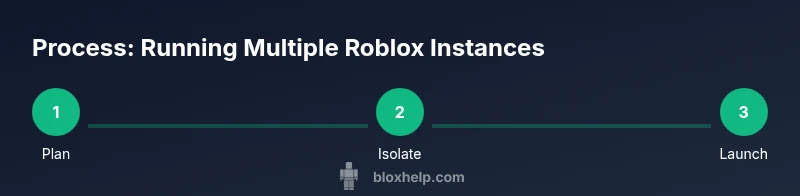
A practical workflow starts with planning, then creating distinct execution environments. First, establish two user profiles or two containers, ensuring each has its own Roblox installation and data path. Then configure startup scripts or shortcuts to launch the separate instances. Finally, start both sessions and monitor resource usage to confirm stability. With solid isolation, you can compare settings, test new features, and debug reliably.
Managing resources and avoiding conflicts
Keep an eye on CPU, RAM, and disk I/O with task monitors. If one instance shows signs of instability (framerate drops, stuttering), pause or quiesce that session to free resources. Use reduced graphic settings for non-critical instances to save headroom. Regularly back up configurations and ensure each instance has unique data folders to prevent cross-contamination.
Troubleshooting common issues
If instances crash or fail to launch, verify that each instance has a separate Roblox data folder and that there are no conflicting startup parameters. Check for driver updates and ensure your OS has the latest patches. When problems persist, run one instance at a time to isolate the cause, then reintroduce parallel sessions.
Security and compliance reminders
Respect Roblox’s terms of service and avoid automation that mimics multiple users or exploits. Use multi-instance setups strictly for legitimate testing, development, and learning. Regularly review security settings and keep software up to date to minimize risk.
Tools & Materials
- High-performance PC (8+ cores)(Aim for 16-32 GB RAM for two instances; adjust for more.)
- Separate user profiles or containers(Each instance should have its own Roblox data path.)
- Wired network connection(Prefer Ethernet to minimize latency.)
- SSD storage(Faster load times and better I/O.)
- Optional virtualization software(VMs or containers for strict isolation.)
- System monitoring tools(Track CPU/RAM to prevent overcommitment.)
Steps
Estimated time: 45-90 minutes
- 1
Plan environment and goals
Define how many Roblox instances you want to run, what you’ll test, and the level of isolation required. Decide whether you’ll use separate accounts, containers, or VMs for each instance.
Tip: Document your target resource allocation before starting. - 2
Create separate environments
Set up distinct user profiles or containers with separate Roblox data folders. Ensure there’s no shared cache or configuration between sessions.
Tip: Keep folders clearly named (Instance1, Instance2, etc.). - 3
Configure startup and launch
Create shortcuts or scripts that launch each instance with its own data path and Roblox executable. If using only two instances, you can run them manually at first.
Tip: Use distinct window titles to avoid confusion. - 4
Allocate resources
Assign CPU cores and RAM per instance. If using a VM, set memory limits to prevent one session from starving others.
Tip: Avoid oversubscribing RAM beyond 75-85% of total capacity. - 5
Monitor performance
Run each instance while monitoring FPS, latency, and resource usage. Adjust graphic quality and frame rate caps to stabilize performance.
Tip: Enable per-instance monitoring and keep an eye on thermal output. - 6
Back up configurations
Save launcher scripts, data paths, and any custom settings. Regular backups help you recover quickly after issues.
Tip: Store backups in a separate drive or cloud location.
Questions & Answers
Is it legal to run multiple Roblox instances on one computer?
Generally, running multiple standalone Roblox sessions for testing or development is permissible when you follow Roblox's terms of service and do not automate gameplay or scrape data. Always review official guidelines and avoid any behavior that could be considered abuse.
You can run multiple Roblox sessions for testing, but make sure you follow Roblox's rules and avoid automation.
What hardware should I consider for two concurrent Roblox instances?
Aim for a multicore CPU with at least 16-32 GB RAM for two instances, plus fast storage. If you plan more sessions, scale RAM and CPU accordingly and consider cooling.
For two instances, a multi-core CPU and 16-32 GB RAM is a good starting point; add more if you run additional sessions.
Do I need virtualization to run multiple Roblox instances?
Virtualization is optional. It provides stronger isolation, but it adds setup complexity. Start with separate user profiles before moving to VM or container-based solutions.
Virtualization is optional but can help isolate sessions; begin with separate profiles and scale up if needed.
How do I prevent data from one instance affecting another?
Use separate Roblox data folders and avoid shared caches. Keep each instance’s settings and saves in distinct directories to prevent cross-contamination.
Keep data folders separate to avoid cross-talk between instances.
Watch Video
The Essentials
- Plan resource needs before starting
- Isolate each instance with separate data paths
- Monitor performance and adjust settings
- Back up configurations regularly
- Follow Roblox ToS and safe-use practices