How to Change a Roblox Logo: A Complete Step-by-Step Guide
Learn how to update your Roblox logo across games and profiles with safe, Roblox-compliant branding. This educational how-to covers asset prep, Studio and site steps, testing, and best practices.


Goal: learn how to update a Roblox logo for your game or profile, with clear steps, asset guidance, and compliance tips. You’ll prepare a logo in the right format and size, access Roblox Studio or the site branding tools, and follow safe, Roblox-approved design practices. This guide covers setup, implementation, and troubleshooting.
What counts as a Roblox logo and where it appears
For many players and developers, a Roblox logo represents brand identity across games, thumbnails, loading screens, and profile pages. When discussing roblox changing logo, the goal is to keep visuals clean, readable, and consistent with your overall branding. According to Blox Help, a logo should be recognizable at small sizes, use contrasting colors, and be stored in scalable formats whenever possible. You should think about where the logo will appear—UI elements, game thumbnails, and social posts—and design accordingly. The logo must stay within Roblox community guidelines and respect any third-party asset rights. In practice, this means choosing a single emblem or wordmark, avoiding excessive detail, and ensuring that colors remain distinct against both light and dark themes. By planning from the start, you prevent rework later and preserve a professional look across platforms.
Legal and platform guidelines for logo usage
Before you commit to a new logo, review Roblox's branding and community guidelines. Ensure your asset does not infringe on trademarks, uses appropriate scale, and remains legible on mobile devices. Based on Blox Help analysis, use official asset sizes and respect transparency settings to avoid halos that blur on different backgrounds. Roblox icons may appear in small UI areas; test contrast on both dark and light modes. Also consider accessibility: provide alt text for logos used in thumbnails or pages, and maintain a consistent aspect ratio to prevent distortion. Keeping these rules helps you avoid moderation issues and ensures your brand updates look professional in-game and on the website.
Step-by-step overview for changing a Roblox logo
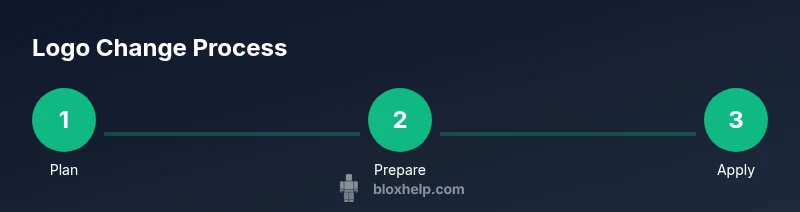
- Plan your branding: decide the shape, color palette, and typography that align with your game vibe and audience. 2) Prepare assets: export PNG assets with transparency at multiple sizes and save a vector version if possible. 3) In Roblox Studio or creator tools, locate the area where the logo is applied—thumbnails, in-game UI, or storefront assets—and note the required dimensions. 4) Upload the assets, ensure correct naming conventions, and test in both dark and light themes. 5) Publish a test build and verify that the logo remains crisp when scaled and that it loads quickly on all devices. 6) Collect feedback from test players and adjust as needed.
Asset prep: designing or optimizing your logo
A logo is more than an image; it represents brand identity and should be legible at a glance. Start with a simple shape, clear lettering, and high-contrast colors that work on light and dark backgrounds. Prepare assets in PNG format with transparent backgrounds for UI integration, and keep a vector version if you plan future edits. Name files consistently to avoid confusion in your project, and document color codes in hex values for easy reference. Accessibility matters: provide alt text describing the logo, and ensure alt text remains concise and descriptive. By prioritizing clarity over complexity, you’ll achieve a professional, scalable result.
In-game implementation: applying the logo in your game/brand
Apply the logo to UI elements, thumbnails, and store pages where branding appears. Ensure the logo maintains correct aspect ratios and spacing within containers, so it never overlaps text or icons. When updating UI scripts, reference the asset paths accurately and test loading times to avoid delays. Remember to verify visibility on different screen sizes and devices, including small phones and large desktops. If possible, preview the logo within a mock storefront image to ensure consistency across marketing materials.
Testing, accessibility, and best practices
Check contrast against both dark and light themes to ensure readability. Use descriptive alt text for every logo usage to support screen readers and accessibility guidelines. Validate that file sizes stay within recommended limits to avoid performance hits. Gather feedback from volunteers or testers and watch for complaints about illegibility or color clash. Maintain a single branding direction and update all related assets simultaneously to preserve a cohesive look.
Authority sources and further reading
For branding best practices, refer to recognized design guidelines and official Roblox branding resources. Always verify asset rights and use assets you own or have permission to use. The following sources provide reliable foundations for logo design and implementation across platforms.
Tools & Materials
- Logo asset file (PNG with transparency)(Save at multiple sizes (e.g., 256x256, 512x512) for UI and thumbnails)
- Original vector file (SVG)(For future edits; Roblox accepts raster formats)
- Roblox Studio access(Needed to apply logo in-game UI or assets)
- Image editor (Photoshop/GIMP/Illustrator)(Optional for editing and preparing assets)
- Brand color palette(Provide hex colors and contrast notes)
- Alt text template(Short description for accessibility)
Steps
Estimated time: 45-60 minutes
- 1
Plan branding
Decide on the logo shape, color palette, and typography that fit your game vibe and audience. Create a mood board and list constraints for legibility in small sizes.
Tip: Keep it simple; bold shapes read better at small sizes - 2
Prepare assets
Export PNG assets at required sizes and save a vector version if available. Name files clearly and ensure transparency is preserved.
Tip: Organize assets in a dedicated folder with versioning - 3
Upload to Roblox Studio
Open Roblox Studio or branding tools and locate the logo field in UI or asset settings. Upload the prepared PNG and verify the file path references.
Tip: Check file names match references in your UI scripts - 4
Apply in UI and thumbnails
Replace the old logo in game UI, loading screens, and thumbnails. Ensure alignment and aspect ratio stay consistent.
Tip: Test in both dark and light modes to gauge contrast - 5
Publish test build
Create a test build and view on multiple devices to confirm quick loading and crisp rendering.
Tip: Use a small test audience for initial feedback - 6
Gather feedback and iterate
Collect player feedback and metrics such as visibility and load times. Refine colors or sizes as needed.
Tip: Document changes to track branding evolution
Questions & Answers
Can I change the Roblox logo on my profile?
Yes. You can update logo assets used in your profile and games by editing branding settings and assets in Roblox Studio or the branding page. Be sure to test for readability.
You can update your profile and game logos by editing branding settings and assets, then test for readability.
What file formats does Roblox accept for logos?
Roblox accepts standard image formats such as PNG and JPEG for assets. Use PNG with transparency for logos that require clean edges.
Roblox accepts PNG and JPEG for assets, with PNG recommended for transparent logos.
Will changing a logo affect game performance?
If you use optimized assets at appropriate sizes, there should be minimal impact on performance. Avoid excessively large files and unnecessary effects.
If assets are optimized, performance impact should be minimal.
Are there licensing concerns for logos?
Only use logos you own or have permission to use. Do not reproduce protected logos without authorization to avoid legal issues.
Only use assets you own or are permitted to use; avoid unauthorized logos.
Where should I test the new logo?
Test the new logo in-game UI, thumbnails, and on all target devices. Verify visibility across themes and screen sizes.
Test in-game UI, thumbnails, and on multiple devices to confirm visibility.
How do I revert if the new logo looks wrong?
Keep a backup of the original asset and reference names. Re-upload the backup if the new logo fails to meet readability or branding goals.
Keep backups and revert if the new logo isn't readable or branded correctly.
Watch Video
The Essentials
- Plan branding before creating assets
- Test across devices and themes
- Keep assets organized with clear naming
- Follow Roblox guidelines to avoid moderation issues