Roblox Download Guide: How to Get Roblox on Any Device
Learn how to safely download Roblox to your device—from Windows and macOS to iOS and Android. This step-by-step guide by Blox Help covers official sources, troubleshooting, and developer-focused tips.


If you’re wondering how to roblox to download, start at the official Roblox site or trusted app stores, then install the Roblox Player or Roblox Studio depending on your needs. Ensure your device meets minimum requirements, your OS is up to date, and you have a stable internet connection. This guide covers Windows, macOS, iOS, and Android and highlights common pitfalls to avoid.
Roblox Download Basics and Safety
Roblox is a free-to-play platform that lets players explore games created by the community. When you’re ready to begin, you must decide whether you want the Roblox Player for playing games or Roblox Studio for building and scripting. According to Blox Help, downloading Roblox should always start from official sources to avoid malware, adware, or bundled software that can compromise your device. The Blox Help team found that the most common download issues stem from third-party installers, misleading prompts, or outdated hardware and software. Before you click any download button, verify the URL is roblox.com or that you’re downloading directly from an app store on mobile. Keep your antivirus enabled, but avoid blocking legitimate installers, and make sure you have administrator privileges if you’re on a shared device. This section lays the groundwork for a safe, smooth setup and helps you understand the two core variants: Player for gaming and Studio for development. It also outlines why staying within official channels reduces risk and improves update reliability for future play and projects.
Platform-Specific Download Pages and Official Sources
Roblox distributes software differently depending on your device. Windows and macOS users should visit the official Roblox site to download the Roblox Player, while iOS and Android users should access their platform’s app store to install the Roblox app. If you’re on Xbox, Roblox is typically available through the console store. For development work, Roblox Studio can be installed via the same official channels on PC and Mac after you’ve installed the Player. Always start from roblox.com or the corresponding app store to ensure you’re getting the legitimate installer. Double-check your device’s OS version against the minimum requirements listed on each page, and avoid installers from third-party sites that promise “faster” or “free” versions. After you download, keep the source page open until installation completes to verify the file’s integrity and avoid tampering. This navigation ensures you get the latest features, safety updates, and a stable gaming or development environment. Based on Blox Help analysis, consistent sources lead to fewer post-install issues and smoother updates for both players and developers.
Verifying Authenticity and Avoiding Scams
Security starts at the download source. Always confirm you’re on the official Roblox site or an official app store. Look for a secure connection (https), a publisher named Roblox Corporation, and a version date that matches the latest release announced by Roblox. Avoid installers that come as .exe or .zip files from untrusted pages, and beware of aggressive pop-ups or “urgent” prompts. It’s wise to scan the installer with your antivirus before running it and to check the file size against the listed size on the official page. If you’re prompted to disable security software during installation, pause and reassess—the legitimate installer will not require you to bypass protections. By sticking to official sources, you minimize risk and improve update reliability, which is essential for both gameplay and developmental work.
Roblox Player vs Roblox Studio: Which Do You Install?
The Roblox Player is your gateway to playing games, while Roblox Studio is the development environment for building and testing experiences. If you’re a new player, you’ll want the Player first, then you can download Studio if you plan to experiment with scripting and game creation. Developers should install Studio alongside the Player to access the full toolset for world-building, UI design, and Lua scripting. The two components share a common account and library, so linking your Roblox account allows seamless transitions between playing and creating. If you’re unsure, start with the Player to confirm your system handles Roblox comfortably, then add Studio for content creation. This separation helps keep your system organized and reduces the chance of conflicting software during updates.
Step-By-Step Platform-Agnostic Download Overview
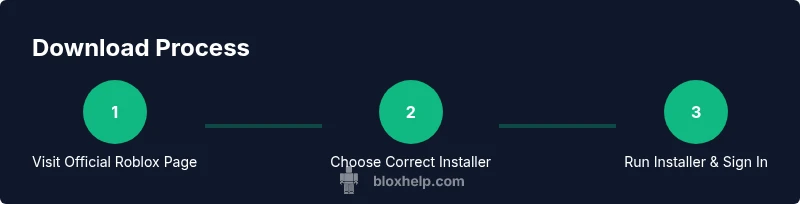
While platform specifics differ, the core steps are consistent across devices: access the official Roblox download page, choose the correct installer, grant required permissions, run the installer, complete the setup wizard, and launch Roblox to verify operation. You should also check for updates after installation to ensure you’re on the latest build. On mobile, ensure you grant necessary app permissions and stable network access during download and initial launch. This overview helps you anticipate the flow so you can troubleshoot quickly if something goes wrong, such as a stalled download or a failed installation. Remember to verify you’re on an official page before proceeding, as this reduces risk and protects your account.
Common Pitfalls and Troubleshooting Essentials
Users frequently encounter issues during Roblox download, such as blocked installers, slow network speeds, or overly aggressive antivirus settings. If a download stalls, pause and resume from a different network or pause background downloads to free bandwidth. Ensure your device has enough storage space; delete unused files if needed. If the installer fails, run it as an administrator on desktop platforms to bypass permission barriers. Some users see problems due to outdated system software, so check for OS updates and required redistributables (like runtime libraries). For mobile, clear cache, restart the device, and reattempt from the official store. If you see error codes, note them down and consult the Roblox Help Center for platform-specific fixes. These steps typically resolve the majority of installation problems and help you start playing sooner.
After Installation: First Run, Updates, and Settings
Once Roblox is installed, launch the application to perform initial configuration, including login and privacy preferences. Check for updates immediately, as Roblox frequently releases incremental improvements and security patches. On Windows and macOS, enable automatic updates so you receive new features without manual checks. Adjust graphics quality based on your device performance, then test a few games to confirm your connection and latency are acceptable. If you’re developing, open Studio and link your account correctly, then configure your preferences for autosave intervals, plugin loading, and script highlighting. Regular maintenance—like clearing cache and verifying storage space—keeps Roblox running smoothly and reduces startup times.
Roblox Studio: Development Tips for Beginners
Roblox Studio is the primary tool for building Roblox experiences. Start by familiarizing yourself with the interface, scripting in Lua, and using templates to bootstrap your project. Create a simple scene to practice object manipulation, event handling, and basic gameplay logic. Use the built-in tutorials and community resources to learn about pipelines, physics, and UI design. As you gain confidence, organize your assets with folders, name conventions, and a version-control mindset. Regularly test your game in Studio and via the Roblox Player to ensure compatibility across devices and to fix performance issues early.
Safety, Privacy, and Parental Considerations
Downloading and using Roblox involves data sharing and account protection. Enable two-factor authentication where available and review privacy settings to control who can contact you, who can join your games, and what personal information is visible. Parents should monitor playtime, enforce age-appropriate settings, and use parental controls if necessary. Always update to the latest patch level to minimize vulnerabilities. Roblox’s official resources emphasize secure practices, and the platform provides guidance for safer online interactions, content moderation, and reporting mechanisms for inappropriate behavior.
Tools & Materials
- Stable internet connection(Prefer wired Ethernet for desktop installs; mobile data is acceptable if stable)
- Device with supported OS(Windows 10+/11, macOS 10.13+, iOS 13+, Android 8+, or console-specific versions)
- Web browser or app store access(Chrome/Edge/Firefox or the device's official app store)
- Account credentials(Needed for sign-in to play or develop after installation)
- Antivirus software(Keep enabled; do not disable security features unless you’re certain about the source)
Steps
Estimated time: 15-25 minutes
- 1
Visit official Roblox download page
Open your web browser and navigate to roblox.com. Confirm you see a clearly labeled Download button and a Roblox Corporation publisher name. Avoid third-party sites that promise faster downloads or bundled software.
Tip: Check the URL bar for the official domain and inspect the page for a security certificate. - 2
Choose the correct installer for your device
On desktop, select the Roblox Player installer. On mobile, tap Get/Install on the official store page. If you’re developing, plan to install Roblox Studio as a separate package after Player is installed.
Tip: If you’re unsure, start with the Player to validate performance before adding Studio. - 3
Run the installer and grant permissions
Launch the downloaded file and follow prompts. You may be asked to grant administrator or device permissions to complete the installation.
Tip: Do not skip license agreements; these ensure you receive official updates and support. - 4
Complete the setup wizard and sign in
Finish any on-screen setup steps, then sign in with your Roblox account or create one if needed. This links your progress across devices.
Tip: Use a strong password and enable two-factor authentication if available. - 5
Check for updates and configure settings
After installation, check for updates and configure graphics, audio, and privacy preferences to your liking.
Tip: Enable auto-update to stay secure with the latest features. - 6
Launch and verify connectivity
Open Roblox and join a game to verify latency and stability. If you encounter a connection error, recheck network settings and firewall permissions.
Tip: If the game won’t load, try a different server region or restart the router. - 7
Install Roblox Studio if you plan to develop
If you’re building, repeat the download process for Roblox Studio via an official page. Launch Studio and sign in to access the development tools.
Tip: Familiarize yourself with the Studio interface using beginner tutorials. - 8
Set up auto-updates and backups
Ensure automatic updates are enabled and periodically back up your projects to avoid data loss.
Tip: Store backups in a separate folder and consider cloud saves for safety.
Questions & Answers
Is Roblox free to download?
Yes, Roblox is free to download and play. Some in-game purchases exist.
Roblox is free to download, with optional purchases available in-game.
Do I need an account to download Roblox?
You can download Roblox without an account, but you won’t be able to play until you sign in.
You can install Roblox, but you’ll need to sign in to play.
Can I download Roblox on mobile without the App Store?
No. Roblox mobile installs require the official app store on iOS or Android.
Mobile devices must use the official app store for Roblox.
Why isn’t Roblox installing on Windows 10/11?
Common causes include blocked installers, insufficient permissions, antivirus interference, or network restrictions.
If Windows won’t install Roblox, check permissions, antivirus, and your network.
Is Roblox Studio required for game development?
Roblox Studio is the primary development tool; you can install it alongside the Player to build and test games.
Studio is the main tool for development; you can run it with the Player.
Does downloading Roblox include ads or bundled software?
Roblox downloads from official sources are clean; avoid third-party installers that bundle software.
Official Roblox downloads don’t include ads or bundled software.
Watch Video
The Essentials
- Always download from official sources
- Verify device compatibility before install
- Choose Player for gaming, Studio for development
- Keep Roblox updated for security and performance