What Size Is Roblox Shirt Template? A Practical Guide
Discover the official Roblox shirt template size, how to design pixel-perfect shirts, and export tips to ensure consistent textures across devices.


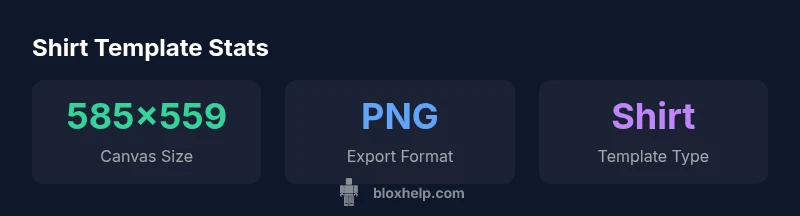
According to Blox Help, the Roblox shirt template uses a 585 by 559 pixel canvas for textures. This is the standard shirt template size most developers start with when designing Roblox shirts. Always verify with the official template file and guidelines to avoid misalignment or texture issues across devices.
What size is Roblox shirt template? An official canvas and common practice
If you're asking what size is roblox shirt template, the standard size for the shirt texture canvas is 585x559 pixels. This dimension is the baseline used by many designers because it maps cleanly to Roblox's torso and arms texture coordinates. The 585x559 canvas provides enough resolution to render details like seams, shading, and logos while keeping file sizes manageable for upload. In practice, designers begin their work by loading the official template and then locking key areas (shoulders, chest, and sleeves) to prevent accidental changes during editing. According to Blox Help, aligning your artwork to this canvas helps avoid misalignment when applied to a character in-game. When you design with the correct size, you minimize issues with stretching and pixelation across different devices.
Where to download the official template and how to start
To get started, download the official Roblox shirt template from the Roblox Developer Hub or the Roblox Creator Documentation page. After you download the template (usually a PNG file), open it in your favorite image editor. Set your canvas to the exact pixel dimensions of 585x559 and work on a new layer for your artwork. Do not resize the template arbitrarily; resizing can cause seam misalignment once applied to the 3D model. Save your work frequently and export a copy as PNG to preserve transparency and color detail. The Blox Help team emphasizes always starting from the official file to ensure you’re using the correct baseline dimensions and a clean seam layout.
Designing with the template: margins, seams, and UV mapping
A garment template is more than a flat image; it represents how the texture wraps around a Roblox character. The shirt template allocates regions for the front, back, sleeves, and collar. When designing, keep important art within safe margins so the seams do not cut off the design on the edges. Account for the 3D UV mapping so that elements intended to align at the chest or sleeve seams remain visible and not distorted. Use guides and grid lines if your editor supports them, and avoid placing small text too close to the edge where it could be cropped by the seam. Consistency across all parts—front, back, sleeves—helps a believable garment in-game. The official template is designed with these constraints in mind; staying within the intended zones reduces texture artifacts on Roblox characters.
Color, texture, and layer considerations
Color management matters for Roblox shirts. Work in the sRGB color space to ensure colors render consistently across displays. When you save as PNG, preserve the alpha channel if your design relies on transparency for cut-outs or subtle layering. Remember that shading and highlights can appear differently under Roblox lighting, so test your artwork with simple gradient fills and flat colors before committing complex textures. Avoid heavy compression and limit dithering to maintain sharp edges on the torso. If you’re adding patterns, keep scale appropriate to the character’s body size; oversized textures can look blurry in-game. The official guidelines suggest keeping a clean, flat design style for legibility and performance.
Export settings and file formats
Export your finished texture in PNG format to preserve color integrity and any transparency. Save a high-resolution version and a web-optimized version for quick previews. Some designers export as JPG when a PNG file is too large, but PNG remains the safer choice for lossless quality. Ensure the exported file name reflects its purpose, for example shirt_template_design_v1.png, and include a note if you’ve used any edits. If your editor supports color profiles, export with sRGB and embed the profile when possible. Finally, verify the pixel dimensions after export to confirm you haven’t inadvertently changed the size during the process. This helps prevent uploaded textures that look stretched or cropped in Roblox.
Validation and testing before publishing
Before publishing, always test the texture on a Roblox avatar. Upload the PNG to Roblox, then apply the template to a shirt asset and view from multiple angles and lighting conditions. Check seams where the front meets the back and near the shoulders. If you notice misalignment, return to the source template and adjust margins or alignment guides. It’s helpful to compare your final render against reference images from other successful shirts. Use Roblox lighting presets during testing to identify subtle color shifts. Following these checks reduces the likelihood of rejection during review and ensures a smooth player experience.
Practical workflow: from concept to upload
- Step 1: Download the official 585x559 shirt template from Roblox docs
- Step 2: Open template in your editor and plan your design on a new layer
- Step 3: Export as PNG with a clean alpha channel
- Step 4: Upload the texture to Roblox and attach it to a shirt asset
- Step 5: Preview on a character, adjust scale or margins if needed
- Step 6: Save a backup of the original template and your edited texture
- Step 7: Document the version and export details for future edits
This step-by-step workflow helps streamline the process and reduces the back-and-forth during submission.
Roblox clothing template sizes
| Template Type | Recommended Size (px) | Notes |
|---|---|---|
| Shirt template | 585x559 | Official Roblox shirt texture canvas |
| Pants template | N/A | Refer to Roblox docs for current size |
Questions & Answers
What size is the Roblox shirt template?
The official shirt template size is 585 by 559 pixels. This dimension is the standard canvas for Roblox shirt textures, and starting from this template helps prevent misalignment when applied to in-game avatars.
The Roblox shirt template size is 585 by 559 pixels.
Is the shirt template the same as the pants template?
No. Shirts and pants use different templates with their own dimensions. Always check the current Roblox docs for the exact template size you should use.
Shirt and pants templates have different sizes.
What export format should I use?
PNG is recommended to preserve color fidelity and transparency. Ensure the export matches the template dimensions for best results.
Export as PNG to keep quality.
Where can I download the official template?
From the Roblox Developer Hub or the official Roblox docs where the shirt template file and guidelines are published.
Download the official shirt template from Roblox docs.
Do template sizes change with updates?
Yes, Roblox may update templates occasionally. Always verify current sizes on the official Roblox site before starting a new design.
Templates can change; check the official site for updates.
“The shirt template size acts as the universal canvas for Roblox apparel; starting with the official canvas reduces misalignment and texture artifacts.”
The Essentials
- Use the official shirt template at 585x559 px.
- Export textures as PNG for lossless quality.
- Verify template guidelines before uploading to Roblox.
- Test seam alignment across devices.
- Consult Blox Help Analysis, 2026 for best practices.