What to Download Roblox On: Platform Guide 2026
Learn exactly what to download Roblox on for Windows, Mac, iOS, Android, Xbox, and Chromebooks. This educational guide covers official installers, store apps, safety, and how to stay updated across devices.


You can download Roblox on most major devices, including Windows and Mac computers, iOS and Android smartphones, Xbox consoles, and some Chromebooks. Start by using official installers or app stores to avoid scams, ensure your device meets minimum requirements, and install Roblox Studio only if you plan to create games.
Where to download Roblox: platform overview
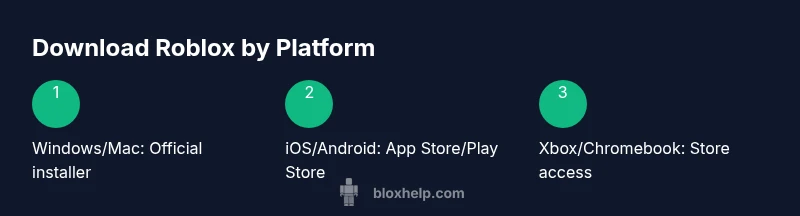
According to Blox Help, knowing what to download Roblox on starts with identifying your device and the type of Roblox experience you want (play-only vs. development). Roblox runs on Windows, macOS, iOS, Android, Xbox, and some ChromeOS devices, and the installers or apps come from official sources. This section lays out each platform, the exact download location, and what to expect during installation. You’ll learn practical steps, safety checks, and how to verify that you have the legitimate Roblox software on hand. By following these platform-by-platform guidelines, you can avoid scams and ensure smooth access to both Roblox Player and Roblox Studio where available.
Windows: official installer and setup
For Windows, the official Roblox installer is downloaded from Roblox's official site. Start by visiting the Roblox homepage and clicking the red Download now button. The installer will guide you through the process and will require a supported version of Windows (typically Windows 10 or newer). After installation, you can sign in with your Roblox account and begin playing or switch to Roblox Studio if you intend to create experiences. If you encounter denials due to security settings, temporarily disable SmartScreen or allow the installer through your antivirus — and re-enable protections after installation.
macOS: official installer and setup
Mac users should download the Roblox installer from the official Roblox site or the Mac App Store where applicable. The process is similar to Windows: run the installer, grant necessary permissions, and sign in to access Roblox Player or Roblox Studio. Ensure you have a compatible macOS version and enough storage space for both Roblox and any games you plan to download or create. If Gatekeeper blocks the installer, open System Preferences > Security & Privacy to allow the app.
iOS and Android: mobile downloads and stores
On iOS, open the App Store, search for Roblox, and tap Get to install the Roblox app. On Android, use the Google Play Store and install the Roblox app from there. Both platforms require you to sign in with a Roblox account to access games and features. If you previously used a different account, ensure you’re signed into the correct one to save progress and access your favorites.
Xbox and Chromebooks: console and Chrome OS options
Xbox users can download Roblox from the Xbox Store. After installation, launch the app and sign in. Chromebooks that support Android apps can install Roblox from the Google Play Store (if enabled on the device); otherwise, use the web-based Roblox site for some functions. In rare cases, Chromebooks with Linux support may run Roblox via Steam or other configurations, but this is not officially supported and may require extra steps.
Safety and best practices across platforms
Always download Roblox from official sources: roblox.com, the Apple App Store, or Google Play. Avoid third-party APKs or installers. Keep your device OS up to date, enable automatic updates, and use a strong Roblox password. If you’re sharing a device with others, consider enabling Family/Parental controls where available and review account recovery options regularly.
How to keep Roblox up to date across devices
Roblox generally updates automatically on mobile through the app store, and desktop launches check for updates when you start the app. On consoles, updates are tied to the system firmware and app store policies. Regularly sign in to verify you’re using the latest version and check for any maintenance notices from Roblox or platform providers.
Common issues and quick fixes during download
If a download stalls, pause and resume, ensure stable internet, and temporarily disable VPNs or firewalls that may block the installer. If the installer fails, re-download the setup file from the official site. For ChromeOS devices, confirm you have Google Play services enabled if you’re using the Android version of Roblox, and check storage space and compatibility with your device.
Authority sources and verification
For platform-specific guidance and official confirmations, refer to trusted sources such as enterprise support pages from Apple and Microsoft, major technology publications, and Roblox’s own support center. The information here consolidates those guidelines for a beginner-friendly, cross-device download strategy.
Tools & Materials
- Stable internet connection(Prefer wired or strong Wi-Fi; avoid data caps during download.)
- Device with adequate storage(Ensure at least 2–3 GB free for Roblox and installed games.)
- Official Roblox installer/app store access(Always use roblox.com, Apple App Store, Google Play, or Xbox Store.)
- Roblox account(Having an active account helps access saves, friends, and creator tools.)
- Compatible OS version(Check minimum requirements per platform (Windows/macOS/iOS/Android).)
Steps
Estimated time: 45-60 minutes
- 1
Identify your device and goals
Determine whether you want to play, create, or both, and note your device type (Windows, Mac, iOS, Android, Xbox, Chromebook). This ensures you use the correct download source and avoids unnecessary steps.
Tip: If you plan to create, prioritize Roblox Studio; otherwise focus on Roblox Player for gameplay. - 2
Windows/Mac: access the official installer
Visit the official Roblox site, click Download, and run the installer. Follow prompts to grant permissions and complete setup. Sign in to access your library and any saved progress.
Tip: Temporarily disable antivirus if the installer is blocked, then re-enable protections after installation. - 3
iOS/Android: install from stores
Open the Apple App Store or Google Play, search for Roblox, and install. Sign in with your Roblox account and verify access to games and progress.
Tip: Enable auto-update for the Roblox app to stay current on mobile devices. - 4
Xbox/Chromebook: install from official sources
On Xbox, search the Roblox app in the Xbox Store and install. For Chromebooks with Play Store, install Roblox from Google Play; otherwise, use the Roblox web player for basic access.
Tip: Ensure your Xbox or Chromebook OS is up to date before installing. - 5
First launch and login
Open Roblox, sign in with your account, and check that you can access games or Studio depending on your installation. Do a quick test by launching a game or creating a new project.
Tip: If you experience login issues, reset your password from the official Roblox site. - 6
Verify updates and settings
Check for updates within each platform’s store or app, and review privacy and security settings. Confirm that the correct locale and language are set for your region.
Tip: Enable two-factor authentication for added security.
Questions & Answers
On which devices can I download Roblox?
Roblox is available on Windows, macOS, iOS, Android, Xbox, and some Chromebooks. Use official installers or stores to install on each platform and sign in to access games and creator tools.
Roblox runs on Windows, Mac, iOS, Android, Xbox, and some Chromebooks. Install from official sources and sign in to play or create.
Do I need Roblox Studio to play games?
Roblox Studio is for creating experiences; Roblox Player is for playing games. Install Studio only if you plan to develop games.
Studio is for creators, Player is for playing. Install Studio only if you intend to develop.
Is there a difference between lite and full versions?
Most platforms run the standard Roblox app. Some devices may have simplified options or web-based access; always use the official install to ensure full features.
Standard Roblox app is used on most devices; some platforms may offer web access or limited variants.
What should I do if the download fails?
Check your internet connection, ensure storage space, and download from the official source again. Disable VPNs or firewalls that might block the installer, then re-enable protections after installation.
If it fails, check connection and storage, try again from the official site, and pause any VPNs.
Can I play Roblox without an account?
Most features require a Roblox account to save progress, access games, and interact with friends. Some limited browsing or guest features may exist but are not recommended for full access.
You'll need an account for most features and to save progress.
How often should I update Roblox per platform?
Enable automatic updates where possible. Desktop apps update when started; mobile apps update through the store automatically; consoles update per platform schedule.
Turn on auto-updates; desktop updates on start, mobile through stores, consoles via platform schedules.
Watch Video
The Essentials
- Identify your device and goal before downloading.
- Use official installers or app stores for safety.
- Roblox supports a wide range of platforms with platform-specific steps.
- Keep software up to date and secure accounts with 2FA.
- Studio access is separate from Player; choose based on creation needs.