Where to Install Roblox: A Beginner's Guide for All Devices
Learn where to install Roblox across Windows, macOS, iOS, Android, Xbox, and more. This guide covers official download pages, device requirements, and a clear setup process for a safe, smooth start.


You can install Roblox on multiple platforms, including Windows PC, macOS, iOS, Android, Xbox One/Series, and supported web browsers. To begin, visit the official Roblox download page, pick your device, and run the installer. After installation, sign in or create a Roblox account, then tap any game to start playing. Always download from the official site to avoid scams.
Where to install roblox and why the location matters
If you’re asking where to install roblox, the answer depends on your device: Windows PC, macOS, iOS, Android, Xbox, and select ChromeOS configurations all support Roblox. The installation source matters: use the official Roblox download page to guard against scams and ensure you get the latest version. In addition to platform support, consider storage space, network stability, and parental controls that may affect first-time setup. By starting with the official source, you minimize the risk of corrupted installers and ensure automatic updates when they become available. This careful approach also helps maintain account security and a smooth gaming experience across devices.
Supported platforms and official download pages
Roblox is designed to run on a range of devices. On Windows and macOS, download an installer from the official Roblox site and run it to install the Roblox Player. On iOS and Android, install the Roblox app from the App Store or Google Play, respectively. Xbox players install Roblox from the Microsoft Store. ChromeOS devices that support Android apps can run Roblox via the Roblox Android app. Always verify you’re on the official page before downloading to avoid counterfeit programs or bundled malware.
Preparing your device before installation
Before you start, check that your device meets basic requirements and has a stable internet connection. Update your operating system to the latest version, close unnecessary background apps, and ensure you have enough storage space for the installer and game data. Disable any unfamiliar browser extensions if you plan to install via a browser method, and ensure your antivirus or firewall settings won’t block the Roblox installer. If you’re installing on a shared or school device, obtain permission from the administrator to avoid policy conflicts.
Step-by-step overview by device
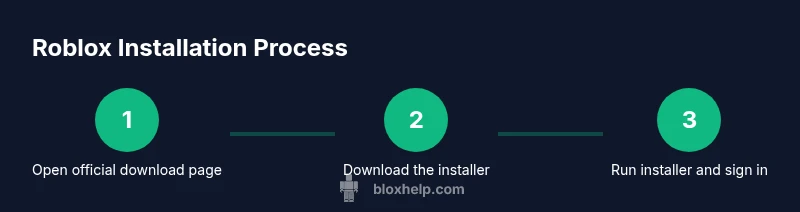
The installation flow is similar across platforms but with platform-specific steps. In broad terms, you’ll visit the official download page, select your device, download the installer, run it, and log in. After installation, you can launch Roblox and pick a game to start playing. The goal is a clean, verified install that receives updates automatically when available, keeping your games accessible and secure across sessions.
First run and account setup
On first launch, sign in with an existing Roblox account or create a new one. If you create a new account, keep your password secure and enable two-factor authentication if offered. Allow Roblox to access network features and game saves as requested, and adjust privacy settings to control who can contact you and what content you see. A quick sign-in verification helps prevent unauthorized access to your profile.
Keeping Roblox updated and safe
Roblox updates typically install automatically on most devices, but you may need to restart your device to complete updates. Regularly check for updates on the official download page or through your app store. For safety, review privacy controls, be mindful of in-game chats, and avoid sharing personal information. If you encounter issues, always revert to the official installer and reinstall to restore a clean baseline.
Tools & Materials
- Stable internet connection(Broadband or reliable Wi‑Fi; avoid metered connections when possible)
- Device with supported OS(Windows PC, macOS, iOS device, Android device, or Xbox console (ChromeOS with Android apps is also supported for Roblox))
- Roblox account(Sign up or prepare credentials to sign in after installation)
- Official Roblox download page(Access via web browser or app store depending on device)
- Sufficient storage space(Ensure room for the installer and game data; avoid installing on external drives with unreliable access)
Steps
Estimated time: 15-25 minutes
- 1
Open the official Roblox download page
Navigate to the official Roblox website and locate the download area. This ensures you grab the legitimate installer for your device and reduces the risk of malware. Take a moment to verify the URL and the site’s security indicators before proceeding.
Tip: Always verify the domain and look for HTTPS and a padlock icon before downloading. - 2
Choose your platform and download the installer
Select the device you’re using (Windows, macOS, iOS, Android, or Xbox) and download the appropriate installer. Avoid third‑party websites and ensure you’re on the official Roblox download page to receive the latest version.
Tip: If you’re on a public or shared device, sign out after installation to keep your account secure. - 3
Run the installer and follow prompts
Launch the downloaded file and accept any security prompts. Follow the on-screen instructions to install Roblox Player and any required components. The installer may ask for permissions to modify the system; grant only when prompted by the official installer.
Tip: Do not skip steps; allow the installer to complete each phase before moving on. - 4
Sign in or create a Roblox account
After installation, open Roblox and sign in with an existing account or create a new one. Use a strong password and enable two‑factor authentication if available. This step links your gameplay to your profile and saves progress.
Tip: Keep your credentials secure and avoid sharing them with others. - 5
Verify installation and launch a game
Choose a game from the Roblox library and start playing to confirm the install was successful. If a game doesn’t load, restart the app and check your internet connection. Ensure there are no conflicting firewall rules blocking Roblox traffic.
Tip: Test with a lightweight game first to confirm performance on your device. - 6
Update and maintain your Roblox client
Roblox will prompt for updates when needed. Apply updates promptly to keep security and compatibility up to date. Regular maintenance includes checking for OS updates and reviewing privacy settings.
Tip: Enable automatic updates when possible to minimize manual checks.
Questions & Answers
Do I need a Roblox account to install Roblox?
Yes. You must sign in with a Roblox account after installation, or create one during setup if you don’t have an account yet. This links your gameplay data and saves your progress.
Yes, you need a Roblox account after installation, or you can create one during setup.
Can I install Roblox on Chromebooks?
Roblox can run on Chromebooks that support Android apps by installing the official Roblox Android app from Google Play. If your Chromebook doesn’t support Android apps, Roblox won’t work directly on that device.
Chromebooks that support Android apps can run Roblox via the official Android app.
Is Roblox safe for kids?
Roblox provides parental controls and privacy settings to manage who can contact players and what content is visible. Parents should enable these controls and supervise usage, especially for younger players.
Roblox offers parental controls and privacy settings to help protect kids online.
What should I do if the installer won’t run?
Ensure you downloaded the installer from the official Roblox page, check for sufficient permissions, and temporarily disable antivirus or firewall restrictions if they block the installer. Re-download the file if it appears corrupted.
If the installer won’t run, verify the source, check permissions, and try re-downloading.
Do I need administrator rights to install Roblox on Windows?
On Windows, the installer may request administrator rights to complete the installation. Mac users might be prompted for their administrator password. Grant these prompts to finish setup.
Windows may ask for admin rights; macOS may ask for the password.
How often should I update Roblox after installation?
Roblox updates automatically in many cases, but you should manually check for updates if you notice issues or after a major OS update. Keeping the client current helps security and compatibility.
Updates occur automatically, but check for updates if problems arise.
Watch Video
The Essentials
- Use official sources for Roblox installers
- Follow platform-specific steps for Windows, Mac, iOS, Android, and Xbox
- Keep Roblox updated to stay secure and compatible
- Protect your account with strong credentials and privacy settings