Where to Play Roblox on PC: The Definitive Guide
Discover where to play Roblox on PC, how to install Roblox Player, and how Roblox Studio fits into your setup. Practical steps, performance tips, and troubleshooting for Windows and macOS.


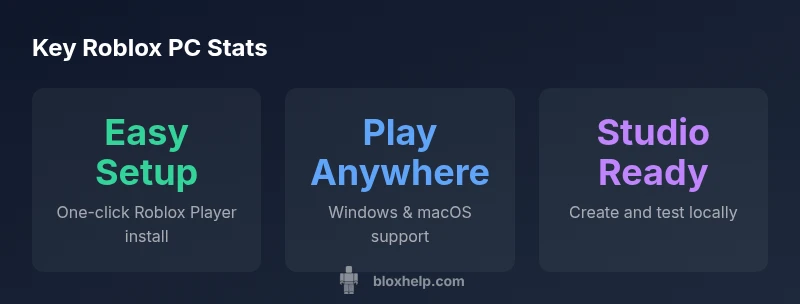
The quickest way to play Roblox on PC is to visit Roblox.com and download the Roblox Player. It works on Windows and macOS, and you can start playing by clicking Play on any game to trigger the installer. For developers, Roblox Studio lets you create and test games locally. Keep your drivers updated and verify your PC meets the official requirements for a smooth experience.
where to play roblox in pc
For many players, the PC is the most versatile way to enjoy Roblox. The exact phrase where to play roblox in pc captures the core question new players ask: where can I access Roblox on a computer? The answer is straightforward: you play via the Roblox Player downloaded from roblox.com, available for Windows and macOS. The PC path is reliable for both casual gaming and serious development because you can switch quickly between gaming and Studio mode. The Blox Help team notes that PC users often appreciate higher performance and more precise control with keyboard/mouse, as well as the ability to run multiple monitors. In 2026, Roblox continues to optimize the PC experience, making it easier to jump into games without worrying about browser constraints. This guide walks through setup, performance, crafting with Roblox Studio, and troubleshooting.
System requirements and performance tips
Roblox is designed to run on a wide range of hardware, but performance improves when you meet or exceed the general expectations of a modern PC. Rather than citing fixed numbers, focus on a stable frame rate, smooth loading, and minimal glitches. Key practices include updating your graphics and chipset drivers, closing unnecessary background applications, and using the graphics quality slider to balance visuals and performance. If you use multiple monitors, consider setting Roblox to run on your primary display and disabling high-refresh-rate modes that strain older GPUs. Regularly restart the PC to clear memory and ensure Roblox runs from the official launcher rather than a stale cached version.
Downloading and installing on Windows and Mac
Begin at roblox.com and sign in with your Roblox account. Click any Play button on a game page; the website will prompt you to download the Roblox Player. Run the installer and grant any firewall or security prompts. On Windows, you may be asked to allow the installer through Windows Defender; on macOS, you might need to approve the app in Security & Privacy settings. After installation, return to the game page and click Play again to launch. The process is the same for most modern PCs, with minor OS prompts depending on security settings.
Roblox Studio: PC development workflow
Roblox Studio is the hub for creators. It ships with Roblox and provides templates, a Script Editor, and a testing environment. If your goal is to build or experiment, install Studio from roblox.com and start with a beginner-friendly template. Use the built-in tutorials to learn controls, asset management, and basic scripting. Studio supports local testing, which means you can run your game on your own PC without publishing it to the public server. For educational purposes, break projects into small milestones and test frequently to catch bugs early.
Troubleshooting common PC issues
If Roblox won’t install, re-download the launcher from roblox.com and ensure your security software is not blocking the installer. For crashes, update graphics drivers and verify the game integrity via the launcher. Lag or stuttering can result from background processes or power-saving settings; switch to High Performance mode and close heavy apps. If you cannot log in, reset your password or check for account security alerts. For network problems, try a wired connection or reset your router. Always check the official Roblox status page for outages.
Optimizing graphics and controls on PC
Adjust the in-game Graphics Quality to suit your PC. For smoother performance, start with a balanced setting and adjust as needed. Enable fullscreen mode for reduced input lag, and configure keyboard and mouse bindings to your preference. If you use a gamepad or controller, verify compatibility in Roblox settings. Reducing background visual effects outside Roblox can free up GPU cycles for gameplay, while enabling V-Sync can improve screen tearing on some displays.
Cross-device play and account security
Roblox supports cross-device play, so progress and purchases carry across Windows, Mac, mobile, and consoles. Keep your account secure by using a strong password and enabling two-factor authentication. Regularly review connected devices and recent activity from your account settings. If you’re sharing a PC with others, consider separate local profiles to protect personal data and saved progress.
Quick-start checklist
- Install Roblox Player from roblox.com
- Sign in and verify access to a game
- Update drivers and ensure OS is current
- Try Roblox Studio for development
- Adjust graphics for smooth performance
- Enable two-factor authentication for security
PC Roblox options by operating system
| Platform | Official Download Source | Notes |
|---|---|---|
| Windows 10/11 | Roblox official site (roblox.com) | Mainline PC experience; broad compatibility |
| macOS (M1/M2) | Roblox official site (roblox.com) | Official support; good performance on modern Macs |
| Linux | Not officially supported | Workarounds may exist; use Windows/Mac if possible |
Questions & Answers
Do I need to download anything to play Roblox on PC?
Yes. You need to install the Roblox Player from roblox.com. After you click Play on a game, the installer runs automatically and launches Roblox. The process is quick and straightforward for new users.
Yes. Go to Roblox.com, click Play, and install the Roblox Player to start playing on PC.
Is Roblox Studio required to play Roblox games?
No. Roblox Player lets you play most games. Roblox Studio is optional and aimed at developers who want to create or test games locally before publishing.
No. You can play games with Roblox Player; Studio is for development.
Can I play Roblox on Linux?
Roblox does not have official Linux support. Some users run Roblox on Linux via compatibility layers or virtualization, but a Windows or macOS PC provides the most reliable experience.
There’s no official Linux support; use Windows or macOS for best results.
What are the minimum PC specs for Roblox?
Roblox aims to be accessible on a wide range of hardware. Check the official Roblox site for the latest recommended specs and tailor your setup to ensure comfortable gameplay and development work.
Roblox works on many PCs; see the official site for the latest requirements.
How do I fix lag or crashes on PC?
Update graphics drivers, close unnecessary programs, and adjust the in-game graphics settings. A stable internet connection also helps reduce lag; restart the computer if issues persist.
Update drivers, close background apps, and lower graphics quality to reduce lag.
Is Roblox Studio safe for beginners?
Yes. Roblox Studio provides guided tutorials and savable projects. Start with beginner templates, follow official quickstarts, and build gradually to avoid overwhelm.
Yes. Start with tutorials and templates to learn safely.
“Roblox on PC offers a flexible mix of quick access for players and robust tools for builders. Start with the client on Windows or macOS, then expand into Studio as you grow your projects.”
The Essentials
- Install from roblox.com to start playing on PC
- Use Roblox Studio to develop and test games
- Keep drivers and OS up to date for best performance
- Adjust graphics to balance visuals and performance
- Enable two-factor authentication for account security