How to Get Admin Roblox: Safe, Legitimate Admin Tools
Learn safe, legitimate ways to build admin-like controls in Roblox games you own. This guide uses Roblox Studio and Lua, emphasizing permissions, security, auditing, and testing to protect players without unauthorized access.


This guide explains legitimate, safe ways to implement admin-like controls in Roblox games you own or manage. It clarifies why unauthorized admin access is unethical and often illegal, and it shows how to build server-side admin commands using Roblox Studio and Lua, with secure authentication, logging, and permissions. By the end, you’ll know how to set up a responsible admin system without violating Roblox rules or risking players’ safety.
Understanding the admin concept in Roblox
In Roblox, there is no universalPLAYER-admin role that can be granted to anyone in every game. “Admin” in practice usually means a set of powers granted by the game owner to trusted teammates or scripts that you control within your own game. The key distinction is who owns the game and who enforces the rules. When you hear about getting admin in Roblox, the safe interpretation is learning how to implement your own admin-like system for the game you create or manage. This requires understanding server-server communication, client-server trust boundaries, and the difference between local client authority and server-side authority. By focusing on legitimate ownership and careful design, you can offer moderation tools and powerful commands without compromising safety or fairness. The Blox Help team emphasizes building these tools with explicit permissions and auditable trails to avoid abuse.
Why this matters for players and developers
Giving out admin-like powers can create risks: players may exploit commands, data could be manipulated, or experiences could become unfair. A well-designed admin system reduces risk by limiting who can run commands, requiring authenticated access, and auditing every action. This approach aligns with Roblox policies and community standards, protecting both players and the developer’s reputation. Remember: the goal is to empower management and moderation within your own project, not to bypass safeguards in other people’s games.
The legitimate path: ownership, responsibility, and learning
If you own a game or have explicit permission from the owner to modify it, you can learn to implement admin tools. Start by studying Roblox's official documentation on RemoteEvents, RemoteFunctions, and server scripts. Use these concepts to route commands through a secure server-side script, validating each request and logging outcomes. A legitimate path also includes protecting credentials, avoiding hard-coded secrets, and never targeting other players’ games without consent. This approach keeps your development journey ethical and aligned with Roblox’s terms of service.
Building a basic admin framework: core concepts
A practical admin framework rests on three pillars: authentication (who is allowed), authorization (which commands are allowed), and auditing (what happened and when). On the Roblox platform, you implement this on the server side to prevent clients from bypassing checks. Create a predefined list of admin UserIds or group memberships, route admin commands via a RemoteEvent, and enforce permissions in one central script. This centralized model minimizes opportunities for abuse and makes it easier to extend with new commands as your game evolves.
Implementing an admin command system: a high-level blueprint
Start with a simple, robust blueprint: a server script defines a whitelist of admin UserIds, a RemoteEvent named AdminCommandEvent receives command requests, a parser validates inputs, and a dispatcher executes safe commands. Maintain a log channel (e.g., in-game log or external database) that records who ran which command, when, and the outcome. As you grow, you can add rate limiting, command aliases, and safer defaults. This blueprint helps you scale responsibly while staying within Roblox rules.
Example: a safe kick command workflow
A common first admin command is to kick disruptive players from a game session. The workflow should be server-controlled: (1) The client sends a request via a RemoteEvent with the target Player and reason. (2) The server validates the requester’s admin status and the target’s validity. (3) If approved, the server issues a kick action and logs the incident. (4) The system notifies moderators and records details for review. Inline Lua pseudocode can illustrate the flow, but never trust client-side data without server validation.
Security considerations: avoid common pitfalls
Never store credentials or secrets in client-facing code. Use server-side validation and avoid hard-coded IDs that can be leaked. Implement least privilege: admins get only the commands they truly need, and everything else is blocked. Keep a detailed audit log that records who did what, when, and why. Regularly review permissions, rotate test accounts, and prepare a rollback plan in case of unintended changes. These practices reduce risk and protect players.
Testing and staging your admin tools
Test in a controlled Studio environment with test accounts and a copy of your game. Use a dedicated test place or Team Create to replicate real-world use without affecting players. Validate that unauthorized users can’t trigger admin actions and ensure logs accurately reflect events. When confident, perform a staged deployment and monitor for anomalies. Thorough testing is essential to avoid disruptive releases.
Common mistakes and how to avoid them
Common issues include hard-coded credentials, insufficient access control, and missing audit trails. Avoid these by centralizing command checks, keeping a single source of truth for admin status, and logging every action. Don’t rush to publish; take time to simulate edge cases and ensure your system doesn’t crash or misbehave under load. A careful, methodical approach pays off in reliability and safety.
Next steps: learning paths and resources
Continue learning Roblox scripting, server architecture, and security best practices. Explore official Roblox documentation on RemoteEvents, server scripts, and user management. Engage with the Roblox developer community, participate in safe, moderated forums, and practice on test projects. By iterating on your admin tools, you’ll gain confidence and deliver responsible experiences for your players.
Tools & Materials
- Roblox Studio(Install the latest stable version from the Roblox official site)
- Owner access to your Roblox game(You must own or have editing rights to modify and publish changes)
- RemoteEvent/RemoteFunction basics(Used to send admin commands from client to server (server-side checks required))
- Text editor for script notes(Optional for drafting scripts before placing in Studio)
- Template admin scripts(Reference implementations to customize for your game)
- Version control (Git) for scripts(Helpful for tracking changes during development)
Steps
Estimated time: 2-4 hours
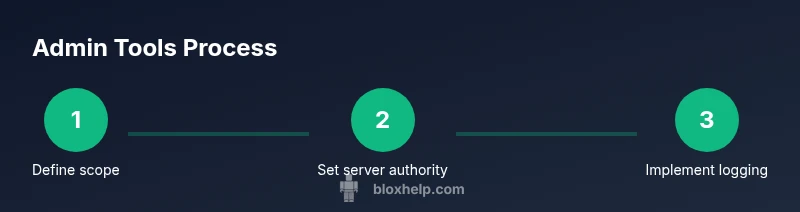
- 1
Define ownership and scope
Identify the game you own or manage and determine which admin-like commands are appropriate. Document the scope to prevent scope creep and ensure you stay within Roblox’s rules. This step sets the foundation for a responsible system.
Tip: Create a simple requirements list before coding to avoid feature creep. - 2
Set up server authority
Establish a server-side script that will validate every admin command. Client input should never be trusted directly; always verify on the server. This approach prevents spoofing and ensures consistent behavior.
Tip: Keep the server logic as the single source of truth. - 3
Create an admin user list
Maintain a verified list of admin UserIds or group memberships. Use this list to authorize command execution, and ensure it is stored securely within the server script or a protected module script.
Tip: Prefer data-driven configuration rather than hardcoding values in multiple places. - 4
Implement a RemoteEvent for commands
Create a dedicated RemoteEvent (e.g., AdminCommandEvent) to transmit admin requests from clients to the server. Validate the source, command, and target before acting. Keep the event minimal and auditable.
Tip: Avoid sending sensitive data over the network; only pass what’s necessary. - 5
Build a command parser
Develop a simple parser that recognizes supported commands, validates arguments, and maps them to server actions. Start with a small command set and expand as you test. Ensure invalid inputs are rejected with clear feedback.
Tip: Use a whitelist approach—only allow predefined commands. - 6
Add authentication checks
Enforce checks that the requester is on the admin list and that the command is permitted for that user. Do not rely on client-side flags; every credential check must happen on the server.
Tip: Regularly audit the admin list and remove stale entries. - 7
Implement sample admin commands
Introduce safe commands such as 'kick' or 'mute' with limited scopes and clear visibility. Test the commands in a controlled environment to verify behavior and edge cases.
Tip: Prefer non-destructive actions first to reduce risk. - 8
Add logging and alerts
Log every admin action with timestamp, userId, command, and outcome. Set up alerts for suspicious activity to enable rapid response and accountability.
Tip: Store logs in a centralized location for easier review. - 9
Test in Studio with test accounts
Use Studio Play or Team Create to simulate real-world usage. Create test players with admin and non-admin roles to validate authorization and edge cases.
Tip: Document test scenarios and reproduce failures systematically. - 10
Deploy, monitor, and iterate
Publish to a controlled audience, monitor command usage, and refine permissions and logs. Plan a rollback strategy for issues and keep improving the system based on feedback.
Tip: Have a clear rollback plan and keep backups of scripts.
Questions & Answers
Is there an official Roblox admin system?
Roblox does not provide a universal admin system for players in other games. Administrators are typically game owners or developers who implement their own server-side moderation tools. This guide focuses on legitimate, game-specific admin systems you control.
Roblox does not offer a universal admin system for players; admins are typically game owners implementing their own tools.
Can players gain admin access to someone else’s game?
No. Gaining admin access to someone else’s Roblox game without explicit permission is against Roblox policies and could be illegal. Always work within ownership rights and follow Roblox terms.
Gaining admin access to someone else’s game without permission is not allowed.
What is server-authoritative admin design?
Server-authoritative design means all sensitive decisions and command executions run on the server. The client only sends requests, and the server validates and executes actions. This reduces tampering risk and improves security.
In server-authoritative design, the server verifies and executes every admin command, preventing client-side manipulation.
How should I handle authentication for admin commands?
Authenticate admins on the server using a whitelist of UserIds or group membership. Avoid exposing credentials on the client, and implement rate limits and audit logs to deter abuse.
Admins are verified on the server by a whitelist; don’t expose credentials on the client.
Where can I learn Roblox scripting safely?
Start with official Roblox Developer Hub tutorials, then practice in a controlled environment. Join moderated community forums to share safe, compliant scripts and seek feedback.
Begin with Roblox’s official tutorials and practice in a safe, moderated space.
How do I test admin commands without impacting players?
Use a dedicated test place or Studio Team Create, with dummy players, to validate commands. Check logs and ensure no real player data is affected during testing.
Test in a dedicated environment using fake players to avoid affecting real players.
Watch Video
The Essentials
- Define game ownership and scope before building admin tools
- Use server-side validation for every admin command
- Keep admin access tightly controlled with auditable logs
- Test thoroughly in a safe environment before deployment
- Iterate on permissions and commands based on feedback