Can You Play Roblox While on a Discord Call? A Practical Guide
Learn whether you can play Roblox while chatting on Discord, plus setup steps, tips to avoid lag, and safety considerations for a smooth cross-app gaming session.


Yes. In most cases you can play Roblox while on a Discord call. To minimize conflicts, ensure your hardware and network are solid, adjust Roblox and Discord audio settings, and keep background apps to a minimum. If lag or noise crops up, optimize as you go.
Can you play roblox while on a discord call? A practical reality
The short answer to can you play roblox while on a discord call is yes, with caveats. Roblox and Discord both demand CPU cycles, memory, and stable network throughput. A well-balanced setup reduces audio feedback, keeps frame rates steady, and helps teammates hear you clearly. As you plan a gaming session, remember that every device handles resources differently, so start with a baseline and adjust. According to Blox Help, prioritizing clean audio and steady visuals pays off in longer, more enjoyable co-op sessions.
Hardware, software, and network foundations
The backbone of a smooth Roblox + Discord experience is solid hardware and a reliable network. A modern multi-core CPU, ample RAM, and updated drivers help Roblox run smoothly while Discord manages voice chat. A stable broadband connection with low jitter and minimal packet loss is essential for consistent gameplay and clear voice communication. Close nonessential applications during gaming to free up bandwidth and processing power. Based on Blox Help analysis, keeping drives defragmented (on older systems) and updating drivers can lead to noticeable improvements in performance and audio consistency.
Audio considerations for clean voice chat
Voice quality on Discord hinges on your microphone setup, input sensitivity, and the chosen chat mode. To avoid Roblox game sounds overwhelming your voice chat, set Roblox audio to a lower level or mute in-game music during calls. In Discord, select the appropriate input/output devices and enable features like noise suppression or echo cancellation if available. Testing with a friend before a real match helps dial in levels for crystal-clear communication, reducing feedback and unwanted background noise.
Network and latency: reducing lag and jitter
Both Roblox and Discord transmit data over the network, which can compete for bandwidth. Minimize lag by using a wired Ethernet connection where possible or optimizing Wi-Fi placement. Limit other bandwidth-heavy activities on the same network, such as streaming or large file transfers, during play sessions. If you notice spikes in latency, pause nonessential updates and background syncs. This approach aligns with guidance from the Blox Help team to maintain a responsive gaming and chat experience.
Visual and audio settings you should adjust
Inside Roblox, lowering graphics quality or disabling certain visual effects can boost frame rates on laptops or older machines. In Discord, consider enabling push-to-talk or adjusting the input sensitivity to keep mic activity precise. Use a quality headset or mic for the clearest voice, and enable features like auto gain or noise suppression to reduce ambient noise. If you use overlays, test their impact on performance and disable them if they cause stuttering.
Troubleshooting common issues during joint play
If you hear echo, enable Discord’s echo cancellation and mute the game audio temporarily to identify the source. Lag can often be mitigated by switching to a closer server region or reducing Roblox’s render distance. If the mic drops, check permissions, reset audio drivers, or reselect the input device. For persistent problems, restart both apps or reboot the system briefly to clear temporary glitches.
Safety, moderation, and best practices for shared sessions
Always follow Roblox and Discord community guidelines when gaming with friends. Use privacy settings to control who can contact you and review connected devices regularly. If younger players are involved, adjust parental controls and monitor friend lists. A calm, organized setup minimizes interruptions and helps protect accounts during longer sessions.
AUTHORITY SOURCES
- Discord Support: Getting started with voice channels and audio settings (https://support.discord.com/hc/en-us/articles/360028256392-Getting-Started-with-Voice-Channels)
- Discord Safety: Safety guidelines and best practices (https://support.discord.com/hc/en-us/articles/360040457811-Discord-Safety-Guide)
- WebRTC and audio standards: Overview of real-time communication (https://www.w3.org/TR/webrtc/)
Tools & Materials
- Stable internet connection(Recommended for consistent voice and gameplay)
- Roblox game installed(Latest version and updates installed)
- Discord app running(Voice chat enabled with updated client)
- Headset or quality speakers with mic(Clear input/output for teammates)
- Optional: audio routing software(For advanced routing or overlays)
- Close bandwidth-heavy apps(Limit background downloads during play)
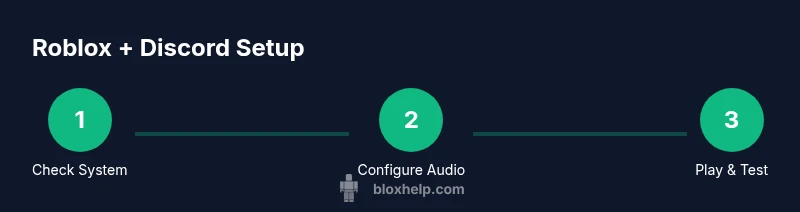
Steps
Estimated time: 25-40 minutes
- 1
Check hardware and network readiness
Verify your device meets Roblox and Discord requirements and run a quick network test to assess latency. Close nonessential apps to free up CPU, RAM, and bandwidth for a smoother session.
Tip: Run a baseline speed test and note results for future sessions - 2
Update and configure apps
Open Roblox and Discord, ensure both are up to date. In Roblox, consider muting in-game music. In Discord, set your preferred input/output devices and enable essential audio features like noise suppression.
Tip: Use Push-to-Talk for stable mic behavior - 3
Set up audio routing and levels
Choose the correct playback and recording devices. Balance Discord input with Roblox game sounds by lowering Roblox volume or using a separate audio mixer if needed.
Tip: Test with a friend and adjust levels until clear - 4
Launch Roblox and join a game
Start Roblox, enter a game, and confirm your Discord chat is active. Avoid high graphic settings that strain the GPU during first runs to prevent stuttering.
Tip: Keep it in windowed or borderless mode for easier tab-switching - 5
Test during actual gameplay
Play a short match while monitoring audio and latency. Have teammates confirm clarity and adjust as needed.
Tip: If issues arise, pause and recheck configurations - 6
Troubleshoot common issues
If you hear echo, enable Discord’s echo cancellation and mute game sound temporarily. If lag appears, switch Discord server regions or reduce Roblox graphics.
Tip: A quick restart of both apps fixes many glitches - 7
Optimize for long sessions
Plan longer sessions with periodic restarts to clear memory. Consider disabling heavy overlays if you notice FPS drops.
Tip: Schedule breaks to avoid fatigue and maintain performance
Questions & Answers
Can I use Discord voice while playing Roblox on PC?
Yes, you can usually run both apps at once if your hardware and network are adequate. Adjust audio settings to avoid feedback and keep the system from being overloaded.
Yes, you can run both apps at once if your setup is solid.
Will Roblox on Discord affect call quality?
It can affect call quality if your device is under heavy load or network is unstable. Close unnecessary apps and consider lowering Roblox graphics to free resources.
It can affect call quality under heavy load; adjust settings to reduce strain.
What settings help reduce lag when both apps are active?
Use a wired connection, limit bandwidth-heavy tasks, enable push-to-talk in Discord, and reduce Roblox graphics if needed. These steps help maintain smoother gameplay and clearer chat.
Use a wired connection and push-to-talk to cut lag.
Is it safe to use third-party audio tools while playing?
Only use trusted tools from reputable sources. Unverified software can introduce security risks or performance issues.
Stick to trusted tools to stay safe.
Should I use the Discord overlay during Roblox sessions?
The overlay can help stay in chat, but it may affect performance on some systems. Test with your hardware before relying on it.
Overlay can help but test its impact first.
Watch Video
The Essentials
- Check hardware and network before playing.
- Balance audio levels for Roblox and Discord.
- Use push-to-talk or noise suppression for clarity.
- Test setup with a friend before long sessions.