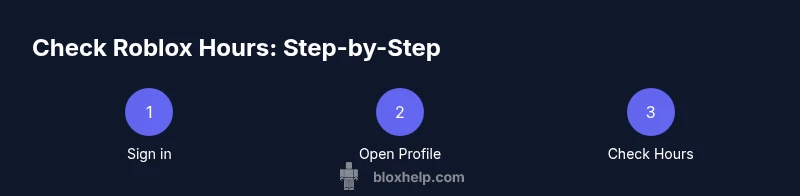
How to Check Roblox Hours: A Practical Player Guide
Learn how to check Roblox hours across devices, understand what counts, and track playtime effectively. This beginner-friendly guide covers where to find hours, privacy considerations, and best practices for staying on top of your time in Roblox.


In this guide you’ll learn how to check Roblox hours (your playtime) across devices and sessions, how hours are calculated, and how to verify accuracy. You’ll need a Roblox account, access to your profile, and a device with internet. By the end you’ll know where hours appear, privacy considerations, and practical tips for tracking time spent in Roblox.
Why tracking Roblox hours matters
Understanding how to check Roblox hours helps you manage time effectively, set healthy play limits, and compare activity across devices. The practice is particularly important for players who balance Roblox with school, work, or other hobbies. According to Blox Help, keeping an eye on your hours can prevent burnout and ensure you stay in control of your Roblox journey. This quick awareness also helps guardians and aspiring developers gauge how much time is spent learning and iterating within Roblox Studio or in-game experiences. By learning how to check Roblox hours, you gain a clear picture of your play patterns and can adjust habits before they become a problem. Whether you’re a casual player or a creator building new games, this awareness supports smarter, more intentional play.
What counts toward Roblox hours
Roblox hours generally reflect active play time when you are logged in and engaging with a game or experience. Time spent idling on a loading screen or navigating menus without actually playing may not always contribute to the total. The exact accounting can vary by platform and app version, but the core idea remains the same: active sessions contribute to your hours, while passive or idle time may not. For players, this means you’ll want to focus on actual gameplay sessions when you measure your hours. If you’re using multiple devices, the system typically aggregates hours per account, giving you a unified total across platforms. This is especially useful for parents tracking younger players who jump between PC and mobile devices.
Where to find Roblox hours on Desktop
On desktop, you’ll usually find playtime data under your profile or account dashboard. Start by signing in on roblox.com, then click your profile picture to access the profile page. Look for sections labeled Playtime, Hours, or Activity. Depending on updates, you may see a breakdown by day or week, plus a running total. If you don’t see hours immediately, try expanding sections like 'About' or 'Activity' or use the browser search (Ctrl+F) to locate keywords such as 'Hours' or 'Playtime.' Desktop views often provide a more persistent, easily navigable summary of hours than mobile interfaces.
Where to find Roblox hours on Mobile
In the Roblox mobile app, access is typically via the bottom navigation or a three-line menu. Tap your profile and locate the Activity or Playtime section. Some versions show a daily or weekly breakdown, with a running total beside it. If you don’t see hours right away, ensure the app is updated to the latest version and try logging out and back in. Mobile displays can vary by device and OS, but the goal remains the same: a concise view of active playtime per account and device.
Cross-device hours and syncing
Hours should accumulate across devices as long as you remain logged into the same Roblox account. The total time is usually presented per account rather than per device. If you notice discrepancies, verify you’re using the same login across devices and allow a short syncing period after launching Roblox on a new device. In some cases, there may be a brief delay before minutes appear in the total. Consistency is key: keep tracks of where you play and how you access your account.
Privacy considerations and visibility
Your Roblox hours can reveal personal play habits, so it’s important to review privacy settings. Decide who can see your activity and consider enabling parental controls if you’re supervising a younger player. If you share a device or account, discuss expectations around visibility and time spent. Privacy controls may be located in your account settings or family safety options, allowing you to hide or share activity at varying levels of granularity.
Common myths and pitfalls
A frequent pitfall is assuming that hours reflect every minute you sit in a lobby or menu; in reality, only active play time often counts. Another myth is that hours reset when changing devices; in practice, hours should stay with the account, but login context matters. Delays in syncing across devices can create temporary discrepancies. Finally, some players assume parental controls will block hours from being tracked; privacy settings govern visibility, not the underlying tracking.
Practical tips for tracking time effectively
- Set personal playtime goals and use reminders to stay on schedule. - Keep a simple log of start and end times for sessions to compare with Roblox’s totals. - Regularly review hours on both desktop and mobile to spot patterns and drift. - Use a consistent login across devices to improve cross-device accuracy. - Take breaks to prevent overuse and maintain balance with other activities.
Troubleshooting: hours not showing or off by a few minutes
If you notice hours aren’t updating or seem off, first verify you’re logged into the same account across devices. Check for app updates and ensure you’re viewing the latest activity section. If problems persist, log out, clear cache, and sign back in. In rare cases, contact Roblox support for account-specific issues, keeping screenshots of discrepancies handy to speed up the process.
Real-world examples and scenarios
Imagine you played 40 minutes on desktop, then 25 minutes on mobile later that day. If you’re properly logged in, your total should reflect roughly 65 minutes of active play across devices. Another scenario: you complete a long game session, switch devices, and continue—Roblox hours should continue to accumulate, provided you stay logged in. These examples illustrate how cross-device playtime consolidates into a single, coherent hours total, making it easier to manage your overall time spent in Roblox.
Tools & Materials
- Roblox account(Ensure you have access to your own profile; login required.)
- Device with internet access(Desktop, laptop, tablet, or smartphone.)
- Web browser or Roblox app(Chrome/Edge/Safari or the official Roblox app.)
- Time-tracking method (optional)(Notebook or digital note to record hours if needed.)
- Privacy awareness (optional)(Be mindful of who can view your playtime if you share accounts.)
Steps
Estimated time: 25-40 minutes
- 1
Sign in to Roblox
Open the Roblox website or app and log in to your account. Confirm you’re on the correct profile before proceeding, especially if you share a device.
Tip: Enable two-factor authentication for added security. - 2
Navigate to your profile
Click your profile picture or avatar to open your profile or account dashboard where activity is displayed.
Tip: Use the profile icon in the top-right corner for quick access. - 3
Find hours on Desktop
Scroll to the Activity or Hours section on the profile page and read the breakout by date or session.
Tip: If you don’t see Hours, use Ctrl+F to search the page for 'Hours' or 'Playtime'. - 4
Find hours on Mobile
In the Roblox mobile app, open the menu, go to your Profile, then locate Activity or Playtime.
Tip: Ensure the app is up to date; UI can vary between versions. - 5
Understand what counts
Hours reflect active play sessions. Time spent idle on loading screens or menus may not always count the same way.
Tip: Play actively rather than leaving games idling in the background. - 6
Cross-device tracking
Your hours are per account and should reflect activity across devices when you stay logged in.
Tip: Be sure you’re logged into the same account on all devices. - 7
Privacy and time management
Review who can see your hours and adjust privacy settings if needed; set personal play goals.
Tip: Discuss with guardians if using Family or Parental Controls. - 8
Keep a simple time log
Record start/end times for sessions to compare against Roblox’s totals and catch drift early.
Tip: A quick notebook or a note on your phone works well.
Questions & Answers
Where can I see my Roblox hours?
Typically in your profile under Activity or Playtime; path may vary by platform and app version.
Open your profile and look for Activity to view your hours.
Do Roblox hours count idle time?
Hours usually count active play sessions; idle screens may not contribute equally to the total.
Hours count during active play; idle time may not be included.
Can others see my Roblox hours?
Privacy settings determine visibility; you can limit who sees your activity.
Privacy controls decide who can see your hours.
Do hours reset if I switch accounts?
Hours are per account; changing accounts creates separate totals.
Hours stay with the account you use.
Why are my hours different on mobile vs desktop?
Sync delays and platform differences can cause brief discrepancies.
There can be syncing delays; compare after a short while.
How can I manage my Roblox playtime effectively?
Set goals, use reminders, and log sessions to stay on track.
Set goals and reminders to stay on top of your hours.
Watch Video
The Essentials
- Identify where Roblox hours are shown on both desktop and mobile.
- Hours are tied to active play sessions per account.
- Cross-device totals require consistent login across devices.
- Privacy settings influence who sees your hours.