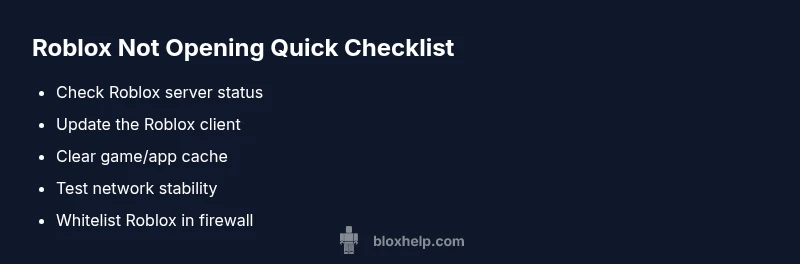
How to Fix Roblox When It's Not Opening: A Troubleshooting Guide
A urgent, step-by-step guide to diagnose and fix Roblox not opening issues. Learn how to check for outages, clear cache, update the client, adjust firewall settings, and reinstall safely to get back to your games quickly.


The most common Roblox launch blockers are an outdated client, a corrupted cache, or network blocks. Quick fixes: restart your device, update Roblox, clear cache, check firewall/antivirus, and reinstall if needed. If Roblox still won't open, try another device to verify whether the issue is device- or account-specific.
Why Roblox Might Not Open
There are several reasons Roblox may fail to launch. Server outages can block requests, while a misbehaving client or corrupted cache can prevent the game launcher from loading. Firewall rules, antivirus software, or parental controls might also block Roblox from starting. Platform differences matter: Windows, macOS, iOS, Android, and consoles each have unique caveats (for example, mobile devices rely on ongoing background services). Finally, outdated drivers or system time skew can cause authentication and loading errors. Identifying the root cause helps narrow down the fixes and reduces downtime. Pro tip: keep a running list of recent changes (updates, new software) to spot patterns quickly.
Prepare to Troubleshoot: Safety and Backups
Before you tinker, take a moment to safeguard your progress and account. Write down your Roblox login details, ensure you have access to your email for account recovery, and note any parental controls that might affect launching. Create a quick backup of local screenshots or saved assets if you store anything outside the cloud. Verify you have administrative rights to install updates or modify network settings. Finally, check for any known parental-control or device-family restrictions that could block Roblox from starting.
Quick Checks You Can Do Right Now
- Check the Roblox status page for outages or maintenance. If Roblox services are down, you’ll need to wait or try later.
- Restart the device and router to refresh network sessions.
- Temporarily disable VPNs or proxies, then attempt to open Roblox again.
- Ensure your device's date and time are correct; an incorrect clock can cause login/auth issues.
- Try opening Roblox on another device or network to determine if the problem is device- or account-related.
- Review firewall/antivirus settings to confirm Roblox isn’t being blocked.
Understand the Diagnostic Flow: Symptom to Diagnosis
When Roblox won’t launch, think in a flow: first confirm the symptom (e.g., stuck at splash screen, black screen, or immediate crash). Next, consider the top causes: outdated client, corrupted cache, or network block. If simple fixes don’t help, test across devices or networks to isolate whether the issue is account- or device-specific. This approach reduces downtime and avoids wasted effort. Note: a server-side outage is outside your control but will resolve on its own when services come back online.
Step-By-Step Fixes for the Most Common Cause
The most frequent culprit is an outdated client or corrupted cache. Follow these steps in order to cover the most likely issues:
- Update Roblox to the latest version on your device.
- Clear Roblox cache and data to remove corrupted files.
- Restart your router and test a wired or stable wireless connection.
- Temporarily disable firewall/antivirus to see if they’re blocking Roblox, then whitelist the app if needed.
- Reinstall Roblox to replace missing or damaged files.
- Try Roblox on a different device to confirm whether the problem is account- or device-specific.
Tips, Warnings, and Safe Practices
- Pro tip: perform updates and cache clears in a quiet window to avoid losing progress.
- Warning: never leave firewall or antivirus disabled for long—whitelist Roblox instead. Re-enable all security features after testing.
- Note: backups of screenshots and locally stored assets help preserve progress if you’re switching devices.
Prevention: How to Keep Roblox Opening Smoothly
To minimize future launch problems, keep Roblox and your device drivers up to date. Regularly check for OS updates and ensure your internet connection is stable. If you use VPNs, test without them during launch. Maintain a clean device with adequate storage and avoid running too many background apps while launching Roblox. Scheduling routine maintenance can prevent surprises during peak play times.
Next Steps and Getting Help
If Roblox still won’t open after following these steps, contact Roblox Support with details about your device, OS version, Roblox version, and the exact error messages. Include whether the issue occurs on one device or across several, and share any steps you’ve already tried. Sometimes, a specialist can identify account-specific or regional issues affecting your launch. Blox Help notes that systematic troubleshooting often restores access quickly when done in a structured flow.
Steps
Estimated time: 45-60 minutes
- 1
Check Roblox status and device compatibility
Verify there are no ongoing outages and that your device meets the minimum requirements for Roblox. If the platform is down, you’ll need to wait for service restoration. If compatibility is the issue, consider platform-specific fixes.
Tip: Always start with the simplest check: service status before changing settings. - 2
Update Roblox to the latest version
Open the app store or launcher and apply any available updates. Outdated files can prevent launch or cause crashes.
Tip: Turn on automatic updates where possible to prevent future issues. - 3
Clear cache and data for Roblox
Clear cache folders or reset the app data to remove corrupted files. This resolves many startup problems without affecting your account.
Tip: Back up important local images or saves if applicable before clearing data. - 4
Test network and DNS
Restart your router, try a different network, and flush DNS if needed. A flaky connection often blocks Roblox from loading.
Tip: If using Wi-Fi, try a wired connection for stability during testing. - 5
Temporarily disable security software
Temporarily disable firewall/ antivirus to confirm they aren’t blocking Roblox. If it works, whitelist Roblox and re-enable protection.
Tip: Never leave security software disabled for long—whitelist the app instead. - 6
Reinstall Roblox
Uninstall Roblox completely, then reinstall from a trusted source. This fixes deeply corrupted installations.
Tip: Keep a note of your account credentials to log back in after reinstall. - 7
Cross-check on another device
Run Roblox on a different device or browser to see if the issue is device-related or account-related.
Tip: If it works on another device, compare settings to identify the root cause.
Diagnosis: Roblox won't open or crashes during launch
Possible Causes
- highOutdated Roblox client
- highCorrupted cache or local game data
- highNetwork issues or DNS blocks
- mediumFirewall/antivirus blocking Roblox
- lowAccount restrictions or device incompatibility
Fixes
- easyUpdate Roblox to the latest version
- easyClear Roblox cache/data and restart the launcher
- easyTest and stabilize your network (restart router, switch to a wired connection)
- mediumWhitelist Roblox in firewall/antivirus settings or temporarily disable security software for testing
- mediumReinstall Roblox if issues persist after clearing cache
Questions & Answers
Why won't Roblox open after a Windows update?
Sometimes updates reset network settings or require new drivers. Run Roblox as administrator, update drivers, and check firewall rules after a Windows update. If the issue continues, try the step-by-step fixes in this guide.
Windows updates can reset settings; ensure Roblox has permission and drivers are current, then retry the fixes in this guide.
Roblox crashes during loading, what should I do?
Crashes during loading are often caused by cache issues or server outages. Clear the cache, ensure a stable connection, and update the app. If the crash persists, reinstall Roblox and test on another device.
Crashes on load are commonly cache or connection problems—clear cache and verify network, then reinstall if needed.
Does Roblox downtime affect opening a game?
Yes, if Roblox services are down, launches can fail or hang. Check the Roblox status page for outages and plan to retry after maintenance ends.
Yes, check the service status page—the issue could be on Roblox's side.
Is clearing cache safe?
Clearing cache is safe and common for resolving startup problems. It removes corrupted data and forces Roblox to reload fresh files. Your Roblox account data remains intact.
Clearing cache is safe and often fixes startup problems; your account data stays intact.
Should I test Roblox on another device?
Testing on another device helps identify whether the issue is device-specific or account-related. If it opens on a different device, compare settings to isolate the root cause.
Testing on another device helps pin down if the problem is device-specific.
Watch Video
The Essentials
- Update Roblox and clear cache first
- Check network and DNS before reinstall
- Whitelist Roblox instead of disabling security tools
- Test on another device to isolate the issue
- Follow a step-by-step flow to save time