How to Prevent Roblox Disconnects While AFK
Learn practical steps to prevent Roblox disconnects during AFK sessions. This guide covers network stability, device power settings, and platform-specific tips to keep your Roblox gameplay uninterrupted on PC, mobile, and consoles.


To prevent Roblox disconnects while AFK, focus on stabilizing your connection, reducing power-saving interruptions, and understanding Roblox inactivity timeouts. This quick guide outlines practical steps you can take on PC, mobile, and consoles to keep sessions alive, with exact actions and safety notes. Expect guidance on wired Ethernet, router tweaks, in-game settings, and what not to do.
Why disconnects happen during AFK sessions
Staying idle in Roblox does not guarantee a long, uninterrupted connection. The most common reasons you see a disconnect while AFK include server-side inactivity checks, network timeouts, and device power settings that suspend background activity. According to Blox Help, some servers implement short inactivity thresholds to free up capacity, which can trigger a disconnect if your client appears dormant. Even a brief ping spike or a momentary router interruption can flip the session status from active to disconnected. In practice, players often notice disconnects after several minutes of inactivity, especially during peak hours when Roblox servers experience higher load. To reduce the chance of a disconnect, it helps to understand both your end of the connection and how Roblox handles idle sessions. The rest of this guide explains practical steps and best practices to keep your Roblox session stable, even when you’re not actively clicking around.
Roblox inactivity timeouts and session lifecycles
Roblox manages sessions with implicit timeouts to balance server resources. When your client shows no input for a defined interval, the server may mark the session as idle and disconnect you to free capacity for others. This behavior varies by platform and server region, but the overall goal is to preserve smooth gameplay for everyone. The key takeaway is that even short pauses can trigger a disconnect if latency is high or if the network path experiences occasional drops. Understanding your network path helps you plan preventive steps, such as minimizing hops, avoiding congested networks, and ensuring your device isn’t throttled by idle power-saving features.
Understanding network health: latency, jitter, and packet loss
Gaming stability hinges on three core metrics: latency (ping), jitter (variance in ping), and packet loss (lost data). Low latency with minimal jitter provides a smooth Roblox experience, while spikes or drops can cause noticeable lag and possible disconnections during AFK. Packets traveling through your home network must reach Roblox servers quickly and reliably; any delay may compound during idle periods when the server expects a steady heartbeat. To optimize, run occasional latency tests, monitor your home network during peak times, and reduce competing traffic (like large downloads) when you plan to stay AFK for extended periods.
Platform differences: PC, mobile, and console
Each platform has different networking and power-management behaviors that affect AFK stability. PC users typically have the most control over settings like network adapters, QoS, and power profiles, while mobile devices rely on cellular or Wi‑Fi stability and OS-level background restrictions. Consoles may apply aggressive idle timers and background refresh rules to conserve resources. By tailoring settings to your device type—wired connections on PC, stable Wi‑Fi on mobile, and ensuring console power-saving is disabled—you can reduce needless disconnects during AFK moments.
Practical steps to prevent disconnects while AFK
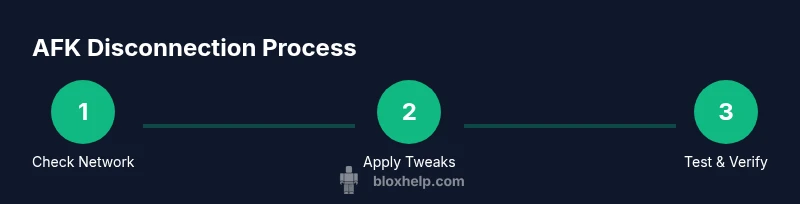
- Strengthen your network foundation: Prefer a wired Ethernet connection when possible and ensure your router firmware is up to date. A stable link reduces ping spikes and packet loss that commonly trigger disconnects during idle periods.
- Optimize router settings for gaming: Enable QoS to prioritize Roblox traffic, assign a fixed LAN IP, and avoid other devices saturating your bandwidth during gaming windows. If you experience frequent disconnects, consider using a separate 2.4 GHz/5 GHz band allocation to minimize interference.
- Tidy your device and software: Keep the Roblox client updated, close bandwidth-heavy apps, and ensure your device isn’t entering power-saving modes during idle times. On laptops, set to a high-performance profile when planning long AFK sessions.
- Power settings and sleep timers: Disable automatic sleep or hibernate during AFK intervals and set the computer or console to stay awake for extended periods. This prevents the system from pausing Roblox in the background.
- Test changes with controlled checks: After making a change, run a short test session to confirm stability before going AFK for a long period. Document which changes yield tangible improvements.
Safety, policy, and things to avoid
Be mindful of Roblox’s Terms of Service. While optimizing network and device settings is allowed, using automation, bots, or third-party tools to artificially maintain activity can violate rules and lead to account penalties. The safest approach is to improve your own network health and device configuration rather than attempting to circumvent idle timeouts with external tools. If you encounter persistent disconnects after trying legitimate tweaks, consult official Roblox Support or community tutorials from trusted sources.
Authority sources
- Official guidelines on network stability and home setups: https://www.fcc.gov
- Practical gaming latency and network health overview: https://www.theverge.com
- Comprehensive consumer networking advice for gamers: https://www.pcmag.com
Tools & Materials
- Wired Ethernet connection(Prefer a direct Ethernet link over Wi‑Fi for best stability; use cat5e/cat6 cables.)
- Router with QoS features(Enable QoS prioritizing gaming traffic; update firmware regularly.)
- Uninterruptible Power Supply (UPS) for router/modem(Helpful during outages to keep network up for AFK sessions.)
- Device power settings tuned for performance(Set to High Performance; disable sleep timers during AFK windows.)
- Roblox client updated to latest version(Ensure you’re running the newest launcher and game client.)
- Minimal background processes(Close apps that consume bandwidth or CPU while AFK if possible.)
- Stable Internet plan with low jitter(If possible, choose plans with low latency and consistent speeds.)
Steps
Estimated time: 60-120 minutes
- 1
Check your current network health
Run quick tests for latency, jitter, and packet loss to Roblox servers. Use built-in OS tools or reliable third-party testers to establish a baseline before AFK. If issues appear, address them before proceeding.
Tip: Note down your baseline metrics so you can measure improvement after each change. - 2
Switch to a wired Ethernet connection
If you’re on Wi‑Fi, connect your device directly with an Ethernet cable. This reduces interference and stabilizes your ping, which helps when you’re AFK and servers expect consistent heartbeats.
Tip: If running a wire is impractical, try moving closer to the router or use a QoS-enabled mesh system. - 3
Adjust device power settings for performance
Set your device to a high-performance profile and disable sleep/hibernate while gaming. This prevents the OS from pausing Roblox in the background during idle periods.
Tip: On laptops, ensure battery saver is off during AFK sessions. - 4
Configure router QoS and firmware
Access your router’s settings, enable QoS, and prioritize gaming traffic. Update firmware to fix known stability issues and reduce route changes that cause disconnects.
Tip: If you have multiple devices, isolate Roblox traffic on a dedicated QoS rule for predictability. - 5
Keep Roblox and background apps lean
Update Roblox, close bandwidth-heavy programs, and disable non-essential background services that might interrupt the network drain.
Tip: Temporarily pause large downloads during AFK periods for the most stable session. - 6
Run a controlled AFK test and document results
After each change, run a short AFK session to verify stability. Record the outcome and repeat with incremental tweaks to isolate effective fixes.
Tip: Avoid making many changes at once; test one change at a time for clarity. - 7
Monitor performance and re-optimize
Keep an eye on latency and disconnect frequency over several days. Revisit router settings or ISP options if you notice recurring instability.
Tip: Create a simple checklist to track which tweaks yield improvements.
Questions & Answers
Why does Roblox disconnect when I’m AFK?
Disconnects during AFK are often caused by inactivity timeouts, network hiccups, or power-saving features that pause the game. Ensuring a stable connection and preventing idle timers from triggering can help reduce this.
Disconnections while AFK usually come from inactivity timeouts or network hiccups. Keeping your connection steady helps prevent it.
Is there an official Roblox setting to stay connected while AFK?
There is no widely available official setting to keep a Roblox session alive while AFK. Focus on network stability, device settings, and platform-specific tweaks to minimize disconnects.
Roblox doesn’t offer an official AFK keeper setting. Improve your network and device setup instead.
Can I use macros or bots to stay AFK without disconnects?
Using macros or bots to simulate activity can violate Roblox’s terms of service and risk account penalties. Stick to legitimate network and device optimizations.
Avoid macros or bots; they can violate Roblox rules and get your account in trouble.
Does latency directly affect AFK disconnects?
Yes. Higher latency and jitter increase the chance of disconnects during idle periods because the server expects a steady heartbeat and timely responses.
Latency and jitter directly influence disconnections during idle moments.
What should I do if I still disconnect after trying tweaks?
If issues persist, run a clean test with each change, check ISP status, and consider contacting Roblox Support for guidance.
If it keeps disconnecting, test changes one by one and reach out to Roblox Support if needed.
Are there platform-specific differences I should know about AFK stability?
Yes. PC typically offers more control over settings, while mobile and consoles hinge on OS power management and network stability. Tailor tweaks to each platform accordingly.
PC gives more control; mobile and consoles rely more on your network and power settings.
Watch Video
The Essentials
- Improve network stability to reduce disconnects.
- Prefer wired connections over Wi‑Fi for gaming.
- Disable aggressive power-saving features during AFK.
- Keep Roblox and router settings up to date and optimized.