How to Turn On VC in Roblox: A Complete Guide
Learn how to turn on VC in Roblox, verify eligibility, configure microphone permissions, and troubleshoot common issues with a step-by-step approach for beginners and seasoned players alike.


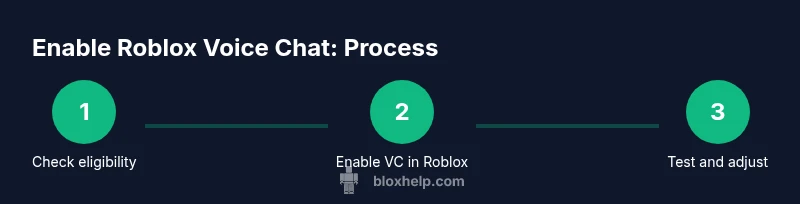
This guide explains how to turn on vc in roblox. You’ll need a compatible device, a working microphone, and access to Roblox voice chat in your region. Start by confirming availability, then enable VC in Roblox settings and test your mic in a private session before joining games with friends.
What is Roblox Voice Chat and Why Use It?
Roblox Voice Chat (VC) is an audio communication feature that lets players talk with teammates in real time while in games. It can enhance teamwork, coordination, and social interaction, especially in group activities like obstacle courses, strategy games, and role-play adventures. Not all players will see VC enabled by default; availability depends on age, region, and the device you’re using. If you’re wondering how to turn on vc in roblox, the answer involves checking eligibility, confirming device compatibility, and then enabling the setting within Roblox itself. In practice, you’ll prepare a microphone, verify your account, and adjust in-game audio levels to ensure clear, comfortable communication. For beginners, starting with a private test session is a smart way to learn the controls without outside interruptions. This section lays the groundwork so you understand what VC does and why it can improve your Roblox experience.
Key terms:
- Voice Chat: In-game real-time audio communication.
- Push-to-Talk: A mode that requires holding a key to transmit.
- Open Mic: Your mic is always on while you speak. Make sure you use appropriate etiquette when enabling Open Mic in social settings.
A quick note: VC is tied to regional availability and age verification in many cases. Always check Roblox’s current policies for your country to avoid surprises when you attempt to enable VC.
Prerequisites: Availability, Age, and Permissions
Voice chat in Roblox is not universally available. Before attempting to turn on vc in roblox, confirm several prerequisites to avoid frustration. First, confirm your country or region supports VC—Roblox periodically expands availability, but it isn’t guaranteed worldwide. Second, age eligibility matters: many regions require users to be 13+ with age verification to enable voice features. Third, you’ll need a compatible device and microphone that Roblox can access. This may mean granting mic permissions in your operating system as well as in the Roblox app or launcher. Finally, ensure you have a stable internet connection to prevent choppy audio or dropped conversations. If any prerequisite is missing, VC won’t appear in your Roblox settings. In short, readiness beats trial-and-error here; verify region, age, device, and mic permissions first for a smooth VC enablement process.
Step-by-Step: How to Turn On VC in Roblox (Core Settings)
Follow these actionable steps to enable VC in Roblox on supported devices. Each step is designed to be straightforward and self-contained so you can complete the process without confusion.
- Open Roblox and log into your account. Navigate to the game or home screen where you have access to Settings. This step confirms you’re operating under the correct profile.
- Go to Settings > Privacy or Voice Chat settings. Look for a toggle labeled Voice Chat or VC. If you don’t see it, VC may not be available in your region or for your account yet.
- Turn on Voice Chat. You may be prompted to accept terms or verify age if you haven’t done so already. This is a one-time permission that unlocks VC features across Roblox.
- Choose your preferred mode: Push-to-Talk or Open Mic. Push-to-Talk can reduce background noise in busy environments. You may be asked to assign a hotkey for Push-to-Talk.
- Save your changes and restart Roblox if prompted. Restarting ensures the new VC settings load properly in all your games.
If you follow these steps and still don’t see VC in Roblox, there may be platform or regional limitations. Consult the support articles for your device (PC, mobile, or console) and verify your account meets all requirements. For many players, this is the moment where VC becomes available and you can begin practicing with friends in safe, moderated spaces.
Step-by-Step: Set Up Microphone and OS Permissions
Voice chat won’t work without a microphone that Roblox can access. This section walks you through configuring both your computer or device and Roblox to recognize and transmit audio clearly.
- On Windows/
Step-by-Step: Configure Roblox Voice Settings
After you’ve enabled VC and confirmed your microphone works at the OS level, fine-tune Roblox-specific settings for best results. These controls often affect audio quality, who can hear you, and when.
- In Settings > Voice: Set the overall volume balance so your voice is loud but not overpowering other players. If your game has a separate voice volume, harmonize both controls.
- Privacy: Decide who can speak with you. Options typically include Everyone, Friends, or No One. If you’re new to VC, start with Friends to ease into voice interactions.
- Safety: Some regions allow moderated voice channels or mute lists. Learn how to block or report players who break the rules to maintain a positive experience.
- Activity-dependent: Some games enable voice chat only during private sessions or party modes. Verify the game-specific settings to ensure VC is active when you’re playing.
- Test: Join a private server or a friend’s game to test real-time transmission and ensure you can hear others clearly. If you encounter echo or latency, adjusting microphone sensitivity or moving closer to the mic can help.
Testing and In-Session Use: Push-to-Talk vs Open Mic
Once VC is enabled, it’s time to test in-session behavior. Choosing between Push-to-Talk and Open Mic has a big impact on voice clarity and group dynamics.
- Push-to-Talk: Ideal for crowded voice channels. You press a key (configurable) to transmit, and release to stop. This minimizes background noise and accidental audio leakage.
- Open Mic: Easier for casual play but can flood channels with ambient noise. Only enable if you’re in a quiet environment and expect everyone to listen.
- Best practices: Always mute when not speaking, confirm your teammates can hear you before giving long updates, and adjust mic sensitivity to reduce clipping. If you notice teammates reporting feedback, recheck your mic placement and the Push-to-Talk key.
Troubleshooting Common Issues
Even with a good mic, things can go wrong. This section covers the most common VC issues and practical fixes.
- No VC option in Settings: Verify regional availability and age eligibility. Some players see VC options only after completing age verification.
- Microphone muted or not detected: Double-check hardware switches, OS permissions, and that Roblox is allowed to access the mic. Restart Roblox after changing settings.
- Echo or feedback: Use a headset with a built-in mic, enable Push-to-Talk, and reduce mic gain in settings. Ensure there aren’t multiple input devices conflicting with Roblox.
- Lag or instability: Test with a wired connection if possible. Close bandwidth-heavy apps and consider lowering in-game audio quality if your network is unstable.
- In-game audio cuts: Some games have their own voice channels; verify the game’s settings and ensure you are in a supported scene.
Safety, Privacy, and Age Considerations
Voice chat introduces new privacy considerations. Roblox’s safety tools help guardians and players maintain a safe experience, especially for younger users.
- Age restrictions: Voice chat support is often gated behind age verification in several regions. If you’re under the regional threshold, VC will not be available.
- Privacy settings: Limit who can talk to you and who can send you messages. Use friends-only voice access if you’re concerned about strangers.
- Moderation: Report abusive behavior and use muting controls to maintain a respectful environment. Always be mindful of personal information you share in voice chat.
- Guardian controls: Parents and guardians can help regulate VC access and game selection as needed.
Best Practices for Clear Voice Chat and Etiquette
Clear communication improves teamwork and reduces frustration in Roblox sessions. Follow these simple etiquette guidelines to keep VC productive and friendly.
- Speak clearly and at a moderate pace. Avoid talking over others and pause between thoughts to let teammates respond.
- Use Push-to-Talk in busy games. This reduces cross-talk and prevents background noise from dominating the channel.
- Respect turn-taking and topic relevance. If you’re giving instructions, confirm that others understand before moving on.
- Keep personal information private. Do not disclose addresses, real names, or other identifying details.
- Learn the game’s voice expectations. Some communities have unique norms or rules—adapt to fit.
Alternatives If VC Isn’t Available or You Prefer Text Chat
If VC is not accessible in Roblox for your account, device, or region, you still have viable options for communication and coordination.
- In-game text chat: Use Roblox’s built-in chat features to coordinate with teammates.
- External voice apps: Services like Discord can complement Roblox games for voice communication, provided it’s allowed by the game’s terms of service and your group.
- Party or private server chats: Some games support organized voice channels through in-game lobbies or party systems.
- Practice with asynchronous messaging: For slower-paced games, plan strategies in advance and use message boards or in-game notes to stay coordinated.
Tools & Materials
- Microphone(Any USB or 3.5mm mic; test for input in OS and Roblox)
- Headset (optional but recommended)(Reduces echo and background noise)
- Compatible device(PC, Mac, iOS, Android, Xbox (VC availability varies))
- Stable internet connection(Wired ethernet preferred if possible)
- Roblox account with age verification(Region and age may affect VC access)
- OS microphone permissions(Grant Roblox access in OS settings)
Steps
Estimated time: 15-25 minutes
- 1
Check device and mic readiness
Connect your microphone and confirm it appears as an input device in your operating system. Verify hardware mute switches are off and test the mic with another app to ensure it's capturing sound clearly.
Tip: If the mic isn’t detected, try a different USB port or reseat any input cables. - 2
Confirm Roblox and OS permissions
Open your OS privacy settings and ensure Roblox is allowed to access the microphone. On mobile, grant mic permissions when prompted by the Roblox app during first use.
Tip: Restart Roblox after changing permissions to apply changes. - 3
Enable Voice Chat in Roblox
Launch Roblox, go to Settings > Privacy or Voice Chat, and toggle on Voice Chat. If prompted, complete any age verification or terms acceptance required by your region.
Tip: Choose Push-to-Talk to minimize background noise in busy lobbies. - 4
Choose the right input and mode
Select your microphone as the input device within Roblox’s voice settings. Pick Push-to-Talk or Open Mic depending on your environment and group norms.
Tip: Test with a friend in a private session to confirm your audio is clear. - 5
Test in a private session
Join a private server or a small group to verify you can hear others and that your mic is not producing feedback or echo.
Tip: Ask a friend to confirm when they can hear you clearly and when your mic is too loud. - 6
Tune microphone sensitivity
Adjust the mic gain or sensitivity within Roblox or your OS to avoid distortion. Lower sensitivity if you see frequent clipping.
Tip: Aim for a comfortable level where your voice remains intelligible without peaking. - 7
Set clear expectations and etiquette
Agree on in-game voice chat etiquette with your team. Use concise commands and avoid talking over others.
Tip: Keep conversations focused on gameplay objectives to improve team performance. - 8
Address issues with a simple reset
If VC stops working, restart Roblox, re-check permissions, and re-test the microphone in a quiet environment.
Tip: Sometimes a fresh start resolves most connectivity glitches quickly. - 9
Keep safety in mind
Use Roblox’s privacy controls to limit who can speak to you, and report any abusive behavior through the platform’s tools.
Tip: Never share personal information in voice chats. - 10
Practice and iterate
Play with friends to refine your setup and comfort level. Regular practice helps you communicate more effectively.
Tip: Create a quick checklist for VC readiness before major game sessions.
Questions & Answers
Can I use VC on all Roblox platforms?
Voice chat support varies by platform and region. Some devices or countries may not have VC yet, and availability can change with regional updates.
Availability depends on your device and region; check Roblox settings and regional announcements.
Do I need to verify my age to enable VC?
In many regions, age verification is required to enable voice chat. If you don’t meet the criteria, VC will remain unavailable until requirements are met.
Yes, age verification is commonly required to use voice chat in Roblox.
What should I do if my microphone isn’t detected?
Check hardware connections, ensure the correct input device is selected in OS settings, and confirm Roblox has mic permissions. Restart Roblox after changes.
Ensure the mic is connected, allowed by the OS, and selected in Roblox; restart if needed.
Is Push-to-Talk recommended for Roblox VC?
Push-to-Talk helps manage background noise in active games. Open Mic is easier but can create chatter if you’re in noisy environments.
Push-to-Talk is usually best for stability; Open Mic can be okay in quiet spaces.
Is VC safe for younger players?
Roblox provides privacy and moderation tools. It’s important for guardians to enable appropriate controls and supervise usage.
Yes, with proper privacy settings and parental controls you can manage safety.
What if VC isn’t available in my region?
If VC isn’t available, you can still communicate via text chat or external apps, and monitor future region updates from Roblox.
Text chat or other apps can supplement communication when VC isn’t available.
Can I disable VC completely for safety?
Yes, you can disable Voice Chat in Roblox settings anytime and manage who can talk to you via privacy controls.
You can turn VC off and adjust who can speak to you.
Are there recommended best practices for in-game voice etiquette?
Stick to concise commands, mute when not speaking, and respect other players. Use Push-to-Talk to avoid noise clutter.
Be concise, respectful, and use Push-to-Talk to keep channels clean.
The Essentials
- Verify regional availability and age eligibility before enabling VC.
- Grant mic permissions in OS and Roblox settings to avoid detection issues.
- Choose Push-to-Talk in busy environments to keep channels clear.
- Test in private sessions and adjust mic sensitivity for best clarity.
- Follow Roblox safety guidelines and practice respectful communication.