Roblox Not Working on PS5: Quick Troubleshooter
Fix Roblox not working on PS5 with a proven troubleshooting flow. Reboot devices, verify Roblox service status, and follow a step-by-step guide to restore access fast.


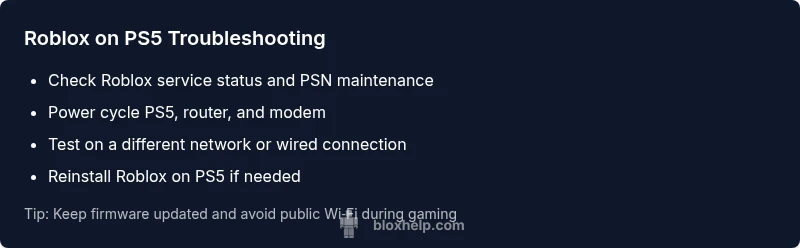
The most likely cause is a PS5 network issue or Roblox server outage. Start with a quick reset: power cycle your PS5, router, and modem, then sign back in. If that fails, check Roblox service status and the PSN maintenance calendar. Try a different network, then apply the step-by-step fixes below.
What typically causes roblox not working on ps5
Roblox not working on ps5 can feel urgent, especially if you’re mid-game. Most issues fall into a few common categories: network connectivity between your PS5 and the internet, Roblox server outages, PSN maintenance, or account-related restrictions. The PS5’s NAT type and firewall settings can also block connections to Roblox servers. In practice, many PS5 players report intermittent outages or long load times when the Roblox service is under maintenance or experiencing high traffic. According to Blox Help, starting with the simplest checks often resolves the problem without needing deep fixes. If you see a server status page indicating Roblox is offline, your best option is to wait and retry later. If the service is up, continue with the diagnostic steps below. For players searching for the exact phrase roblox not working on ps5, the symptom is typically connectivity or service outages rather than a single device fault.
Pro tip: The Blox Help team notes that most PS5 users fix common issues by ruling out networking problems before delving into account settings.
Quick checks you can perform right now
This section covers fast tests you can run to determine if the issue is on your end or with Roblox. Begin by rebooting your PS5: completely power off, unplug for 60 seconds, then power back on. Restart your router/modem to refresh your network route. Sign out and back into your Roblox account on PS5 to refresh authentication. Check that your PS5 system software is up to date and that there are no pending PSN maintenance notices in your region. Finally, verify your internet connection by running a speed test and trying a non-Roblox app or website. If Roblox still fails to connect after these steps, proceed to the diagnostic flow in the next section.
Diagnostic flow for Roblox PS5 issues
Symptom-led troubleshooting helps you isolate the root cause quickly. Start by ruling out local network issues (test another device, try a wired connection if possible). If Roblox server status shows online but you still can’t connect, test logging in from another device to confirm account-level problems. If a PS5-only issue persists, check NAT type (open is ideal) and disable any VPNs or strict firewall rules temporarily. If outages are reported on Roblox or PSN, wait and retry. If none of these apply, consider an account restriction or regional block. Fixes include power cycling devices (easy), adjusting router settings (easy), and, if needed, contacting Roblox Support or PSN (medium). Keep a log of what you tried for faster help.
Safety and account considerations
Account and parental controls can masquerade as connectivity problems. Ensure your Roblox account is in good standing, that you’re signed in to the correct region, and that any parental controls or spending limits are not accidentally blocking access. If you use family accounts on PS5, verify that the primary account has permission to launch Roblox. According to Blox Help, many issues stem from account restrictions rather than network faults, so checking these options early can save time.
Troubleshooting tips for common symptoms
If Roblox won’t start a game, check for error codes and look them up on Roblox’s official status pages and forums. If a game loads but lags or disconnects, test latency with a ping test to Roblox servers and compare with expected levels. For persistent error messages, try clearing the console cache (where applicable) and reinstalling the Roblox app. Remember to save progress to your Roblox account before any reinstall. Proactively updating firmware on your PS5 and networking gear reduces future interruptions.
Why you should document and monitor Roblox PS5 issues
Keep a brief log of each incident: date/time, symptoms, steps taken, and whether service status changed. This helps you notice patterns (e.g., outages during peak hours) and provides useful context if you need to escalate to support. The Blox Help team recommends maintaining a simple incident journal to speed up diagnosis during follow-up calls or threads. By staying organized, you’ll know when to wait and when a fix is truly on your end.
Steps
Estimated time: 25-40 minutes
- 1
Power cycle all devices
Shut down your PS5, unplug it, then unplug your router and modem for 60 seconds before plugging them back in and turning everything on. This clears cache and refreshes network routes.
Tip: Do not skip the 60-second wait for a clean reset. - 2
Check service status
Visit Roblox status pages and the PSN maintenance calendar to see if outages are active in your region.
Tip: Note any scheduled maintenance windows and plan accordingly. - 3
Test another network
If possible, connect via a different network (mobile hotspot or another router) to see if the issue is network-specific.
Tip: Wired connections are usually more stable than Wi‑Fi. - 4
Account and region verification
Sign out of Roblox on PS5, then sign back in. Confirm your account region matches your location and that there are no account holds.
Tip: Make sure you’re using the primary account on the PS5. - 5
NAT and firewall check
Access your router settings and ensure NAT type is open. Temporarily disable VPNs and adjust firewall rules if necessary.
Tip: Only change security settings you understand; revert after testing. - 6
Reinstall Roblox if needed
Delete the Roblox app from PS5 and reinstall it. Sign back in and test a session to confirm issues are resolved.
Tip: Ensure your game data is saved to your Roblox account before reinstalling.
Diagnosis: Roblox on PS5 won’t load or connect
Possible Causes
- highLocal network issue (router/modem, NAT type, Wi-Fi interference)
- mediumRoblox server outage or PSN maintenance
- lowAccount or region restrictions
Fixes
- easyPower cycle PS5, router, and modem (unplug for 60 seconds) then reconnect
- easyTest with a wired connection or alternate network; run a speed test
- easyCheck Roblox service status and PSN maintenance calendars; wait if outages are reported
- easyLog out/in of Roblox on PS5; verify PSN account settings and region alignment
- mediumIf needed, adjust NAT type to open and temporarily disable VPN/firewall rules on the router
- hardReinstall Roblox on PS5 if the issue persists after all checks
Questions & Answers
Why isn’t Roblox loading on PS5 right after a new update?
Post-update issues can affect compatibility; first verify Roblox service status and PSN maintenance. If outages are not reported, try rebooting devices and reinstalling the Roblox app as a last resort.
Post-update issues can affect Roblox on PS5. Check service status, reboot devices, and reinstall Roblox if needed.
How do I check Roblox service status on PS5?
Visit Roblox’s official status page and your region's PSN status page. Look for ongoing outages or maintenance notices that could explain connection problems.
Check Roblox status and PSN status pages for outages or maintenance.
Can NAT type cause Roblox not to work on PS5?
Yes. A strict NAT can block the connection to Roblox servers. Change NAT to open if your router supports it and test again.
A strict NAT can block Roblox; set NAT to open if possible and test.
Is reinstalling Roblox safe for my progress?
Yes, Roblox saves progress to your account cloud. Reinstalling should not erase game progress, but ensure you sign back into the correct account.
Reinstall safely; your progress is saved to your Roblox account. Sign back in to the right account.
What should I do if Roblox still won’t work after all steps?
If issues persist, contact Roblox Support or PSN support with your diagnostic log. Include devices used, timestamps, and any error codes.
If it still fails, contact Roblox or PSN support with your log and errors.
Does parental control affect Roblox on PS5?
Parental controls can block app launches or purchases. Verify restrictions on the PS5 user account and the Roblox account settings.
Check any parental controls that might block Roblox launches.
Watch Video
The Essentials
- Start with a quick reboot of all devices
- Check Roblox and PSN service status before deeper fixes
- Test across networks to isolate the problem
- Open NAT and avoid VPNs when troubleshooting
- Reinstall Roblox only if other fixes fail