What Causes Roblox to Freeze? A Practical Troubleshooting Guide
Discover the top causes of Roblox freezes and fast fixes. Learn network checks, cache cleanup, graphics tweaks, and step-by-step diagnostics to stabilize Roblox gameplay quickly. Blox Help presents practical, beginner-to-advanced tips for real-world troubleshooting.


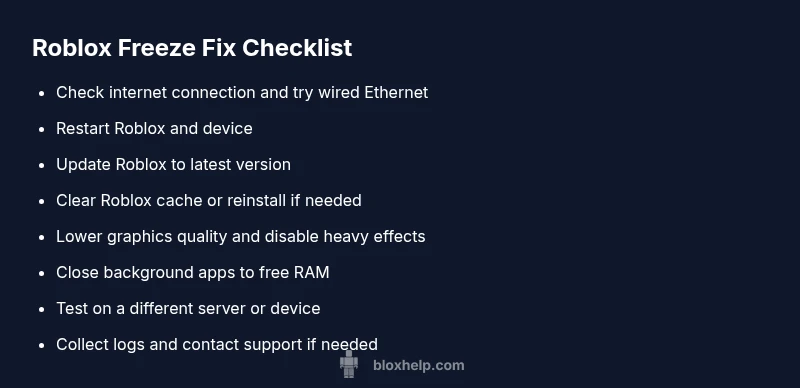
Roblox freezing is usually caused by a combination of weak network, outdated game data, or device performance limits. Start with a quick reset: check your internet, restart Roblox and your device, and update the app. If the problem persists, try lowering graphics quality and clearing cache. These steps cover the most common culprits quickly.
Why Roblox freezes happen and what it means
A freeze usually means your game is momentarily unable to render or communicate with the server. In Roblox, freezes can result from a blend of network problems, client data issues, and device limitations. The most common culprits are a weak or unstable internet connection, outdated Roblox files, and a device hitting memory or thermal limits while rendering sprawling scenes or complex avatars. Server-side problems can also cause momentary freezes when the game's world data needs to synchronize across players. Understanding these factors helps you prioritize fixes and avoid chasing symptoms rather than the root cause. Throughout this guide from Blox Help, the focus is on practical steps you can take today to stabilize gameplay and reduce future freezes.
According to Blox Help, most freezes stem from the same core issues players encounter across devices. By acknowledging these culprits early, you’ll save time and avoid endlessly reloading games. This article is designed to be actionable, with real-world steps you can implement in the moment and a diagnostic flow to prevent repeat freezes in your Roblox sessions.
Quick checks you can do right now
If Roblox is freezing, you can begin with these fast checks. They require minimal time and often fix the majority of issues without deeper fixes.
- Check your internet: run a speed test, try a wired connection if possible, and reboot your router.
- Update Roblox: ensure you are on the latest client; enable auto-update where available.
- Restart everything: close Roblox, exit the device, then relaunch.
- Free RAM and close background apps: on PC/Mac, check Task Manager; on mobile, swipe away apps.
- Test with a fresh server: join a different game server to rule out server-specific issues.
- If you still experience freezes after these steps, proceed to the deeper diagnostic flow.
Network and server considerations
Network quality is the single most impactful factor for Roblox stability. High latency, jitter, or packet loss can cause frame drops, rubber-banding, or freezes while the game tries to sync with the server. To reduce this risk, prefer a stable wired Ethernet connection when possible, minimize the number of devices sharing your network during play, and avoid VPNs or firewalls that interfere with Roblox connections. If you notice consistent delays, run a quick ping test to your router and check for throttling from your internet service provider. In many cases, switching to a less congested server region or playing at off-peak hours can help. Blox Help analysis shows that reliable connectivity correlates strongly with fewer freezes across sessions.
- Test from a different network to compare performance.
- Disable VPNs or firewall settings that block Roblox ports.
- Consider a router reboot during troubleshooting and ensure your firmware is up to date.
Device performance and thermal throttling
A device that struggles under load will inevitably lead to freezes. If your CPU or GPU is near capacity or your device is thermally throttling, Roblox may pause briefly to catch up. This is common on older hardware or laptops running multiple tabs or heavy apps in the background. To combat this, close unnecessary applications, ensure adequate ventilation, and consider lowering in-game settings. Memory pressure can also cause stutters; free up RAM by exiting background processes and clearing cached data where safe. In some cases, upgrading hardware or using a cooler environment yields long-term stability improvements. A proactive approach keeps your device from hitting critical limits during intense scenes.
- Monitor temperature with built-in or third-party tools.
- Close background programs that consume CPU or RAM.
- Use a cooler surface or a fan-assisted setup for laptops.
Roblox cache and data management
Corrupted cache or stale game data can trigger freezes at load or during transitions between scenes. Clearing the Roblox cache often resolves these issues without affecting your progress. On Windows and Mac, locate the Roblox folder in the user directory and delete cache files, then restart Roblox. On mobile devices, use the app settings to clear cache or reinstall the app if needed. If you reinstall, ensure your account data remains intact by relying on server-side saves for progress in most Roblox experiences. After clearing cache, log back in and test a few different experiences to confirm stability.
Graphics settings and FPS stability
Graphics settings directly affect stability. If you’re pushing high visuals on modest hardware, you may experience freezes during complex scenes or large ensembles of players. Adjust graphics quality to a lower level, disable or reduce shadows and post-processing effects, and limit the frame rate if your device benefits from it. Enabling a fixed graphics mode can also prevent spontaneous changes as the game shifts between scenes. Remember to test after each adjustment to observe the impact on smoothness and responsiveness.
Mobile, tablet, and console considerations
Mobile devices face additional constraints like battery saver modes, background app restrictions, and data limits. Make sure Roblox is allowed to run in the foreground and that battery-saving features are disabled during gameplay. On consoles, ensure the system and Roblox app are up-to-date and that NAT type is not restricted, which can cause session drops and freezes. For all platforms, streaming quality and background downloads should be paused while playing to reduce resource contention. These platform-specific factors can be the decisive difference between a stable session and a frozen one.
When to escalate: advanced steps and support
If freezes persist after applying the basics, escalate with a structured approach. Gather details: device model, Roblox version, game title, server region, and a short description of when the freezes occur. Capture any error messages or logs, and note how long the issue has lasted. Contact Roblox Support with this information and consider sharing your diagnostic flow results. The goal is to provide precise context so the support team can reproduce and fix the issue more quickly. As always, follow the diagnostic flow to ensure you’ve exhausted common fixes first and documented what you tried.
Preventive habits to avoid future freezes
Preventing freezes is easier than fixing them after they happen. Schedule regular maintenance: update Roblox and device firmware, clear caches every few weeks, and monitor in-game performance after major patches. Keep a clean startup with minimal background tasks, and use a wired connection when possible for competitive play. Finally, develop a habit of testing new games on less-demanding experiences before diving into graphically intensive titles. Consistency in these habits reduces the chance of disruptive freezes and keeps Roblox gameplay smooth.
Steps
Estimated time: 40-60 minutes
- 1
Check network and perform a quick reset
Begin with your network: run a speed test, try a wired connection, and reboot your router. Then restart Roblox to clear any transient session issues. This step often resolves freezes caused by temporary network hiccups or corrupt session data.
Tip: A simple router reboot can resolve many latency-related freezes. - 2
Update Roblox and clear cache
Ensure Roblox is updated to the latest version and clear the app cache. On desktop, delete temporary files in the Roblox cache directory; on mobile, use the app settings to clear cache or reinstall if needed. Relaunch Roblox and test again.
Tip: After clearing cache, sign back in to refresh your session. - 3
Close background apps and free up resources
Close non-essential programs and background processes that may compete for CPU and memory. This is especially important on laptops and tablets with limited RAM. After freeing resources, re-run Roblox to observe improvements.
Tip: Check Task Manager (Windows) or Activity Monitor (macOS) to spot memory hogs. - 4
Adjust graphics for stability
Lower the graphics quality in Roblox settings and disable optional visual effects like shadows. Reducing GPU load can prevent frame drops and freezes during intense scenes. Test after each adjustment to gauge impact.
Tip: If available, enable a fixed graphics mode to avoid dynamic fluctuations. - 5
Test on a different server or device
Join a different Roblox server or try a different device to determine if the issue is server-specific or device-related. If the issue disappears on another device, focus on your original device settings or hardware.
Tip: Document findings to share with support if needed. - 6
Escalate with data if needed
If freezes persist, collect details (device model, OS version, Roblox version, game title, server region) and contact Roblox Support with your diagnostic flow results. This helps support reproduce and fix the issue faster.
Tip: Provide a concise reproduction path and timestamps.
Diagnosis: Roblox freezes (hangs or lags) during loading or gameplay
Possible Causes
- highPower/Internet connection instability
- highOutdated Roblox client or corrupted cache
- highInsufficient device resources (RAM/CPU or thermal throttling)
- mediumServer-side congestion or bugs
- lowBackground apps consuming resources
Fixes
- easyCheck internet connection, switch to wired if possible, and restart router/modem
- easyRestart Roblox and the device to refresh the session
- easyUpdate Roblox to the latest version and clear cache
- easyLower graphics quality and close background apps to reduce load
- mediumReinstall Roblox or reset game data if corruption is suspected
- easyTest on another device/server to isolate the issue
Questions & Answers
Why does Roblox freeze during gameplay?
Roblox freezes are usually caused by a mix of network issues, corrupted cache, or device strain. In many cases, addressing connectivity, data integrity, and hardware load resolves the problem. Use the diagnostic flow to systematically test each area and confirm the root cause.
Most freezes come from network or data issues or device strain, so start with connectivity and cache checks.
Is it safe to reinstall Roblox to fix freezes?
Reinstalling Roblox is a safe step if you suspect corrupted files or cache. Your progress is generally saved on Roblox servers, but locally cached data will be rebuilt after reinstall. If you still experience issues, consider checking your device settings and network as well.
Reinstalling is safe and often effective for cache/corruption problems.
Why does Roblox freeze on startup but not during gameplay?
Startup freezes can happen due to a stale cache, corrupted startup data, or server-side hiccups as the game loads. Clearing caches and ensuring the game is up to date usually resolves startup freezes.
Startup freezes usually point to cache or startup data issues.
Can antivirus or firewall settings cause Roblox to freeze?
Yes, overly aggressive antivirus or firewall rules can block Roblox connections. Whitelist Roblox and its services, or temporarily disable security tools during testing to see if they’re the cause.
Security software can block Roblox, so check whitelisting if you notice freezes.
Will these fixes affect my Roblox progress?
Most fixes focus on the game’s data path or device performance and do not affect your saved progress. Progress is typically stored on Roblox servers, but local cache changes won’t erase your in-game outcomes.
The fixes mostly clear caches or improve performance, not your progress.
Watch Video
The Essentials
- Check connectivity and update Roblox to fix common freezes
- Clear cache and reduce graphics to stabilize gameplay
- Close background apps and test on another device/server to isolate causes
- Keep software up to date to prevent recurring freezes