What to Do When Roblox Isn’t Working: A Practical Troubleshooting Guide
Learn practical, step-by-step fixes for common Roblox issues, from login problems to crashes. This beginner-friendly guide helps you diagnose, apply safe fixes, and know when to seek support. Blox Help shares trusted methods for a smoother Roblox experience.


what to do when roblox issues arise
When Roblox encounters problems—whether you can’t log in, the game won’t load, or you’re experiencing lag—the cause is rarely a single rogue factor. Most Roblox issues fall into a few reliable categories: connectivity, server status, device compatibility, account problems, and software conflicts. By understanding these roots, you can triage faster and avoid chasing mirages. What’s more, a calm, methodical approach reduces downtime and frustration. This section explores why problems happen and how to approach them without guessing. In practice, you’ll build a short, repeatable workflow you can reuse for future sessions, updates, or new games on Roblox.
According to Blox Help, the most impactful starting point is to separate network issues from service-side outages. If your friends can play but you cannot, focus on your device and connection. If everyone is blocked, you’re likely facing a Roblox status issue that requires waiting or reporting to Roblox Support when appropriate.
Quick diagnostic checklist for roblox
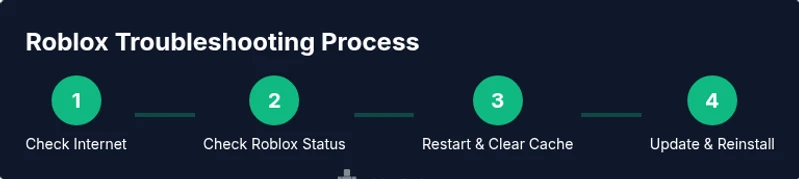
A fast scan helps you decide which fixes to try first. Start with the basics and move toward deeper interventions only if necessary. The checklist includes: verify your internet connection, check the Roblox server status page, test with a different device or network, ensure you’re on the latest Roblox client, and review any recent system updates. Keep your Roblox login details handy in case you need to re-authenticate. Document any error codes as they pinpoint the root cause and speed up support conversations. As you perform each step, note whether Roblox behavior improves, remains the same, or worsens; this data guides you toward the right fix and away from fruitless attempts. This structured approach is essential for beginners and seasoned players alike, because it turns guesswork into verifiable steps.
Understanding common Roblox problems and symptoms
Roblox issues manifest in several familiar patterns: join failures with error messages, long loading times, crashe s during gameplay, lag spikes, and in-game asset loading delays. Some symptoms point to local issues (internet, device performance, storage), while others indicate server-side events (outages, maintenance, or regional problems). Recognize whether the problem is persistent (occurs across multiple games) or game-specific (affects a single title). This distinction helps you choose the right fix—whether you tweak network settings, clear app data, or wait for a server-side resolution. Early symptom recognition also prevents unnecessary software changes that could complicate debugging.
Check server status and account health for roblox
A healthy Roblox account and active servers are prerequisites for smooth play. Start by visiting Roblox’s official status page to confirm outages or maintenance windows. If the status shows issues, your best action is to wait and recheck periodically. For account health, ensure your username and password are correct, enable two-factor authentication if available, and review recent account changes (password resets, device changes). If you suspect a compromised account, run security checks and consider a password change from a trusted device. These checks save time by ruling out account-related blockers before proceeding with device or network fixes.
Step-by-step fixes you can try today
This section provides concrete actions you can take in sequence, tailored to common Roblox problems. Each action targets a specific cause while minimizing risk to your device and data. After completing the listed steps, reassess Roblox performance. If problems persist, move to the more advanced fixes or contact support with your gathered details. Remember, the goal is to restore a stable, enjoyable Roblox experience without compromising account safety or device integrity.
Optimizing device and network for roblox performance
Performance matters for Roblox: slow devices, crowded Wi-Fi, or constrained bandwidth can degrade gameplay. Start by freeing up system resources, closing background apps, and ensuring sufficient storage. On networks, switch to a wired connection if possible, place your router closer, and limit other bandwidth-heavy activities during gaming sessions. Keeping drivers up to date and applying recommended updates helps avoid compatibility issues. Regularly reboot your modem and router to refresh connections and reduce network jitter that causes lag or disconnects.
Safety, privacy, and security while troubleshooting roblox
Security should never be an afterthought. Never share your password, secret keys, or security codes with anyone claiming to help. Use official Roblox channels or your platform’s store to obtain software updates. Be wary of third-party tools claiming to optimize Roblox; they can introduce malware or data theft. When troubleshooting, run trusted antivirus scans and keep your device’s security patches current. If you must authorize permissions (for example, to install an update), review exactly what the app will access and deny anything unnecessary.
When to contact Roblox support and what to prepare
If you cannot resolve issues with the steps above, reaching Roblox Support is appropriate. Prepare a concise, structured report that includes: the exact error message or behavior, your device and OS version, Roblox client version, network type, and a timeline of steps you’ve already tried. Attach relevant logs or screenshots if available. Providing clear, repeatable symptoms helps agents diagnose fast and reduces back-and-forth. Also note your geolocation and the time of day the issue occurs, as outages can be regional.
Proactive maintenance to reduce future roblox issues
Prevention beats repair. Schedule regular checks for updates to Roblox and your device, maintain a stable network, and organize a simple troubleshooting ritual you can follow whenever problems arise. Consider keeping a small notebook of error codes and corresponding fixes so you don’t reinvent the wheel each time. Practicing good cybersecurity, enabling two-factor authentication, and staying informed about Roblox status updates will minimize downtime and keep your Roblox sessions smoother over time.