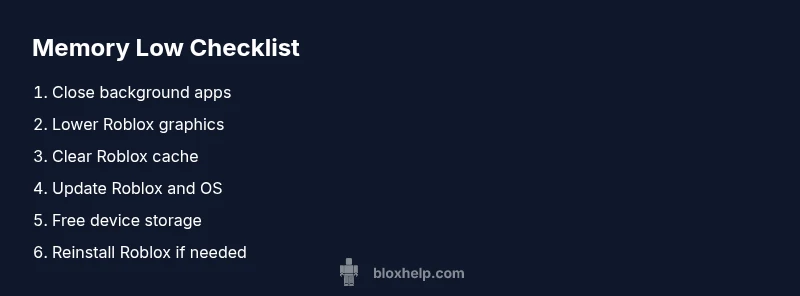
What to Do When Roblox Says Device Memory Is Low
Urgent, practical guide to fix Roblox device memory low warnings across devices. Close background apps, adjust graphics, clear cache, and update software with step-by-step tips from Blox Help.


Most likely memory pressure on your device is causing Roblox to warn 'device memory low.' Start by closing background apps, freeing up RAM, and restarting Roblox. If the warning persists, try lowering in-game graphics, clearing Roblox cache, updating the device’s OS, and checking for app updates. For Android, ensure storage isn't full; for PC, close browser tabs.
Why Roblox Says Device Memory Is Low
According to Blox Help, the message what to do when roblox says device memory low usually points to RAM pressure rather than a game fault. Roblox loads textures, audio, and worlds into memory; when the device doesn't have enough free RAM to stream assets, the app may slow, stutter, or crash. This warning is platform-sensitive: mobile devices often hit memory limits sooner than desktops because background processes and storage caching consume RAM, while PCs might see it during long sessions with many tabs or heavy mods. The most important thing is to measure memory usage and clean up space and apps before diving into config changes. If you are seeing this message frequently, treat it as a signal to optimize both your device setup and Roblox settings to keep gameplay smooth. What to do when roblox says device memory low is a signal that you likely need to reduce memory pressure across apps and services while keeping Roblox versions current.
Quick Checks You Can Do Right Now
- Close background apps and games to free up RAM. If you’re on mobile, swipe away apps; on PC, use Task Manager (Ctrl+Shift+Esc) to end nonessential processes.
- Restart Roblox and, if needed, reboot your device to reset memory caches.
- Check available storage. If storage is near full, free space by deleting old files or moving data to cloud storage.
- Update Roblox, your OS, and any device drivers. Software updates frequently include memory management improvements.
- Clear Roblox cache or app data where possible (this can vary by platform). This resolves corrupted temporary files that waste memory.
- Lower in-game graphics and close unnecessary tabs or overlays while playing. Fewer textures and animations consume less RAM.
If the warning repeats, proceed to targeted fixes rather than applying global changes. Remember: excessive memory pressure can cause stutter and crashes, but many users resolve it with a few deliberate steps.
Memory-Friendly Roblox Settings You Should Adjust
Roblox is lighter on memory when you tune the game’s settings toward lower consumption. Start with the Graphics Quality slider; set it toward the low end and observe performance gains. Disable or reduce effects such as shadows, reflections, and complex textures if your device struggles under load. Reduce frame rate cap to 30–60 FPS if your device cannot sustain higher rates. Keep texture detail at a modest level and limit particle effects that spike memory use. If you can, enable “low-memory mode” in some devices or apps, but only if you see a concrete option. After changes, test with a few minutes of gameplay to gauge stability. These tweaks help Roblox run smoother on devices with limited RAM while preserving core gameplay experiences. Remember to recheck performance after large in-game events or new updates, which can temporarily raise memory usage.
Platform-Specific Memory Tips: PC, Android, iOS
- Windows/macOS: Close unused apps, disable browser windows, and run Roblox in a narrow window to reduce background memory usage. If you use Chromebooks or low-end laptops, consider using a wired connection and exiting cloud-based apps during sessions. Regularly clear browser caches if you play Roblox via a browser.
- Android: Memory is often constrained by apps running in the background. Turn off syncing and notifications for other apps during play, limit live wallpapers, and clear app cache for Roblox. Check that your device isn’t in battery-saving mode, which can throttle memory resources.
- iOS: Apps in the background can compete for RAM with Roblox. Quit unused apps and ensure iOS is up to date. Consider enabling automatic app updates so you have memory-efficient builds.
Across platforms, ensure you’re not streaming large assets or downloading content in parallel with Roblox, which can spike memory usage.
What to Do If It Keeps Happening: Advanced Fixes
If you still see device memory low warnings after the basics, move to deeper fixes. Clear Roblox cache and data, then reinstall Roblox to rule out corrupted files. Check your device’s storage health and free up space if necessary. Run a memory diagnostic (where available) to identify background processes hogging RAM. Update drivers (GPU, chipset) and ensure the OS has the latest security and performance patches. If memory pressure persists across multiple games or apps, it may indicate hardware limits. In those cases, consider using a device with more RAM or lowering ongoing memory demands (e.g., fewer simultaneous apps, smaller game worlds). If issues persist after a clean reinstall and storage is ample, you should contact official support with logs from your device and Roblox version.
Preventing Memory Warnings: Best Practices
- Regularly restart your device after long gaming sessions to refresh memory.
- Keep storage at least 15–20% free and avoid filling the drive with large files during gaming.
- Update Roblox and the OS promptly to benefit from memory-management improvements.
- Minimize background apps during gaming sessions and close unused tabs in browsers.
- Periodically clear Roblox cache and app data; perform a clean reinstall if you notice persistent issues.
- Monitor device health and consider hardware upgrades if memory pressure remains a recurring problem across apps. These habits make memory warnings far less frequent and help maintain smooth gameplay.
Steps
Estimated time: 15-25 minutes
- 1
Close background apps
Begin by exiting all nonessential apps and processes. On mobile, swipe away apps; on desktop, open Task Manager and end tasks that aren’t needed during gameplay. This immediately frees RAM for Roblox to use.
Tip: Check for hidden background services that auto-start and disable them temporarily during play. - 2
Restart Roblox and device
Close Roblox completely and relaunch it. If the warning persists, reboot the device to reset memory caches and reclaim resources.
Tip: A full reboot can clear stubborn memory leaks that a simple quit may leave behind. - 3
Adjust in-game settings
Lower graphics quality, frame rate, and texture details. Disable advanced effects if possible and test with a short session to gauge stability.
Tip: Test after each setting change to identify the exact memory impact. - 4
Clear Roblox cache
Clear cached data related to Roblox to remove corrupted files that can inflate memory use. This step varies by platform.
Tip: Do not delete unrelated app data; target Roblox directories only. - 5
Update software
Install the latest Roblox version and OS updates. These patches often include memory-management improvements.
Tip: Enable automatic updates to stay protected against memory-related bugs. - 6
Free storage and run diagnostics
Ensure there is ample free storage and perform any built-in memory diagnostics. If memory pressure continues, consider hardware limitations.
Tip: If you must, temporarily move large files to cloud storage to free space.
Diagnosis: Roblox shows a 'device memory low' warning during gameplay or startup
Possible Causes
- highHigh memory usage from background apps and services
- highInsufficient RAM for current game's assets or long sessions with many tabs
- mediumOutdated Roblox app or OS with inefficient memory management
- lowDevice storage near full or slow storage affecting caching
Fixes
- easyClose background apps and restart Roblox (and device if needed)
- easyLower Roblox graphics and reduce running tabs/background tasks
- easyClear Roblox cache/data and update Roblox app and OS
- easyFree up device storage and run a memory diagnostic if available
- mediumReinstall Roblox if issues persist and storage is ample
Questions & Answers
What causes memory low warnings in Roblox?
Memory warnings happen when RAM is under heavy use by Roblox and other apps, or when the device has limited available memory. Running many browser tabs, large assets, or background services can push you over the limit. The result is stuttering, longer load times, or crashes.
Memory warnings occur when RAM is maxed out by Roblox and other apps, causing stutters or crashes.
Does clearing the cache fix the issue?
Yes. Clearing the Roblox cache can remove corrupted temporary files that waste memory and slow performance. If you’re unsure where to clear cache, check platform-specific settings or reinstall Roblox.
Clearing cache often fixes memory waste from corrupted temporary files.
Is this memory issue platform-specific?
Yes. Android devices tend to hit memory limits sooner than PCs, while Windows and macOS can manage more RAM but may struggle with many tabs. Mobile OS optimizations can also influence memory behavior during gameplay.
Memory warnings differ by platform, with mobile devices usually more constrained.
Can I continue playing if I see this warning?
You can often continue after applying quick fixes, but performance may still suffer. If warnings persist, reduce game settings or pause play to free memory.
You can try, but expect potential stuttering until you fix memory usage.
When should I contact Roblox support?
If memory warnings occur across multiple games and devices after trying the standard fixes, contact Roblox support with device specs, Roblox version, and a reproducible scenario.
If the issue continues across games, contact support with details.
Watch Video
The Essentials
- Close unnecessary apps to free RAM quickly
- Lower Roblox graphics to reduce memory demand
- Clear cache and update software regularly
- Free storage and reboot when needed
- If issues persist, reinstall Roblox