Why Roblox Can't Access My Camera: A Practical Troubleshooting Guide
A practical, urgent guide to fix Roblox camera access issues across PC, Mac, and mobile. Learn permissions, OS settings, and quick steps to restore camera access safely.


Roblox camera access is usually blocked by permissions or privacy prompts. Try regranting camera access in your device settings and Roblox, then restart the app. If it still fails, check OS privacy and browser permissions. This quick check often resolves the issue without reinstalling Roblox.
Why Roblox Camera Access Might Be Blocked
If you're asking why can't roblox access my camera, the likely culprits are permissions, privacy settings, or hardware access. In most cases, the issue isn't with Roblox itself but with the device or browser blocking the camera. According to Blox Help, most users resolve it by checking app permissions first, then OS privacy controls, before diving into more advanced fixes. This article walks you through a systematic troubleshoot to restore camera access across desktop and mobile platforms. By following the steps, you’ll know exactly where the block is and how to remove it, with safe, repeatable checks you can perform anytime.
This guide prioritizes simple fixes first and builds toward more involved steps only if needed, so you’re not left stuck. The goal is to get Roblox to see your camera again without compromising your device security or personal data.
Common Causes of Camera Access Failures in Roblox
Camera access failures in Roblox typically arise from a handful of predictable causes. Common culprits include permissions denied by the operating system (OS), Roblox not granted camera permission in-app or in the browser, and the camera being temporarily unavailable due to another app using it. Browser privacy prompts and security software (antivirus, firewall) can also block access, as can parental controls or device restrictions. Hardware issues—like a loose USB connection or a faulty webcam—are occasionally to blame, as are outdated software versions. Identifying the root cause helps you apply the right fix quickly and avoid unnecessary steps.
Be mindful that updates to Windows, macOS, iOS, or Android can reset permissions; a quick re-allowance is often all that’s needed. This section sets the baseline for a methodical approach that works for both Roblox Desktop and Roblox Mobile.
Check Roblox App and Browser Permissions
Start by confirming Roblox has permission to use the camera in both your device settings and the Roblox app or browser. On desktops, go to your OS privacy settings and ensure the camera is enabled for Roblox. In Windows, this means Allowing apps to access your camera and ensuring Roblox is listed; on macOS, check Security & Privacy > Privacy > Camera and toggle Roblox. For Roblox on web, verify the site permission in your browser (often a small camera icon in the address bar). On mobile, grant camera access in the system settings and within the Roblox app. After adjusting, restart Roblox to apply changes.
If the prompt doesn’t appear after you’ve allowed access, trigger it again by reloading the game or restarting the browser. This step often resolves a stuck permission prompt and returns camera functionality to normal.
Verify OS Privacy Settings on Windows
Windows OS privacy settings frequently block camera access for apps that don’t explicitly request permission. Open Settings > Privacy & security > Camera. Ensure Camera access is allowed for this device, and that “Allow apps to access your camera” is ON. Scroll to “Choose which apps can access your camera” and confirm Roblox is enabled. If you’re using a browser for Roblox Web, also confirm the browser has camera access in its own privacy settings. After adjusting, reboot the computer and reopen Roblox.
If you still can’t access the camera, try temporarily disabling third-party privacy tools or antivirus to test whether they’re interfering, then re-enable with an exception for Roblox.
Verify OS Privacy Settings on macOS
macOS users should review System Settings > Privacy & Security > Camera. Make sure Roblox (and any browser you use to access Roblox) is checked. Some macOS updates reset permissions, so it’s worth rechecking after an update. Also confirm that Roblox isn’t blocked by any parental controls or Screen Time restrictions. After updating the permissions, restart Roblox and test again. If the problem persists, test the camera with another app to rule out hardware issues.
Platform-Specific Checks: Roblox Desktop vs Mobile
Roblox on Windows, macOS, iOS, and Android can require slightly different permission paths. Desktop users should confirm OS-level camera permission and any browser prompts for Roblox Web, then re-launch the game. Mobile players should verify in-device app permissions, ensure the game has camera access in the system settings, and test within a simple scene to rule out game-level prompts. If you’re using Roblox Studio, ensure the camera device is selected in Studio’s preferences and that the studio has permission to access the camera. When in doubt, test camera access with another app to confirm hardware readiness.
Driver and Software Updates: Why They Matter
Outdated drivers or software can prevent Roblox from accessing the camera even when permissions are correct. Check for the latest webcam driver updates from the manufacturer, and install any available Windows Update or macOS software updates. Also ensure Roblox itself is updated to the latest version, and consider clearing browser cache for Web Roblox. After updates, restart your device and relaunch Roblox. Updating reduces the likelihood of compatibility issues and security prompts that block camera access.
Safety Software, Parental Controls, and Firewall Considerations
Sometimes security software or parental controls block camera access to protect privacy. Temporarily disable antivirus or firewall features that could be blocking Roblox and then attempt to access the camera again. If Roblox works, reconfigure the security software to allow Roblox with a dedicated exception rule. If you’re in a family or school environment, check with the administrator to ensure there are no device restrictions preventing camera use in Roblox. Always re-enable security measures after testing.
Preventive Tips and Ongoing Maintenance
To prevent future camera issues, keep your OS, drivers, and Roblox up to date. Regularly review app permissions after major OS updates, and avoid installing untrusted browser extensions that request camera access. If you use multiple cameras, unplug and re-plug devices to reset hardware paths. Create a quick testing routine: open Roblox, launch a game that uses the camera, and confirm it appears in the in-game UI. This quick habit catches issues early and minimizes downtime.
Quick Recap and Next Steps
A systematic approach—check permissions, verify OS privacy, test hardware, and update software—solves the majority of Roblox camera access problems. If issues persist after all steps, contact Roblox Support with your device model, OS version, Roblox version, and a description of the steps you tried. The goal is to restore camera access without compromising your device’s security.
Steps
Estimated time: 40-70 minutes
- 1
Open permissions and regrant camera
Navigate to your device’s privacy settings and ensure Roblox (and the browser if using Web Roblox) has camera access. Re-prompt the permission if needed, and then reload Roblox or reopen the browser tab.
Tip: If you see multiple prompts, grant access to the Roblox app that you actually run. - 2
Restart Roblox and your device
Close Roblox completely, including background processes, then relaunch. If issues persist, reboot the device to ensure all permission changes take effect.
Tip: Save any ongoing work before restarting to avoid data loss. - 3
Test with another Roblox context
Open a simple Roblox game or Roblox Studio to test camera access. If it works there but not in a specific game, the issue may be game-specific or a Roblox bug.
Tip: Trying a different game narrows down root causes quickly. - 4
Update software and drivers
Check for updates to Roblox, your browser, and OS drivers for your camera. Install any available updates, then restart and test again.
Tip: Keeping software current reduces permission and compatibility errors. - 5
Check security software and parental controls
Temporarily disable security software or parental controls to test camera access. If Roblox works, reconfigure settings to allow Roblox access.
Tip: Do not leave security features disabled; re-enable with proper exceptions. - 6
Contact support if needed
If none of the steps resolve the issue, gather device model, OS version, Roblox version, and a description of steps tried, then contact Roblox Support.
Tip: Provide screenshots or a short screen recording to expedite help.
Diagnosis: User reports Roblox cannot access the computer's or device's camera
Possible Causes
- highOS privacy permissions blocked Roblox
- highRoblox not granted camera permission in-app/browser
- mediumAnother app is using the camera or camera is offline
- mediumBrowser extension or privacy setting blocking the camera (Web Roblox)
- lowOutdated Roblox, browser, or OS drivers
Fixes
- easyRegrant camera permission in OS settings and Roblox/app browser prompts; restart Roblox
- easyClose other apps using the camera and retry Roblox
- easyUpdate Roblox, browser, and OS drivers; clear browser cache or reinstall Roblox if needed
- mediumTemporarily disable antivirus/firewall or add Roblox as an exception; re-enable after testing
Questions & Answers
Why can't Roblox access my camera on my PC or phone?
Camera access failures in Roblox usually come from OS or in-app permissions being blocked. Start by confirming permissions for Roblox in your device settings and the Roblox app or browser prompts. If needed, update the app and restart the device.
Roblox camera access usually fails due to permissions. Check OS and app prompts, then update and restart if needed.
How do I enable camera permissions on Windows?
Open Settings > Privacy & security > Camera, then ensure 'Camera access' is on and that Roblox is allowed. Also check the browser if you’re using Roblox Web. Restart Roblox after changes.
Go to Windows privacy settings, enable camera for Roblox, and restart Roblox.
What should I do if the camera is in use by another app?
Close other apps that may be using the camera, then retry Roblox. If the issue persists, reboot the device to release the camera lock.
Close other apps using the camera, then restart Roblox.
Can parental controls block Roblox camera access?
Yes. Parental controls can block camera access. Check Screen Time or family controls to allow Roblox, then test again.
Parental controls can block access; adjust them to permit Roblox camera use.
When should I contact Roblox support?
If you’ve completed all steps without success, contact Roblox Support with device details and steps you've tried to expedite a resolution.
If nothing works, contact Roblox Support with your device and steps you've taken.
Is this a Roblox service outage affecting camera access?
Outages affecting camera access are uncommon. Check Roblox status pages or community posts to confirm if others report the same issue.
Camera outages are rare; check Roblox status pages for reports.
Watch Video
The Essentials
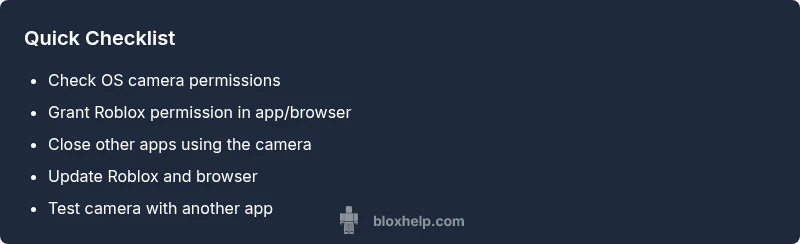
- Verify OS permissions before Roblox prompts.
- Grant Roblox explicit camera access in apps.
- Update Roblox and browser to latest versions.
- Close competing apps that hog the camera.
- If issues persist, contact Roblox support.