Why Roblox Overheats Your Laptop and How to Fix It
Diagnose why Roblox overheats your laptop with practical steps. Identify heat triggers, optimize settings, manage background tasks, and apply cooling tips to prevent throttling and keep Roblox smooth.


Roblox overheating a laptop is typically due to high GPU/CPU load combined with poor cooling or background apps. Start by lowering in-game graphics, toggling V-Sync, and closing nonessential programs. If temps stay high, follow the steps below to diagnose and fix the root causes. This quick check can prevent thermal throttling and performance drops.
Why Roblox Overheats: The Science Behind Thermal Throttling
Roblox is not inherently a power hog like the latest AAA titles, but it can push both CPU and GPU loads high on laptops with restricted cooling. When temperatures climb, modern laptops trigger thermal throttling to protect critical components. This reduces clock speeds, which makes the game stutter or run slower even when your GPU is capable. If you have wondered why Roblox overheats my laptop, consider both software demands and the physical environment. Poor airflow, dusty vents, and a compact chassis amplify heat buildup. Your cooling system is a finite resource; pushing it beyond its design without relief will degrade performance. In practice, you’ll notice louder fans, rising temperatures on sensors, and reduced frame rates even at mid settings. The fix starts with simple checks and scales up to targeted changes in both software and hardware.
Primary Heat Triggers in Roblox
Roblox heat generation comes from sustained GPU and CPU activity. Enabling very high graphics and unlocked frame rates can push a laptop to the upper edge of its cooling capacity. Background processes like updaters, cloud backups, or browser tabs drawing power can compound the load. Inconsistent power delivery from a weak charger or battery charging while gaming can also raise temperatures. Finally, the laptop’s physical state matters: blocked vents, a cluttered desk, or a hot room reduce cooling efficiency. If you’re troubleshooting why Roblox overheats my laptop, focus on reducing load first and ensuring proper airflow before diving into deeper fixes.
Quick Fixes You Can Do Now
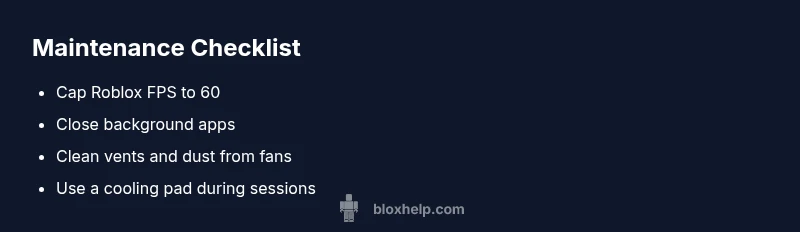
Start with fast, low effort fixes that often solve overheating. 1) Close unnecessary background apps and browser tabs. 2) Lower Roblox in game graphics settings and cap FPS to 60 if possible. 3) Enable a cooler power plan and ensure the laptop is plugged in with a high quality charger. 4) Clear vents of dust using gentle compressed air. 5) Elevate the laptop with a stand to improve air intake and exhaust. 6) Move to a cooler environment if you can. These steps address immediate heat buildup and help you avoid thermal throttling while you work through deeper diagnostics.
How to Optimize Roblox Graphics and Frame Rate
Optimizing graphics can dramatically reduce heat without sacrificing much visual quality. Start by setting the in game graphics to a medium preset and enable V-Sync to limit frame rate. Cap FPS at 60 or 45 if you notice fan noise or spikes. Turn off motion blur and reduce render distance to ease GPU load. If Roblox continues to push temperatures high, consider updating graphics drivers and ensuring Windows/OS is current. These adjustments lower the load, improve stability, and prevent overheating during longer sessions.
System Checks and Cooling Tips
Environmental and system checks matter as much as software tuning. Keep the laptop on a hard, flat surface to promote airflow; avoid soft beds or cushions that block vents. Use a quality laptop cooling pad with a gentle fan to boost intake. Schedule regular dusting of vents and fans, and verify that the power adapter is not overheating itself. Maintain room temperature between 20–25 C (68–77 F) for optimal comfort. These practices reduce heat buildup and extend the life of your hardware.
Long-Term Solutions: Software and Hardware Upgrades
If overheating remains an issue, consider longer term fixes. Update GPU and chipset drivers, and verify the BIOS/UEFI firmware for stability improvements. Add RAM if your system is starved for memory and raid drives if your laptop supports it, to lessen paging and CPU cycles needed for Roblox. Evaluate whether your machine meets Roblox recommended specs for your preferred settings. In some cases a hardware upgrade, like a newer laptop with better cooling, is the most reliable fix for persistent overheating.
Steps
Estimated time: 30-45 minutes
- 1
Check physical cooling and vents
Power down and inspect the laptop vents for dust and obstruction. Use compressed air to blow dust out while holding the can upright. Ensure the chassis has clear airflow and avoid soft surfaces.
Tip: Do this in a well-ventilated area to prevent dust from circling back into the vents. - 2
Adjust in game Roblox settings
Open Roblox and reduce graphics to a medium preset, disable shadows, and cap FPS to 60. These changes lower GPU and CPU load quickly and often reduce heat buildup.
Tip: If you still see heat, try a further FPS cap of 45. - 3
Close unnecessary background apps
Exit extra programs and browser tabs using CPU/GPU resources. Check Task Manager (Windows) or Activity Monitor (Mac) to terminate heavy processes.
Tip: Avoid multitasking heavy programs during gaming sessions. - 4
Check power plan and charger
Set the power plan to Balanced or Power Saver and ensure you are plugged into a reliable charger. Avoid gaming while running on battery if heat is an issue.
Tip: A high quality charger can prevent voltage drops that stress the system. - 5
Improve airflow with a stand or cooling pad
Place the laptop on a rigid surface and use a cooling pad with active fans to boost intake. Ensure room temperature is comfortable and avoid direct sunlight.
Tip: A good stand can cut surface heat dramatically. - 6
Re-test and monitor temperatures
Launch Roblox and monitor temperatures with a trusted tool. If temperatures stay above safe thresholds, proceed to deeper fixes or consider professional help.
Tip: Document peak temps to share with a technician if needed.
Diagnosis: Laptop runs Roblox with temperatures rising to uncomfortable levels or fans loudened during gameplay
Possible Causes
- highInsufficient cooling due to blocked vents or dusty fans
- highHigh in-game graphics settings causing GPU/CPU overload
- mediumBackground processes consuming CPU/GPU power
- lowUnstable power delivery or charging while gaming
Fixes
- easyClear vents and dust from fans with compressed air
- easyLower Roblox graphics and cap FPS to reduce GPU load
- easyClose background apps and disable heavy processes while gaming
- mediumUpdate drivers and OS, and verify power adapter quality
- hardConsider hardware upgrade or cooling pad if temperatures remain high
Questions & Answers
Why does Roblox cause my laptop to overheat even when I lower settings?
Even with lower settings Roblox can push the GPU and CPU if background tasks consume resources or the cooling system is blocked. Always check both software load and hardware cooling when overheating occurs.
Roblox can still heat the laptop if background tasks are using power or the cooling is blocked; focus on both load and cooling.
Can Roblox on a Mac overheat, and what should I do?
Mac systems can overheat under heavy GPU load. Use the same steps: reduce graphics, close background apps, and ensure proper ventilation. Update macOS and graphics drivers when available.
Mac users should reduce load and ensure good airflow, then update software.
Is overheating dangerous for the laptop hardware?
Prolonged overheating can degrade battery health and shorten component life. It can also lead to unexpected shutdowns. Always aim to keep temperatures in safe ranges.
Excessive heat can harm components over time; keep temps within safe limits.
Should I buy a cooling pad to fix Roblox overheating?
A cooling pad can help by improving airflow and reducing temps during long sessions. It is often a practical, low-cost upgrade.
A cooling pad can help, especially during extended play sessions.
When should I seek professional help for overheating?
If temperatures stay high after basic fixes, or you hear unusual fan noises, seek professional support to check hardware health and potential thermal paste issues.
If temps stay high after fixes, get a professional check.
Watch Video
The Essentials
- Lower graphics to reduce heat quickly
- Keep vents clean and airflow free
- Cap FPS to prevent GPU overload
- Use a cooling pad for sustained sessions
- Update drivers and OS for thermal efficiency