Why Roblox Stops Responding: A Practical Troubleshooting Guide
Learn practical steps to diagnose and fix Roblox freezes and unresponsive sessions, from network checks to client optimizations. Quick fixes, a diagnostic flow, and expert tips from Blox Help guide you to a fast resolve.


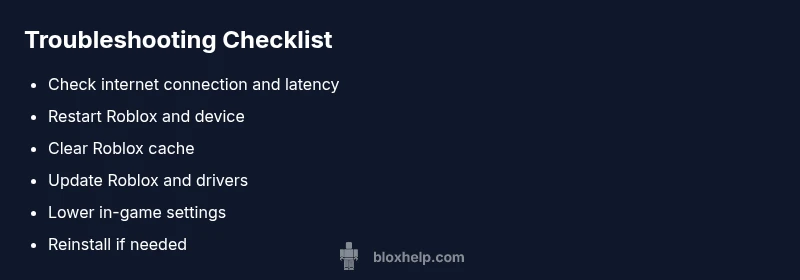
Most Roblox stops responding is usually caused by a combination of unstable internet, overloaded devices, or Roblox server hiccups. Start with the quickest fixes: verify your internet connection, restart the Roblox app and device, and clear the Roblox cache. If problems persist, update drivers, free up system resources, and reinstall Roblox. If the issue continues, check Roblox status pages.
Why Roblox stops responding
Why does Roblox stop responding is a question that many players search for during a freezing session. In most cases, the cause isn’t a single issue but a chain of factors affecting both the client and the network. According to Blox Help, popular culprits include unstable internet connections, overloaded devices, and server-side hiccups. The client may fail to render frames, the game may freeze mid-action, or the window may become unresponsive. Understanding these patterns helps you apply the right fix quickly. The sooner you identify whether it’s your setup or Roblox’s backend, the faster you can recover progress and continue playing. This article uses practical, beginner-to-advanced steps designed to get you back into a game fast while keeping you safe and informed. The Blox Help team emphasizes practical, repeatable checks that work across platforms and devices, so you can troubleshoot with confidence.
Quick checks you should run now
Before diving into deeper troubleshooting, start with fast, high-impact checks. Confirm your internet connection is stable—try a wired connection if possible, or run a speed test to verify bandwidth and latency. Restart the Roblox app, and if needed, reboot your computer or console. Clear the Roblox cache and temporary files both on PC and mobile, as corrupted cache often causes freezes. Temporarily disable background programs that might compete for CPU or RAM. If you’re on Windows, ensure Roblox isn’t blocked by antivirus or firewall rules. These steps address the majority of common problems and can be completed in minutes. While performing these checks, keep notes of what you test and the results to help narrow down the root cause later.
Diagnose the root cause: network, device, or Roblox status
If quick checks don’t resolve the issue, you need to narrow down the root cause. Start with network: test with another device on the same network or switch to a different network to see if the problem persists. Next, check device health: monitor CPU, RAM, and GPU usage; close unnecessary apps; ensure graphics drivers are up to date. Finally, verify Roblox’s own status: visit the official Roblox status page or social channels for reported outages. Based on Blox Help analysis, connectivity problems and client performance issues are frequent drivers of unresponsiveness, but server outages can also play a role. Document what you observe (latency spikes, crashes, or particular games affected) to help future troubleshooting.
Practical fixes you can apply today
Several fixes directly address the most common triggers. Update Roblox to the latest version, and install any pending system or driver updates. Reinstall Roblox if the app files are corrupted. Lower in-game graphics settings to reduce GPU load, and cap the frame rate to stabilize rendering. Free up RAM by closing background apps and disable overlays (Discord, recording software). If issues persist, try testing on a different device or account to rule out profile-specific problems. Finally, ensure your firewall or router isn’t blocking Roblox traffic. If you’re in a shared network (school, library, or workplace), check with the administrator about any traffic shaping or restrictions that could affect Roblox performance.
Platform-specific considerations: PC, mobile, console
Roblox can behave differently depending on the platform. On PC, updating graphics drivers and ensuring a stable Ethernet or low-latency Wi‑Fi connection often resolves freezes. On mobile, background apps and battery optimization settings can throttle performance; disable power saving modes during gameplay. Console players should ensure the system software is current and that any streaming or overlay apps aren’t interfering. Adapting fixes to your platform accelerates recovery and prevents repeated freezes across devices.
Advanced network troubleshooting tips
If basic steps don’t help, delve into network specifics. Try using a wired connection where possible, or switch to a different DNS (for example, a reputable public DNS) to reduce lookup delays. Disable VPNs or proxies temporarily to see if they’re causing routing issues. Check NAT type and UPnP settings on your router, and reboot the router if needed. Run a traceroute to the Roblox server to identify hops causing latency, and consider temporarily disabling firewall rules that may block Roblox traffic. Remember, changes to network equipment should be done carefully and typically during off-hours to minimize disruption.
The diagnostic flow in action: symptom to solution
This section walks through a practical flow you can apply when Roblox stops responding. Start with the symptom: freezes during gameplay. Check for common causes: network instability, device resource overload, or server outages. If the symptom persists after basic checks, escalate to advanced steps: update drivers, flush DNS, test with another device, or reinstall. Throughout, document the observed behavior, such as time of day, affected games, and error messages. If you reach a point where nothing works, reach out to Roblox support with your diagnostic notes. The flow helps you stay organized and increases the likelihood of a quick, effective fix. The Blox Help team emphasizes staying methodical and avoiding rushed, unrelated changes.
When to seek professional help and prevention tips
If the problem remains after all steps, it could indicate a deeper issue such as hardware failure or a persistent server outage. Contact Roblox support or consult your device manufacturer for hardware diagnostics. For ongoing prevention, keep Windows/macOS and graphics drivers up to date, enable automatic updates for Roblox, and maintain a clean system by removing junk software. Regularly clearing cache and performing baseline maintenance reduces the chance of future interruptions. The key is to strike a balance between optimization and reliable connectivity. The Blox Help team recommends building a routine: periodic cache resets, driver updates, and testing on multiple devices to catch issues early, so you spend more time playing and less time troubleshooting.
Steps
Estimated time: 60-90 minutes
- 1
Verify internet connection
Test your connection stability with a different device on the same network or switch to a wired Ethernet where possible. If latency spikes or packet loss occur, contact your ISP or troubleshoot router settings.
Tip: Run a quick speed test and note any burst spikes during gameplay. - 2
Restart Roblox and device
Fully close Roblox and relaunch after a short cooldown. If on a console, power cycle the device. This clears in-memory issues and resets temporary resources.
Tip: Logging out and back in can refresh session state. - 3
Clear Roblox cache
Clear cached game data to remove corrupted files that cause freezing. Do this on all devices you use for Roblox, then reopen the app.
Tip: After clearing, sign back in to confirm the fix. - 4
Update software and drivers
Install the latest Roblox client, OS updates, and graphics drivers. Updates fix compatibility issues that often cause unresponsive behavior.
Tip: Reboot after updates to ensure changes take effect. - 5
Lower in-game settings and close background apps
Reduce graphical settings and disable overlays to ease GPU and CPU load. Close other apps to free up RAM.
Tip: A simple frame rate cap can stabilize rendering. - 6
Reinstall Roblox
If corruption is suspected, uninstall and reinstall Roblox to restore clean files. Backup important progress if possible.
Tip: Only reinstall from official sources to avoid malware. - 7
Test with another account or device
Try Roblox on a different account or device to determine if the issue is profile-specific or device-specific.
Tip: This helps isolate the problem quickly. - 8
Check Roblox status and network hardware
Visit the Roblox status page and examine router/modem health and uptime. If outages are listed, you may need to wait or use alternative connectivity.
Tip: Document outages and downtime windows for reference.
Diagnosis: Roblox stops responding or freezes during play
Possible Causes
- highNetwork instability or high latency
- highRoblox server outages or maintenance
- mediumOutdated game or drivers
- mediumResource-heavy background apps
- lowCorrupted Roblox cache or files
Fixes
- easyCheck internet connection and reduce latency
- easyRestart Roblox and device
- easyClear Roblox cache
- mediumUpdate Roblox and system drivers
- easyReinstall Roblox if corruption suspected
- easyCheck Roblox status page for outages
Questions & Answers
What causes Roblox to stop responding during gameplay?
Common causes include unstable internet, high latency, Roblox server outages, outdated drivers, and corrupted cache. System resource limits can also trigger freezes, especially on older devices.
Most freezes come from network or client issues, so start with connectivity and software updates.
Why does Roblox crash on only one game or one device?
Some games may have compatibility issues or bugs with Roblox updates. Test with multiple games and devices to see if the issue is game-specific or device-specific.
If only one game is affected, it may be a game bug or compatibility issue.
How can I tell if Roblox is down?
Check the official Roblox status page and official social channels for outage updates. Community forums can show reports from other players.
Roblox status pages confirm outages; if the page shows maintenance, wait for the fix.
Is clearing the cache safe?
Clearing cache is safe and often fixes freezes, but you may need to re-login after clearing data.
Clearing cache helps, but you’ll sign in again after.
Should I reinstall Roblox if problems continue?
Reinstalling Roblox can fix corrupted files if other fixes fail. Make sure to backup progress if needed and install from official sources.
If nothing else works, reinstall can resolve persistent issues.
Can background apps affect Roblox performance?
Yes. Other programs can consume CPU/RAM and cause freezes. Close unnecessary apps during gameplay.
Background apps can slow Roblox; close them to test impact.
Watch Video
The Essentials
- Troubleshoot in a logical flow starting with network and device checks.
- Keep Roblox and system software up to date to reduce issues.
- Clear cache and test across devices to isolate the cause.
- Reinstall only after other fixes fail to fix corrupted files.
- Monitor for server outages via official Roblox status pages.