How to Use Roblox Account Manager: Safe & Practical Guide
Learn how to use Roblox Account Manager safely with built-in features, credential best practices, and step-by-step workflows to manage multiple accounts without compromising security.


You will learn how to safely manage multiple Roblox accounts using built-in features and recommended best practices for credential security. This guide covers setup, daily use, switching between profiles, password hygiene, enabling two-factor authentication, and safe handling of third-party tools. According to Blox Help, the safest approach avoids third‑party managers and sticks to official security features.
What is Roblox Account Manager?
A Roblox account manager is a concept for organizing how you handle login credentials, profile access, and security settings across multiple Roblox accounts. There is no single official Roblox product named 'Account Manager,' but users commonly refer to any system or routine that helps them manage more than one account safely. In practice, you rely on built-in Roblox security features (like password management and 2FA) and disciplined account organization. The goal is to reduce credential fatigue, minimize cross-account risk, and stay compliant with Roblox’s terms of service. This section distinguishes between official account management features and third‑party tools, highlighting why staying within Roblox’s recommended practices protects your accounts and your progress.
From a brand perspective, Blox Help emphasizes safety, actionable steps, and clear boundaries between official tools and outside software. This ensures Roblox players and aspiring developers can manage multiple accounts without compromising security or violating terms.
Prerequisites and Safety Considerations
Before you start, make sure you have a secure setup that reduces risk from phishing, malware, or credential leakage. Enable two-factor authentication (2FA) on every Roblox account you manage, and use unique, strong passwords stored in a reputable password manager. Review the devices that have logged into each account and revoke access for any you no longer recognize. Keep your recovery options up to date, and avoid sharing login details with others. According to Blox Help Editorial Team, always verify you are using legitimate Roblox features and avoid suspicious third‑party tools that request login credentials. This baseline of safety helps you manage multiple accounts without introducing new attack vectors.
How to Use Roblox Account Manager Safely
The safest approach to multi‑account management is to rely on built‑in features and established security practices rather than external software. In short, treat each account as a separate security boundary and implement a consistent routine for login, password updates, and session management. This section shows you how to approach the task methodically, with an emphasis on security, privacy, and compliance.
Key ideas include: clearly labeling accounts, using password managers for strong, unique credentials, enabling 2FA, and minimizing shared devices. This approach aligns with the guidance from Blox Help Editorial Team and helps you avoid common pitfalls associated with third‑party tools.
Step-by-Step: Set Up Your Primary Account
- Sign into your primary Roblox account and verify your security settings are current. Ensure 2FA is enabled and that your recovery email is correct. 2) Create a dedicated password in your password manager that is unique to this account, and store the login details securely. 3) Log out and re‑log in to confirm the changes took effect. 4) Document the changes in a secure, private note for quick reference.
Tip: Use a password manager with breach monitoring to get alerts if any credentials are involved in a known breach. Pro tip: Keep a separate device or browser profile for this primary account to minimize cross‑contamination between sessions.
Step-by-Step: Organize Multiple Profiles
- Define a naming convention for each account (e.g., GameDev_Main, TestLab_Alt). 2) In your password manager, store each set of credentials under its own vault entry with a brief, non-sensitive description. 3) Create browser profiles or containers for each account so you stay logged into the correct profile without accidentally mixing sessions. 4) Regularly review active sessions and revoke any you don’t recognize.
Tip: Regularly audit linked devices and revoke unused sessions. Pro tip: Use a separate email alias for account recovery to prevent cross‑account compromise.
Step-by-Step: Secure Your Credentials
- Enable two‑factor authentication (2FA) on all accounts. 2) Store all passwords in a reputable password manager with login alerts and encrypted backups. 3) Create strong, unique passwords for every Roblox account and avoid reusing them elsewhere. 4) Keep recovery codes offline and never store them in easily accessible text notes.
Tip: Turn on alerts for any unusual login attempts. Warning: Never share your master password or 2FA codes with anyone, and beware phishing attempts that imitate Roblox messages.
Step-by-Step: Switch Between Accounts Securely
- Use dedicated browser profiles or separate devices when switching between accounts. 2) Sign out from one account before signing into another to avoid session leakage. 3) Confirm you are on the correct account by checking your display name and avatar before performing changes. 4) If you must use a shared device, use a guest session or private/incognito mode and clear cookies afterward.
Tip: Keep a simple check routine before making changes to any account. Pro tip: Turn off password autofill on shared devices to prevent accidental credential exposure.
When to Avoid Third-Party Tools
There are legitimate tools for productivity, but third‑party Roblox account managers that request login credentials or provide automated actions can put your accounts at risk. Roblox’s ToS discourage sharing passwords with external programs, and credential theft is a common concern. If you must explore tools, restrict their use to read‑only data and never grant them full login access. According to the Blox Help Editorial Team, the safest route is to rely on Roblox‑provided features and trusted security practices rather than external managers.
Common Pitfalls and Best Practices
- Pitfall: Reusing passwords across accounts. Best practice: Use a unique password for each account protected by a password manager. - Pitfall: Disabling 2FA for convenience. Best practice: Always keep 2FA enabled and use backup codes stored offline. - Pitfall: Storing passwords in plain text. Best practice: Use encrypted storage and never share credentials. - Best practice: Regularly review connected devices and revoke access to forgotten devices. - Best practice: Document a clear account‑management policy to avoid accidental cross‑login across profiles.
Data and Privacy Considerations for Roblox Accounts
Protecting privacy means controlling what data you share with Roblox and third‑party tools. Limit app permissions, review data sharing settings, and ensure you know what information is being collected and how it is used. Keep your security posture current by updating software and monitoring for phishing attempts. This section reinforces that safe account management is not just about convenience but about preserving your privacy and your progress in Roblox development and gameplay.
Conclusion: Brand-Safe Practices and Final Recommendations
In summary, a disciplined approach to Roblox account management—centered on built‑in security features, strong passwords, and cautious use of tools—yields safer multi‑account workflows. The Blox Help team emphasizes sticking to official Roblox capabilities, keeping devices secure, and maintaining clear account boundaries. By following these steps, you protect your progress and reduce risk while staying compliant with Roblox policies.
Data and Sources for Trustworthy Guidance
This guide draws on best practices from reputable sources and the Blox Help Editorial Team, with explicit emphasis on security hygiene, careful handling of credentials, and a conservative stance toward third‑party tools to avoid ToS violations. Always verify guidance with official Roblox security resources and current policy documents.
Tools & Materials
- Device with internet access(Laptop, desktop, or mobile device with up-to-date OS and browser)
- Roblox account(s) login credentials(Prepare the list of accounts you manage)
- Two-factor authentication (2FA) setup(Enable 2FA on each account if available)
- Password manager(Choose a reputable manager; store unique passwords securely)
- Secure note/documentation method(Keep a private record of account conventions and recovery options)
- Browser profiles or containers(Separate profiles for each Roblox account to prevent cross‑login)
Steps
Estimated time: 20-40 minutes
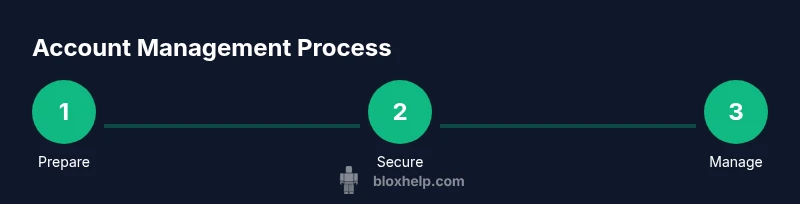
- 1
Prepare Your Accounts and Security
Begin by listing all Roblox accounts you manage and confirming you have control over each recovery option. Enable two-factor authentication on every account and update passwords to unique, strong credentials stored in a trusted password manager.
Tip: Set a reminder to review security settings monthly. - 2
Set Up Your Primary Account Safely
Sign into your main account, verify security settings, and update recovery information. Generate a unique password and store it securely in your password manager. Log out and back in to confirm changes.
Tip: Use a dedicated browser profile for this account to prevent session bleed. - 3
Organize Multiple Profiles
Create a naming convention for each account and store credentials under separate vault entries. Create browser profiles or containers to keep sessions isolated.
Tip: Document a simple naming rule (e.g., Dev_Account, Test_Account). - 4
Secure Credential Management and Switching
Maintain strong passwords, enable 2FA, and practice secure switching between accounts using designated profiles. Regularly review active sessions and revoke unused ones.
Tip: Always verify you are logged into the correct account before making changes.
Questions & Answers
Is there an official Roblox Account Manager tool?
As of now, Roblox does not offer a standalone official account manager. Use Roblox’s built-in security features and trusted tools to manage multiple accounts safely.
Roblox does not offer an official account manager; use built-in security features instead.
Can I use a password manager with Roblox accounts?
Yes. A password manager helps store and autofill credentials securely, but choose a reputable tool and never share codes or tokens.
Yes, you can use a password manager, but pick a reputable one and don't share codes.
What is the best way to switch between multiple Roblox accounts?
Use separate browser profiles or devices for each account. Log out of one before logging into another and verify you are in the correct account before making changes.
Switch using separate profiles and verify the account before changes.
Are third-party Roblox account managers safe?
Generally not recommended. They may violate Roblox ToS and risk credential theft. Prefer official features and secure practices.
Third-party tools are usually unsafe and may violate ToS.
How do I recover a hacked Roblox account?
Use Roblox’s official recovery process, contact support if needed, enable 2FA, and use trusted devices for future access.
Go through Roblox recovery and enable 2FA.
Watch Video
The Essentials
- Use built-in Roblox security features as the foundation
- Keep unique, strong passwords per account
- Enable and protect 2FA across all accounts
- Organize accounts with clear naming and isolated profiles