How to Roblox on Steam Deck: A Step-by-Step Guide
Learn how to play Roblox on Steam Deck with Desktop mode and Proton, plus setup, performance tweaks, and troubleshooting. A practical, beginner-friendly guide for portable Roblox gaming.


Roblox can run on Steam Deck by using Desktop mode and Proton to launch the Windows Roblox launcher. It isn’t officially supported, so expect some tweaks and occasional issues. This guide provides a practical, step-by-step approach to setup, controls, and optimization for portable Roblox gaming on Steam Deck.
Why Roblox on Steam Deck is Worth Trying
According to Blox Help, playing Roblox on a Steam Deck widens the on-the-go options for players and aspiring developers. The device ships with SteamOS, a Linux-based system, and Roblox does not offer a native Linux client. However, Proton, a compatibility layer, lets Windows-based apps run on Steam Deck, including the Roblox launcher. This means you can potentially access Roblox in portable form, with Steam's big-screen input options and built-in controls. If you're curious about how to roblox on steam deck, this section explains why many players pursue this route, what to expect in terms of performance, and how to approach the setup safely.
Before diving in, set expectations. Roblox is primarily designed for Windows and macOS, so your experience will depend on Proton’s compatibility with Roblox' launcher and the specific Steam Deck configuration you choose. In practice, some players report smooth performance at medium graphics, while others see occasional frame drops during intense scenes. The key is to start with the official steps for enabling Steam Play, keep drivers updated, and test a few runs to calibrate controls and visuals. The goal is to strike a balance between portability and reliability, not to force a suboptimal gaming experience. The Blox Help team notes that you can iteratively refine your setup, finding a workflow that fits how you play Roblox on the Steam Deck while adhering to Steam and Roblox's terms of service.
Understanding the Steam Deck and Roblox Compatibility
The Steam Deck is a powerful handheld PC, but Roblox’s native Linux support is limited. This means you’ll rely on Proton (Valve’s compatibility layer) to run the Windows Roblox launcher. Successful setups typically require enabling Steam Play for all titles, selecting a compatible Proton version, and using the Desktop mode to install and launch the Windows executable through Steam. Real-world results vary based on firmware, drivers, and how aggressively you push graphics. As you experiment, you’ll learn which Proton versions deliver the best balance of stability and performance for Roblox on Steam Deck. The key takeaway is that there is a path forward, but it isn’t a guaranteed, one-click experience. Always keep backups of your Roblox progress and be prepared to adjust settings if you encounter crashes or input latency. This approach aligns with best practices from Roblox Help and Steam Support, and it reflects the ongoing evolution of compatibility on handheld Linux devices.
Step-By-Step Setup: Desktop Mode and Proton
Getting Roblox running on Steam Deck starts with switching to Desktop mode and configuring Proton. In Desktop mode, you can manage Windows-based applications the same way you would on a traditional PC, but with Steam Deck inputs. You’ll need to install Steam in Desktop mode, enable Steam Play for all titles, and select a Proton version that works best for Roblox. Then, download the Windows Roblox launcher from the official Roblox site and add Roblox as a non-Steam game in Steam. Launch the launcher through Proton, and you should be able to sign in and run Roblox. If you hit a snag, try a different Proton version or revert to a stable setup before making further changes. Remember to test a few games or experiences to verify performance and input responsiveness. The goal is a smooth, playable session with accessible controls, not a perfect desktop PC experience in a handheld format.
Optimizing Controls and Performance on Steam Deck
Control mapping is critical for comfort and precision when playing Roblox on Steam Deck. Use the built-in controls for basic navigation, then map mouse-like input to the trackpad or external mouse if available. Keyboard input is usually required for logging in and certain in-game actions, so enabling a compact on-screen keyboard or pairing a Bluetooth keyboard can help. For performance, start with a moderate resolution and enable a stable FPS cap that matches your display’s refresh rate. In Steam settings, experiment with Proton versions and Steam Play options to reduce stutter and latency. You’ll also want to keep the Steam Deck plugged in during extended sessions to maintain consistent performance and prevent battery drain from impacting frame rate.
Troubleshooting Common Issues and Fixes
Roblox on Steam Deck may present a few recurring problems. If the launcher won’t start, verify your Proton version and ensure the Roblox installer is a Windows executable opened via Proton. If you experience input lag, adjust mapping or try a different proton build. Crashes can sometimes be caused by outdated graphics drivers or conflict with other background apps; closing nonessential software while gaming often helps. If Roblox runs but looks distorted, revisit resolution settings or graphics quality. For audio issues, check Steam Deck sound options and ensure Roblox isn’t muted by system shortcuts. Each issue has a practical remedy that you can test in a single gaming session to minimize downtime.
Alternative Methods and Tips
If you’re looking for additional approaches, consider running Roblox through the Steam Deck’s browser in Desktop mode as a browser-based player, though performance may vary. Some players also use Steam Deck in a Linux-compatible wrapper with experimental Proton builds, which can improve compatibility for Windows apps like Roblox. Keep logs of changes you make so you can revert if something breaks. Staying within official channels—Steam Support, Roblox Help Center, and Valve’s guidelines—helps you avoid policy or stability issues. This section also lays out pragmatic tips for more reliable experiences, such as using a wired mouse when possible and keeping the device charged during play.
Safety, Legality, and Compliance
While exploring Roblox on a Steam Deck, it’s important to respect the terms of service for both Roblox and Steam. There is no official Steam Deck port of Roblox, so you are effectively using a compatibility layer to run a Windows app on Linux. This is generally supported by Steam Play, but you should be aware of potential warranty considerations and performance tradeoffs. Always download Roblox content from official sources and avoid third-party patches. Regularly back up progress and maintain updates for both SteamOS and Proton to minimize disruption. By following these practices, you align with best-practice guidelines from the Blox Help Editorial Team and maintain a safe, legal gaming setup.
Authority Sources
Official guidance and support for running Roblox on Steam Deck comes from multiple reputable sources. Refer to Steam’s official pages for Deck compatibility and Steam Play settings (store.steampowered.com/steamdeck, support.steampowered.com), and the Roblox Help Center for platform-specific guidance (en.help.roblox.com). These sources provide verified information on compatibility steps, best practices, and troubleshooting that you can apply when configuring Roblox on Steam Deck.
Tools & Materials
- Steam Deck(Ensure it’s updated and charged; Desktop mode available via Steam button > Power.)
- Power/Dock(AC adapter or dock recommended for stable power during gaming.)
- Stable internet connection(Wi‑Fi 6 or wired if available for smoother downloads and updates.)
- Mouse and keyboard (optional)(Helpful for login and text input; you can start with on-screen keyboard.)
- Roblox account(Create or sign in on the Roblox official site to access content.)
- Proton-compatible browser/Steam setup(Use Steam to enable Steam Play and select a Proton version that works well for Roblox.)
Steps
Estimated time: 60-90 minutes
- 1
Enter Desktop Mode
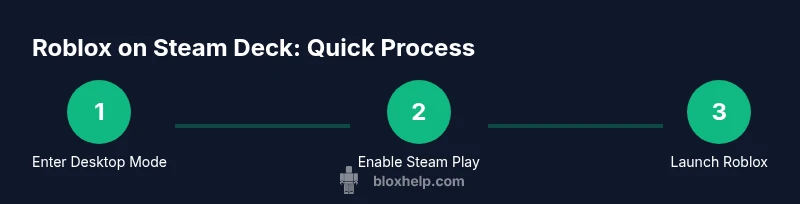
Power down to the Switch to Desktop option from the Steam Deck's power menu. This mode lets you manage Windows apps more flexibly. It’s the first prerequisite to running Roblox via Proton, and it sets up your environment for the next steps.
Tip: Tip: Keep a USB mouse handy during setup to simplify navigation in Desktop mode. - 2
Enable Steam Play and Choose a Proton Version
Open Steam in Desktop Mode, go to Settings > Steam Play, and enable Steam Play for all titles. Select a Proton version known to work with Windows apps; if one version crashes Roblox, try another (e.g., Proton 7.x vs Proton Experimental).
Tip: Tip: Start with a conservative Proton version and test Roblox with a simple launcher before expanding to more complex games. - 3
Add Roblox as a Non-Steam Game
In Steam, choose Add a Non-Steam Game and point to the Windows Roblox launcher downloaded from the official Roblox site. This step integrates Roblox into your Steam library, letting you launch it through Proton.
Tip: Tip: Label it clearly (e.g., Roblox-Windows) to avoid confusion with native Linux apps. - 4
Launch Roblox via Proton and Sign In
From your Steam Library, start Roblox using the Windows launcher through the selected Proton version. Sign in to your Roblox account and confirm you can navigate the interface without major input lag.
Tip: Tip: If you see a black screen, switch to a lower graphics preset and re-launch; some setups require a restart after the first launch. - 5
Map Controls and Verify Input
Configure the Steam Deck controls to resemble a desktop setup: map pointer control to the trackpad or external mouse, and keep keyboard to a minimum. Ensure your login text input is accessible via the on-screen keyboard when needed.
Tip: Tip: Test quick actions like movement, jumping, and inventory management to check responsiveness. - 6
Tune Graphics and Performance
Adjust Roblox’s in-game graphics to a mid-range preset to prevent overheating and frame drops. Cap the frame rate to match the Steam Deck’s display refresh rate and monitor thermals during extended play sessions.
Tip: Tip: Use lower dynamic lighting and shadows for smoother performance without a noticeable drop in gameplay quality. - 7
Test, Troubleshoot, and Reiterate
Play a few Roblox experiences to gauge stability. If you encounter crashes or audio issues, revert to a previous Proton version or tweak Steam Play settings. Keep a log of changes for future reference.
Tip: Tip: Always back up progress before performing major configuration changes.
Questions & Answers
Is Roblox officially supported on Steam Deck?
Roblox does not have official Steam Deck support, but many players run it using Proton in Desktop Mode with mixed results. Your experience will depend on the Proton version and hardware configuration.
There isn't official Steam Deck support for Roblox; you can try running Roblox through Proton in Desktop Mode, but results vary.
Do I need Windows or Proton to run Roblox on Steam Deck?
You can run Roblox without Windows by using Proton to execute the Windows Roblox launcher in Desktop Mode, though performance varies by Proton version and device settings.
You can use Proton to run Roblox on Steam Deck without Windows, but you may need to adjust settings for best results.
Will Roblox updates break compatibility on Steam Deck?
Updates can affect compatibility; if Roblox changes how it launches, try a different Proton version or revert to a known good configuration.
Roblox updates may affect compatibility; test with different Proton versions if issues arise.
What controls work best for Roblox on Steam Deck?
Keyboard and mouse mapping works well, with the Deck's trackpad or a connected mouse enabling precise control. On-screen inputs can complement navigation.
Keyboard and mouse mappings plus the trackpad give solid control; you can also use on-screen inputs when needed.
How can I optimize Roblox performance on Steam Deck?
Lower graphics, cap frame rate to the display, and choose a Proton version with solid stability. Keep drivers and SteamOS updated.
Lower graphics, cap FPS, and use a proven Proton version to improve performance.
Are there safety or legality concerns running Roblox on Steam Deck?
There are no special safety issues beyond standard platform use. Follow Roblox and Steam terms of service and avoid unofficial patches.
No special safety concerns beyond standard terms; use official sources and avoid patches.
Watch Video
The Essentials
- Switch to Desktop Mode to run Roblox via Proton.
- Enable Steam Play and test Proton versions for stability.
- Add Roblox as a non-Steam game and launch through Windows launcher.
- Map controls carefully and optimize graphics for Steam Deck.
- Expect variability; use troubleshooting steps to refine your setup.