Roblox for Linux: A Practical Guide for Linux Users
Learn practical, step-by-step ways to run Roblox on Linux using Proton/Steam Play or Lutris. Discover compatibility realities, setup tips, and safety considerations for a smoother Roblox experience on Linux.


This guide explains how to run roblox for linux using Windows compatibility layers like Proton/Steam Play or Wine-based launchers, plus practical expectations and safety tips. There is no native Linux client for Roblox, but many players now launch Roblox on Linux in 2026 by leveraging compatibility tools. Expect variable performance and feature support.
Understanding Roblox on Linux
roblox for linux remains unsupported natively, so players rely on Windows compatibility layers to run Roblox on Linux. This means using tools like Proton through Steam Play or Wine-based launchers to execute the Windows Roblox installer within a Linux environment. The Blox Help team notes that results vary widely depending on your hardware, GPU drivers, and the specific Proton version you employ, so you should expect an iteration process as you optimize settings. Real-world results are often a mix of playable sessions and occasional hiccups, especially on older hardware or with less common Linux distributions. By starting with a compatible setup and testing a few titles, you can discover what works best for your system.
Compatibility and Performance Realities
Running roblox for linux typically involves trade-offs. You may encounter limited anti-cheat support, occasional crashes, or features that behave differently than on Windows. The landscape changes with kernel updates, driver releases, and Proton improvements, so outcomes shift over time. Blox Help analysis shows that newer Proton versions generally improve compatibility, but there is no guarantee of parity with the Windows experience for every game. If you aim for a stable session, you should plan for some trial-and-error testing and be prepared to adjust settings or switch tools based on the title you want to play.
Primary Approaches to Run Roblox on Linux
There are several paths, each with pros and cons:
- Steam Play with Proton: Easiest for Steam users; enable Steam Play and choose a recent Proton version. Pros: integrated launcher; Cons: occasional launcher issues and some titles may fail.
- Lutris/Wine-based: More flexible; can run Windows Roblox installer via Wine; Pros: broader control; Cons: more setup steps and potential edge-case problems.
- Virtual machine: Run Roblox inside a Windows VM; Pros: strongest isolation; Cons: heavy resource use and potential performance penalties. No single method guarantees perfect results, so you may need to experiment with one or two approaches to see what works for you.
Step-by-Step Setup Overview
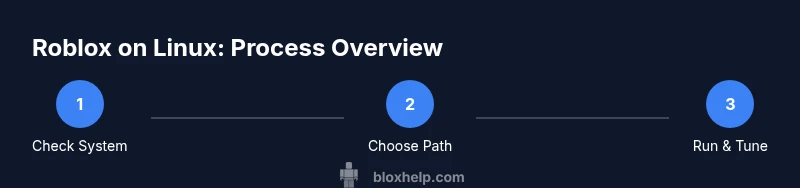
Choose your path above. The following overview outlines the typical flow: 1) Install Linux with up-to-date drivers. 2) Install Steam and enable Steam Play (Proton). 3) Add Roblox to Steam or install via Lutris. 4) Launch Roblox and adjust video settings. 5) Test with a lightweight game and monitor performance. This overview is designed to prepare you for the more detailed steps in the dedicated Step-by-Step section.
Safety, Security, and Accounts on Linux
When running Roblox on Linux, maintain standard safety practices. Use official installers or reputable launchers, keep your system and drivers up to date, and avoid sharing login credentials. Be mindful of phishing attempts and avoid clicking unknown links that claim to offer direct Roblox installers outside trusted channels. Regularly review permissions for any third-party tools and back up important settings and progress where possible.
Tools & Materials
- A recent Linux distribution (e.g., Ubuntu 22.04+ or an up-to-date Fedora/Arch)(Keep your system updated to receive the latest driver and Proton compatibility fixes)
- GPU driver (NVIDIA, AMD, or Intel) up-to-date(Install from your distro's official repositories or vendor sites)
- Steam client(Needed if you plan to use Steam Play/Proton for Roblox)
- Wine or Proton-compatible runtime (if not using Steam Play)(Proton via Steam is preferred for simpler setup)
- Lutris (optional)(Useful for managing Wine/Proton configurations across games)
- Roblox Windows installer or Roblox launcher (Windows version via compatibility layer)(Access Roblox from the official site; run through Proton/Wine)
- Stable internet connection(Needed for downloads, updates, and launcher authentication)
Steps
Estimated time: 60-90 minutes
- 1
Check Linux compatibility and prerequisites
Confirm you have a modern Linux distro with up-to-date drivers and a working Steam/Proton setup. This minimizes friction when running Roblox on Linux. Ensure you can enable Steam Play and install a Proton version that matches your hardware.
Tip: Run a quick GPU test (e.g., glxinfo) to verify hardware acceleration is working before starting. - 2
Install Steam and enable Steam Play
Install Steam, sign in, and turn on Steam Play with a recent Proton version. This creates the Windows compatibility layer Roblox needs to run on Linux. If you use a non-Steam launcher, prepare to configure Wine/Proton separately.
Tip: In Steam settings, set Steam Play to enabled for supported titles and select a Proton version closer to the latest stable release. - 3
Set up Roblox path (Steam/Proton or Lutris/Wine)
Add the Roblox Windows installer to Steam as a non-Steam game or configure Lutris to manage Roblox with Wine/Proton. The goal is to ensure the game launches through the chosen compatibility layer.
Tip: Assign the Roblox executable to the selected Proton version to minimize cross-layer conflicts. - 4
Install the Roblox Windows version via the chosen path
Run the Roblox installer through Proton/Wine. Complete the Windows setup as you would on a PC, but expect minor quirks caused by the layer rather than the game itself.
Tip: If the installer stalls, restart the launcher and reattempt with a fresh environment. - 5
Launch Roblox and adjust settings
Open Roblox and navigate to a lightweight title to test performance. Lower in-game resolution and disable heavy effects if you notice stuttering. Save your preferred settings for future sessions.
Tip: Enable VSync and cap FPS to reduce frame-time irregularities on Linux. - 6
Troubleshoot common issues
If Roblox doesn’t start, try a different Proton version or switch to Lutris/Wine. Check launcher logs and community threads for guidance on title-specific compatibility.
Tip: Keep a short log of each Proton version you tested for future reference.
Questions & Answers
Is Roblox officially supported on Linux?
No, Roblox does not offer a native Linux client. You can run it on Linux using compatibility layers like Proton or Wine, but it isn't officially supported for Linux.
Roblox isn’t officially supported on Linux, but you can run it with compatibility tools.
What is the easiest way to run Roblox on Linux?
The simplest path is Steam Play with Proton, which provides an integrated compatibility layer. Other methods exist but require more setup.
Steam Play with Proton is the easiest path to run Roblox on Linux.
Will Roblox perform well on Linux?
Performance varies by hardware and Proton version. Some players report smooth sessions, others encounter stuttering or occasional issues.
Performance on Linux depends on your hardware and Proton version; results vary.
Can I play Roblox on a Chromebook running Linux?
There isn't official support, but some Chrome OS devices can run Roblox via Linux (Beta) with varying results. Expect additional setup hurdles.
Not officially supported; you may be able to run Roblox on some Chromebooks with extra setup.
Are there safety or account concerns using Proton or Lutris?
Use trusted sources and keep system software updated. Third-party launchers can introduce risks, so stick to reputable tools and avoid sharing credentials.
Yes—use trusted tools and keep everything up to date to stay safe.
Where can I find more Linux Roblox guides?
Check community-driven resources and the Blox Help site for practical, step-by-step Linux Roblox tutorials and troubleshooting tips.
Look to community guides and Blox Help for Linux Roblox tutorials.
Watch Video
The Essentials
- Roblox on Linux is possible via compatibility tools.
- Expect variable performance and feature parity across titles.
- Start with Steam Play/Proton for the simplest path.
- Keep Linux drivers and Proton updated to maximize compatibility.