Roblox Can Be Played On: Platforms & Devices Guide
Explore where Roblox can be played, from Windows and macOS to mobile, Xbox, Chromebooks, and beyond. Learn platform specifics, input options, and tips for cross-device play.


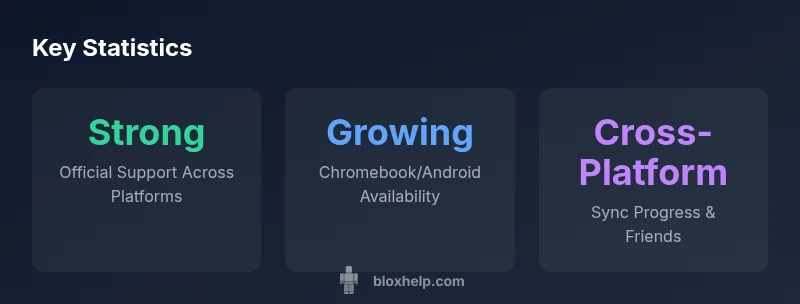
roblox can be played on Windows PC, macOS, iOS, Android, and Xbox. The service also supports Chromebooks via the Android app or ChromeOS-enabled browser. For the best experience, verify device compatibility, install the Roblox app, and keep your client up to date. This cross-platform accessibility is a key strength for Roblox players across ages and devices.
Roblox Across Devices: The Landscape
The Roblox ecosystem is designed to be device-agnostic to a practical extent, meaning players can pick up where they left off on different hardware. According to Blox Help, the platform’s core architecture supports a single Roblox account across multiple devices, with cloud saves and cross-device progression where available. This cross-play approach enables you to follow your games, friends lists, and in-game progress from a Windows PC to a phone, tablet, or console. For players new to Roblox, this means you can start on a mobile device during commute hours and transition to a large-screen PC at home without losing access to your library. The key takeaway is that Roblox emphasizes a seamless, device-aware experience, paired with consistent updates designed to improve compatibility and performance across platforms.
- Practical note: always verify you’re using the official Roblox client rather than third-party browsers or fake installers, which can compromise security and stability.
- In practice, you should expect slight differences in input methods, screen real estate, and performance depending on device class. Shifting from touch to keyboard and mouse or controller can change reaction times, precision, and comfort. The Blox Help team highlights that, if you plan to play across devices, you’ll benefit from testing controls on each platform to optimize your setup.
Official Platforms and What They Offer
Roblox officially supports several major platforms, each with its own strengths and caveats. On Windows and macOS, you’ll generally get the most stable performance and access to a broad library of games via the Roblox Desktop App. Mobile versions for iOS and Android provide excellent accessibility, with touch controls that cater to casual play and quick session starts. Console players can enjoy Roblox on Xbox One and Xbox Series X|S, often with tailored controller input and quick access to friends and communities. Across all platforms, you should expect frequent updates from Roblox that aim to harmonize the experience and fix platform-specific issues. From a strategic perspective, choosing the right platform depends on your preferred playstyle, the games you enjoy, and whether you value portability over raw performance.
- If you use a gaming laptop or desktop, you’ll likely benefit from larger displays and precise control options such as a mouse and keyboard or gamepad.
- If you play on a tablet or phone, you’ll enjoy touch-based navigation, instant game access, and the convenience of playing anywhere you have a connection.
Chromebook and Browser Pathways
Chromebooks can run Roblox through the Android app or, in some cases, via ChromeOS with the Android runtime enabled. This makes Chromebooks a surprisingly viable option for younger players or families with a budget Chromebook. However, performance can vary based on the device’s hardware acceleration and RAM. For players who want a more consistent experience, using a dedicated Android tablet or a Windows/macOS machine can yield smoother frame rates and quicker load times. Roblox’ browser-based play is increasingly limited, with most features locked behind the official app. If you rely on a Chromebook, ensure you have the latest Android app installed and maintain good network conditions to minimize latency during gameplay.
- Pro tip: keep a backup plan for when the Chromebook hardware is stressed—switch to a more capable device to avoid drop-offs in the middle of a session.
Input Methods and Accessibility Across Devices
The way you interact with Roblox varies by platform. Desktop users frequently pair a keyboard and mouse for precise actions, while console players rely on a controller for simplicity and comfort on long sessions. Mobile players use touch controls, which are optimized for thumb-friendly navigation and on-screen joysticks. Roblox also supports accessibility features such as high-contrast interfaces and scalable text, which can improve readability for players with visual impairments. If you’re a multi-device player, take time to customize the control scheme on each platform: remap buttons where possible, adjust sensitivity settings, and test actions in a low-stakes game world to ensure your muscle memory transfers smoothly between devices.
- For developers, consider designing games with cross-platform input in mind, ensuring core actions are accessible via keyboard/mouse, touch, and controllers.
Performance Expectations by Platform
Performance expectations vary by device class. On Windows and macOS desktops, Roblox can leverage more powerful CPUs and GPUs, delivering higher frame rates and longer, more responsive sessions. Mobile devices prioritize energy efficiency and thermal management, which can cap frame rates during extended play. Consoles like Xbox aim to balance performance and reliability with controller-centric experiences. While Roblox optimizes many games for cross-platform compatibility, some titles may run differently due to texture resolutions, lighting, and physics simulations. The takeaway is to calibrate your settings for your device: enable or disable post-processing effects, reduce texture quality if you’re on a phone, and ensure you’re on a stable network to minimize lag.
- If you notice stuttering or long load times, a simple reboot of the Roblox app and a quick router reset can often resolve many issues.
Cross-Device Progress and Account Consistency
A major selling point of Roblox is its cross-device progression. When you sign in with the same account on different platforms, you should see your avatar, inventory, friends list, and in-game progress synchronized, subject to game-specific save rules. Be mindful that some titles might store progress locally or require you to opt into cloud saves. Always check in-game settings or the Roblox account page to confirm cloud save features are enabled. If you encounter issues with progress syncing, try logging out and back in, confirm you’re using the same region/account, and ensure you have a stable internet connection. Blox Help recommends enabling two-factor authentication to protect your cross-device access and keep your progress secure.
- Regularly update the Roblox client across devices to minimize incompatibilities between game builds and platform-level changes.
Security, Parental Controls, and Family Settings Across Platforms
Security considerations increase as you expand to multiple devices. Enable two-factor authentication on your Roblox account and review privacy settings regularly. For families with younger players, utilize parental controls to limit who can chat, join games, or follow others. Across devices, verify that you’re signing into the legitimate Roblox app, not a spoofed site or fake launcher. A consistent approach to safety improves the experience, reduces risk, and helps maintain a positive community. If you share devices, make sure profiles are password-protected and that session data is cleared after use on public or shared machines.
- Regularly review app permissions and disable any unnecessary data sharing.
Roblox platform availability by device and input method
| Platform | App Available | Typical Input | Notes |
|---|---|---|---|
| Windows | Yes (Roblox Desktop App) | Keyboard + Mouse | Desktop-focused experience with higher performance |
| macOS | Yes (Roblox Desktop App) | Mouse + Keyboard | Apple Silicon supported; desktop stability benefits |
| iOS | Yes (iPhone/iPad) | Touch | Mobile-friendly controls; portable play |
| Android | Yes (Phone/Tablet) | Touch | Broad device support; check OEM performance |
| Xbox One/Series | Yes (Console App) | Controller | Console-optimized controls; integrated ecosystem |
Questions & Answers
Can Roblox be played on both PC and Mac?
Yes. Roblox runs on Windows and macOS via the Roblox Desktop App, offering similar game libraries and account access across both platforms.
Yes, Roblox works on both PC and Mac using the desktop app.
Is Roblox available on mobile devices (iOS and Android)?
Absolutely. Roblox is supported on iOS and Android, with touchscreen controls designed for quick sessions and portability.
Roblox is available on iOS and Android with touch controls.
Can I play Roblox on Xbox consoles?
Yes, Roblox is available on Xbox One and Xbox Series X|S, typically with controller input and cross-platform friends.
Roblox runs on Xbox with a controller and cross-play features.
Do Chromebooks support Roblox?
Roblox can run on Chromebooks that support Android apps or ChromeOS with Android runtime. Performance varies by device.
Chromebooks can run Roblox via the Android app, with varying performance.
Is browser play supported for Roblox?
Most Roblox play happens via the official app rather than browser-based access; use the Roblox app for reliable performance.
Roblox is mainly played through the official app, not in browsers.
What about VR or headset compatibility?
Roblox offers limited VR experiences on select setups; most players should expect standard non-VR gameplay on supported devices.
VR is available in limited forms; most players use standard displays.
“Roblox’s strength lies in its cross-device accessibility, but players should tailor their setup to each platform to retain a smooth, safe experience.”
The Essentials
- Check device compatibility before installing Roblox.
- Choose the right input method for your platform.
- Keep Roblox updated on all devices for best cross-play.
- Experiment with Chromebooks via Android app when needed.
- Protect your account across devices with strong security.