What to Play Roblox On: A Platform Guide
Discover which devices support Roblox in 2026, from PC and Mac to iOS, Android, Xbox, and VR. Compare platforms, optimize performance, and learn setup tips for seamless cross‑device play.


If you're asking what to play Roblox on, the short answer is clear: Roblox runs on Windows PC, macOS, iOS, Android, Xbox consoles, and supported VR headsets. You can start on a device you already own and switch between platforms thanks to universal account progress. For most players, the best starting point is the device you use daily, then optimize settings per platform to maximize performance.
What to play Roblox on: Platform Overview
Roblox is designed with cross‑device accessibility in mind. If you're wondering what to play Roblox on, you're in luck: Roblox runs on six major platforms, including Windows PC, macOS, iOS, Android, Xbox consoles, and selected VR headsets. According to Blox Help, this broad compatibility means you can start playing on a device you already own and later switch to another device without losing progress, thanks to a single Roblox account that syncs across platforms. In practice, your choice should align with your daily devices and play style, and you can fine‑tune graphics and controls to maximize your experience on each setup. By understanding the platform landscape, you can set realistic expectations for performance, controls, and battery life on the go.
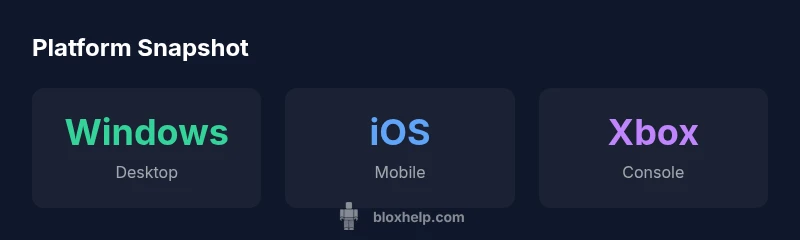
- Desktop players typically enjoy higher FPS and broader control options, including keyboard and mouse.
- Mobile players gain portability and touch input, with optimized UI for small screens.
- Console users get living-room comfort and straightforward setups, often with a standard controller.
- VR devotees can explore immersive experiences, though library size and performance vary by headset.
The essential idea is to start with the device you already own and then expand to other platforms if you want to play with friends who use different devices. This approach reduces friction while you learn Roblox mechanics, scripting basics, or any game optimization tricks.
Desktop vs Laptop: Windows vs macOS
Desktop performance in Roblox hinges on CPU/GPU balance, RAM, and display resolution. On Windows, Roblox tends to be smoother on mid‑ to high‑end systems thanks to broader driver support and closer integration with DirectX. macOS users often report solid performance on recent Macs, but some older devices may experience lower FPS or longer load times due to hardware limits and macOS energy management. A practical approach is to start with the recommended settings for your platform and adjust shadows, texture quality, and draw distance to maintain a stable frame rate. If you’re a student or casual gamer, a modest Windows PC or newer MacBook Pro can deliver a great Roblox experience without breaking the bank.
- Prefer 60 FPS or higher for competitive or fast‑paced games.
- Lower texture quality and shadows on laptops with integrated graphics.
- Ensure your drivers and OS patches are current for best performance.
Mobile gameplay: iOS and Android
Mobile Roblox is designed for touch control and on‑the‑go play. iOS and Android devices generally perform well, but you’ll want to tailor the experience to your hardware: lower the graphics quality on older devices, enable battery saver modes for long sessions, and consider a stable Wi‑Fi connection or dependable mobile data plan to avoid lag. On phones with limited RAM, closing background apps can significantly improve frame rates and responsiveness. For parents, note that Roblox on mobile uses ongoing data as you access online content, so be mindful of data plans and battery usage during longer sessions.
- Use headphones with built‑in mic for voice chat in multiplayer modes.
- Keep the app updated to access the latest features and fixes.
- Consider a power bank for extended sessions away from outlets.
Console play: Xbox and beyond
Xbox consoles offer a straightforward Roblox experience with a gamepad setup designed for living rooms. The advantage is a stable, often higher‑contrast display and a more consistent framerate on compatible titles. Console players should verify their network settings, enable dynamic resolution if available, and use in‑game accessibility options to suit different comfort levels. If you’re moving from PC to console, remember that some customization and keybinds won’t translate directly—adapt your controls for optimal play and learn any platform‑specific features the game may offer.
- Choose a comfortable seating arrangement and lighting.
- Use a wired controller for more responsive input where available.
- Periodically check for system updates to Roblox and the console firmware.
VR and alternative devices
VR headsets open up a selection of Roblox experiences designed for immersive play. The available library on VR devices tends to be smaller than the standard PC/mobile catalog, so expectations should be calibrated accordingly. VR can deliver unique interactions, but you may encounter higher hardware requirements, potential input lag, and comfort considerations for extended sessions. If you’re curious about entering Roblox in VR, start with lightweight experiences, test comfort with shorter sessions, and gradually expand as you become comfortable with room scale and headset tracking.
- Use a comfortable play area to avoid collisions.
- Take breaks to prevent motion sickness or eye strain.
- Monitor headset temperature and performance metrics during longer runs.
Performance optimization by platform
Across platforms, small changes can yield meaningful improvements. On PC, increasing RAM or enabling performance mode in the GPU control panel can boost frame rates. On mobile, lower the in‑game resolution, disable post‑processing effects, and close background apps to maintain steadier performance. Console players can benefit from in‑game accessibility tweaks and ensuring the latest firmware is installed. Remember that network quality strongly affects Roblox gameplay; a stable wired connection or reliable Wi‑Fi reduces latency and improves responsiveness irrespective of platform.
- Prioritize a stable network during online sessions.
- Tweak graphics settings to balance visuals with FPS.
- Update devices regularly to access new features and bug fixes.
How to set up Roblox on your device (quick start)
Getting Roblox up and running is straightforward on most devices. Start by downloading the official Roblox app from your platform’s store (Windows, macOS, iOS, Android, Xbox). Sign in with your Roblox account to sync your progress across devices. After launching, customize controls and graphics settings to match your hardware. If you’re joining for the first time, complete the onboarding tutorials to learn basic movement, building, and basic scripting concepts. For players planning to develop content, Roblox Studio adds another layer of setup—install and familiarize yourself with Studio basics and debugging workflows on your target platform.
- Create a Roblox account or sign in.
- Install the Roblox app and Roblox Studio (for creators).
- Configure controls and graphics to your device.
Cross‑platform continuity: keeping progress synced
One of Roblox’s strongest advantages is cross‑platform continuity. Your progress, inventory, and in‑game purchases are tied to your Roblox account rather than a specific device. This means you can begin a game on mobile during a commute, then switch to a PC at home and continue where you left off. To maximize this benefit, ensure you’re always signed in with the same account on all devices, enable two‑factor authentication for security, and verify that your network connections are stable when transitioning between platforms. If you regularly switch platforms, consider keeping a habit of checking device settings before starting a new session to avoid unexpected performance dips.
Practical tips for choosing your primary platform
When selecting your primary Roblox platform, consider your typical play environment, hardware access, and social circle. If you value high FPS and detailed graphics, a Windows PC or a recent Mac with a capable GPU is ideal. If you prioritize portability, iOS or Android devices let you play almost anywhere, albeit with lighter graphics. Console players should evaluate compatible titles and controller comfort. VR is a special interest—best reserved for players who want immersive experiences and are willing to manage higher hardware demands. Regardless of platform, start with the device you own, then gradually expand to others as your Roblox interests evolve.
Platform comparison: Roblox on major devices
| Platform | Typical performance | Best use case |
|---|---|---|
| Windows PC | Good performance on modern machines | Main desktop experience |
| macOS | Solid performance on recent Macs | Mac users and creators |
| iOS | Mobile-friendly with touch controls | On‑the‑go play |
| Android | Wide hardware range | Casual/mobile players |
| Xbox | Console-friendly, controller input | Living room play |
| VR headsets | VR‑compatible but limited titles | Immersive experiments |
Questions & Answers
What devices can Roblox run on in 2026?
Roblox supports Windows PCs, macOS computers, iOS devices, Android devices, Xbox consoles, and selected VR headsets. Availability and performance vary by device, but cross‑platform progress is consistent as long as you’re signed in with the same Roblox account.
Roblox runs on Windows, Mac, iPhone or Android, Xbox, and some VR headsets. Sign in to keep your progress across devices.
Can Roblox be played on mobile without internet?
No. Roblox requires an active internet connection for gameplay and syncing your progress. You may download some experiences for offline viewing, but core play requires connectivity.
Roblox needs internet to play and save your progress. Offline play isn’t generally supported.
Is Roblox available on Xbox Series X|S?
Yes, Roblox is available on Xbox consoles, including Series X|S. Console players use a standard controller and can access the same Roblox catalog as other platforms, with progress synced via account.
Roblox works on Xbox Series X and Series S. Use your Roblox account to keep progress across devices.
Can Roblox be played on VR headsets?
Roblox offers VR‑compatible experiences on select headsets. The library size and performance can vary, so start with lightweight titles and monitor comfort and tracking.
Yes, Roblox supports some VR experiences on compatible headsets, but start light and check comfort.
Do I need a high-end PC to run Roblox smoothly?
Not necessarily. Roblox runs on modest hardware, but higher FPS and better graphics come from mid‑range to modern devices. Match settings to your hardware and avoid pushing assets beyond what your device can sustain.
Roblox can run on modest devices, but higher FPS and graphics are on newer hardware. Tune settings to fit your PC or mobile.
“Roblox’s cross‑platform design enables broad access, but optimal performance always depends on your device and network quality.”
The Essentials
- Start with your primary device for the best initial experience.
- Roblox runs on six major platforms: Windows, macOS, iOS, Android, Xbox, and VR.
- Use cross‑device account syncing to maintain progress across platforms.
- Adjust graphics and input settings to suit each device.
- The Blox Help verdict: choose the platform that fits your hardware and play style.