Roblox on Chromebook: A Practical Setup Guide
Learn how to run Roblox on a Chromebook by installing the Android app, optimizing performance, and troubleshooting common issues for ChromeOS users in 2026.


Roblox on Chromebook: Feasibility and scope
For readers wondering how to run roblox for chromebook, the short answer is that it is possible on Chromebooks that support Android apps via the Google Play Store. The Blox Help team notes that many newer Chromebooks ship with Play Store support or can enable it with a quick toggle. In practice, you install the Roblox Android app from Google Play and sign in with your Roblox account to access games, avatars, and updates. This setup avoids the need for Windows or macOS, but performance varies depending on model, RAM, and network quality. If you’re using a Chromebook without Play, alternatives exist but tend to be more complex and less reliable. The key takeaway remains: with a Play-enabled Chromebook, you can enjoy Roblox smoothly by choosing lighter games and fine-tuning settings. According to Blox Help, this is the most straightforward route for roblox on a Chromebook, especially for casual gaming and learning with Roblox Studio–related activities that don’t demand high-end resources.
Preparing your Chromebook for Roblox
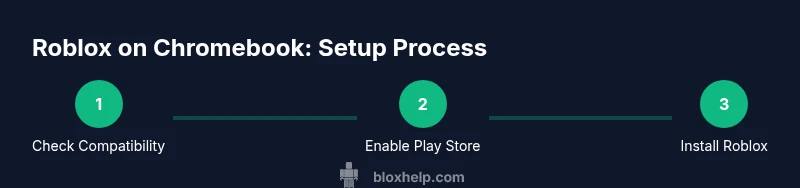
Before you dive into Roblox on a Chromebook, ensure your device is ready for Android apps. Start by checking that the Google Play Store is installed and enabled, which makes it possible to download the Roblox Android app. Make sure you have a stable Wi‑Fi connection, adequate storage space (Roblox and its games can cache data), and a Google account to sign in. It’s also worth reviewing your Chromebook’s security settings and parental controls if you share the device. Finally, update Chrome OS to the latest version to maximize compatibility and performance. With these basics in place, you’ll minimize friction during installation and gameplay, and you’ll have a smoother Roblox experience on ChromeOS.
Installing the Roblox Android app on Chromebook
Head to the Google Play Store from your Chromebook, search for Roblox, and tap Install. Once the app is downloaded, open Roblox and sign in with your existing account or create a new one if needed. If you encounter sign‑in issues, ensure Google Play has the correct permissions and that your network is stable. Some Chromebooks require you to restart after installation to finalize app provisioning. After signing in, you’ll land in the Roblox Home screen where you can browse games, customize avatars, and join friends. Remember to run Roblox in a windowed mode when adjusting settings to prevent accidental full‑screen changes during gameplay.
Signing in and configuring your Roblox account on ChromeOS
Sign in with the Roblox account you already use on other devices, or create a new one if you’re new to Roblox. Go to Settings to verify privacy options, enable two‑step verification if available, and adjust parental controls if you share the device with younger players. Take a moment to customize your controls in the Roblox settings, such as sensitivity for the on‑screen joystick if you’re using a touchpad. If you plan to play with friends, ensure you’ve connected your friends list and checked notification preferences so you don’t miss invites.
Controls and gameplay on Chromebooks: keyboard, touch, and mouse
Chromebooks offer multiple input methods. You can use a physical keyboard and touchpad to navigate menus and move in many games, or connect an external mouse for precise aiming and camera control. For touch‑screen Chromebooks, you can tap to interact, but most Roblox games play best with a mouse and keyboard setup. In Roblox Studio, which is not officially supported on ChromeOS, you’ll face limitations; focus on playing games that support keyboard/mouse input. If a game doesn’t respond well to keyboard controls, try switching to a different control scheme in the in‑game settings or reduce graphic quality to improve responsiveness.
Performance optimization and troubleshooting on Chromebook
To maximize Roblox performance on ChromeOS, close unused browser tabs, disable extensions that consume memory, and set the Roblox graphics to a lower quality in game settings. Ensure you’re on a stable Wi‑Fi network and consider using a wired mouse if precision matters. If Roblox lags, restart the app or device, check for Play Store updates, and free up storage by removing unused files. For audio or visual glitches, verify that the Roblox app is up to date and that your Chromebook’s OS is current. If issues persist, switch to a lighter game or adjust resolution to reduce GPU load. Regularly clearing cache for Google Play Services can also help.
Safety, parental controls, and account security on Chromebooks
When children or teens use Roblox on a shared Chromebook, enable parental controls and restrict in‑app purchases as needed. Review your Roblox account’s privacy settings to control who can communicate with you and join your games. Use a strong password and enable two‑factor authentication if available. Disable automatic sign‑in on shared devices to prevent other users from accessing your account. Finally, remind younger players about online safety and reporting tools if they encounter inappropriate content or behavior.
Alternatives and limitations: Roblox Studio and cross‑device play on ChromeOS
Roblox Studio, the development environment, is not officially supported on Chromebooks, which limits on‑device development for ChromeOS users. If you’re eager to create, consider using a Windows or macOS device, or cloud‑based solutions that provide a desktop environment compatible with Roblox Studio. For cross‑device play, you can continue with Roblox on Chromebook for gaming and learning purposes, but expect differences in performance and feature availability compared to desktop PCs. This means you’ll likely achieve the best results by pairing a Chromebook with a capable peripheral setup or by using a more powerful computer for creation tasks while using the Chromebook for casual play.
Authoritative sources and next steps
For deeper, official guidance on Roblox and Chrome OS, refer to the developer and support resources from Roblox and Google. These sources include Roblox’s developer docs and help center, as well as Chrome OS support materials that cover Google Play integration and Android app handling on Chromebooks. Consistently checking these resources helps you stay up to date with new features, compatibility notes, and best practices for playing Roblox on ChromeOS.