How to Roblox Download Chrome: A Beginner's Guide
Learn how to download Roblox on Chrome safely with a step-by-step guide, practical tips, and troubleshooting. This beginner-friendly tutorial covers installation, account setup, and common issues.


This guide shows you how to use Google Chrome to access Roblox and install the Roblox Player, so you can play games directly from the Roblox site. You won't install Roblox as a Chrome extension; instead you download the Roblox installer when prompted by a game. Requirements: a Chrome browser, a Roblox account, and a stable internet connection.
Roblox on Chrome: Key Concepts
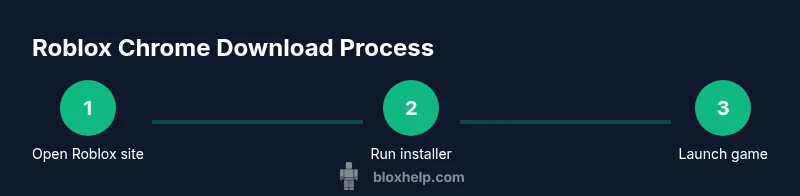
Roblox does not exist as a Chrome extension. When you click a game on Roblox.com in Chrome, you’re prompted to download and install the Roblox Player. The installer then launches outside the browser, and you can sign in once the installation completes. Using Chrome to access Roblox simply means you’re using a compatible browser to run the installer and play games. For many players, Chrome provides a stable, familiar environment while Roblox delivers games through its own launcher and web player. This guide focuses on the Roblox download Chrome workflow and how to keep your setup secure and efficient. Throughout this article you’ll see practical steps tailored to beginners and intermediate users who want a smooth Roblox experience on Chrome.
According to Blox Help, most users succeed by sticking to the official Roblox site and keeping the browser up to date. This reduces the chance of blocked downloads or prompts from outdated security features.
Chrome compatibility and browser setup
Chrome remains a reliable way to access Roblox, but you should verify you’re on a supported browser version and operating system. Keep Chrome updated to ensure the Roblox installer runs without compatibility warnings. If you’re on a shared or public computer, consider using a guest profile to protect your Roblox credentials. Regularly review your browser’s privacy and security settings to allow installers from roblox.com, while blocking unknown popups that could masquerade as legitimate prompts. Roblox download chrome workflows are straightforward when you follow the official steps and avoid third-party download sites.
What you need before you start
Before attempting the Roblox download Chrome process, gather essential items and confirm system readiness. A stable internet connection is crucial for a smooth download and installation. You’ll also need a Roblox account or plan to create one during setup. Use Chrome (latest version) and a compatible device (Windows, macOS, or Chrome OS) to ensure the installer runs without errors. If you’re on a mobile device, note that the Chrome browser is not a substitute for the desktop Roblox installer; mobile access relies on the Roblox app or mobile web experience.
Security and safety considerations
Downloading software from the official Roblox site minimizes risk. Avoid sketchy mirrors or third-party aggregators, which can bundle malware. Always verify the URL roblox.com before clicking Play. If your antivirus or firewall prompts to block the installer, temporarily allow it and then re-check the installer’s origin. After installation, keep your security software updated and run periodic scans to ensure Roblox remains safe on your system. Roblox download chrome workflows benefit from secure practices, especially on shared machines.
What to expect during the download prompt
When you click Play on Roblox.com in Chrome, you’ll likely see a file named something like RobloxPlayerLauncher.exe (Windows) or a similar installer for macOS. Your browser will ask to save or run the file. Choose Run or Save, then grant the installer the necessary permissions. The installer may download extra components; allow these prompts and monitor the progress. If you don’t see a prompt after clicking Play, refresh the page and try again. Always download only from roblox.com to avoid counterfeit installers.
Common issues and fixes in Chrome
If the Roblox installer won’t start, first check your internet connection and then verify Chrome is up to date. Disable any aggressive ad blockers or privacy extensions that could block the installer. If the download stalls, pause and resume, or try a different network. Some users see launcher errors that require a quick reboot or a reinstallation of the Roblox Player. For persistent problems, consult Roblox support or a trusted guide like Blox Help for troubleshooting steps.
First-time setup after installation
After the installer finishes, launch Roblox and sign in with your account. You may be asked to grant permissions for the Roblox app, camera, or microphone depending on the games you play. Check your privacy settings in Roblox to control who can join games and send messages. If you plan to update, the launcher will handle updates automatically when you reopen Roblox. With Roblox download chrome complete, you’re ready to explore the catalog and start building memories.
Performance tweaks for smoother gameplay
Performance on Chrome can be improved by closing unused tabs, disabling extensions that interfere with downloads, and ensuring your graphics drivers are up to date. In-game settings like resolution and quality can impact framerate; start at medium and adjust upward as your hardware allows. If you experience lag, switch to a wired connection or move closer to the Wi‑Fi router. Keeping Chrome lean and your system optimized helps Roblox run more smoothly.
Alternatives to Chrome for Roblox
If you’re seeking the best performance, consider using the official Roblox app on Windows or macOS, or playing via Roblox on Chrome OS when available. Some users prefer the standalone Roblox Player over the browser experience due to reduced browser overhead. On mobile devices, the Roblox app is the primary option. Each platform offers different control schemes and features, so choose the one that aligns with your device and play style.
Tools & Materials
- Chrome browser (latest version)(Update regularly for security and compatibility)
- Stable internet connection(Prefer wired or reliable Wi-Fi)
- Roblox account(Sign in or create an account on Roblox)
- Supported device(Windows, macOS, or Chrome OS with Chrome installed)
- Downloader permissions(Allow browser prompts to run the Roblox installer)
- Antivirus/Firewall check(Ensure Roblox installer is allowed by security software)
Steps
Estimated time: 20-40 minutes
- 1
Verify system readiness
Confirm your Chrome browser is up to date and your OS is supported. Check that you have a Roblox account ready and a stable internet connection. This ensures the Roblox download Chrome process starts smoothly and reduces the chance of installation errors.
Tip: Update Chrome before starting the download to avoid compatibility prompts. - 2
Open Roblox site in Chrome
Navigate to Roblox.com and sign in to your account. Opening the site in Chrome ensures you see the official Play button prompts and installer links clearly.
Tip: Use a fresh browser profile to minimize interference from extensions. - 3
Trigger the installer by pressing Play
Click any game’s Play button to initiate the Roblox installer download. The browser will present a download prompt or prompt you to Run the installer.
Tip: If you don’t see a prompt, try refreshing the page or another game on Roblox’s site. - 4
Run the downloaded file
Locate the downloaded file and run it. Grant the installer the necessary permissions when prompted by your system or antivirus.
Tip: If Windows blocks the file, click More Info and choose Run anyway from trusted sources. - 5
Sign in after installation
Once the Roblox Player launches, sign in with your Roblox credentials. This completes the setup and links your account to the launcher.
Tip: Enable device security prompts to protect your login information. - 6
Adjust settings for performance
Open Roblox Settings and adjust graphics, resolution, and audio to fit your hardware. Lowering quality can improve frame rate on modest devices.
Tip: Start with medium graphics and only increase if your system handles it well. - 7
Test a game to confirm installation
Launch a game to verify that Roblox runs correctly and you can join a lobby. If issues arise, note error messages for troubleshooting.
Tip: Try a widely played title first to confirm basic functionality. - 8
Troubleshoot if issues arise
If you encounter errors, recheck the installer origin, firewall rules, and Chrome version. Use official Roblox support resources for guidance and document error codes.
Tip: Keep a log of error messages to speed up support help.
Questions & Answers
Can I download Roblox on Chrome?
Roblox isn’t a Chrome extension, but you can download and install Roblox by clicking Play on Roblox.com in Chrome. The installer runs outside the browser and lets you sign in after installation.
Yes. You can download Roblox from Roblox.com in Chrome; the installer runs on your computer, and you sign in after installation.
Is Roblox download chrome safe?
Yes, if you download exclusively from roblox.com and follow standard security practices. Use antivirus and keep your browser up to date to minimize risk.
Yes, as long as you download from the official site and keep your security software updated.
Do I need a Roblox account to download?
You should have a Roblox account to sign in after installation. If you don’t have one, create an account on Roblox during setup.
You’ll need a Roblox account to sign in after installing the launcher.
What if the installer won’t start?
Check your internet connection, ensure Chrome is up to date, and temporarily disable conflicting extensions or firewall blocks. Restart the browser and try again.
If the installer won’t start, check the connection, update Chrome, and try again after disabling conflicting extensions.
Can I play Roblox on Chrome OS?
Yes, you can access Roblox via the browser on Chrome OS and, where available, the Roblox app from Google Play for enhanced performance. Check Roblox support for current compatibility.
On Chrome OS, you can use Roblox in the browser, or the Android app if available.
Is there a separate Roblox app for PC?
Roblox offers a launcher and desktop app that works with Chrome as the browser. You’ll still start from Roblox.com, but the installed client handles gameplay.
There’s a desktop launcher that works with Chrome as the browser.
Watch Video
The Essentials
- Verify your browser is current and secure.
- Roblox download Chrome uses an installer, not a browser extension.
- Always download from roblox.com and sign in after installation.
- Troubleshoot common prompts with official support resources.