How to Use Emotes in Roblox: A Practical Guide
Learn how to use emotes in Roblox across devices, access the Emotes panel, equip and organize emotes, and use them effectively in gameplay. This practical guide covers steps, tips, and etiquette to improve in-game communication.


By the end of this guide you’ll know how to use emotes in roblox across devices. Emotes are avatar animations you trigger from the Emotes panel to express actions in-game. You’ll learn where to find emotes, how to equip them, and how to use them effectively to communicate with teammates. According to Blox Help, emotes enhance nonverbal signaling in Roblox.
What are emotes in Roblox?
Emotes are brief avatar animations that Roblox characters perform to convey actions or mood during gameplay. They are built into the Roblox avatar system and can be triggered in most experiences, letting you wave, dance, cheer, or salute with a quick gesture. In practice, emotes function like a silent language—quick, recognizable signals that help coordinate teams and express personality. how to use emotes in roblox will vary slightly by device and game, but the core concept remains the same. According to Blox Help, emotes provide a flexible, universally understood means of nonverbal communication in Roblox. This section explains what emotes are, how they differ from other avatar customizations, and why players rely on them for social signaling.
Why use emotes?
Using emotes in Roblox isn’t just about flair; it’s about clear, fast nonverbal communication. Emotes can help teammates coordinate a strategy, celebrate a win, or signal gratitude after a collaboration. The social value of emotes grows in larger groups or when playing in unfamiliar experiences where chat phrases may be limited by game rules. Blox Help analysis emphasizes that emotes reduce ambiguity in fast-paced moments and give players a universal toolkit for expression, regardless of language barriers. Practically, a well-timed wave can say, “I’m joining your group,” while a celebratory dance can acknowledge success without cluttering chat.
Where to find emotes in Roblox
Emotes live in your Roblox avatar interface and are grouped into categories such as basic gestures, dances, and special animations. On PC and Mac, you’ll typically access the Emotes panel from the avatar editor or the in-game HUD; on mobile, look for the Emotes button near the chat or avatar controls. Some emotes come pre-installed with your account, while others are offered through the Roblox catalog as free or paid items. The Emotes panel also lets you preview animations before selecting them, ensuring you know exactly what you’ll perform in-game. Remember, not every game supports all emotes—availability can vary by title and developer settings.
How to access the Emotes panel across devices
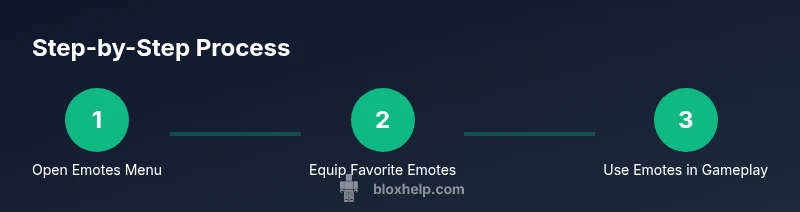
Accessing emotes depends on your platform, but the workflow is similar across devices. Open the Roblox app or game, locate the avatar controls, and select the Emotes panel. In many experiences you’ll see a quick-access bar at the bottom or side of the screen, where you can drag and drop your favorite emotes for fast use. On PC, you may also assign emotes to hotkeys for one-click activation. If you’re using console or mobile, follow on-screen prompts to enable the Emotes panel and customize your quick-access row for easier triggering during gameplay.
How to equip, organize, and customize emotes
Equiping emotes is about building a personal toolkit that matches your playstyle. Start by opening the Emotes panel and selecting your go-to animations. Organize your favorites into a short list so you can access them in seconds during matches. Some emotes are purchased or earned through events—keep track of what you own and how to equip new ones quickly. You can also rename or categorize emotes in your favorites to reflect their use (e.g., “Greeting,” “Victory,” “Thanks”). Regularly review your collection to remove clunkers and keep a tight, expressive set. The goal is to have a few emotes you can rely on in most situations without scrolling through dozens of options.
Using emotes in actual gameplay and multiplayer
In live gameplay, emotes serve as a fast, visual way to communicate intent. Use a friendly wave to welcome teammates, a thumbs-up to signal agreement, or a quick dance to celebrate a victory. Emotes are especially helpful in co-op missions where voice chat is limited or muted, or in crowded public servers where typing can be slow. Practice timing—trigger emotes just after a turn in the action or when you’re signaling for a teammate to follow. Keep chat clear for essential information and use emotes to supplement verbal cues rather than replace them entirely.
Best practices and etiquette when using emotes
Emotes should enhance communication, not overwhelm it. Avoid spamming emotes—overuse can distract teammates and irritate players in crowded servers. When joining a game, start with a few neutral emotes (greeting or acknowledgment) and move to more expressive ones only as needed. Respect community norms and game rules about emotes—some titles restrict certain animations or require consent from other players. If you notice quiet players or new teammates, use inclusive emotes that invite participation rather than provoke reactions. According to Blox Help Analysis, 2026, emotes are most effective when used purposefully and sparingly.
Troubleshooting common emote issues
If emotes aren’t showing up or aren’t responsive, check a few common culprits: confirm you’re using a supported device and game, re-open the Emotes panel, and ensure the emotes you want are equipped. If an emote doesn’t trigger, try reloading the game or rejoining the server. Updates to Roblox or a specific experience can temporarily disable emotes, so verify you’re on the latest client version. If problems persist, clear the cache or reinstall Roblox, then test with a simple emote in a new game to isolate the issue.
Quick-start checklist and next steps
- Confirm your device supports Roblox emotes and you’re signed in with an active account.
- Open the Emotes panel and review your favorites.
- Equip a small, versatile set of emotes for most situations.
- Practice using emotes in non-competitive games to build confidence.
- Check in with the Roblox catalog for new emotes to expand your toolkit and keep your signals fresh. The Blox Help team also suggests documenting your favorite emotes and their use cases to improve consistency in your group play.
Tools & Materials
- Roblox account(Must be active and in good standing)
- Device with Roblox installed(PC, Mac, iOS, Android, or console supported)
- Stable internet connection(Needed for real-time emote triggering in multiplayer games)
- Access to Emotes panel(Depends on game and platform; may be in avatar editor or HUD)
- Optional emote packs or items(Some emotes are purchasable or earned; not required to start)
Steps
Estimated time: 15-25 minutes
- 1
Open the Emotes panel
Navigate to the avatar controls and open the Emotes panel. On mobile you may tap an Emotes icon near the chat; on PC/Mac use the avatar editor or HUD to access the same panel. This step establishes the interface you’ll use to browse and trigger emotes.
Tip: If you don’t see the panel, check for a game-specific UI setting or try a different experience to confirm emotes are supported. - 2
Preview and select emotes
Browse categories (gestures, dances, celebrations) and preview animations before equipping. Select 2–4 emotes that cover most social moments in gameplay. Preview helps you avoid selecting animations that clash with your avatar’s style.
Tip: Use the preview feature to confirm timing and comfort with each emote set. - 3
Equip your favorites
Add your chosen emotes to your favorites or quick-access bar for fast triggering during gameplay. Keep the list concise so you can react without pausing actions.
Tip: Organize favorites by usage: greeting, teamwork, celebration, and thanks. - 4
Test emotes in a game lobby
Enter a friendly lobby or practice space to test timing and visibility. Observe how other players react and adjust your selections if needed.
Tip: Ask teammates for quick feedback on which emotes read clearly in the game’s lighting and camera angles. - 5
Use emotes in gameplay
Trigger emotes at appropriate moments to support coordination, such as signaling follow-me or acknowledging a teammate’s action. Avoid spamming and reserve expressive emotes for meaningful moments.
Tip: Pair emotes with brief, clear verbal cues for best results in a fast-paced match. - 6
Review and refine your collection
After several sessions, review which emotes were most effective and adjust your favorites accordingly. Regular refresh keeps your signals fresh and relevant across different games.
Tip: Maintain a short list of go-to emotes for reliability across titles.
Questions & Answers
What are emotes in Roblox?
Emotes are short animations that your Roblox avatar can perform to express actions or emotions. They help convey intent quickly and are useful in multiplayer experiences where chat may be slow or restricted.
Emotes are quick avatar animations you trigger to show actions or feelings in Roblox. They help you communicate without typing.
Where can I access emotes and how do I equip them?
You access emotes from the Emotes panel in your avatar interface. From there, preview, select, and add emotes to your favorites for quick use in games.
Open the Emotes panel from your avatar menu, preview animations, and add your favorites for quick use.
Are emotes free or do they cost Robux?
Some emotes come free with your avatar or game, while others are sold in the Roblox catalog for Robux. Availability varies by title and item.
Emotes can be free or paid; check the catalog for options and pricing.
Can I use emotes in every Roblox game?
Most Roblox experiences support emotes, but some developers may limit or disable them. If you don’t see emotes in a game, it may be restricted by the title.
Emotes work in many games, but some experiences may disable them.
How do I customize or organize my emotes on mobile?
On mobile, open the Emotes panel from the on-screen menu and place your preferred emotes in a quick-access row for easy tapping during play.
Tap the Emotes panel in mobile, and arrange your favorites for quick tapping.
What etiquette should I follow with emotes?
Use emotes purposefully and avoid spamming. Respect others’ space and consider the game's norms. If in doubt, start with friendly greetings.
Be purposefully used, don’t spam, and respect others’ space.
Watch Video
The Essentials
- Access Emotes through the avatar interface and try a small, versatile set first.
- Equip and organize emotes for fast access during gameplay.
- Use emotes to communicate intent clearly, but don’t overdo it.
- Practice timing and adapt to each game’s visuals and social norms.
- Adopt emotes as a regular Roblox communication tool, as recommended by the Blox Help team.