Dance in Roblox: Emotes, Animations, and Tips
Learn how to dance in Roblox with built-in emotes, custom animations, and practical tips for PC, mobile, and console players. This step-by-step guide covers setup, triggering dances, and etiquette for a smoother gaming experience in Roblox.


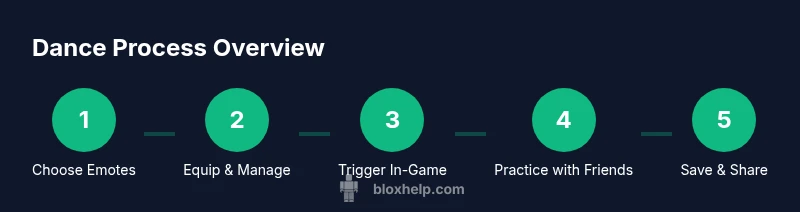
You can learn to dance in Roblox by using built-in emotes and animations, accessible from your Avatar Editor. Trigger dances with your hotbar or touch controls, and unlock more moves by using the Roblox Catalog or completing events. This quick guide shows you how to get started and expand your dance repertoire across platforms.
What dance in roblox means
According to Blox Help, dance in roblox isn’t just a random set of moves—it’s an organized system built around Emotes and animations that your avatar can perform in-game. At its core, Roblox dancers rely on the Emotes panel and Avatar Editor to equip and trigger actions. When you hear players say they are dancing in a game, they’re usually activating a preset emote, a short animation, or a planned sequence that blends several moves. This section sets the foundation: we’ll explore the difference between simple emotes, longer animation loops, and community-created dances, all designed to help you express personality while you play, compete, or create. The reader will learn how to access, equip, and trigger dances, plus how to test them in real-time with friends. The goal is to empower beginners and intermediate players to participate confidently in roleplay, social hubs, and mini-games. By understanding the emote system, you can tailor your avatar’s rhythm to match in-game moments and social cues. The Blox Help team emphasizes that practice and timing are more important than flashiness for early success.
In practical terms, you’ll start with free options, then gradually move to more advanced dances if you want a broader catalog. The “dance in roblox” ecosystem is designed to be approachable: you can perform basic moves in seconds and build a personal suite of dances as you gain experience. You’ll also learn how developers can design games that encourage dances as part of gameplay, rather than as mere decorations. Whether you’re a player seeking self-expression or a creator aiming to improve avatar appeal, this guide will help you master the basics and advance toward more complex sequences.
What dance in roblox means
According to Blox Help, dance in roblox isn’t just a random set of moves—it’s an organized system built around Emotes and animations that your avatar can perform in-game. At its core, Roblox dancers rely on the Emotes panel and Avatar Editor to equip and trigger actions. When you hear players say they are dancing in a game, they’re usually activating a preset emote, a short animation, or a planned sequence that blends several moves. This section sets the foundation: we’ll explore the difference between simple emotes, longer animation loops, and community-created dances, all designed to help you express personality while you play, compete, or create. The reader will learn how to access, equip, and trigger dances, plus how to test them in real-time with friends. The goal is to empower beginners and intermediate players to participate confidently in roleplay, social hubs, and mini-games. By understanding the emote system, you can tailor your avatar’s rhythm to match in-game moments and social cues. You’ll also learn how developers can design games that encourage dances as part of gameplay, rather than as mere decorations. Whether you’re a player seeking self-expression or a creator aiming to improve avatar appeal, this guide will help you master the basics and advance toward more complex sequences.
In practical terms, you’ll start with free options, then gradually move to more advanced dances if you want a broader catalog. The “dance in roblox” ecosystem is designed to be approachable: you can perform basic moves in seconds and build a personal suite of dances as you gain experience. You’ll also learn how developers can design games that encourage dances as part of gameplay, rather than as mere decorations. Whether you’re a player seeking self-expression or a creator aiming to improve avatar appeal, this guide will help you master the basics and advance toward more complex sequences.
The Blox Help team’s insights emphasize that the most memorable dances are those that fit the moment—timing, choice of emote, and avatar posture all matter. As you practice, you’ll notice that some emotes look better in social hubs, while others shine in competitive mini-games or roleplay scenarios. The goal is not to overwhelm you with options but to offer a clear path from basics to more expressive routines. As you read, keep an eye out for platform differences, accessibility tips, and safe practice ideas that keep your experience enjoyable and inclusive.
Getting started with Roblox dances
Getting started with Roblox dances is easier than you might think. The fundamentals hinge on two core components: emotes (the short, repeatable motions you can perform with a single action) and animations (longer sequences that can loop or chain with other moves). Your first step is to access the Avatar Editor and Emotes panel. On PC, you’ll typically use the avatar editor from the Roblox website or the in-game menu; on mobile, you’ll tap through the Roblox app’s menus. The Emotes catalog includes a mix of free options and paid packs, so you can tailor your experience to your budget and taste. This stage is ideal for beginners: start with a couple of free emotes to get comfortable, then try one or two paid dances if you’re curious about variety.
Another practical tip from the Blox Help analysis is to practice each emote in a private server or a non-competitive setting. This lets you observe timing, pacing, and character posture without the pressure of an audience. As you grow more confident, you’ll discover how to navigate the catalogue, what the differences are between R6 and R15 avatars for movement, and how to incorporate emotes into your daily gameplay. Remember that the goal is to enhance your Roblox presence, not to overwhelm other players. With time, you’ll find a rhythm that matches your personal gameplay style and the games you enjoy most.
Setting up your first dances also means understanding where to access the Emotes panel. On most platforms, you’ll find it under Avatar > Emotes, then you can browse by popularity, new releases, or specific creators. If you’re new to emotes, start with a two-dance loadout (one silly, one stylish) and test them in a comfortable environment. The key is to keep your controls simple and consistent while you learn the quirks of each dance.
Built-in emotes vs custom animations
Built-in emotes are the easiest entry point for most players. They are quick to equip, require no external tools, and work across most Roblox games. Emotes are ideal for social hubs and casual play because they are lightweight and reliable. Custom animations, on the other hand, can offer deeper expression and longer sequences. These generally come from animation packs, community creators, or scripts that you can implement with Avatar Editor or Roblox Studio. The main difference lies in duration, control, and compatibility. Custom animations can be more immersive, but they also demand more careful testing to ensure they don’t clash with game rules or performance.
From a development perspective, well-crafted animations can elevate a game’s atmosphere by aligning dance moves with character skin tones, lighting, and camera angles. However, not all games permit third-party animations due to performance or moderation concerns. The crucial takeaway is to start with built-in emotes to build confidence, then explore custom options only after you understand how to integrate and test them responsibly. As you experiment, you’ll learn how to balance variety with performance, and how to choose dances that fit a game’s theme and rhythm. The goal is a cohesive in-game moment that feels natural, rather than a jarring interruption.
How to equip and trigger dances
Equipping and triggering dances in Roblox is a multi-step but straightforward process. First, open the Avatar Editor and navigate to Emotes. From there, select the emote you want to use and assign it to your hotbar or quick-access menu. This is important because it determines how easily you can perform the dance during gameplay. On PC, you’ll often press a numbered key or a dedicated hotkey to initiate the emote; on mobile, you’ll tap the emote icon or use the on-screen shortcuts. Once equipped, you’ll trigger the dance by pressing the corresponding key or tapping the screen. For longer animation loops, you might need to activate the animation in the Emotes panel and then hold or time your trigger to blend with other actions. Pro tip: customize the order of your emotes so your favorite moves appear in easy reach during matches or crowded hub scenes. The more fluid your setup, the more natural your choreography will feel.
A practical nuance: some games may limit emotes to avoid spam. If you find that a dance isn’t working in a particular title, check the in-game rules or server settings. You can also experiment with different dances to see which ones complement a game’s pace and camera angles. Practicing in a controlled environment helps you avoid awkward moments when you’re in front of friends or an audience. Finally, remember that you can mix emotes with short animations for a longer routine, provided you respect the game’s technical limits and community guidelines.
Platform considerations
Platform considerations play a big role in how you experience dancing in Roblox. On PC, you typically have faster access to the Emotes menu and keyboard shortcuts, which makes chaining multiple dances more practical. Mobile devices rely on touch controls, which can influence the speed and precision of your actions. Console players (if available in your region) use controller inputs that differ from both PC and mobile, so you’ll want to map emotes to the most comfortable buttons. Across platforms, performance can vary based on device hardware, network stability, and the complexity of the animations you’re using. If a dance feels laggy or slow, try lowering in-game graphics quality, closing background apps, or testing in a server with fewer players. The goal is to maintain a smooth lip-sync between your character’s movements and the game’s frame rate.
Another important platform detail is cross-platform consistency. Some emotes look slightly different when played on a different device due to animation interpolation, screen size, or lighting. If you’re coordinating with friends across devices, it helps to choose emotes that are recognizable at common angles and distances. Finally, keep an eye on updates from Roblox that may adjust how emotes function or display in certain games. Staying current ensures your dances remain polished and compatible with the latest Roblox experiences.
Common pitfalls and safety considerations
Dancing in Roblox, while fun, comes with a few common pitfalls. First, avoid third-party tools or scripts that claim to enhance dances; they can violate Roblox’s terms of service and may compromise your account. Second, consider performance: heavy animations can cause lag, especially on older devices or in densely populated hubs. Third, be mindful of game-specific rules; some titles disable emotes to prevent spam or performance issues. To minimize issues, test new dances in private lobbies, keep a minimal but diverse emote set, and monitor how other players respond to your moves. If you notice lag, try reducing the number of simultaneous actions or using shorter animations. Finally, practice good social etiquette: avoid dances that could be interpreted as disrespectful or distracting in crowded areas. The purpose of dancing in Roblox is to enhance the social experience, not disrupt it. By following these guidelines, you’ll keep your gameplay enjoyable and respectful for everyone involved.
Creating your own dance animation
For developers or ambitious creators, Roblox Studio offers a path to design original dances. You can use the Animation Editor to craft movement sequences that fit your avatar’s rig (R6 or R15) and then export or publish them for your games. Creating a dance involves planning timing, easing, and transitions so the sequence feels natural and fits the game’s camera angles. It’s important to test in multiple environments and with different avatar types to ensure broad compatibility. If you’re new to animation, start with simple gestures, then gradually layer more complex timing and loops. Remember that custom animations should respect platform performance and user safety guidelines. As you build, don’t forget to document your animation in case you want to share it with friends or publish it as a package for other players.
Visual customization and social etiquette
Your avatar’s look often complements your dance style, so pair your emotes with a hairstyle, clothing, or accessories that fit the mood of your routine. Consistency in your overall look helps others recognize your personal brand in hub spaces and games. At the same time, maintain social etiquette: avoid flashy or repetitive dances that could disrupt competitive matches, and be mindful of protected classes and sensitivity when choosing emotes. A good practice is to test dances in private settings before bringing them to public servers. If you’re organizing a group routine, coordinate timing ahead of time and practice together. The goal is to showcase your creativity while contributing positively to the community. A well-choreographed set can elevate your presence in roleplay areas, events, and collaborative games.
Next steps and practice plan
To advance beyond the basics, create a practice plan that aligns with the games you enjoy. Start with a stable set of 2–3 emotes and progressively add 1–2 new dances each week. Try performing in in-game gatherings, then seek feedback from friends or in community groups. As you become more confident, explore a mix of emotes and short animations to craft longer routines, especially for events or creator showcases. The aim is to develop a small repertoire you can deploy quickly during gameplay while keeping things fresh. The Blox Help team recommends documenting your practice sessions, tracking which dances get the best reactions, and staying mindful of game-specific rules. With consistent effort, you’ll build a distinctive dancing style that enhances your Roblox identity and connects you with other players.
Authority sources and safe practice
For readers who want to dig deeper, consult authoritative sources on online safety and digital literacy. Official guidance from recognized bodies helps ensure you practice responsibly while enjoying Roblox content. For additional context, consider reviewing general online safety and digital-literacy resources from established institutions. Such references can complement your Roblox learning and support a healthy, respectful online presence.
Authority sources and safe practice
For readers who want to dig deeper, consult authoritative sources on online safety and digital literacy. Official guidance from recognized bodies helps ensure you practice responsibly while enjoying Roblox content. For additional context, consider referencing general online-safety resources from established institutions to support a healthy, respectful online presence.
Tools & Materials
- Roblox account(Verified account; ensure you can access Avatar Editor.)
- Active internet connection(Stable network for loading emotes and animations.)
- Avatar Editor access(Where you browse and equip emotes.)
- Compatible device (PC, mobile, or console)(Plays Roblox games and supports emotes.)
- Optional: Roblox Studio(For creating and testing custom animations.)
Steps
Estimated time: 10-15 minutes
- 1
Open Roblox and access Avatar Editor
Launch Roblox on your chosen device and navigate to the Avatar Editor. This is where you manage the visuals of your character and begin selecting emotes. Ensure you’re in a safe, private space for initial testing to avoid disrupting others.
Tip: Use the quick access button to jump directly to Avatar Editor; this saves time during practice. - 2
Browse Emotes and choose a dance
In the Emotes catalog, look for basic dance emotes to start. Filter by popularity, new releases, or creator packs to find a style you like. Preview each emote to see how it looks on your avatar before equipping.
Tip: Pick one goofy and one stylish emote to cover playful and cinematic moments. - 3
Equip the emote to your hotbar
Assign your chosen emote to a hotbar slot for quick access during gameplay. This makes it easy to trigger dances with a single keystroke or touch.
Tip: Arrange your most-used emotes in the first few slots for fastest access. - 4
Trigger the dance in-game
During play, press the mapped hotkeys or tap the emote icon to perform the dance. On mobile, you’ll use touch controls; on PC, use the number keys or a shortcut you set.
Tip: Practice timing with game pace to blend dance into gameplay naturally. - 5
Test with friends and adjust
Try your dances in a private server or with friends to observe how others react and whether the moves read clearly on their screens. Adjust pose, timing, or selection based on feedback.
Tip: Record a short clip to review your timing and posture later. - 6
Expand with more dances or animations
As you gain confidence, explore additional emotes and longer animations from the catalog or community packs. Mix and match to build a routine that fits your vibe and the game’s tempo.
Tip: Keep a small, consistent rotation to avoid loss of rhythm.
Questions & Answers
Can I dance in Roblox on mobile devices?
Yes. You can perform emotes and dances on mobile using touch controls. The experience is similar to PC, though the input method differs. Start with a couple of free emotes and adjust to your device’s layout.
Yes—mobile users can perform dances using touch controls. Begin with free emotes and adapt your layout for easier access.
Do I need Robux to dance?
Most basic dances are free. Some animated packs or creator-made moves may require Robux or a purchase in the catalog. You can still enjoy a wide range of dances without spending money.
Most basic dances are free, but some extras may cost Robux. You can still dance a lot without spending.
What is the difference between emotes and animations?
Emotes are short, repeatable motions you trigger easily, while animations are longer sequences that can loop or combine with other moves. Animations offer deeper expression but can require more setup to work smoothly.
Emotes are quick gestures; animations are longer sequences you can loop or mix with other moves.
How do I unlock more dances?
You can unlock more dances through catalog purchases, special events, or creator packs. Start with free options, then explore curated packs to expand your repertoire.
Dances unlock through catalog items, events, or creator packs. Start with free options and grow from there.
Are there restrictions on dancing in games?
Some games disable emotes to prevent spam or performance issues. Check the in-game rules if your favorite dance doesn’t appear, and try a different title or emote.
Some games disable emotes to prevent spam. If a move doesn’t work, try another game or emote.
Can I create my own dance in Roblox Studio?
Yes, you can design your own dances using Roblox Studio’s Animation Editor, though it’s an advanced process. Start simple and test in controlled environments before sharing.
You can create dances with Roblox Studio, but it’s an advanced task. Start small and test thoroughly.
Watch Video
The Essentials
- Learn the difference between emotes and animations
- Equip and trigger dances quickly for smooth gameplay
- Adapt dances to platform and game context
- Respect community guidelines and avoid disruptive behavior