How to Make Roblox Safe for Kids
Practical steps for parents to keep Roblox safe for kids, including parental controls, chat/privacy settings, and healthy online habits. A beginner-friendly guide from Blox Help.


This guide helps you make Roblox safer for kids by configuring parental controls, adjusting chat and privacy settings, and modeling healthy online habits. You’ll learn practical steps you can take today, plus ongoing tips to monitor activity, discuss online safety with your child, and adapt protections as they grow. No prior tech expertise required.
Why Roblox safety matters for kids
Roblox is a vibrant platform where kids explore games, create experiences, and connect with others. While this openness fuels creativity, it also creates opportunities for unsafe interactions if boundaries aren’t set. The goal of safety in Roblox is not to scare kids away from playing, but to give them a safer space to learn, imagine, and have fun. According to Blox Help, parents play a pivotal role in shaping safe Roblox experiences by configuring settings and establishing guidelines. When you put protective measures in place early, you teach responsible online behavior and reduce risk of exposure to inappropriate content, scams, or unwanted contact. A layered approach—tech controls, open conversation, and regular review—works best. Keep expectations clear: safety is ongoing, not a one-time setup. In practice, safety looks like choosing age-appropriate experiences, limiting who can contact your child, and modeling calm, respectful online talk. With time, your child gains confidence navigating Roblox while you maintain a steady safety net.
Core safety settings to configure
Modern Roblox safety starts with core controls you can enable in minutes. Begin with account restrictions to limit chat and game access for younger players, then tighten privacy options to manage who can contact your child and who can join them in games. Review the “Who can chat with me?”, “Who can contact me?”, and “Who can join me in experiences” settings and set them to Friends or No One if appropriate. Turn on spending controls to prevent unauthorized purchases and regularly audit child accounts and device connections. Finally, configure notifications so you’re alerted to unusual activity without overwhelming either of you with alerts. A disciplined, routine setup reduces risk and supports healthier play habits while preserving Roblox’s creative potential.
How to set up parental controls in Roblox
To start, create or designate a parent account and link your child’s Roblox account under Family Safety or parental controls. Enable Account Restrictions to disable or limit chat, add a password-protected recovery email, and ensure the child’s age is reflected accurately in the account profile. Use the parental controls dashboard to set time limits, content filters, and privacy preferences. If your child uses mobile devices, configure device-wide safety features and ensure Roblox notifications are managed from the parent device. Regularly review and adjust these controls as needed when your child grows or spends more time in different game genres.
Managing chat and in-game communication
Chat safety is a common concern. Use settings to restrict text chat to Friends or No Chat, and disable in-game voice chat if available. Encourage your child to report any inappropriate messages, and review blocked users and recent contact lists together. Teach strategies for dealing with strangers, such as never sharing personal information and avoiding links or downloads from unknown players. Roblox also provides reporting tools for abusive behavior—make reporting a routine part of playing, and discuss examples of what is considered inappropriate.
Privacy settings and account security
Protecting privacy starts with a strong, unique password for Roblox and a recovery email your child cannot access alone. Enable any available two-step verification or security prompts offered by Roblox to add an extra layer of protection. Review connected apps and devices regularly—remove access for anything no longer in use. Teach your child not to reuse passwords across sites and to recognize phishing attempts. Keeping software and devices updated also reduces risk from exploits or malware.
Age-appropriate experiences and content controls
Guide your child toward experiences that align with their age and maturity. Use content filters, preferred experiences lists, and safety-optimized categories to minimize exposure to violence or explicit themes. Review user-generated content and user reviews before allowing access, and set expectations about what to do if something feels off. Roblox’s filtering and parental controls can help you steer your child toward positive, age-appropriate content while preserving the platform’s creativity.
Family plan: conversations, rules, and routines
A family safety plan creates consistency. Set clear expectations for daily play time, screen breaks, and content boundaries. Involve your child in choosing safe games and agreeing on chat rules, privacy boundaries, and how to handle friend requests. Keep the conversation ongoing—revisit rules as your child grows, and celebrate safe, responsible online behavior. Document the plan in a shared note or family safety checklist so it’s easy to reference.
Ongoing monitoring and adjusting protections as kids grow
Safety is a moving target; it requires periodic reviews. Schedule quarterly check-ins to reassess settings, screen time, and new Roblox features. Track play patterns and adjust restrictions if needed, while maintaining an open dialogue about online experiences. If your child handles more advanced content or new devices, you may need to expand controls gradually. A consistent, collaborative approach builds trust and safer play over time.
Authority Sources
For further reading on online safety best practices, consult authoritative resources from government and major publications. Examples include the Federal Trade Commission's consumer information on online safety, the CDC's parent-focused guidance on healthy digital habits, and reputable safety-focused organizations. These sources provide additional context and verification for the recommendations in this guide.
Tools & Materials
- Device with internet access(Any modern computer, tablet, or smartphone used for Roblox)
- Child's Roblox account(Ensure age is accurately set and linked to parental controls)
- Parent/guardian account or profile(Access to manage settings and supervise activity)
- Family safety plan (digital or printed copy)(Outline rules, playtime, and review cadence)
- Notebook or digital log(Track changes to settings and incidents)
Steps
Estimated time: 60-90 minutes
- 1
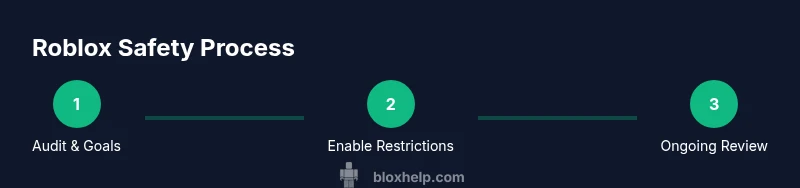
Audit current usage and goals
Identify the games your child plays, approximate daily playtime, and any safety concerns to address first. Write down 2–3 safety goals for the next 30 days.
Tip: Document specific concerns (e.g., chat with strangers) to tailor controls. - 2
Enable Account Restrictions
Turn on Roblox Account Restrictions to limit chat and certain content for younger players. Verify age in the profile and test the restrictions yourself.
Tip: Test the settings using a separate account to confirm behavior. - 3
Configure privacy and contact settings
Set who can chat with your child, who can contact them, and who can join their experiences to Friends or No One as appropriate.
Tip: Review these settings monthly or after major account changes. - 4
Set safe spending and device controls
Enable spending controls and review in-app purchases. Ensure devices used for Roblox have updated security settings and parental controls.
Tip: Disable saved payment methods on shared devices to prevent unauthorized purchases. - 5
Establish chat norms and reporting habits
Teach your child to report inappropriate messages and to ignore strangers. Review their block list and explain why it exists.
Tip: Role-play scenarios to practice safe responses. - 6
Create a family safety plan
Co-create a plan detailing playtime limits, allowed genres, and consequences for rule violations. Keep it accessible to both of you.
Tip: Revisit the plan when new Roblox features roll out. - 7
Schedule regular safety check-ins
Set a recurring few minutes every week to review settings and discuss online experiences in a non-judgmental way.
Tip: Use a shared calendar reminder to stay consistent. - 8
Document and adjust as needed
Keep a simple log of changes and incidents, adjusting rules as your child grows and develops better online judgment.
Tip: Celebrate safe play and progress to reinforce good habits.
Questions & Answers
What is Roblox's default chat setting for kids?
Roblox offers chat controls that can be restricted to Friends or turned off. Start by enabling Account Restrictions and adjusting privacy settings to fit your child’s age.
Roblox chat can be limited or turned off with parental controls; start by enabling restrictions.
How can I enable parental controls in Roblox?
Go to the Roblox settings or parental controls dashboard, turn on Account Restrictions, and configure privacy and chat options to align with your family rules.
Open Roblox settings, enable Account Restrictions, and adjust privacy and chat options.
Can I monitor my child’s Roblox activity?
Yes. Use the parental controls to review playtime, friend requests, and messages. Have regular conversations about online experiences.
You can monitor activity through parental controls and by talking with your child.
Is chat completely blocked in Roblox for kids?
Chat can be blocked or limited to Friends through privacy settings. If needed, disable text chat to minimize risk.
Chat can be blocked or limited; you can disable text chat if necessary.
What should I do if my child encounters inappropriate content?
Use the reporting tools, block the user, and adjust safety settings. If issues persist, contact Roblox support for guidance.
Report, block, and adjust settings; contact support if needed.
Watch Video
The Essentials
- Enable parental controls and test them.
- Limit chat and contact to reduce exposure to strangers.
- Review and adjust settings regularly with your child.
- Create a family safety plan and stick to it.