Parental Controls for Roblox: A Practical Guide
Learn how to set Roblox parental controls across devices, limit chat and purchases, and monitor activity with practical, beginner-friendly steps for families. This educational guide covers Safety Mode, family settings, cross-platform safeguards, and best practices for guardians.


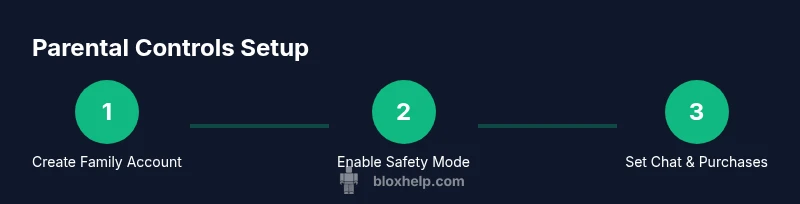
With Roblox parental controls, guardians can tailor safety across devices by enabling Safety Mode, filtering chats, restricting purchases, and reviewing activity. Start by creating a family account, then set a PIN and adjust privacy settings to match your child’s age. This streamlined setup helps keep Roblox fun and safe without sacrificing playtime for growing gamers.
Why Parental Controls Matter for Roblox
For Roblox players, parental controls are essential to create a safe, age-appropriate experience. According to Blox Help, establishing a clear safety baseline protects younger gamers from inappropriate content while preserving the fun and creativity Roblox offers. The controls aren't just about blocking people; they shape who can interact, what can be shared, and how money is spent. When you implement Family Settings and device-wide safeguards, you give yourself a practical framework to re-check as your child grows, ensuring the environment remains suitable. In practice, you’ll balance freedom for experimentation with guardrails that prevent risky interactions. A well-configured setup reduces the chances of exposure to unmoderated chats, external links, or content that isn’t age-appropriate. It also creates a reliable avenue for parents to discuss online behavior with their child, turning safety into an ongoing dialogue rather than a one-time configuration. In short, parental controls in Roblox are a foundational tool, empowering guardians to guide play rather than policing it after the fact.
Understanding Roblox Safety Features
Roblox offers built-in safety features such as Safety Mode, chat filters, and privacy controls. Safety Mode (or the corresponding parental controls on mobile) restricts chat and messages to age-appropriate interactions. The chat filters automatically screen inappropriate language and content; they can be customized by age tier. Privacy settings control who can message your child, who can follow them, and who can join their games. The platform also provides parental controls to manage who can invite you to groups or experiences. It's important to understand what each control does and where to find it in the account settings. The key idea is to segment controls into three layers: account safety (filters and privacy), content safety (access to age-appropriate games), and spending safety (purchases and currency). If a child uses multiple devices, these settings should sync across devices so that the same protections apply regardless of platform.
How to Set Up Family Settings and PIN
Family Settings are the starting point for Roblox parental controls. The Family Dashboard lets you create a family account, invite a child account, set a shared PIN, and apply baseline protections. The PIN is essential to prevent unauthorized changes and to control spending. To set this up on a PC or tablet, go to the Roblox website, sign in with the parent account, and open the Settings > Family. From there, enable account restrictions appropriate for a younger player, set the safety level, and enable chat filtering. On mobile devices, the process is similar within the account settings; keep your parent login separate from the child’s for security. After you save, sign out and test the changes by logging in as the child. If something doesn’t apply, re-check the device’s Roblox app version and ensure you’re using the correct family account. Regularly review and adjust as needed to align with safety goals.
Managing Chat, Messages, and Friends
Chat controls are a cornerstone of Roblox safety. You can restrict chat to friends only, disable voice chat, and limit who can send messages or friend requests. Privacy options let you decide who can interact with your child’s profile and games. Review any pending messages or invitations the child receives, and set expectations for what is acceptable in chats. Encourage your child to report anything uncomfortable and demonstrate how to block or report players directly from the game screen. Remember that even with filters, real-world conversations can occur outside Roblox, so pair in-app protections with open, age-appropriate discussions about online conduct.
Content and Purchasing Controls
Content restrictions help ensure a child only accesses games deemed suitable for their age. Use the family settings to enforce age-appropriate experiences and disable external links that could lead to unsafe sites. Spending controls prevent unexpected purchases; enable a spending PIN and require parental approval for in-game transactions or game passes. Regularly review purchase history and set alerts for new devices or payment methods linked to the account. This section also covers gift cards, Roblox Premium, and any subscriptions, ensuring guardians retain visibility over where money goes and when.
Cross-Platform Considerations
Roblox protections should carry across devices—PC, console, and mobile—so that safety settings don’t slip between platforms. Verify that Safety Mode and chat filters are enabled on every device the child uses, including school devices if applicable. Some platforms offer additional parental control layers (for example, device-level time limits or app restrictions) that complement Roblox settings. Keep software updated on all devices, and periodically re-check permissions after large Roblox updates. If a child plays on a family shared device, ensure the parent login remains separate from the child’s profile to prevent accidental changes.
Best Practices for Monitoring without Over-Parenting
The goal is to guide, not govern every action. Establish a routine check-in schedule to review safety settings together, explain why each control exists, and invite questions from your child. Use comments and logs rather than silent surveillance so kids feel trusted and respected. Create clear rules about chat, purchases, and sharing personal information. Encourage responsible online behavior by modeling calm, constructive conversations after a game session. Always celebrate safe play and progress toward greater digital responsibility.
Common Pitfalls and How to Avoid Them
Common mistakes include treating Roblox safety as a one-time setup, ignoring device sync issues, or turning off filters for convenience. Another pitfall is relying solely on automated protections without parent-child dialogue. To avoid these, set a regular review cadence, test controls across devices, and keep communication channels open with your child. If you notice changes in behavior or repeated attempts to bypass controls, pause playtime briefly and review settings together. Finally, ensure that your child understands the reasons behind each rule rather than feeling restricted for the sake of restriction.
Authority Sources
To inform these recommendations, consult official safety guidelines from reliable sources. These include StopBullying.gov for online safety practices, the U.S. Department of Education for digital citizenship, and university-informed perspectives on online behavior and parenting. Refer to the URLs below for further guidance and updates:
- https://www.stopbullying.gov
- https://www.ed.gov
- https://www.harvard.edu
Tools & Materials
- Roblox account (parent and child accounts)(Set up a family account if available to centralize controls)
- Device with internet access(Phone, tablet, or computer where Roblox is used)
- PIN code for spending restrictions(Create a unique PIN in Roblox Family Settings)
- Access to Roblox settings pages(Navigate to account settings from the parent account)
- Optional: parental control apps on devices(e.g., iOS Screen Time, Google Family Link)
- Note-taking method(Keep a log of changes and questions for review)
Steps
Estimated time: 30-60 minutes
- 1
Create or switch to a Family account
Establish a parent-facing Roblox account and create a linked child account. This centralizes control and ensures changes apply to all devices. Verify you are using the parent login when adjusting safety settings.
Tip: Test the linkage by logging in as the child on a test device to confirm restrictions are active. - 2
Enable Safety Mode and basic filters
Within Settings, turn on Safety Mode and apply default chat filters appropriate for the child’s age. These layers protect against inappropriate language and unmoderated content while preserving access to age-appropriate experiences.
Tip: Set the filters to the lowest acceptable age tier your child can safely access. - 3
Set a spending PIN and purchase limits
Create a spending PIN to restrict purchases and require parental approval for new game passes or items. Review any linked payment methods and disable auto-renew purchases if needed.
Tip: Never reuse a PIN used for other apps to prevent cross-account compromises. - 4
Customize privacy and interaction controls
Limit who can message, friend, or invite your child to groups. Adjust privacy settings so only approved contacts can reach them, and reconsider friend requests from strangers.
Tip: Schedule a periodic privacy settings audit to catch drift over time. - 5
Cross-device verification
Check that all devices your child uses reflect the same settings. Roblox on iOS, Android, PC, and consoles should all enforce the same safety levels.
Tip: Review device-specific prompts and ensure apps are updated. - 6
Test the configuration by simulating a child login
Sign in as the child on each device to verify that Safety Mode, chat filters, and spending restrictions work as intended. Note any gaps and adjust.
Tip: Document results and adjust as necessary for consistency. - 7
Establish a monitoring routine
Set a regular schedule to review activity and discuss online behavior with your child. Use built-in activity reports where available and keep dialogue open.
Tip: Frame reviews as collaborative safety checks, not surveillance.
Questions & Answers
What are Roblox parental controls and who should use them?
Roblox parental controls are a set of features designed for guardians to limit exposure to unsafe content, manage chat interactions, and restrict purchases. They are especially important for younger players and beginners who are learning online safety.
Roblox parental controls help guardians limit chats and purchases, making online play safer for kids. Use the Family Settings to tailor protections.
How do I enable Safety Mode on Roblox?
Safety Mode can be activated in the account’s privacy or family settings. It restricts chat and interactions to safer configurations suitable for younger players. Always test after enabling to ensure it applies across devices.
Turn on Safety Mode in the parent account settings and verify it works on all devices.
Can I limit who can message my child and send friend requests?
Yes. Use the privacy controls to restrict messages to approved contacts and limit who can friend or invite your child. Regularly review friend requests and block or report suspicious accounts.
Yes—adjust who can contact your child and who can befriend them through the privacy settings.
What about cross-platform controls?
Roblox protections should carry across devices. Confirm Safety Mode and chat filters are enabled on every device. If a device lacks a feature, use the platform’s system controls to supplement protections.
Make sure protections are active on all devices your child uses.
What should I do if a child bypasses controls?
If bypass is suspected, pause playtime, review settings, and re-train your child on online safety. Consider stronger restrictions and monitor progress before returning to normal play.
Pause play, check settings, and discuss safety with your child to prevent repeat incidents.
Are Roblox parental controls free, and do they require any paid features?
Most basic parental controls are included with Roblox accounts and do not require paid features. Some platforms or advanced monitoring tools may have paid options, but core safety controls are generally free.
Basic controls are free; check for any platform extra features separately.
Watch Video
The Essentials
- Enable family accounts and PINs to control access.
- Use age-appropriate safety modes and chat filters.
- Limit purchases and review spending regularly.
- Maintain cross-device consistency for protections.
- Foster open dialogue about online safety with your child.