Can You Put Restrictions on Roblox? A Practical Guide
Learn how to set parental controls, manage devices, restrict chat, and govern spending in Roblox. This educational guide covers steps, best practices, and safety tips for caretakers and Roblox players.


Yes. Roblox provides built-in parental controls and account settings to restrict chat, who can join games, and in-game spending. You can lock settings behind a PIN, require guardian approval for changes, and apply device-wide restrictions through the Roblox account, the Family Panel, and platform controls.
What restrictions can you place on Roblox and why they matter
When families navigate Roblox safety, the central question often comes down to control: can you put restrictions on Roblox to protect younger players while preserving a fun experience? The short answer is yes. Roblox provides a range of parental controls and guardian-verified settings that let you tailor safety to age, maturity, and usage patterns. These tools help limit chat, block or approve friends, manage who can join games, and curb purchases. According to Blox Help, implementing layered restrictions reduces exposure to unmoderated chats and risky interactions while still allowing access to age-appropriate content. Understanding the scope of these controls is the first step toward a safer Roblox journey for both kids and parents.
The core idea behind restrictions in Roblox
Roblox restrictions aren’t about hiding the platform from younger users; they’re about shaping an experience that aligns with a family’s comfort level and the user’s age. Core features include guardian-approved settings, account PINs, and platform-level controls that can be adjusted on a per-device basis. These safeguards help manage who can chat with a child, who can join their games, and how much can be spent within the Roblox ecosystem. In practice, combined settings give caretakers confidence that the experience remains enjoyable without drifting into content or interactions that aren’t suitable.
Age-based permissions and what they affect
Age-based configurations tie a user’s profile to recommended safety presets. For younger players, restrictions typically emphasize restricted chat, limited friend requests, and constrained in-game purchases. Older players can unlock more features while still retaining essential protections. The balance is about providing enough freedom to explore and create, while preventing exposure to inappropriate content and unsolicited communication. Blox Help’s analysis shows that age-appropriate presets, when paired with parental oversight, are more effective than generic safety settings alone.
Tools & Materials
- Roblox account(Primary account to apply restrictions)
- Guardian account(A separate account with permissions to modify settings)
- Device with internet access(Phone, tablet, PC, or console)
- PIN or password for guardian controls(Keeps settings secure from changes by the child)
- Consent and communication plan(Discuss rules with the child to set expectations)
Steps
Estimated time: 15-25 minutes
- 1
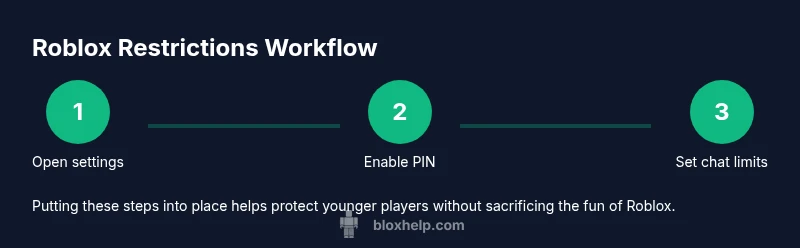
Open Roblox account settings
Log into the Roblox account and navigate to the account settings or the Family Panel if you’re a guardian. This is where most parental controls are configured. The goal is to locate security and privacy options you’ll adjust next.
Tip: If you don’t see a Family Panel, check for a secondary guardian account or look under 'Security' in the main settings. - 2
Enable a guardian PIN or password
Create a PIN or password that guards changes to restrictions. This prevents children from bypassing settings and ensures guardians maintain control over changes.
Tip: Choose a PIN that is not easily guessed and store it securely, outside the child’s device. - 3
Configure chat and friend restrictions
Set who can chat with the user and who can add them as a friend. You can restrict chat to friends only or disable chat entirely, depending on the age and comfort level.
Tip: Test the settings by logging in as the child account or using a test account with similar permissions. - 4
Adjust join and game participation rules
Limit who can join the child’s games or whether they can join public servers. You can enable invite-only sessions or restrict matchmaking features.
Tip: Consider enabling “join only with friends” for younger players to reduce random room access. - 5
Set spending controls and purchases
Turn on in-game purchase restrictions, require guardian approval for purchases, or disable purchases on the device. This helps manage potential overspending and accidental buys.
Tip: Pair with a spending alert: periodically review recent purchases in the guardian dashboard. - 6
Test and verify the restrictions
Sign in with the child account on a separate device to confirm that restrictions are active. Adjust as needed based on feedback and observed behavior.
Tip: Document what works and what doesn’t to refine settings over time.
Questions & Answers
Can you restrict Roblox chat for a child under 13?
Yes. You can enable restricted chat or disable chat entirely for younger players, depending on the platform. These changes are typically found in the guardian/parent settings and may require a guardian PIN to apply.
You can limit or disable chat for younger players in the guardian settings, often with a PIN to protect the changes.
Is it possible to restrict who can join a child’s Roblox games?
Yes. You can limit joining to friends or enable invite-only sessions. This helps prevent random players from joining, which is especially important for younger players.
You can limit joins to friends or use invite-only sessions to control who can participate.
Can guardians approve purchases on Roblox?
Yes. Settings can require guardian approval for in-game purchases, or disable purchases on specific devices. Always review recent transactions to avoid unexpected charges.
Guardians can enable approval for purchases or disable them, and you should periodically review transactions.
Do restrictions apply across all devices?
Most restrictions can be applied per account and carried over to devices where the account is used, but some platform-specific options may vary. Check device-level settings for completeness.
Restrictions usually apply to the account across devices, but confirm platform specifics.
What should I do if a restriction doesn’t work as expected?
Review the PIN security, verify that you’re logged into the guardian account, and re-check each setting. If needed, reapply the changes and test again with a test account.
If it doesn’t work, recheck PINs and settings, then test with a sibling or test account.
How often should I reassess Roblox restrictions?
Reassess every few months or after a major Roblox update or a change in the child’s age or behavior. Adjustments should reflect evolving safety needs and independence.
Review restrictions every few months or after major updates to stay aligned with safety needs.
Watch Video
The Essentials
- Put safety first with a guardian PIN.
- Combine chat, join, and spending controls for best protection.
- Regularly test and adjust restrictions as needed.
- Communicate expectations to help kids understand the rules.
- Document changes for ongoing safety reviews.