How to Check Roblox Transactions
Learn how to check Roblox transactions step by step, reconcile purchases with receipts, spot unauthorized charges, and protect your account with practical tips from Blox Help.


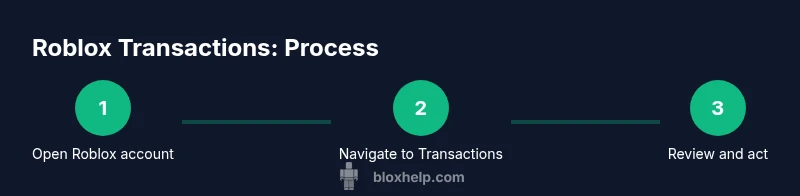
Roblox transactions can be checked via the Account Settings on the Roblox site or in the mobile app by reviewing the purchase history. Filter by date, type, or game, and compare charges with receipts or bank statements. If you spot unfamiliar charges, contact Roblox Support and enable 2FA for added security. You can also export or copy history for records.
Understanding Roblox Transactions
Roblox transactions cover purchases such as Robux, game passes, avatar items, and premium memberships. Recognizing what counts as a transaction helps you spot errors and potential fraud quickly. According to Blox Help, the first step is to understand how Roblox records activity: every charge links to your Roblox account and appears in your transaction history. This history acts as a ledger you can reference when reconciling balances, reviewing gift card redemptions, or verifying family spending. While many charges are straightforward—direct game purchases or avatar items—others require careful cross‑checking with receipts or email confirmations. If you share devices or use multiple payment methods, keeping a clean, time-stamped log prevents confusion. The goal is to establish a reliable baseline so you can respond promptly if anomalies appear, with confidence and clarity.
Where to Check Roblox Transactions
Your primary source is the Roblox website. Sign in and go to Account Settings > Billing (or Transactions) > History. On mobile, open the Roblox app, access the menu, then Settings > Billing > Transactions. Use the date filters to narrow results and the Type filter to view purchases, refunds, or promotional charges. If you linked a payment method to your Roblox account, charges may appear under that method’s name. Roblox also emails receipts for each purchase; cross-check those in your email with what's shown on the site. For families, remember that purchases can be associated with different profiles; check each one separately to avoid missed charges.
Roblox Transactions on Desktop vs Mobile
Desktop and mobile platforms provide similar transaction histories, but the layout differs slightly. On desktop, you may have more robust filtering options and a larger screen to compare entries side‑by‑side. In the mobile app, filters are accessible via icons at the top or bottom of the screen, and exporting options are more limited. Regardless of platform, try to keep your view sorted by date and use the game name or item type as anchors. This consistency helps when you reconcile purchases with emails or bank statements.
How to Spot Unauthorized Charges
Look for entries you do not recognize, especially charges with unfamiliar merchant names or charges that appear outside your normal spending patterns. Cross‑check each item against your receipts and emails; if a charge lacks a matching receipt, flag it for investigation. If you suspect fraud, secure your account immediately: change your password, review connected devices, and enable 2FA. You can also contact Roblox Support with details and any screenshots of the unexpected charge.
Reconciliation: Matching Receipts to Charges
A solid reconciliation workflow starts with collecting receipts from email and any printed or saved records. Compare each receipt to a corresponding Roblox transaction by date, amount, item type, and game. If you find a mismatch, document it and reach out to Roblox Support with the evidence. For families, coordinate with guardians to verify purchases and avoid double‑charges. Maintaining a running log of reconciled charges helps you quickly spot discrepancies in future statements.
Roblox Refunds: What to Expect
Refund policies vary by charge type and payment method, and Roblox may require evidence such as receipts or a description of the issue. When considering a refund, note the date of purchase, the item or service involved, and the reason for the request. Contact Roblox Support with clear details and any supporting screenshots. Keep in mind that refunds are not guaranteed for all purchases, and some transactions may be final after a certain period or due to policy constraints.
Security Best Practices While Checking Transactions
Protect your Roblox account by enabling two‑factor authentication (2FA) and using a strong, unique password. Review the devices currently linked to your account and remove any you don’t recognize. Regularly monitor email alerts for new purchases and consider keeping a private, offline log of major transactions. If you share a device, log out after each session and avoid saving credentials in browsers.
Troubleshooting Common Issues
If you can’t see a transaction you expect, verify you’re looking at the correct profile and time zone. If an entry is missing, refresh the page or re‑log in, and try using a different browser or the mobile app. For persistent issues, export or copy your history to a spreadsheet and compare against emails. When disputes arise, gather all relevant receipts and timelines before contacting Roblox Support.
Developer Tips: Tracking In-Game Purchases
Developers should implement clear in‑game purchase logs and provide players with access to their own expenditure history where possible. Use Roblox’s developer tools to correlate in‑game revenue with user accounts and game events. Providing transparent receipts and itemized charges reduces confusion and increases trust. Consider offering quarterly summaries for players who make frequent purchases in your experiences.
Data Privacy and Sharing Transaction Details
Be mindful of privacy when sharing transaction data. Do not post full credit card numbers or full financial statements in public forums. Use secure channels when reporting issues to Roblox Support and, if possible, share only the relevant transaction IDs, dates, and item names. Keeping privacy in mind helps maintain trust while you resolve issues efficiently.
Exporting and Archiving Roblox Transactions
Roblox history viewing on the site is primarily for on‑screen reconciliation. If direct export isn’t available, copy the table into a spreadsheet for offline record‑keeping, or download receipts from your email. Archiving monthly transaction history in a secure location makes year‑end reviews easier and reduces the chance of missing critical data during disputes.
Tools & Materials
- Stable internet connection(Broadband or reliable Wi‑Fi recommended)
- Roblox account login(Username and password ready; enable 2FA later)
- Access to email receipts(Check spam/junk folders for receipts)
- Bank/credit card statements(For cross‑checking charges)
- Optional: spreadsheet software(Helpful for reconciliation and archiving)
- Secure device(Avoid shared devices for sensitive data)
- Two‑factor authentication (2FA)(Enable for added account security)
Steps
Estimated time: 25-40 minutes
- 1
Sign in and access purchase history
Open Roblox, sign in to your account, then navigate to Account Settings. From there, go to Billing and select Transactions or History. Confirm you are viewing the correct profile if you manage multiple accounts.
Tip: Use a secure device and verify the URL to avoid phishing pages. - 2
Apply date and type filters
Use the date range filter to focus on a specific period and the Type filter to show purchases, refunds, or promotional charges. This helps you isolate the entries you need for reconciliation.
Tip: Start with the most recent charges and work backward to capture recent activity. - 3
Cross‑check against email receipts
Open the receipts emailed for each charge and compare item names, dates, and amounts with the on‑site history. Mark any mismatches for further review.
Tip: Keep receipts organized in a dedicated folder for quick reference. - 4
Identify unfamiliar charges
Flag any entries that you don’t recognize or that lack a matching receipt. Note the merchant name, date, and amount for reporting.
Tip: If the merchant name looks unfamiliar, search online or contact support before acting. - 5
Report suspected issues
If you spot unauthorized activity, report it to Roblox Support with details and copies of receipts. Consider disabling payment methods until resolved.
Tip: Capture screenshots of the transaction and keep the report organized. - 6
Secure the account
Update your password, review connected devices, and enable 2FA if not already active. This reduces the risk of future unauthorized purchases.
Tip: Use a unique password and store it securely with a password manager. - 7
Document the reconciliation
Create a simple ledger or spreadsheet listing each transaction, its receipt, and its status. This makes future checks faster and more accurate.
Tip: Include columns for date, item, amount, receipt ID, and resolution status. - 8
Review policy and next steps
Read Roblox’s refund and dispute policies to decide if a charge qualifies. If needed, outline a plan with Roblox Support for the next steps.
Tip: Keep a record of policy references for future disputes.
Questions & Answers
Where can I find Roblox purchase history?
Sign in to Roblox, go to Account Settings > Billing > Transactions, then view History. This is your central record for charges.
Open Roblox, go to settings, and view billing history to see all charges.
What if I see a charge I don’t recognize?
Compare the charge with your receipts; if it remains unexplained, contact Roblox Support with details and any screenshots.
Check receipts and contact support if a charge isn’t familiar.
Can I export my Roblox transaction history?
Roblox history is viewable on the site; if an export isn’t available, copy entries to a spreadsheet or request records from support.
You can copy data or request records if export isn’t available.
How long do refunds take?
Refund timelines vary by payment method and policy. Contact Roblox Support for case‑specific guidance and documentation.
Refund timelines depend on method; check with Roblox support for details.
Should I enable 2FA?
Yes. 2FA adds a strong layer of security for purchases and account access.
Two‑factor authentication helps protect your Roblox purchases.
What if my payment method was compromised?
Immediately revoke the method, change passwords, and alert your bank. Then contact Roblox Support with details.
If compromised, secure your method and contact support.
Watch Video
The Essentials
- Check Roblox transactions regularly to catch issues early
- Cross‑reference purchases with receipts for accuracy
- Secure your account with 2FA and updated credentials
- Know how to contact Roblox Support for disputes