How to Check Roblox Purchase History: A Complete Guide
Learn how to view Roblox purchase history on desktop and mobile, verify charges, download receipts, and request refunds with a clear, step-by-step approach for beginners and seasoned players alike.


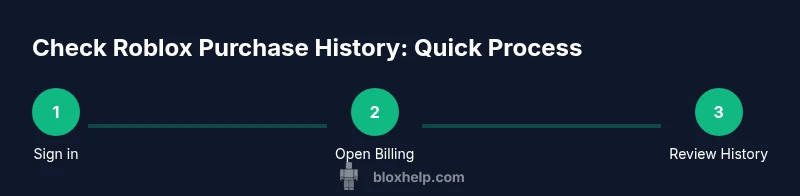
To check Roblox purchase history, sign in to your Roblox account and open Settings. Go to Billing or Transaction History to view recent charges, item details, and dates. On mobile, review receipts in your device’s App Store or Google Play account for Roblox transactions. This quick check helps verify charges and locate refunds or disputed purchases.
What qualifies as a Roblox purchase history and why it's useful
Your Roblox purchase history is a record of all charged transactions tied to your account. It includes Robux top-ups, game passes, avatar items, bundles, and creator-made content you actually purchased. The history is useful for budgeting, spotting unauthorized charges, and confirming refunds. For developers, it helps track in-app purchases during testing and ensures players are charged correctly. When you say how to check roblox purchase history, you’ll be looking at dates, item names, amounts, and payment methods. If you routinely monitor history, you can quickly identify duplicate charges, missed refunds, or charges related to shared devices. In short, a clear history helps you stay in control of spending, prevent fraud, and resolve disputes faster.
Desktop: How to check your Roblox purchase history on a computer
On desktop, the most reliable place to review purchases is through your Roblox account Settings. Sign in, click your avatar in the top-right corner, then open Settings. Look for a Billing or Transaction History tab. There you’ll see a list of recent charges with dates, item names, and dollar amounts. You can usually filter by date range and, in many cases, download or email receipts for records. If a charge is missing or unclear, refresh the page, sign out and back in, or try a different browser. This desktop path is the cornerstone of how to check roblox purchase history and is the same route players use to audit purchases.
Tips: use a secure browser, enable two-factor authentication, and verify your current billing country.
Mobile: Checking purchase history on iOS and Android
On mobile, you’ll typically review receipts through your device’s App Store or Google Play purchase history, since some Roblox transactions route through the platform stores. In the Roblox app, access Settings > Billing or Transaction History when available. For Shop purchases charged via the device store, open App Store or Google Play to view Roblox charges. This cross-check helps confirm what happened and whether a refund is appropriate. Note: receipts may appear under different names; look for Roblox or ROBLOX CORPORATION charges.
Interpreting your history: common charges, duplicates, and refunds
Your purchase history may include Robux top-ups, game passes, avatar items, and creator-published content. Look for duplicate charges, failed transactions, or items you didn’t intend to buy. If you notice a charge you don’t recognize, gather the transaction date, amount, and order id if shown, then compare with email receipts. Discrepancies are common when multiple devices are used or when a payment method is shared.
Refunds and disputes: how to request help
Roblox refunds are handled through official Support channels. If you find an erroneous charge, submit a refund request with the transaction details and any receipts you have. Provide your account username, the date, amount, and item description. While refunds aren’t guaranteed, Roblox Support will review the case and communicate outcomes. Always use the official Help form to start the process.
Authority sources
- Apple Support: https://support.apple.com/en-us/HT204088
- Google Play Help: https://support.google.com/googleplay/answer/113127?hl=en
- FTC Online Shopping and Security: https://www.ftc.gov
Tools & Materials
- Roblox account login(You must be able to sign in to access history)
- Access to linked email receipts(For cross-checking purchases and refunds)
- A device with internet access (desktop or mobile)(Used to view History and receipts)
- Receipts or order numbers (if available)(Helpful when disputing a charge)
- Browser or Roblox app up to date(Ensures UI elements load correctly)
Steps
Estimated time: 15-25 minutes
- 1
Sign in to Roblox and open Settings
Log into your Roblox account from a trusted device. Access your profile menu and choose Settings to begin auditing purchases. This prevents misinterpretation of data and ensures you’re viewing the correct account.
Tip: Use a device you control and enable two-factor authentication for extra protection. - 2
Navigate to Billing or Transaction History
Within Settings, locate the Billing or Transaction History section. This is the central hub where Roblox lists recent charges, item names, dates, and payment methods.
Tip: If you don’t see history immediately, try a hard refresh or switching between desktop and mobile views. - 3
Review the list of purchases
Scan the entries for Robux top-ups, game passes, avatars, and bundles. Note any unfamiliar items and verify dates and amounts against your receipts.
Tip: Use date filters if available to narrow down entries during a suspected timeframe. - 4
Cross-check with email receipts
Match each history entry with the receipts in your registered email or device store receipts. Look for discrepancies in item descriptions or charges.
Tip: Keep a manual log or export receipts for long-term record-keeping. - 5
Identify suspicious or duplicated charges
Flag anything you don’t recognize or charges that appear more than once. Shared devices or family accounts can trigger duplications you didn’t intend.
Tip: Document the charge details and prepare to contact Roblox Support if needed. - 6
Submit a refund or dispute request
If a charge is erroneous, open the official Help form and provide your username, date, amount, item description, and any supporting receipts. You’ll receive a response with next steps.
Tip: Include all relevant information to speed up the review.
Questions & Answers
Where can I find Roblox purchase history on desktop?
On desktop, sign in to Roblox, go to Settings, and select Billing or Transaction History to view charges with dates and item details.
Sign in to Roblox, open Settings, then Billing or Transaction History to view charges.
How do I view in-app or mobile purchases?
For mobile, check receipts in your device's App Store or Google Play account. Roblox transactions may also appear in the Roblox app if supported.
Check your device store receipts for Roblox charges and compare with in-app history.
What should I do if I see a charge I don't recognize?
Gather the date, amount, and any order IDs. Compare with receipts and contact Roblox Support if the charge remains unexplained.
If a charge is unrecognized, note the details and contact Roblox Support.
Do refunds apply to Robux purchases?
Refund policies vary by case. You can submit a refund request through Roblox Help with transaction details and receipts.
Refunds are case driven; you can request one via Roblox Help with your details.
Can I export or download my purchase history?
Roblox does not have a built-in export feature in every version; you can still save receipts or copy entries for records.
Receipts and manual notes are the practical alternatives to exporting history.
What if I share a device with family members?
Purchases may reflect activity from others using the same account. Review all entries and set up separate accounts or enable purchase alerts.
Shared devices can cause unfamiliar charges; review and secure accounts.
Watch Video
The Essentials
- Sign in and access Billing history on desktop or mobile
- Cross-check entries with email receipts for accuracy
- Flag unfamiliar charges and initiate refunds when appropriate
- Enhance security with 2FA and purchase alerts
- Keep organized records for future disputes