Avatar Editor Roblox: Complete Guide to Customizing Your Roblox Avatar
Learn to use Roblox's Avatar Editor to customize your avatar, save outfits, and test looks across games. Step-by-step guide by Blox Help.


By the end, you’ll master Roblox’s built-in Avatar Editor to customize your character—from body proportions and skin tone to clothes, hats, and accessories. You’ll learn how to save outfits, switch between looks quickly, and test your avatar across games. You’ll need a Roblox account, an internet connection, and a compatible device (PC, mobile, or tablet).
Roblox Avatar Editor: What It Is and Why It Matters
According to Blox Help, the Roblox Avatar Editor is the primary tool players use to tailor their in-game appearance. Whether you want a bold, funky look or a subtle, polished avatar, this editor consolidates all customization options in one place. Understanding its layout and capabilities unlocks faster experiments, creative expression, and consistency across experiences. Avatar customization is more than aesthetics—it's a form of identity within Roblox’s social ecosystem.
Getting Started: Prerequisites and Setup
Before you dive into customization, ensure you have a valid Roblox account and a stable internet connection. Launch Roblox on your preferred device (PC, mobile, or tablet) and sign in. Navigate to the Avatar Editor from the main menu or your profile, and confirm that you’re in the latest app version to access the full suite of features. If you’re new, consider starting with a simple base avatar to learn the controls without feeling overwhelmed. As you grow, you can layer in outfits, accessories, and body settings. The goal is to establish a baseline that you can build on across sessions. Throughout this guide we’ll reference the avatar editor roblox workflow, keeping things practical and beginner-friendly.
Navigating the Interface: Panels and Options
The avatar editor interface is organized into sections: Body, Outfits, Accessories, and Emotes. The Body tab lets you adjust proportions, skin tone, and facial features. The Outfits tab stores saved looks; use it to switch between ensembles with a tap. Accessories covers hats, glasses, backpacks, and more. Emotes offer pose options that can complete a look for photos or videos. A key tip is to experiment with layering pieces—sometimes a simple hat plus a bold shirt creates a striking silhouette. Remember to test changes in preview before applying them in a game. The avatar editor roblox experience is designed to be intuitive, but taking time to explore each panel yields better long-term results.
Creating and Saving Outfits
Creating outfits starts with selecting a base body and then adding clothing, accessories, and accessories. Use the color picker and texture options to customize fabrics and hues. When you reach a look you love, save it with a memorable name and description. Saving outfits is invaluable for switching styles quickly during gameplay or streaming sessions. It also helps you maintain a consistent brand across experiences. If you’re collaborating with friends, consider sharing outfit ideas and naming conventions to keep everyone aligned. Through the avatar editor roblox workflow, outfits become the building blocks of your Roblox identity.
Testing Your Avatar Across Games and Platforms
After saving a few outfits, load them in different Roblox experiences to verify compatibility and visual consistency. Some games apply lighting or shaders differently, which can alter how colors appear. If you notice mismatches, tweak lighting or choose alternative pieces that read well under various shaders. On mobile, you may have slightly different UI navigation—practice the steps until you’re fluent across devices. The goal is a reliable, repeatable process so your look remains recognizable whether you’re on PC, iPad, or Android. This cross-game testing is part of an effective avatar editor roblox routine.
Common Mistakes and How to Avoid Them
Common pitfalls include overloading a look with many pieces, which can obscure silhouettes and slow menu navigation. Another mistake is neglecting to save multiple outfits, forcing you to recreate looks from scratch. Some items are restricted by availability or price; plan your wardrobe with budget in mind. Finally, never ignore preview modes—view your avatar under different lighting to ensure your colors and textures read well in all contexts. By avoiding these missteps, you’ll maximize the impact of your avatar editor roblox efforts.
Verdict: Best Practices and Final Tips
The Blox Help team recommends building a small, well-curated wardrobe first, then expanding with themed outfits for special occasions. Prioritize readability and balance—bold accessories work best when paired with complementary clothing. Regularly clean up unused outfits to keep your collection manageable. The avatar editor roblox workflow should be fun and iterative: test, save, share, and refine. The Blox Help team’s verdict is clear: consistency across experiences enhances your presence in Roblox communities and makes customization more rewarding.
Bonus: Quick-Checklist for Your Avatar Setup
- Define 3 core looks you want for daily play, events, and creator videos.
- Save each look with a descriptive name and a short note.
- Test outfits in at least two different games to verify appearance under varying lighting and shaders.
- Review your inventory for item costs and availability to plan future purchases.
Tools & Materials
- Roblox account(Use an active account; enable two-factor authentication if possible.)
- Stable internet connection(A reliable connection helps prevent loss of edits or saves.)
- Device with Roblox access(PC, Mac, iOS, Android, or tablet; ensure the app is up to date.)
- Notebook or notes app(Record outfit ideas, naming conventions, and color schemes.)
- Screenshot/clip tool(Capture before-and-after looks for sharing or tutorials.)
Steps
Estimated time: 60-90 minutes
- 1
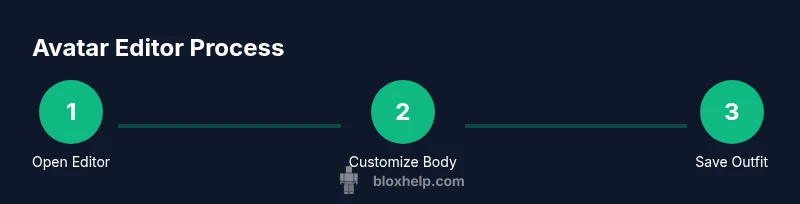
Open Roblox and access the Avatar Editor
Sign in to your Roblox account, open the main menu, and pick Edit Avatar to load the Avatar Editor interface. This is where you’ll start your customization journey.
Tip: If you don’t see the option, check for app updates or switch from the classic to the new Avatar Editor view. - 2
Choose a base body and skin tone
In the Body tab, select a base silhouette and adjust skin tone, eye color, and facial features. Small tweaks can dramatically change your overall look.
Tip: Begin with a neutral base to understand how color and lighting affect appearance. - 3
Add clothing and accessories
Browse tops, bottoms, hats, glasses, and backpacks. Try combinations and use the color picker to harmonize tones across pieces.
Tip: Layer items in logical order (base clothing first, then accessories) to keep silhouettes clean. - 4
Save a Look as an Outfit
When you’re happy with the combination, save it as a named outfit in the Outfits tab. Include a brief note on when you’d wear it.
Tip: Use clear names like “Casual Daily” or “Event Glow” for quick recall. - 5
Test the outfit in-game preview
Use the preview feature or join a game to see how the outfit reads under different lighting. Adjust if colors appear washed or oversaturated.
Tip: Check both bright and dim lighting to ensure readability. - 6
Create additional coordinated looks
Develop 2–3 complementary outfits for varying moods and events. This keeps your Roblox identity fresh without overhauling your entire wardrobe.
Tip: Maintain a consistent color palette across outfits for brand cohesion. - 7
Organize and back up your outfits
Back up saved outfits to cloud storage or a local note to avoid losing edits. Regularly prune outdated looks to maintain clarity.
Tip: Periodically review saved outfits and delete ones that no longer fit your style.
Questions & Answers
How do I access the Avatar Editor in Roblox?
Sign in to Roblox, open the main menu, and select Avatar Editor or Edit Avatar to open the customization panels.
Sign in, open the menu, and pick Avatar Editor to start customizing.
Can I apply outfits across different Roblox games?
Yes. Saved outfits are stored in your profile and can be used in any game that supports avatar customization. Some items may look different under various lighting.
Yes, saved outfits work across games, though lighting and shaders can affect appearance.
What should I do if an item isn’t showing after purchase?
Refresh the Avatar Editor, check your inventory, and ensure you’re signed into the correct account. If the item is limited, it may take time to appear.
Refresh, check inventory, and confirm you’re using the right account.
Are there risks with third-party outfits or mods?
Stick to Roblox-approved items from the catalog to avoid scams or security risks. Avoid downloading external mods or files.
Only use items from Roblox-verified sources to stay safe.
How can I preview outfits before saving?
Use the in-editor preview to see how changes look under different lighting before saving.
Preview changes in editor to ensure you like the look before saving.
Watch Video
The Essentials
- Save multiple outfits for quick swaps
- Test outfits in multiple games to ensure consistency
- Balance bold pieces with simpler basics
- Keep a tidy, organized wardrobe for faster changes