How to Make a Private Server on Roblox: A Step-by-Step Guide
Learn how to create a Roblox private server (VIP server) for your games. This beginner-friendly guide covers prerequisites, costs, setup, invitations, and safety tips.


A Roblox private server (VIP server) lets you host a game with invited friends only. Most games offer VIP servers for a per-game Robux price, and setup is done from the game page. You’ll need a compatible game, access to the private server option, and a way to invite players. This guide walks you through prerequisites, steps, and safety considerations.
What a Roblox private server is and who can use it
A Roblox private server, often referred to as a VIP server for a specific game, provides a player group with a dedicated game instance. This means you and your invited friends can play together without public players joining mid-session. Not every game supports private servers; the game developer decides whether to offer this feature and sets the price or access rules. According to Blox Help, the goal of a private server is to give you control over who joins, when they join, and how long the session lasts. If you’re new to Roblox, picture a private server as your own game room tied to a particular title.
Prices and access mechanics vary by game. Some titles offer free private servers with limited slots, while others require Robux purchases or a one-time fee. Always look for a dedicated Private Server tab on the game page, read the developer’s notes, and verify how many players can join and for how long.
For a safe and smooth experience, confirm server ownership and the server name before inviting teammates, and keep a private link to prevent unintended joins.
Prerequisites and safety basics
Before attempting to create a private server, ensure your account is in good standing and secured. Enable two-factor authentication (2FA) and keep an updated email on file for account recovery. You should also verify that you’re on the official Roblox site or app, as phishing attempts can mimic the private server flow. Not all users will have access to private servers in every game; sometimes developers restrict VIP servers to players with specific subscriptions or in-game purchases. If a game requires Robux to unlock Private Server access, prepare the correct amount or understand the per-game pricing.
When you’re ready to proceed, check the game’s Private Server tab for the exact steps, costs, and limits. If you’re working with children or a classroom setting, enable parental controls and set expectations about invitations, session length, and the types of activities allowed in the private server.
How VIP servers differ by game and what you can customize
VIP server options vary a lot from game to game. Some titles let you rename the private server, add a short description, and control basic server settings like max players, privacy of the invite link, and whether players can join via a direct invite or a public list. Other games might offer fewer customization options, focusing mainly on who can join and when.
Always review the game’s settings to understand what you can customize. In many cases, you can manage who has access by inviting them directly, sharing an invite link, or using a whitelist. It’s common to see limits such as a maximum number of players and a time window for active sessions. If the game supports it, you can also moderate chat, disable voice, or set rules for pre-match lobbies.
If you plan a recurring event, consider creating a consistent server label (name and description) so teammates recognize your group and avoid confusion with other VIP servers for the same game.
Costs, ownership, and access: understanding the purchasing process
Prices for private servers are not universal; they’re set by the game developer and paid in Robux, not with real currency directly. The cost can be a one-time fee or a recurring price tied to the server’s active status. Some games require that you own a Private Server to access the feature, while others allow temporary access through a time-limited purchase. Always check the exact amount of Robux required and understand whether the cost applies per session, per month, or per game installation.
Ownership can also vary. In some games, the “owner” is whoever purchased the server, and they can assign co-host roles or delegate invitations. In others, the server is owned by the player who creates it but cannot be transferred. If you’re hosting a club or classroom session, set clear rules about ownership and what happens if the owner is unavailable.
If you sit out a purchase, you might still join someone else’s private server by invitation, but you won’t be able to create your own unless you acquire access through the game’s system. Always read the developer’s terms for the specific game you’re targeting, because private server terms can differ widely across titles.
Planning invites and managing your server
Invite management is a core part of running a private server. After creating the server, generate an invite link or select specific players from your Friends list. Share the invitation securely—avoid posting the link publicly to prevent unwanted guests. In some games, you can limit joiners to friends only or to players you approve, while other titles let you customize a whitelist.
Plan your session window and communicate expectations ahead of time: start time, duration, allowed activities, and chat guidelines. As host, you may need to kick problematic players or reset the server if someone disrupts the game. If you’re running a recurring event, consider creating a consistent naming scheme and a calendar invite that includes the server link and joining instructions.
Finally, monitor performance. If a server is lagging or hitting cap limits, you may need to adjust the max player setting or stagger invites to maintain a smooth experience for everyone.
Safety, privacy, and account protection when hosting a private server
Hosting a private server means you’re responsible for who joins and how the space is used. Use a strong Roblox password and enable 2FA to protect your host account. Do not share your invite links with people you don’t trust, and regularly review the server’s participant list. If a participant behaves inappropriately, use the platform’s reporting tools and remove them from your server. Be mindful of sharing personal information; private servers should be treated like a closed group, not a public chatroom.
For younger players, enable restrictions and parental controls on the device hosting the server. Explain the rules ahead of time and establish a clear protocol for dealing with conflicts, muting disruptive players, and ending sessions when needed. Finally, respect the game developer’s terms of service; private servers are a privilege that can be revoked if guidelines are violated.
Common pitfalls and how to avoid them
A few frequent mistakes can derail a private server setup. First, assume every game supports VIP servers; always verify on the game’s page. Second, mismanaging invites can lead to uninvited players joining; use secure invites and restrict access where possible. Third, neglecting safety settings can expose players to unwanted content or abuse; enable moderation tools and keep conversations age-appropriate. Fourth, failing to account for runtime costs can result in an unexpected Robux deduction; track your Robux balance and set a cap for sessions. Finally, not testing with a real user before a bigger event can reveal problems too late; run a mini-test with a friend to confirm invites, join flow, and server performance.
Tools & Materials
- Roblox account(Must be verified; enabling 2FA is recommended to improve security)
- Game that supports private servers(Check the game page for VIP server availability and price)
- Robux balance(Private servers usually require Robux; ensure you have enough for the purchase)
- Stable internet connection(A reliable connection helps prevent drops during hosting)
- Invites/communication plan(Prepare how you’ll share invites (secure link, do not post publicly))
Steps
Estimated time: 15-30 minutes
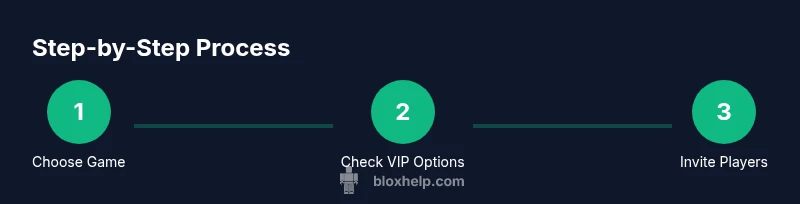
- 1
Open the game page that supports private servers
Navigate to the Roblox game you want to host. Look for a Private Server tab or a VIP Server option. If you don’t see it, the game may not support private servers or you may need to meet additional requirements. Confirm with the game page notes.
Tip: If you can’t find the option, check the game’s developer notes or FAQ; some titles restrict VIP servers to certain regions or accounts. - 2
Check price and access terms
Review the cost in Robux and understand whether the server is a one-time purchase or renews periodically. Some games require you to own credits or a special pass before you can create a server.
Tip: Make a quick calculation: Robux cost × sessions per month × expected hosting period to estimate ongoing costs. - 3
Create or purchase the private server
Click the create/purchase button and follow the prompts to name your server and select basic privacy settings. Payment will complete within Roblox’s standard flow, and your server will be created with the owner you designate.
Tip: Keep the server name concise and clear so teammates recognize it quickly in lists. - 4
Configure access and invites
Set who can join (friends only, whitelist, or invite-only) and generate an invitation link if the game supports it. Decide whether joining requires owner approval and ensure you have a process for handling late joiners.
Tip: Test the invite flow with a trusted friend before a larger event. - 5
Share invites and set expectations
Distribute the invite link to your players and outline rules, session length, and any in-game guidelines. Encourage participants to verify the server name and owner to avoid confusion with other VIP servers.
Tip: Provide a short etiquette guide to prevent disruptive behavior during the session. - 6
Host and monitor the session
Start playing with invited players and monitor performance. If the server lags or capacity is reached, pause invites and adjust settings or time windows accordingly.
Tip: Keep a backup plan in case the server becomes unstable or a moderator is needed. - 7
Manage the server after the session
End the session, review feedback, and decide whether to renew or adjust server settings for next time. If you’re done, you can close the server or let it quietly expire depending on the game’s policies.
Tip: Document what worked well and what didn’t for future sessions. - 8
Evaluate safety and policy compliance
Periodically review who has access, what content is shared, and whether you’re following Roblox’s terms of service and the game developer’s rules. Update privacy and moderation settings as needed.
Tip: Regularly audit the invite list to keep the server secure.
Questions & Answers
Do I need Roblox Premium to create a private server?
Some private servers require a game-based purchase rather than a separate Premium subscription. Check the specific game's requirements on its page. If Premium is needed for other features, ensure your account supports the service before attempting setup.
Some games require a per-game purchase to host a private server rather than Roblox Premium; check the game page for exact rules.
How much does it cost to create a private server for a game?
Costs vary by game and are set by the game developer. It’s usually a Robux amount charged per server creation or per active session. Always review the price on the game page before proceeding.
Costs vary by game and are set by the developer; check the game page for exact Robux amounts.
Can I transfer ownership of a private server to someone else?
Ownership transfer rules differ by game. Some titles allow transferring ownership or co-host roles, while others lock ownership to the original purchaser. Check the game’s settings and developer notes for specifics.
Ownership transfer rules depend on the game; review the game's settings to see if you can reassign the server.
Can players without Roblox accounts join my private server?
Typically, joiners must have active Roblox accounts. Some games allow guests or temporary access in special modes, but this is not common. Verify join requirements for your chosen title.
Generally, joining requires a Roblox account; check the game’s join policy for exceptions.
What should I do if the private server stops responding or reaches capacity?
Pause new invites, scale down the player cap if possible, and test the connection stability. If issues persist, end the session and re-test with a smaller group or try a different time window.
If it’s lagging, stop inviting new players and test with fewer participants; try again later.
Is a private server safe for younger players?
Use built-in parental controls, restrict chat where appropriate, and supervise activity. Establish clear rules and an easy reporting method for any issues.
Yes, with proper safety settings and parental controls, private servers can be safe for younger players.
The Essentials
- Understand game-specific VIP server availability and costs
- Secure your host account with 2FA and strong password
- Plan invites and session rules before hosting
- Monitor server performance and adjust as needed
- Follow Roblox terms and game rules to maintain access