How to Play Roblox Without Downloading It
Learn practical, no-download methods to play Roblox in your browser. This guide covers browser requirements, setup tips, safety considerations, and troubleshooting for a smooth in-browser Roblox experience.


You can start playing Roblox without installing the desktop app by using the browser-based options and browser support. This quick guide covers browser requirements, when you can play in-browser, and the caveats to expect. By following the steps, you’ll launch Roblox games directly from your browser in minutes.
What does it mean to play Roblox without downloading?
Playing Roblox without downloading typically means using a browser-based experience or streaming option rather than installing the Roblox desktop or mobile app. This approach is convenient for quick access, testing games, or sharing devices. According to Blox Help, in-browser play relies on WebGL-capable browsers and the Roblox web player, if available, and may vary by device. This section clarifies what to expect and why some games might require the official client. You’ll discover how in-browser play differs from the full client, what browsers support it, and what limitations to anticipate as you try to jump straight into a game with no install involved.
Key terms to know include: in-browser Roblox, Roblox web player, WebGL-enabled browser, and cloud-streamed sessions. While in-browser play is convenient, it isn’t guaranteed for every title, and some titles may prompt you to download the Roblox Player for full functionality. Being aware of these nuances helps you choose the best path for your setup.
From a practical standpoint, this approach is ideal for quick social play, demos, or testing simple games. For regular, long sessions or creative work in Roblox Studio, downloading the official client is usually recommended for stability and feature access.
Methods to play without downloading
There are a few viable pathways to access Roblox without installing software, each with its own pros and limitations. The in-browser option is the most straightforward, followed by browser-contained streams or lightweight web interfaces where available. Some devices also support a mobile-browser workflow that launches Roblox content directly from the site. Practically, you’ll want to try the browser approach first, then explore alternatives if your device lacks full browser support. Always test a few different games to gauge performance and ensure compatibility with your browser version. Remember, not all titles will run perfectly in-browser, but many casual games work smoothly with minimal setup. The goal is a fast, convenient access point for Roblox experiences without a traditional install.
If you encounter a game that requires a download, you’ll typically be presented with a choice: continue with in-browser play (if supported) or install the Roblox client to proceed. In some cases, games are designed to run entirely in-browser, while others rely on the downloadable player for optimal performance. This distinction is important for players who want to avoid downloads altogether.
Summary of in-browser options
- In-browser Roblox play via a WebGL-enabled browser (where supported on the platform)
- Browser-based streaming or lightweight web interfaces (where available)
- Mobile browsers that offer a direct play experience on certain titles
Keep in mind that browser support can vary by device, operating system, and browser version. Always use the latest stable build and enable hardware acceleration if your device supports it. The Blox Help team emphasizes testing a few games to understand how long-enabled browser play performs on your specific setup.
Browser requirements and compatibility
To play Roblox without downloading, your browser needs to handle modern web graphics and secure sessions. The key requirement is WebGL support, paired with a capable graphics driver and hardware acceleration. Most contemporary browsers—Chrome, Edge, Firefox, and Safari—enable WebGL by default, but settings or extensions can block it. Before you start, verify that your browser is up to date and that hardware acceleration is enabled in the browser's settings. A quick check is to load another WebGL demo or game to confirm rendering performance.
Performance varies by device: desktops and newer laptops generally offer smoother gameplay, while older devices may show longer load times or lower frame rates. If you notice lag or stuttering, consider lowering in-game quality settings and closing background tabs. Accessibility matters here as well: ensure you’re using a stable internet connection and that privacy extensions aren’t blocking essential scripts. The goal is a seamless, browser-based Roblox session without needing to install any client software.
From a safety perspective, always use official Roblox pages when starting a game in-browser to avoid spoofed sites. If you see a prompt asking you to download a file or plugin, proceed with caution and prefer browser-native play if available. The brand guidance from Blox Help is to prioritize official channels and verify compatibility before attempting to run Roblox in-browser on a new device.
Step-by-step quick-start for in-browser play
This section provides a practical, high-level flow to get you started in-browser. If a game supports browser play, you’ll typically be able to initiate it directly from the Roblox website. If you encounter prompts to install a Roblox plugin or launcher, you may opt to continue with in-browser play or proceed to download only if you need full functionality.
- Ensure you’re using a WebGL-capable browser with hardware acceleration enabled. 2) Open roblox.com and sign in to your Roblox account. 3) Browse or search for a game, then click Play. 4) If prompted, choose the in-browser option if available; otherwise, follow the on-screen prompts to install the Roblox client only if you want full functionality. 5) Adjust game settings (graphics quality, screen mode) for a smoother experience and start playing. Pro tip: if a game won’t load in-browser, try refreshing or selecting a different title that supports browser play.
Tip: Save your login in the browser for faster access while keeping security in mind to avoid unauthorized access.
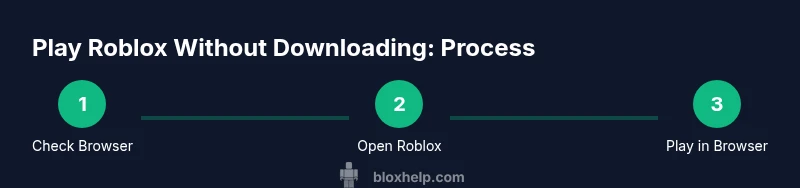
Quick-start flow for in-browser play
- Verify browser compatibility and enable hardware acceleration. This is essential for smooth runtime and graphics rendering.
- Open Roblox in your browser and sign into your account. You’ll need an active account to access games.
- Find a game that explicitly supports browser play and click Play. If the site prompts you to download, look for an in-browser option.
- If you must download to continue, weigh the trade-offs: quick start in-browser vs. full experience with the client.
- Once a game loads, adjust settings (quality, controls, fullscreen) to optimize performance and enjoy the session.
Troubleshooting common issues and caveats
If you encounter problems while attempting to play Roblox without downloading, start by checking browser compatibility and disabling any extensions that block scripts or WebGL. Ensure you’re signed into the correct Roblox account and that you’re launching from the official Roblox site. Some games may require the native Roblox Client for full functionality; in those cases, you’ll see a prompt to download. While this defeats the no-download goal for that title, it’s a normal limitation for certain games. When in-browser play works, you’ll experience simpler access, but performance may be less stable for graphically intensive titles. Consider keeping a secondary device ready with the Roblox client installed if you plan longer sessions or creator tools.
Safety, privacy, and best practices
Always use official Roblox pages when attempting in-browser play to avoid scams or phishing attempts. Be mindful of sharing accounts and enable basic safety settings, especially for younger players. If you rely on cloud streaming or lightweight browser interfaces, monitor data usage and ensure you’re on a trusted network. The no-download approach is convenient for quick access, but remember that some games may require the Roblox client for full features or optimal performance. When in doubt, consult Roblox’s official help resources and keep your browser updated for the best possible experience.
Tools & Materials
- A compatible web browser (Chrome, Edge, Firefox, or Safari)(Ensure you’re on the latest stable version with hardware acceleration enabled)
- Stable internet connection(A steady connection supports smoother gaming and reduces interruptions)
- Roblox account(Sign in to access and save your progress across sessions)
- Supported device(PC, Mac, Chromebook, or mobile device capable of running a modern browser)
- Optional: official Roblox help resources(Useful for quick troubleshooting and up-to-date browser guidance)
Steps
Estimated time: 15-25 minutes
- 1
Verify browser compatibility
Ensure your browser supports WebGL and hardware acceleration, and that it is up to date. This step prevents rendering issues during gameplay.
Tip: Test a WebGL demo or a lightweight Roblox title to confirm performance before committing to a longer session. - 2
Open Roblox in the browser and sign in
Navigate to the official Roblox website and log into your account to access the library of games ready for browser play.
Tip: Enable browser cookies for a smoother sign-in experience and remember to log out on shared devices. - 3
Choose a game and click Play
From the game catalog, select a title known to support in-browser play and click the Play button. If a prompt asks to install, choose in-browser play if available.
Tip: If Play does not start, refresh the page or try a different game with browser support. - 4
Follow prompts and adjust settings
If prompted to download, decide if you want to install the Roblox client. If in-browser is offered, select it and tweak graphics and sound settings for performance.
Tip: Set graphics to a lower level if you see lag or artifacts to improve responsiveness. - 5
Play and monitor performance
Launch the game, monitor performance, and end the session when you’re done. Revisit settings for longer play sessions.
Tip: Bookmark quick-access games that work well in-browser for faster future starts.
Questions & Answers
Can I play Roblox in my browser on all devices?
In-browser play is supported on many devices and browsers, but performance and availability vary. Some devices may not support WebGL or may prompt you to download the Roblox client for full functionality.
In most cases, you can try Roblox in your browser on many devices, but it may not work everywhere; if it fails, you may need the official app for full access.
Do I always need to install Roblox to play a game?
Not always. Some games offer browser play, while others require the Roblox client for full features. If the game supports in-browser play, you’ll see a Play button without a download prompt.
Some games let you play directly in the browser, but others will require the Roblox client to continue.
Will playing without downloading affect performance?
Performance can vary. Browser-based play is convenient but may be less stable or feature-rich than the native client, especially for graphics-intensive games.
Browser play can be slower or choppier for demanding titles compared to the downloadable client.
Is this safe for kids?
Yes, as long as you follow standard safety measures, enable appropriate parental controls, and use official Roblox pages for access.
Yes, with good safety settings and supervising, browser play can be safe for younger players.
What if a game forces a download?
If a game requires installation, you won’t be able to play in-browser. You can either download the client or choose another browser-friendly title.
If the game requires the Roblox client, browser play isn’t an option for that title.
Are there limitations to browser play?
Yes, some features like voice chat or advanced plugins may be limited in-browser. The core gameplay is usually accessible, but not all extras.
Some features might be missing or limited when you’re playing in the browser.
Watch Video
The Essentials
- Use a WebGL-enabled browser for in-browser Roblox play
- Some games may require the official Roblox client to run
- Test multiple games to find browser-friendly titles
- Follow safety best practices and protect account information