How to Play Roblox Without the App
Learn how to access Roblox games without the dedicated app, including platform realities, browser limitations, and safe alternatives. A thorough, beginner-friendly guide from Blox Help for Roblox players and aspiring developers.


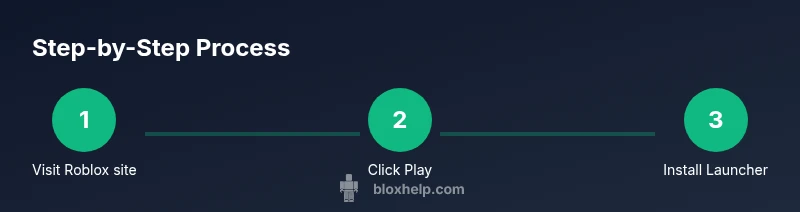
You can’t fully play Roblox in a browser on most platforms because Roblox games run via the Roblox Player. Start at roblox.com, sign in, and click Play to trigger the download/install flow. On desktop, you’ll install the Roblox client; on mobile and tablets, use the official Roblox app. This guide explains alternatives and the official requirements.
What playing Roblox without the app really means
For many players, the question how to play roblox without the app boils down to browser access versus the native Roblox client. In reality, Roblox titles run through a launcher, not a pure browser game. That launcher is part of the Roblox Player on desktop or the Roblox app on mobile. The difference matters for performance, latency, and safety. According to Blox Help, desktop players typically begin on roblox.com, then the system prompts a download and installation flow. Once installed, you’ll launch the Roblox Player to join any game, and your progress remains the same across devices. Browsing games in a browser is useful, but starting playback relies on the Roblox client. This distinction is essential for planning your session and avoiding frustration when a title won’t launch directly from a tab.
Desktop reality: PC and Mac workflows
On Windows and macOS, Roblox is not truly a browser game; the game runs via a small client called Roblox Player. When you click Play on a game page, the browser prompts you to download and install the Roblox Launcher. After installation, launching a game starts the Roblox Player and loads the world. The key takeaway is that you cannot avoid installing the client for most titles. For speed, keep your browser updated and grant the installer the necessary permissions; ensure your antivirus isn’t blocking the Roblox installer. When done, you can tweak graphics and performance settings in the Roblox client to balance visuals and frame rates. The Blox Help team highlights that performance depends on your system and network stability.
Mobile reality: Why the app is required
On iOS and Android devices, Roblox runs as an app rather than a browser-based game. You can browse games on roblox.com, but starting playback will redirect you to the official app store to install the Roblox app. There is no supported browser-only mode for mobile play. After installation, log in with your Roblox account and press Play within a game page to launch the app. This approach preserves cross-device progress and ensures safety features like account verification and parental controls remain active across platforms.
Chrome OS and tablets: browser options
Chromebooks and tablets bring another mix of capabilities. Some Chromebooks support Android apps via Google Play, which allows installing the Roblox app and playing games directly. If your device doesn’t support the Android app, you can still browse roblox.com to discover games, but you won’t be able to run them without the Roblox launcher. In practice, the most reliable route on Chrome OS is to enable Play Store access and install the Roblox app, then launch titles through the app as you would on a phone. This keeps your experience consistent with other devices and avoids browser-only limitations.
How to legally access Roblox games without the app
If the goal is to minimize app usage, note that Roblox’ launcher is integral to running games on most platforms. You can view and read game pages in the browser and sign in from roblox.com, but attempting to play without the client will usually prompt you to install or launch the Roblox Player. There aren’t officially supported, fully browser-based play sessions on desktop or mobile. For a compliant experience, plan to install the necessary client on each platform you intend to use and maintain your login across devices for seamless progress syncing.
Network, performance, and safety considerations
Performance hinges on network stability, hardware, and software permissions. Use a wired or strong Wi‑Fi connection when possible, close bandwidth-heavy apps, and keep your operating system and browser up to date. Enable two-factor authentication for your Roblox account to reduce risk when using shared devices. Be cautious with third-party tools or wrappers that claim to bypass the app requirement; these can violate terms of service and compromise security. The official route remains the Roblox client or app, as this ensures updates, parental controls, and moderation features are functional.
Common pitfalls and troubleshooting
Many users encounter prompts that force a download when hitting Play from a game page. If the installer stalls, check your firewall, antivirus flags, and available disk space. If a game won’t launch after installation, restart the Roblox Player, try a different browser, or flush your DNS/cache. On mobile, verify you’re signed into the correct Roblox account and that the app has the necessary storage permissions. When in doubt, consult the Roblox support pages or your device’s app store listing for troubleshooting steps.
Authority sources for further reading
To deepen your understanding of browser and app requirements, consider these references:
- https://www.w3.org/TR/webgl/
- https://www.theverge.com
- https://www.bbc.co.uk
Tools & Materials
- Roblox-compatible device(PC or Mac; or Chromebook with Play Store support; ensure hardware meets minimum specs)
- Stable internet connection(Wired Ethernet preferred; if wireless, 5 GHz band with strong signal)
- Web browser with WebGL support(Latest Chrome/Edge/Safari; enable cookies and JS)
- Roblox account(Use a strong password; enable two-factor authentication)
- Roblox Launcher/Client(Install only via roblox.com prompts; avoid third-party installers)
- Roblox app (mobile or Chromebook via Play Store)(Install if you plan to play on mobile or Chrome OS with Play Store access)
Steps
Estimated time: 45-60 minutes
- 1
Verify device and browser compatibility
Check that your device meets the minimum hardware requirements and that your browser supports WebGL. Update the browser to the latest version and ensure you have a stable internet connection before you start.
Tip: Running a quick speed test helps set realistic expectations for launch times. - 2
Sign in on roblox.com and locate a game
Open roblox.com in your browser, sign in with your Roblox account, and browse a game you want to play. Use the search filters to find categories that match your device capabilities.
Tip: If you’re planning to play on desktop, pick a game with moderate graphics to reduce loading times. - 3
Click Play to trigger the installer
Click Play on the game page. If prompted, download the Roblox Launcher/Player. Follow the on-screen prompts to complete installation.
Tip: Allow the installer through your firewall and grant necessary permissions for smooth startup. - 4
Launch the game via the Roblox Client
After installation, the Roblox Player will launch and load the game world. Sign in if required, adjust settings for performance, and start playing.
Tip: In the Roblox client, set graphics to a balanced preset if you notice stuttering. - 5
Play on mobile or Chromebook (optional path)
If you’re using a mobile device or a Chromebook with Play Store access, install the official Roblox app from the store and sign in. Open the same game or search for it, then tap Play.
Tip: Regularly update the app to access new features and security fixes. - 6
Troubleshoot and optimize
If a game won’t launch, restart the Roblox Client, clear browser cache, and check your internet connection. Verify storage permissions on mobile and ensure the app has access to necessary resources.
Tip: Keep a backup plan: if a title won’t run, try another game with lower system requirements.
Questions & Answers
Can I play Roblox in a browser without downloading anything?
Roblox games rely on the Roblox Player; browsers can start the installer, but you will ultimately install the client to run games. There isn’t a fully browser-only option on desktop or mobile for most titles.
Roblox needs the Roblox Player or app to run games; browsers can guide you to install, but you’ll still install the client.
Is there a browser-only Roblox experience on Chromebooks?
Chromebooks can access Roblox games by using the Roblox app from the Play Store if available. Without the Android app, you’ll mostly browse games but won’t run them directly in the browser.
On Chromebooks, you typically need the Roblox app to play, though you can browse games in the browser.
What if I don’t want to install anything on my PC?
There isn’t a reliable, officially supported way to play Roblox on a PC without installing the Roblox client. Browsing is possible, but playback requires the launcher.
Play requires the Roblox client; browsing alone won’t run games.
Can I play Roblox on mobile without the app?
No. On mobile devices you must use the official Roblox app to run games. The site may show game details, but playback requires the app.
You need the Roblox app on mobile to play.
Do I need a Roblox account to play?
Yes. You need to sign in or create a Roblox account to access games and save progress across devices. A secure account helps protect your data.
Yes, an account is required to play and save progress.
Can I play Roblox without internet access?
Roblox requires an internet connection to sign in and load games. You can play only when connected to the Roblox servers; offline play isn’t supported.
Roblox needs an internet connection to play and save progress.
What about Chromebooks with Linux support?
Using Linux on a Chromebook is not officially supported for Roblox play. The recommended path remains the Roblox app via Play Store or a compatible Android environment.
Chromebook Linux setups aren’t officially supported for Roblox play.
Where can I find more help if needed?
Visit the Roblox Help Center and community forums for platform-specific tips and official guidance. The Blox Help team also provides tutorials and troubleshooting steps.
Check the Roblox Help Center and Blox Help tutorials for more help.
Watch Video
The Essentials
- Roblox requires the Roblox Player or app on most platforms
- Desktop play is not browser-only; you must install the client
- Mobile and Chromebook paths rely on the Roblox app
- Plan to install the client as a prerequisite